typescript installed but not showing typescript version
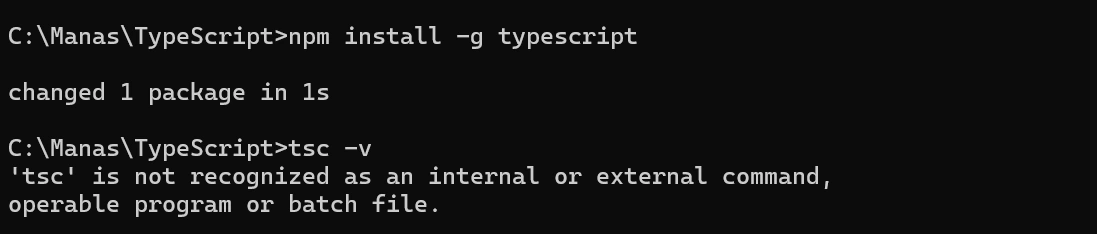
typescript installed but not showing typescript version
Know the answer? Post it — somebody with the same question will find it here.
Sign in to answer this question
It is the same account you read, post and publish with — and you will come straight back to this page.
Prasad RaveendranPosted Mar 16, 2025, 5:56 AM
f the issue persists, try reinstalling TypeScript:
PinkuPosted Mar 13, 2025, 11:08 AM
I uninstall and install again . why it is not working now
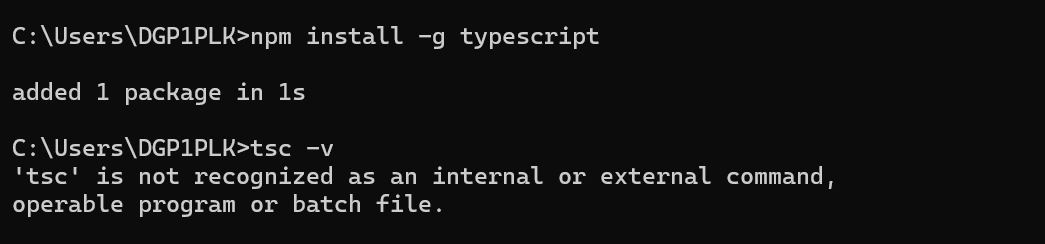
Sophia CarterPosted Mar 13, 2025, 10:56 AM
It appears that the screenshot you've shared indicates that TypeScript is installed, but it's not showing the TypeScript version information. This can happen due to a few reasons:
1. Check TypeScript Installation: You can verify if TypeScript is installed correctly by running `tsc -v` in your terminal. This command should display the installed TypeScript version globally.
2. Local vs. Global Installation: If you are working within a specific project, the TypeScript version could be installed locally within that project, and hence not globally visible. You can check the local TypeScript version by running `npx tsc -v`.
3. IDE Integration: IDEs like Visual Studio Code may also display TypeScript information. Make sure your IDE is properly configured to show TypeScript version details.
4. Package.json Information: Another way to check the TypeScript version for a specific project is by looking at the `package.json` file under `devDependencies` or `dependencies`.
Here's an example of how you can display TypeScript version in your project:
By following these steps, you should be able to determine the TypeScript version installed on your system or within a specific project. If you encounter any issues along the way, feel free to provide more details for further assistance.