
Introduction: The Custom activities are the units of work that are composed to produce workflow based functionality. In WF4, activities explicitly declare their inputs and outputs via arguments.
Step 1: Open Visual Studio and select the File option.
- Select New->Project->Workflow Console Application.
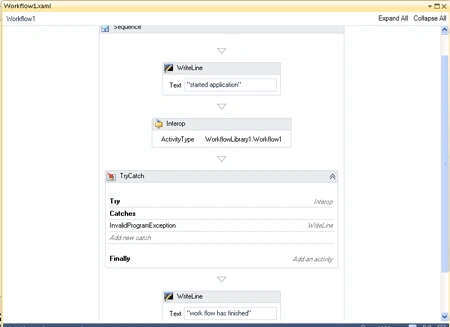
- Drag s Sequence activity and s WriteLine activity.
- Go to properties and write a Text "started application".
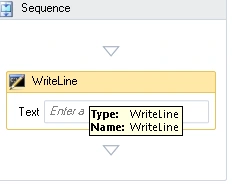
Let see how to create Sequential Workflow :
Step 2: Open Visual Studio 2010.
- Go to File->New->Project option.
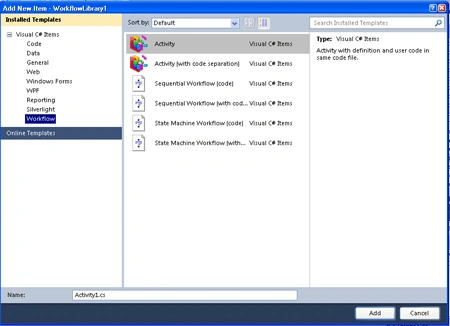
- Select Visual C#->Workflow->.NET Framework 3.5.
- Select Sequential Workflow Console Application.
- Click OK .
After creating the Application, the designer window look like this:
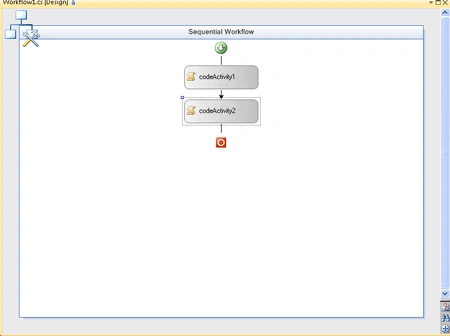
Step 3 : Add an activity from Toolbox for Workflow.
- Add a Code activity in Workflow.
- Double click in codeActivity1 and write the following code.
Code :
namespace
WorkflowLibrary1
{
public sealed
partial class
Workflow1 :
SequentialWorkflowActivity
{
public Workflow1()
{
InitializeComponent();
}
private void
codeActivity1_ExecuteCode(object sender,
EventArgs e)
{
Console.WriteLine("start
3.5 workflow");
}
private void
codeActivity2_ExecuteCode(object sender,
EventArgs e)
{
Console.WriteLine("finish
3.5 workflow");
}
}
}
Step 4 : Go to Workflow1.cs [Desaign]
drag another codeActivity and write the below code.
Code :
namespace
WorkflowLibrary1
{
public partial
class
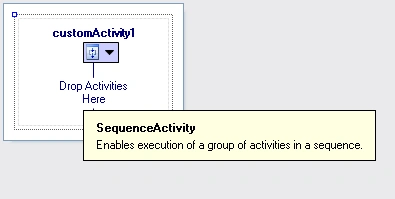
customActivity1 : SequenceActivity
{
public customActivity1()
{
InitializeComponent();
}
public static
DependencyProperty MessageProperty =
DependencyProperty.Register("Message",
typeo
(string), typeof(customActivity1));
[DescriptionAttribute("Message")]
[BrowsableAttribute(true)]
[DesignerSerializationVisibilityAttribute
(DesignerSerializationVisibility.Visible)]
public string
Message
{
Join the conversation! Your thoughts help the community grow.