

Description:
I have a custom List named Employee Details which contains the following columns
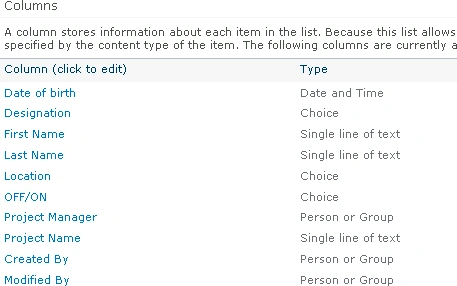
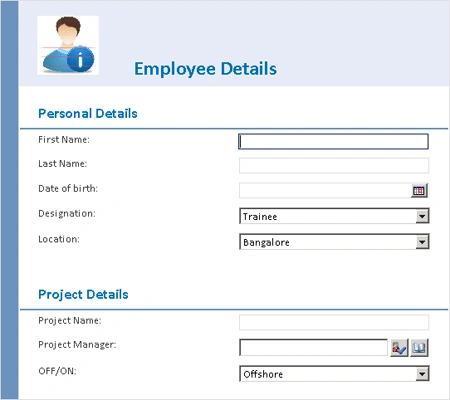
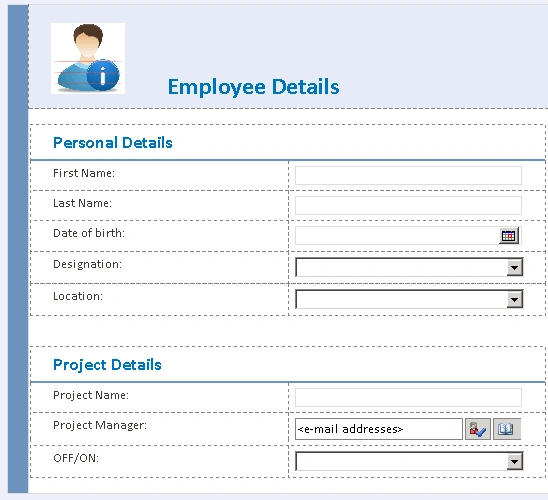
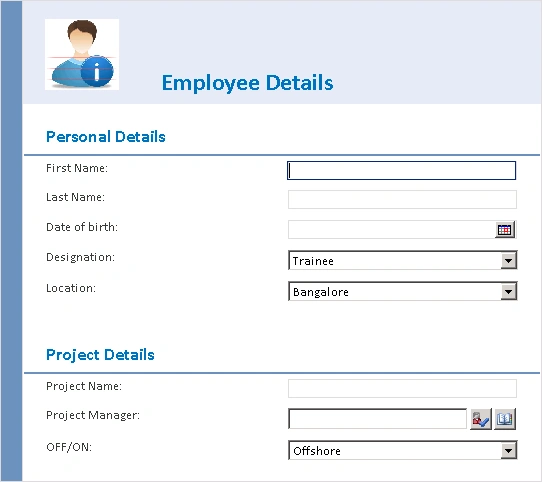
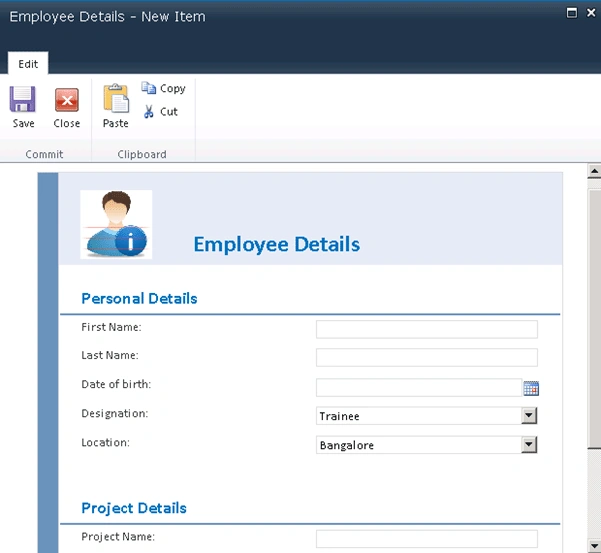
Here I am going to customize the list forms using InfoPath 2010 and the form
looks like the following
Customize SharePoint List Form:
- Go to Employee Details list.
- On the ribbon interface, click on List Tools and then click on List tab.
- Click on Customize Form which is available
in Customize List ribbon group.

- InfoPath form will be opened.
- Select all content in the form by pressing CTRL+A.
- Press Delete to delete all the content in the form.
Create Custom Layout:
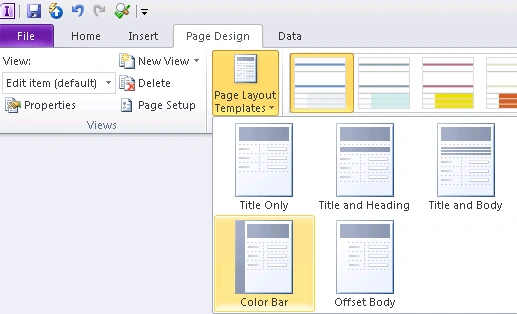
- On the Page Design tab, click Page Layout
Templates, and then click Color Bar as shown in the following
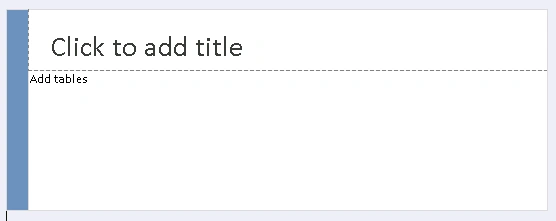
- The layout looks like the following
- Select the layout table, and then click the Center button on the Home tab of the ribbon.
- Click on Add tables placeholder text.
- On the Insert tab, click on Two - Column 2
table as shown in the following
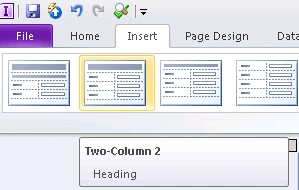
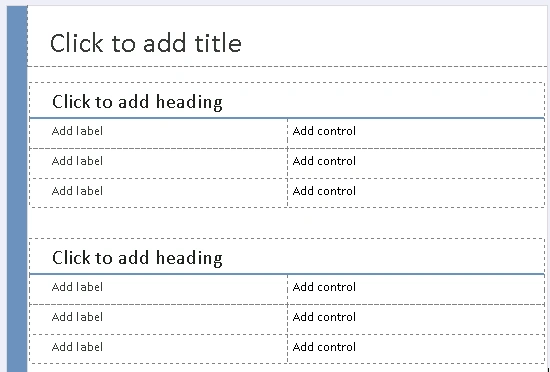
- Add one more Two - Column 2 table.
- The layout looks like the following
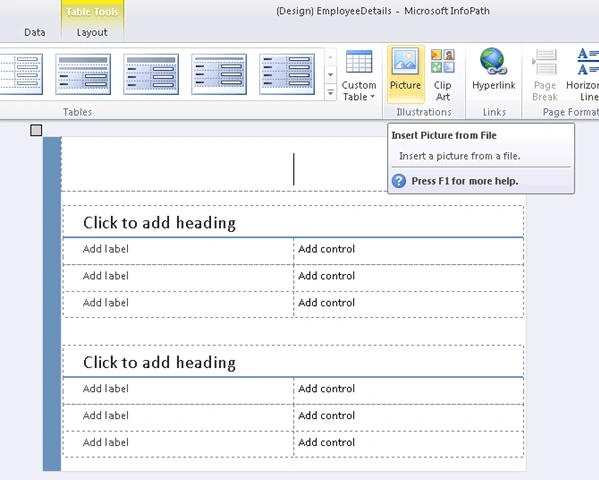
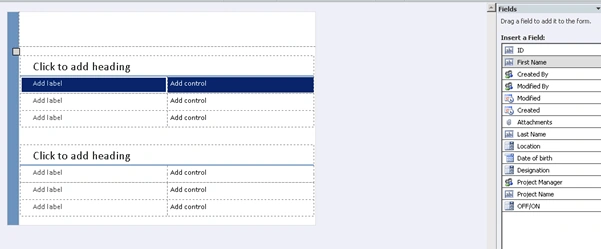
Add a header image to the form:


sateesh babuPosted Aug 24, 2011, 10:49 AM
Hi Vijai, I have seen your article on infopath and it looks good and helpful for me. I need some code/logic to be implemented in infopath after customization..i.e.we need to generate a predefined number(ex:starts from 5000 onwards) when user clicks save or submit button after entering the details and the number should be saved in a column(ex:request no) for search purpose. I appreciate if you could help me Thanks in Advance Sateesh Babu.
Sivaraman DhamodaranPosted Aug 22, 2011, 2:35 AM
You presented it Nicely Vijai. Keep it Up. If you add some more description on each step, your go even more nice.