

User Profile Service Application is used to synchronize the data from Active
Directory to SharePoint. User Profile data is maintained by the Profile
Database in SharePoint. the profile Database is used to store and manage users' information. In some scenarios you may require getting the data for the user
profile from an external system. Here you will see how to get the data for the user
profile from a SQL database using Business Data Connectivity services. Here I will
be creating some custom user properties and map those user properties to the
columns in the SQL database so that those user properties will get the values
from the external system SQL database using BCS.
SQL Server Database Details
I will be using a SQL Server database as an external data source from where the
data will be imported for the user profiles in SharePoint 2010. A database named
"BCS Database" is created in SQL Server which contains the following tables.
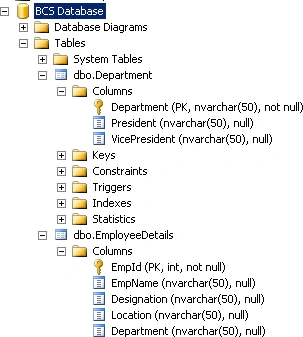
Figure : BCS Database in SQL Server
EmployeeDetails table:
EmployeeDetails table contains the following columns
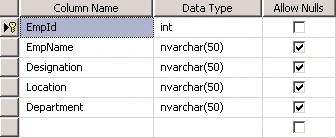
Figure : EmployeeDetails table column names and data types
EmployeeDetails table contains the following rows
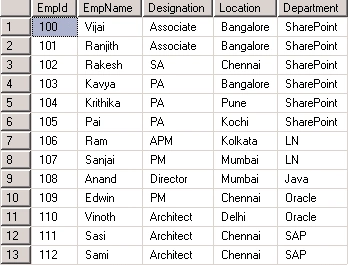
Figure : EmployeeDetails table rows
Create New User Properties
- Open Central Administration by going Start | All Programs | Microsoft SharePoint 2010 Products | SharePoint 2010 Central Administration.
- Click on Manage Service Application which
is available in Application Management section.
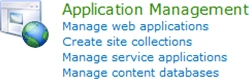
Figure: Application Management section in Central Administration
- Click on User Profile Service Application.
- Click on Manage User Properties in the
People section.
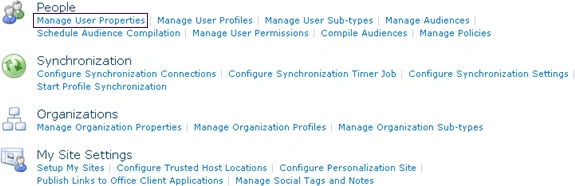
Figure: Manage User properties in People section
- Click on New Property.

Figure: New Property link
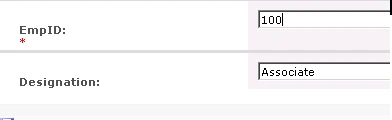
- Enter the Name as EmpID, Display Name as
EmpID and select integer from the Type dropdown as shown in Figure.
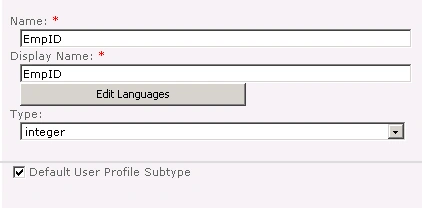
Figure: Enter the details for the new property EmpID
- Click on Ok.
- A new custom user property "EmpID" is created successfully and it will be available in Custom Properties section.
- Create another custom property named "Designation".
- Click on New Property.
- Enter the Name as Designation, Display Name as Designation and select string (Single Value) from the Type dropdown, as shown in Figure.
- Enter the Length value as 50 because in
the SQL EmployeeDetails table Designation column has a type nvarchar (50),
as shown in Figure.
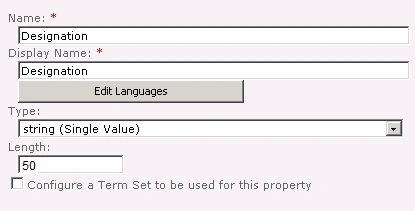
Figure: Enter the details for the new property Designation
- In the Policy Settings, select Optional
from the Policy Setting dropdown and select Everyone from Default Policy
Setting dropdown, as shown in Figure.
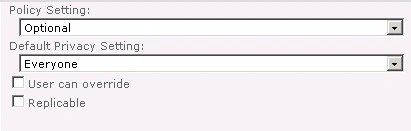
Figure: Policy Settings for Designation property
- Click on Ok.
- A new custom user property "Designation" is created successfully and it will be available in Custom Properties section.
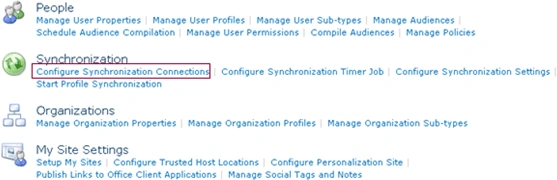
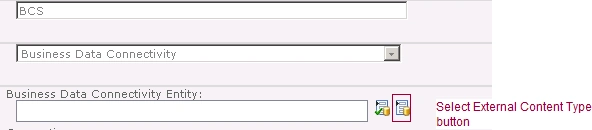
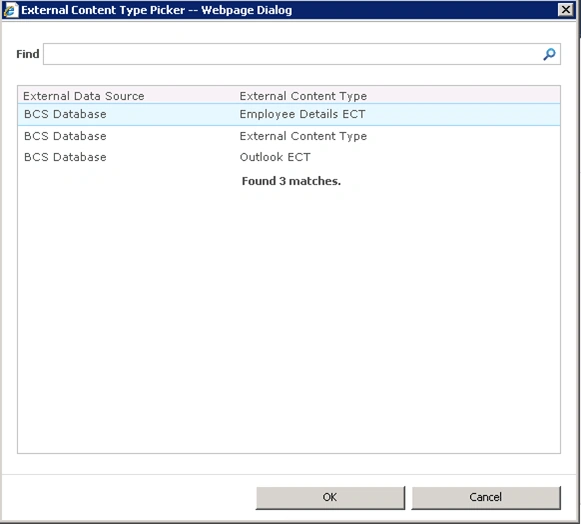
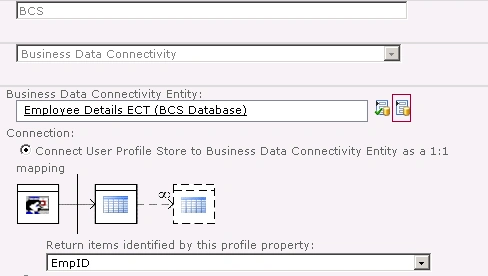
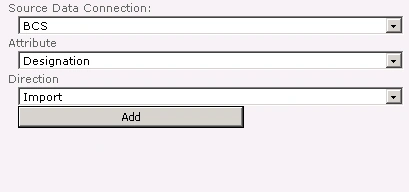
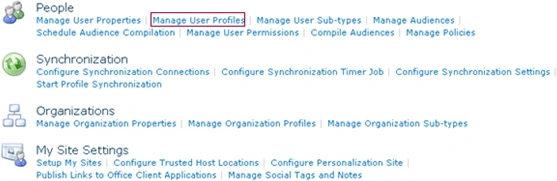
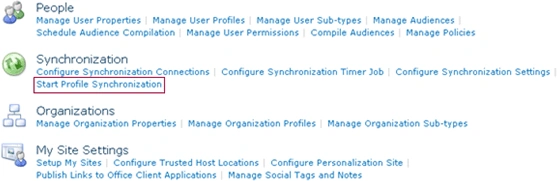
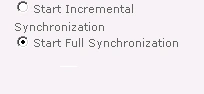
Configure Synchronization Connection


Ricardo RamirezPosted Mar 28, 2012, 4:00 PM
Great post Vijai. However, if I want to add mapping to the "EmpID" property, I can't see the "EmpID" attribute of my external content type one the attribute dropdown. I can see other attributes that are int as well but not the "EmpID" attribute. I'm guessing it is some sort of compatibility issue between non-nullable fields in sql server and integer type in user profile data types. Do you any work around this issue?