

The Doctype element
The <!DOCTYPE> of a web page is a declaration. It declares the type of document your web page is to the software that is accessing it. It is usually placed on the first line of your HTML document's source code. HTML5 requires a DOCTYPE, preceded by nothing except optionally comments and space characters. An optional single "BOM" (U+FEFF) character may be the first character of a document.
The comment element
Using the HTML <!-- --> comment element we can place comments into our source code that is not displayed on the page. Use for adding simple reminders and comments, or to disable sections of your code from running by wrapping them in this tag.
<!-- This comment will not be parsed as a display item -->
<strong>Hello People!</strong>
The anchor element
The HTML <a> (anchor) element is used to create navigation links to various pages in your website, pages on other websites, image links, open email software, fire off JavaScript, as well as snapping to pinpoint locations inside of very long web pages.
You can wrap small portions of text or whole elements with the anchor tag.
Link menu system courtesy of a <ul> listing element:
<ul>
<li><a href="http://www.developphp.com">COM</a></li>
<li><a href="http://www.developphp.net">NET</a></li>
<li><a href="http://www.developphp.org">ORG</a></li>
</ul>

Email Link (opens user's default mail program):
<a href="mailto:[email protected]">[email protected] </a>
Email Link With Pre-Filled Content:
<a href="mailto:[email protected]?subject=Help Me&body=Dear Adam, etc...">Email Me </a>

Image Links:
For "href" ->
<a href="images/socials.png">
<img src="images/socials.png" alt="Image Link" />
</a>
For "img" ->
<a href="#">
<img src="images/socials.png" alt="Image Link" />
</a>
For "alt" ->
<a href="#">
<img src="socials.png" alt="Image Link" />
</a>

Link to a destination file in the same folder:
<a href="anyfile.html">Click Me</a>
Link to a destination file in a relative folder:
<a href="folder_name/anyfile.html">Click Me</a>
Link to a destination file in the parent folder:
<a href="../folder_name/anyfile.html">Click Me</a>
Attributes for this element:
href - where to navigate the user
Possible Values: "relative or full URL string"
target - determines how the window is opened for the destination
Possible Values: "_blank", "_self", "_parent", "_top"
title - advisory text that pops up when the user mouse hovers over the link
Possible Values: "you define text"
rel - specifies the relationship between the linking file and the destination file
Possible Values: "space separated token list"
hreflang - language of the destination file
Possible Values: "valid language code"
type - mime type of the destination file
Possible Values: "valid mime type"
The Abbreviation element
The HTML <abbr> abbreviation element is used to wrap characters that make up an acronym for a phrase.
<abbr title="New World Order">
NWO</abbr>
is bent on world domination.

The address element
The HTML <address> element is used to display contact information.
<address>
DevelopPHP
<br />
182 Redneck RD
<br />
Asheville NC 13534
</address>

The area element
The HTML <area> element is usually used within a banner or image mapping scenario where there will be clickable items on the banner or image.
It must have a parent <map> element that is related to an image on the page by its name. Each area element in a map defines a hotspot that will enable mouse interactivity.
In the image code demo below you will notice a rectangle and a circular hotspot are drawn and made clickable on top of the picture.
The "coords" attribute and values are the size and location of your hotspot items. This is a Void Element so it does not get a closing tag like most elements.
<map name="spotMap">
<area shape="rect" coords="10,10,124,51" href="www.w3schools.com">
<area shape="circle" coords="102,219,46" href="yahoo.com">
</map>
<img src="images/socials.png" alt="pic" width="283" height="283" usemap="#spotMap">
Attributes for this element:
shape - specify the shape that your hotspot link will be
Possible Values: "default","rect","circle","poly"
default - hotspot will be a rectangle the entire siz of the image map
rect - rectangular hotspot you can define the size and placement of
circle - circular hotspot that you can define the size and placement of
poly - polygonal hotspot for creating many sided custom shapes
coords - coordinates for your shape
Possible Values: "numbers separated by commas"
alt - fallback text for image
Possible Values: "you define text"
href - where to navigate the user
Possible Values: "relative or full URL string"
target - determines how the window is opened for the destination
Possible Values: "_blank", "_self", "_parent", "_top"
rel - specify relationship between the linking file and the destination file
Possible Values: "space separated token list"
hreflang - language of the destination file
Possible Values: "valid language code"
type - mime type of the destination file
Possible Values: "valid mime type"
The article element
NOTE: This element is new for HTML5 and will be a standardized element in 2014.
The article tag is used for independent content sections in a web document such as but not limited to things like forum posts, articles, news entries or blog posts.
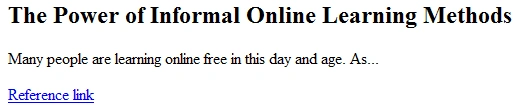
<article>
<h2>The Power of Informal Online Learning Methods</h2>
<p>Many people are learning online free in this day and age. As...</p>
<a href="http://www.w3schools.com/default.asp">Reference link</a>
</article>
The aside element
NOTE: This element is new for HTML5 and will be a standardized element in 2014.
The HTML <aside> element is used to add content that is only slightly related to the central content of the document.
<h2>
Learn Web Development Online Free
</h2>
<p>
Learning web development online free supplies the student with...
</p>
<aside style="text-align: right; font-size: 14px; color:red;">
Sonia
</aside>

The audio element
NOTE: This element is new for HTML5 and will be a standardized element in 2014.
The HTML <audio> element is used to play and give user interfacing for sound files in an HTML web document. It has optional attributes like src, controls, autoplay, loop and preload.
Alternately you can supply the audio tag with a <source> tag in place of using the "src" attribute. As well as specify other audio file types besides MP3.
<audio src="Scurvy_Pirate.mp3" controls="controls" autoplay="autoplay">
Fallback content goes here
</audio>
or
<audio controls="controls">
<source src="Scurvy_Pirate.mp3" type="audio/mpeg" />
</audio>
or
<audio controls="controls">
<source src="song1.mp3" type="audio/mpeg" />
<source src="song2.wav" type="audio/wav" />
<source src="song3.oga" type="audio/ogg" />
</audio>
The b element
The HTML <b> element is used to make text inside it render as boldface type.
Here is an example of <b>bold text</b> in a sentence.

The Base element
The HTML <base> element provides the document's base URL for resolving all relative links within a web document.
It gets placed within the <head> element of your document. This is a Void Element so it does not get a closing tag like most elements. Only one may be used for each document; if there are more than one then only the first is used.
Attributes for this element:
href - the URL you want to make the base URL
Possible Values: "URL string"
target - determines how the window is opened for the destination
Possible Values: "_blank", "_self", "_parent", "_top"
The Bdi element
NOTE: This element is new for HTML5 and will be a standardized element in 2014.
The HTML <bdi> element is used to isolate text for formatting bidirectional (right to left) reading languages like Hebrew and Arabic.
This element does not have much browser support yet.
I bought a new
<bdi> جمل الصحراء </bdi>
at the market today

The bdo element
The HTML <bdo> element is made to represent text going the opposite way from the rest around it.
For "rlt" ->
Sometimes my words just come out <bdo dir="rtl">backwards</bdo>..

For "lrt" ->
Sometimes my words just come out <bdo dir="lrt">backwards</bdo>..

The body element
The HTML <body> element is the main display container for the web document. It is placed inside the <html> root element.
<html>
<body>
<h2>
This is a web document</h2>
</body>
</html>

The br element
The HTML <br> element is used to create a line break in your content.
All elements to be displayed in a normal way on your web page go inside of the body element.
Hello Pilgrims...
<br />
How are you today?

The button element
The HTML <button> element is a multipurpose button component. The button element will allow an image or text as content to be placed in it.
<button type="button">
I am a button
</button>
Attributes for this element:
type - designates the button type
Possible Values: "submit", "reset", "button"
(If the button element has no type attribute set, it defaults to "submit" type)
name - the name part of the key-value pair (used for form submission)
Possible Values: "you define"
value - the value part of the key-value pair (used for form submission)
Possible Values: "you define"
The canvas element
NOTE: This element is new for HTML5 and will be a standardized element in 2014.
The <canvas> tag is aptly named. It supplies us an area for drawing things through script and it renders in a browser.
Much the same way one would use Actionscript to animate the Flash stage. Things can be stationary or animated inside of a canvas tag.
We use JavaScript to draw what we want in the canvas and animate those things. Interaction and Event listeners can also be applied to canvas elements using JavaScript.
<!DOCTYPE html>
<html>
<head>
<script type="application/javascript" language="javascript">
window.onload = draw; // Execute draw function when DOM is ready
function draw() {
// Assign our canvas element to a variable
var canvas = document.getElementById("canvas1");
// Create the HTML5 context object to enable draw methods
var ctx = canvas.getContext("2d");
// Draw Filled Shape 1 (center triangle of logo)
ctx.beginPath();
ctx.moveTo(100, 50);
ctx.lineTo(130, 100);
ctx.lineTo(70, 100);
ctx.fillStyle = "rgba(0,0,0,1)";
ctx.fill();
// Draw Filled Shape 2 (left flap of logo)
ctx.beginPath();
ctx.moveTo(72, 60);
ctx.lineTo(85, 72);
ctx.lineTo(71, 94);
ctx.lineTo(50, 70);
ctx.lineTo(65, 40);
ctx.fillStyle = "rgba(0,0,0,1)";
ctx.fill();
// Your homework is to Draw Filled Shape 3 here (right flap)
// to complete the shape of the WorldOfWebcraft.com logo
}
</script>
</head>
<body>
<canvas id="canvas1" width="400" height="300">Fallback Content</canvas>
</body>
</html>
The caption element
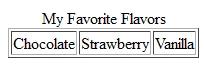
The HTML <caption> element is used to specify the title of the <table> it's inside of.
<table border="1">
<caption>
My Favorite Flavors</caption>
<tr>
<td>
Chocolate
</td>
<td>
Strawberry
</td>
<td>
Vanilla
</td>
</tr>
</table>
The cite element
The HTML <cite> element is used to represent the cited title of material like artworks, books, songs, albums, movies and games.
It is no longer recommended to use this element to represent a person's name or title, just bodies of work.
I just finished reading <cite>Moby Dick</cite> and it was great!

The code element
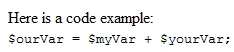
The HTML <code> element is used to specify a fragmant of computer code within it. It is usually rendered as a monospace font that is smaller than the rest of the font on the page.
Here is a code example:
<br />
<code>$ourVar = $myVar + $yourVar;</code>
The col element
The HTML <col> element lends characteristics to a table column. This is a Void Element so it does not get a closing tag like most elements.
<table border="1">
<colgroup span="2">
<col style="background-color: #FFF8DD;">
<col style="background-color: #CCE6FF;">
</colgroup>
<tr>
<th>
John
</th>
<th>
Bob
</th>
</tr>
<tr>












Join the conversation! Your thoughts help the community grow.