

The Color Structure
You may have notices that we used the Color structure in our previous example. The Color structure represents a GDI+ ARGB (alpha-red-green-blue) color. This class contains a static property for almost every possible color. For example, Color.Black and Color.Red represent black and red respectively. Beside these static properties, this structure has the additional properties defined in Table 2.1.
IsKnownColor, IsNamedColor and IsSystemColor represent members of the KnownColor enumeration, which again defines almost every color as a member.
Table 2.2 describes the methods of the Color structure.
TABLE 2.1 Color properties
|
Property |
Description |
|
Red, Blue, Green, Aqua, Azure, and so on |
A specified color static property for almost every color. |
|
A |
Return the alpha component value in a Color structure. |
|
R |
Returns the red component value in a Color Structure. |
|
G |
Returns the green component value in a Color Structure. |
|
B |
Returns the blue component value in a Color Structure. |
|
IsEmpty |
Indicates whether a Color structure is uninitialized. |
|
IsKnownColor |
Indicate whether a color is predefined. |
|
IsNamedColor |
Indicate whether a color is predefined. |
|
IsSytemColor |
Indicates whether a color is a system color. |
|
Name |
Return the name of the color. |
TABLE 2.2: Color methods
| Method | Description |
|
FromArgb |
Creates a Color structure from the four 8-bit ARGB component (alpha-red-green-blue) values. |
|
FromKnownColor |
Create a Color structure from the specified predefined color. |
|
FromName |
Creates a Color structure from the specified name of a predefined color. |
|
GetBrightness |
Returns the hue-saturation-brightness (HSB) brightness value of this Color structure. |
|
GetHue |
Returns the HSB he value, in degrees, of this Color structure. |
|
GetSaturation |
Returns the HSB hue value in degrees, of this Color structure. |
|
ToArgb |
Returns the 32-bit ARGB value of this Color structure. |
|
ToKnownColor |
Return the KnownColor value of this Color structure. |
The Point and PointF Structure
In GDI+, the Point structure represents an ordered pair of integer x- and y-coordinates that define a point in a two-dimensional plane. The Point structure's constructor initializes a new instance of the Point structure. The Point constructor has three overloaded forms that allow you to create a Point object from an integer, a size object, or two integers as follows:
public Point (int);
public Point (Size);
public Point (int, int);
The following code snippet creates Point objects using all three forms of the constructor:
Point pt1 = new Point (10);
Point pt2 = new Point (new Size (20, 20));
Point pt3 = new Point (30, 30);
The PointF structure is similar to the Point structure, but it uses floating point values of integers. Unlike the Point structure, PointF has only one constructor, which takes two floating point values as x- and y-coordinates.
PointF pt3 = new PointF(30.0f, 30.0f);
Both the Point and the PointF structures define three properties: IsEmpty, X, and Y. The IsEmpty property returns true if a point is empty, which means that both X and Y values are zero; otherwise it returns false. The X and Y properties return the x- and y-coordinates of a point, respectively. The Empty static field of the Point structure creates a new point with x and y values set to zero.
Listing 2.3 creates a point with zero x and y values using Point. Empty and assigns new coordinates values using the X and Y properties. This example creates a Graphics object using the Graphics.FromHwnd method and returns the graphics surface for a form. The Graphics.FromHwnd method creates a Graphics object from a window handle, which we pass as this.Handle. The DrawLine method draws a line starting from the first point to the second point using the defined pen. You can test this code on a button or a menu click event handler.
LISTING 2.3: Creating Point objects
//Create a new Point object
Point pt = new Point (50, 50);
//Create a new point using Point.Empty
Point newPoint = Point.Empty;
//Set X and Y properties of Point
newPoint.X=100;
newPoint.Y = 200;
//Create a Graphics object from the
//Current form's handle
Graphics g = Graphics.FromHwnd (this.Handle);
//Create a new pen with color blue and width = 4
Pen pn = new Pen (Color.Blue, 4);
//Draw a line from point pt to new point
g.DrawLine (pn, pt, newPoint);
//Dispose of Pen and Graphics objects
pn.Dispose();
g.Dispose();
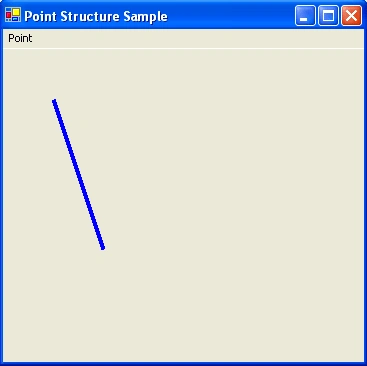
FIGURE 2.10: Using Point to draw a line
Figure 2.10 shows the output of Listing 2.3. This program draws a line from point 1 to point 2. The "Point" text in this figure is a menu item.
Like the Point structure, PointF can also use Empty, x, and y properties, as shown in Listing 2.4. You can test this code on a button or a menu click event handler.
LISTING 2.4: Creating PointF objects
//Create a new PointF object
PointF pt = new PointF (50.0f, 50.0f);
//Create a new point using PointF.Empty
PointF newPoint = PointF.Empty;
//Set x and y properties of PointF
newPoint.X = 100.0f;
newPoint.Y = 200.0f;
//Create a Graphics object from the current form's handle
Graphics g = Graphics.FromHwnd (this.Handle);
//Create a new pen with color blue and width 4
Pen pn = new Pen (Color.Blue, 4);
//Draw a line from point pt to new point
g.DrawLine (pn, pt, newPoint);
//Dispose of Pen and Graphics objects
pn.Dispose();
g.Dispose();
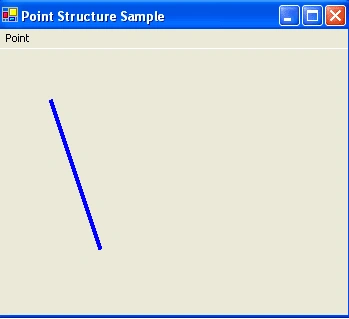
FIGURE 2.11: Using PointF to draw a line
Figure 2.11 shows the output of Listing 2.4. It is identical to Figure 2.10.
The Point structure also defines methods to convert from PointF to Point. The Ceiling method of the Point structure converts a PointF object to a Point object by rounding off the values of the PointF object to the next higher integer values. The Round method converts a PointF object to Point by rounding floating values to the nearest integer values. The Truncate method converts a PointF object to Point by truncating the floating values to integers. Listing 2.5 shows how to use the Ceiling, Round, and Truncate methods. You can test this code on a button or a menu click event handler.
LISTING 2.5 Using the Ceiling, Round, and Truncate methods of Point
//Create three points
PointF pt1 = new PointF(30.6f, 30.8f);
PointF pt2 = new PointF(50.3f, 60.7f);
PointF pt3 = new PointF(110.3f, 80.5f);
//Call Ceiling, round, and Truncate methods and return new points
Point pt4 = Point.Ceiling(pt1);
Point pt5 = Point.Round(pt2);
Point pt6 = Point.Truncate(pt3);
//display results
MessageBox.Show("Value of pt4: " +pt4.ToString());
MessageBox.Show("Value of p5: " +pt5.ToString());
MessageBox.Show("Value of pt6: " +pt6.ToString());
The Point structure also defines additional, equality, inequality, subtraction, Point-to-Size, and Point-to-PointF conversion operators. Listing 2.6 shows how do add and subtract a Size object from a Point object, convert from Point to PointF, and convert from a Point object to a Size object. You can test this code on a button or menu click event handler.
LISTING 2.6: Some Point and PointF conversions
//Create a Size object
Size sz = new Size(12,12);
//Create a Point object
Point pt = new Point (20, 20);
//Add point and size and copy to point
pt = pt+ sz;
MessageBox.Show("Addition : " + pt.ToString());
//Subtract point and size
pt = pt-sz;
MessageBox.Show("subtraction : " + pt.ToString());
//Create a PointF object from Point
PointF ptf = pt;
MessageBox.Show("PointF : " +pt.ToString());
//Convert Point to size
sz = (Size) pt;
MessageBox.Show("Size :" + sz.Width.ToString() + "," + sz.Height.ToString());
The Rectangle and RectangleF Structure
The Rectangle and RectangleF structure represent a rectangle in GDI+. A Rectangle structure stores the top left corner and height and width of a rectangle region. You can create a Rectangle object from Point and Size objects or by using four integer values as starting and ending coordinates of the rectangle.
The Rectangle and RectangleF structure provides properties that can be used to get the height, width, and position of the rectangle. Table 2.3 describes the properties of the Rectangle and RectangleF structures.
LISTING 2.7: Using Rectangle Properties
//Create Point, Size, and Rectangle objects
Point pt= new Point(10,10);
Size sz = new Size (60,40);
Rectangle rect1 = Rectangle.Empty;
Rectangle rect2 = new Rectangle (20, 30, 30, 10);
TABLE 2.3: Rectangle and RectangleF Properties
| Property | Description |
|
Bottom |
Return the y-coordinate of the bottom edge. |
|
Height |
Represents the rectangle's height. |
|
IsEmpty |
Returns true if all of the rectangle's values (starting point, height, and width) are zero, otherwise returns false. |
|
Left |
Returns the x-coordinates of the left edge. |
|
Location |
Represents the coordinates of the upper left corner. |
|
Right |
Returns the x-coordinate of the right edge. |
|
Size |
Represents the size of a rectangle. |
|
Top |
Return the y-coordinate of the top edge. |
|
Width |
Represents the width of a rectangle. |
|
X |
Represents the width of a rectangle. |
|
Y |
Represents the y-coordinate of the upper left corner. |
Join the conversation! Your thoughts help the community grow.