

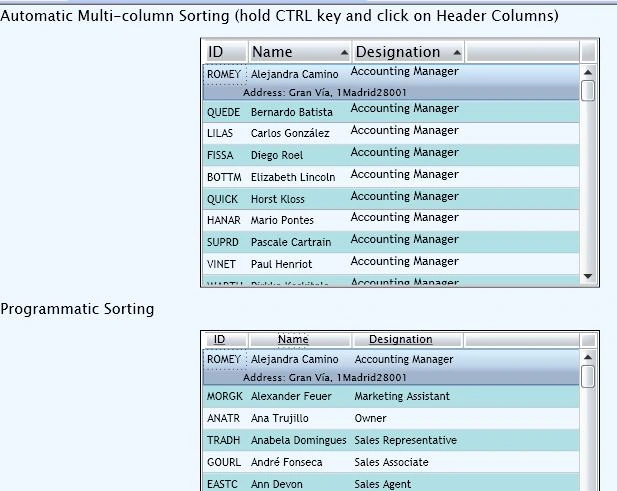
When Silverlight DataGrid is bound to a collection that implements IList(List<T> or ObservableCollection<T>), it creates an internal ListCollectionView to provide the sorting functionality. As CollectionViews can handle multiple levels of sorting, the DataGrid also possesses this functionality and exposes it by allowing user to click on multiple column headers while holding the Ctrl key.
<my:DataGrid x:Name="dataGrid1" AutoGenerateColumns="True"
HeadersVisibility="Column" RowBackground="AliceBlue" AlternatingRowBackground="PowderBlue" GridlinesVisibility="Horizontal">
</my:DataGrid>
By default each column is sorted by DisplayMemberBinding property to which the column is bound. But the Template Column does not have DisplayMemberBinding property. In this case we can use a property found in all column types called SortMemberPath. This property specifies a path to the property on the data item that can sort the particular column.
<my:DataGridTemplateColumn Header="Designation" SortMemberPath="Designation">
<my:DataGridTemplateColumn.CellTemplate>
<DataTemplate>
<TextBlock Text="{Binding Designation}"/>
</DataTemplate>
</my:DataGridTemplateColumn.CellTemplate>
</my:DataGridTemplateColumn>
Further if you still want to sort the DataGrid progmmatically then specify the click event for each columns header
<my:DataGrid.Columns>
<my:DataGridTextColumn DisplayMemberBinding="{Binding ID}">
<my:DataGridTextColumn.Header>
<HyperlinkButton Content="ID" Tag="ID"
Click="Sort_Click" TextDecorations="Underline"/>
</my:DataGridTextColumn.Header>
</my:DataGridTextColumn>
<my:DataGridTextColumn DisplayMemberBinding="{Binding Name}">
<my:DataGridTextColumn.Header>
sandeep upadhyayPosted Sep 26, 2010, 4:26 AM
Below link provide good explanation of sorting in Datagrid with template column http://www.a2zmenu.com/Silverlight/Datagrid-TemplateColumn-Sorting-in-Silverlight-3.aspx
Mahesh ChandPosted Sep 19, 2008, 7:18 AM
test comment