

SQL Server Log Shipping
To synchronize the database SQL Server the log shipping is used. It is easy to set up, maintain and troubleshoot. It is the process of backing up our database and restoring these backups to another server for failover. To keep the data current and to minimize risk of data loss the process involves using SQL Server transaction log backups.
Main functions of Log Shipping
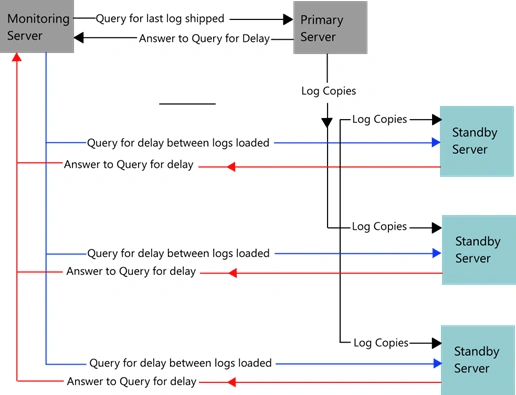
Logical Design Diagram of Log Shipping
- Backing up the transaction log of the primary database
- Copying the transaction log backup to each secondary server
- Restoring the transaction log backup on the secondary database
Benefits of Log Shipping
- Log shipping doesn't require expensive hardware or software.
- Once log shipping has been implemented, it is relatively easy to maintain.
- The manual failover process is generally very short, typically 15 minutes or less.
Problems with Log Shipping
- Log shipping failover is not automatic. The DBA must still manually failover the server, which means the DBA must be present when the failover occurs.
- The users will experience some downtime.
- Some data can be lost, although not always. How much data is lost depends on how often we schedule log shipping.
Prerequisites
- The database must be using the FULL RECOVERY or BULK LOGGED recovery models.
- On the secondary server, we must have already restored a full database backup with the NORECOVERY or STANDBY options, so that transaction logs may be applied.
Creating the shared folder
First of all we need to create a shared folder on our secondary server, to place the transaction log backups.
Note. that the SQL Server service startup account needs to be a domain user account, and not the local system account, in order to access network shares.
The process of implementing Log Shipping is embedded with the Workgroup, Standard and Enterprise editions of SQL Server. To implement the Log shipping or mirroring right click on any database --> Go to Properties and under Select a page click on Transaction Log Shipping and enable it by clicking on "Enable this as a primary database in a log shipping configuration" check box.
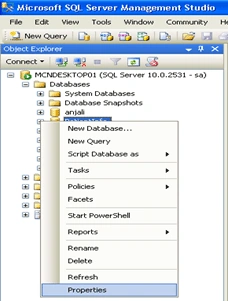
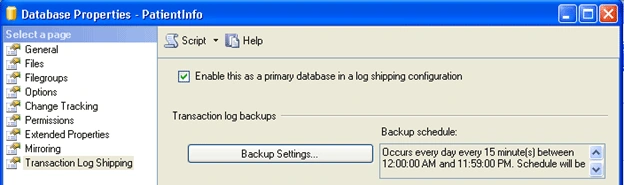
Now Under the Transaction log backup click "Backup Settings"….. a pop-up window appeared "Transaction Log Backup Settings" as Under:
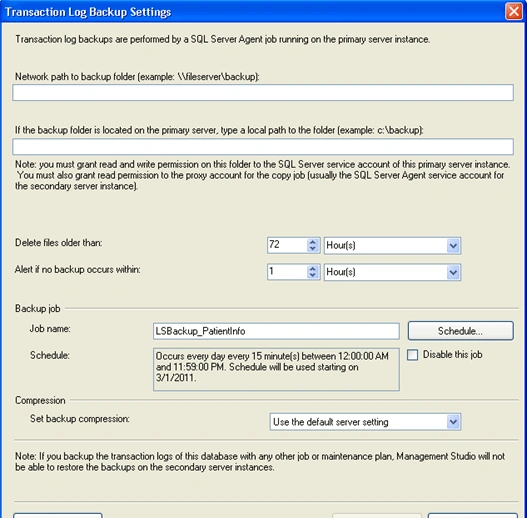
If we are creating backups on a network share enter the network path or for the local machine we can specify the local folder path and click "OK".
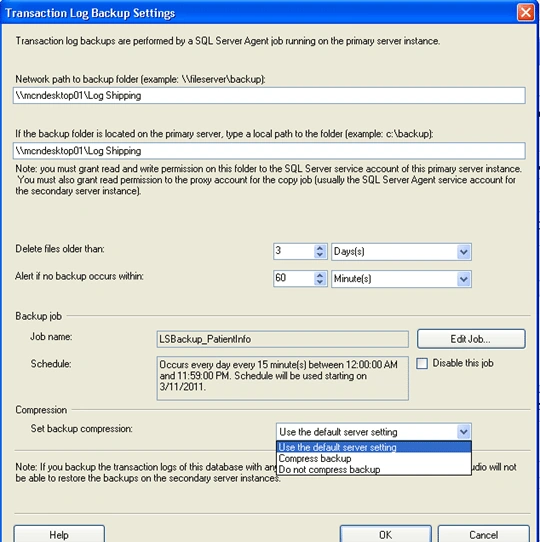
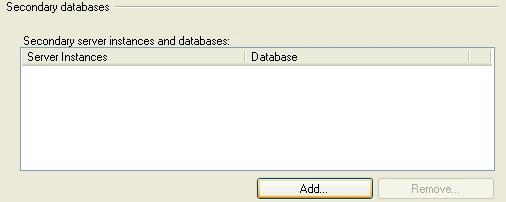
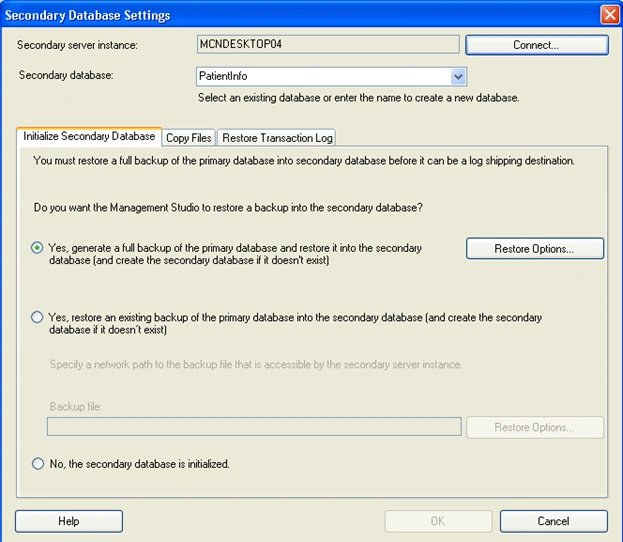
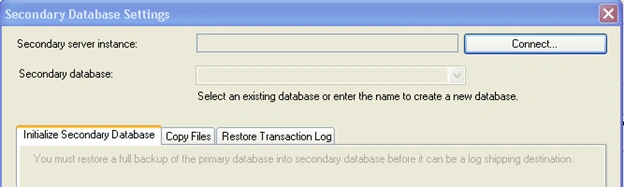
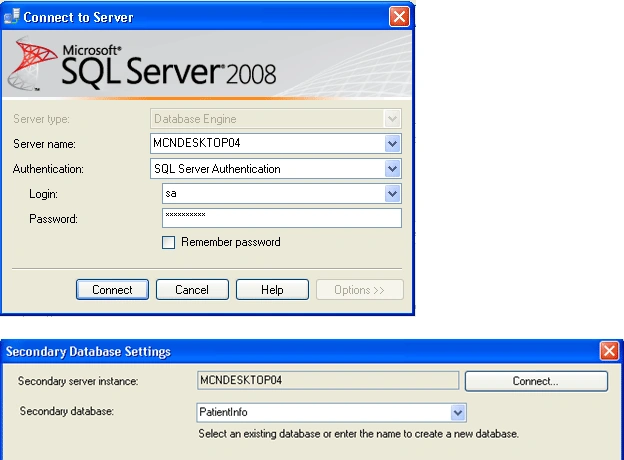
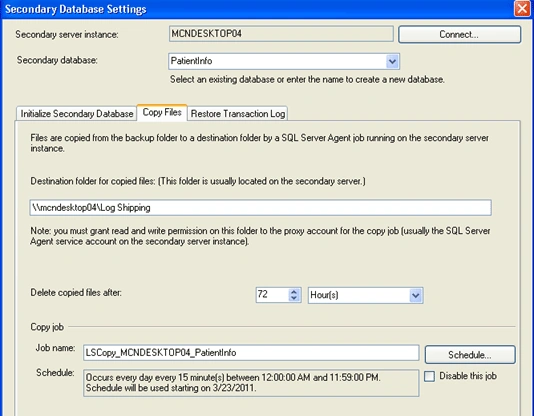
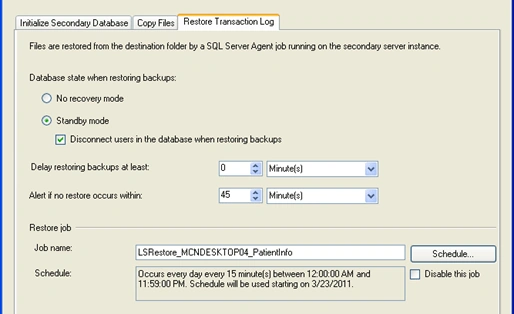
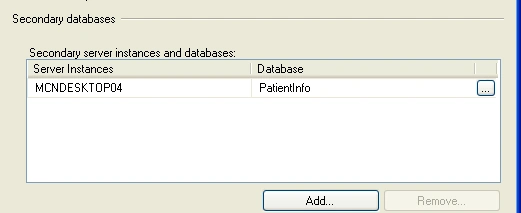
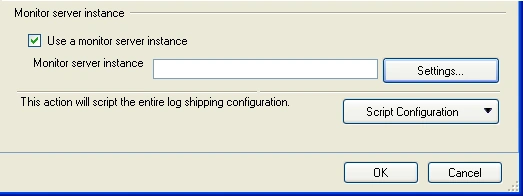
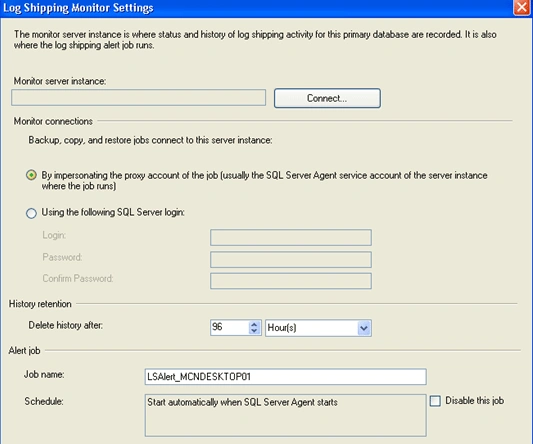
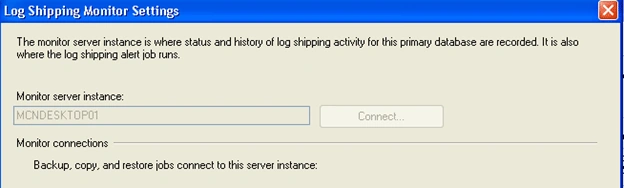
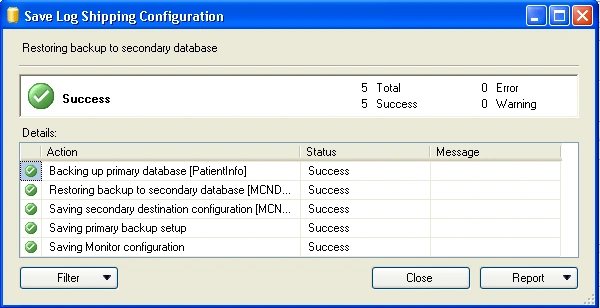
When we click on OK button the above window will close, then from the "Database Properties window" click on Add… button to configure the Secondary Server instance and database.
Dinesh BeniwalPosted Jul 3, 2013, 9:54 AM
Good Start Om.