

Introduction
Using the HTML5 Drag and Drop API we can drag and drop any element that we want. Before this feature, we could do drag and drop using jQuery and so on. Now we have HTML5 Drag and Drop, which gives us the ability to drag and drop. This allows the user to click and hold the mouse button down over an element, drag it to another location, and release the mouse button to drop the element there.

The Drag and Drop API cames with seven new events to track a drag and drop. The events are dragstart, drag, dragend, dragenter, dragleave, dragover and drop that are triggered during various stages of the drag and drop operation. These events are listed below
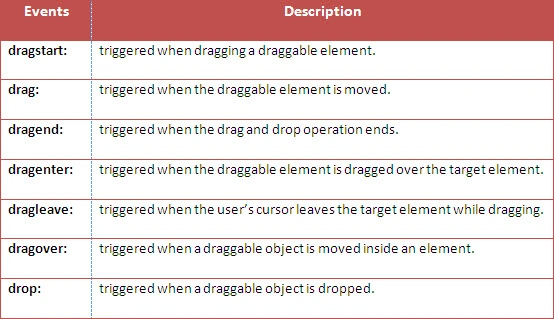
- Elements that are dragged during Drag and Drop can trigger three events. These events are dragstart, drag, dragend.
- Elements in which we drop the draggable elements can trigger four events. These events are dragenter, dragleave, dragover, and drop.
In this example, I will show you how to drag and drop an image (you can drag anything you want).
Creating HTML5 Document
First, to make an element draggable set the draggable property =" true". Here we are making an image draggable.
Then add an ondragstart event. On dragstart event, call a function "startdrag (event)" that stores the data of the element being dragged. The dataTransfer.setData("text",e.target.id) method sets the data type and the value of the dragged data.
The ondragover event indicates where the dragged data can be dropped. Basically any element (data) cannot be dropped in another element. If we want to allow the draggable object (image) to be dropped inside the Red box then we must prevent the default behavior of the browser. This is done by calling the event.preventDefault() method in the ondragover event.
When the dragged image (or data) is dropped, the ondrop event calls a function (in other words drophere (event)). Here we call preventDefault(). After that, we get the data from dataTransfer.getData("Text") method (used for getting the dragged data). then we are attaching the dragged element using appendchild() into the drop element.
- <div id="leftbox"ondrop="drophere(event)"ondragover="allowdrophere(event)"></div>
- <div id="rightbox"><imgsrc="images/folder.jpg"draggable="true"ondragstart="startdrag(event)"id="image"></div>
CSS Stylesheet:
- #
- leftbox {
- width: 150 px;
- height: 150 px;
- border: 1 px solid red;
- float: left;
- margin - left: 10 px;
- }#
- rightbox {
- width: 150 px;
- height: 150 px;
- border: 1 px solid black;
- float: left;
- margin - left: 10 px;
- }
- JavaScript
- function startdrag(e) {
- e.dataTransfer.setData("Text", e.target.id);
- }
- function allowdrophere(e) {
- e.preventDefault();
- }
- function drophere(e) {
- e.preventDefault();
- var data = e.dataTransfer.getData("Text");
- e.target.appendChild(document.getElementById(data));
- }
- We can also do the same thing by adding an EventListener using JavaScript.
- window.addEventListener("load", dofirst, false);
- function dofirst() {
- image = document.getElementById('image');
- image.addEventListener("dragstart", startdrag, false);
- box = document.getElementById('leftbox');
- leftbox.addEventListener("dragover", allowdrophere, false);
- leftbox.addEventListener("drop", drophere, false);
- }
- function startdrag(e) {
- e.dataTransfer.setData("Text", e.target.id);
- }
- function allowdrophere(e) {
- e.preventDefault();
- }
- function drophere(e) {
- e.preventDefault();
- var data = e.dataTransfer.getData("Text");
- e.target.appendChild(document.getElementById(data));
- }


Sanjay ShekhawatPosted May 19, 2021, 11:56 AM
Thanks for Sharing :)
lakshmana poojaryPosted Sep 30, 2014, 11:01 AM
Nice Article.. loved it.