

Introduction
- Client-Side Chart Widget in HTML 5: Part 1 (Bar Chart)
- Client-Side Chart Widget in HTML 5: Part 2 (Pie Chart)
- Client-Side Chart Widget in HTML 5: Part 3 (Line Chart)
- Client-Side Chart Widget in HTML 5: Part 4 (Doughnut Chart)
- Client-Side Chart Widget in HTML 5: Part 5 (Polar Area Chart)
- Client-Side Chart Widget in HTML 5: Part 6 (Radar Chart)
- Client Side Chart Widget in HTML 5: Part 7 (Line Chart With Custom ToolTip)
A simple HTML
- <!DOCTYPE html>
- <html xmlns="http://www.w3.org/1999/xhtml">
- <head>
- <title> Pie Chart widget with custom tooltip Using Chart.js</title>
- </head>
- <body></body>
- </html>
Included JavaScript file
- <script src="Chart.js"></script>
- <script src="http://cdnjs.cloudflare.com/ajax/libs/jquery/2.1.3/jquery.min.js"></script>
Include UI Elements
- <div id="canvas-holder">
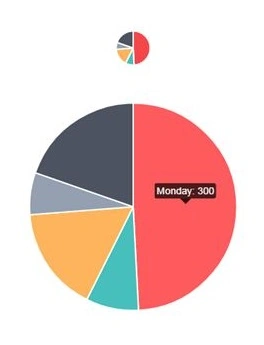
- <canvas id="chart-area1" width="50" height="50" />
- </div>
- <div id="canvas-holder">
- <canvas id="chart-area2" width="300" height="300" />
- </div>
- <div id="chartjs-tooltip"></div>
Call the Chart Function
- window.onload = function () {
- var ctx1 = document.getElementById("chart-area1").getContext("2d");
- window.myPie = new Chart(ctx1).Pie(pieData);
- var ctx2 = document.getElementById("chart-area2").getContext("2d");
- window.myPie = new Chart(ctx2).Pie(pieData);
- ;
Here we are loading the chart in the chart-area1 and chart-area2.
As you can see in the preceding code, pieData is the data we will load into the chart.
- var pieData = [{
- value: 300,
- color: "#F7464A",
- highlight: "#FF5A5E",
- label: "Monday"
- }, {
- value: 50,
- color: "#46BFBD",
- highlight: "#5AD3D1",
- label: "Tuesday"
- }, {
- value: 100,
- color: "#FDB45C",
- highlight: "#FFC870",
- label: "Wednesday"
- }, {
- value: 40,
- color: "#949FB1",
- highlight: "#A8B3C5",
- label: "Thursday"
- }, {
- value: 120,
- color: "#4D5360",
- highlight: "#616774",
- label: "Friday"
- }];
- Value
- Color
- Highlight
- Label
Now add the following style.
- <style>
- #canvas-holder {
- width: 100%;
- margin-top: 50px;
- text-align: center;
- }
- #chartjs-tooltip {
- opacity: 1;
- position: absolute;
- background: rgba(0, 0, 0, .7);
- color: white;
- padding: 3px;
- border-radius: 3px;
- -webkit-transition: all .1s ease;
- transition: all .1s ease;
- pointer-events: none;
- -webkit-transform: translate(-50%, 0);
- transform: translate(-50%, 0);
- }
- #chartjs-tooltip.below {
- -webkit-transform: translate(-50%, 0);
- transform: translate(-50%, 0);
- }
- #chartjs-tooltip.below:before {
- border: solid;
- border-color: #111 transparent;
- border-color: rgba(0, 0, 0, .8) transparent;
- border-width: 0 8px 8px 8px;
- bottom: 1em;
- content: "";
- display: block;
- left: 50%;
- position: absolute;
- z-index: 99;
- -webkit-transform: translate(-50%, -100%);
- transform: translate(-50%, -100%);
- }
- #chartjs-tooltip.above {
- -webkit-transform: translate(-50%, -100%);
- transform: translate(-50%, -100%);
- }
- #chartjs-tooltip.above:before {
- border: solid;
- border-color: #111 transparent;
- border-color: rgba(0, 0, 0, .8) transparent;
- border-width: 8px 8px 0 8px;
- bottom: 1em;
- content: "";
- display: block;
- left: 50%;
- top: 100%;
- position: absolute;
- z-index: 99;
- -webkit-transform: translate(-50%, 0);
- transform: translate(-50%, 0);
- }
- </style>
Load the tooltip
You can include the tooltip as follows.
- Chart.defaults.global.customTooltips = function (tooltip) {
- // Tooltip Element
- var tooltipEl = $('#chartjs-tooltip');
- // Hide if no tooltip
- if (!tooltip) {
- tooltipEl.css({
- opacity: 0
- });
- return;
- }
- // Set caret Position
- tooltipEl.removeClass('above below');
- tooltipEl.addClass(tooltip.yAlign);
- // Set Text
- tooltipEl.html(tooltip.text);
- // Find Y Location on page
- var top;
- if (tooltip.yAlign == 'above') {
- top = tooltip.y - tooltip.caretHeight - tooltip.caretPadding;
- } else {
- top = tooltip.y + tooltip.caretHeight + tooltip.caretPadding;
- }
- // Display, position, and set styles for font
- tooltipEl.css({
- opacity: 1,
- left: tooltip.chart.canvas.offsetLeft + tooltip.x + 'px',
- top: tooltip.chart.canvas.offsetTop + top + 'px',
- fontFamily: tooltip.fontFamily,
- fontSize: tooltip.fontSize,
- fontStyle: tooltip.fontStyle,
- });
- };
Please note that you can change your tooltip as needed.
Complete HTML
- <!doctype html>
- <html>
- <head>
- <title>Pie Chart with Custom Tooltips</title>
- <script src="Chart.js"></script>
- <script src="http://cdnjs.cloudflare.com/ajax/libs/jquery/2.1.3/jquery.min.js"></script>
- <style>
- #canvas-holder {
- width: 100%;
- margin-top: 50px;
- text-align: center;
- }
- #chartjs-tooltip {
- opacity: 1;
- position: absolute;
- background: rgba(0, 0, 0, .7);
- color: white;
- padding: 3px;
- border-radius: 3px;
- -webkit-transition: all .1s ease;
- transition: all .1s ease;
- pointer-events: none;
- -webkit-transform: translate(-50%, 0);
- transform: translate(-50%, 0);
- }
- #chartjs-tooltip.below {
- -webkit-transform: translate(-50%, 0);
- transform: translate(-50%, 0);
- }
- #chartjs-tooltip.below:before {
- border: solid;
- border-color: #111 transparent;
- border-color: rgba(0, 0, 0, .8) transparent;
- border-width: 0 8px 8px 8px;
- bottom: 1em;
- content: "";
- display: block;
- left: 50%;
- position: absolute;
- z-index: 99;
- -webkit-transform: translate(-50%, -100%);
- transform: translate(-50%, -100%);
- }
- #chartjs-tooltip.above {
- -webkit-transform: translate(-50%, -100%);
- transform: translate(-50%, -100%);
- }
- #chartjs-tooltip.above:before {
- border: solid;
- border-color: #111 transparent;
- border-color: rgba(0, 0, 0, .8) transparent;
- border-width: 8px 8px 0 8px;
- bottom: 1em;
- content: "";
- display: block;
- left: 50%;
- top: 100%;
- position: absolute;
- z-index: 99;
- -webkit-transform: translate(-50%, 0);
- transform: translate(-50%, 0);
- }
- </style>
- </head>
- <body>
- Pie Chart With Custom Tooltip @ <a href="www.sibeeshpassion.com">www.sibeeshpassion.com</a>
- <div id="canvas-holder">
- <canvas id="chart-area1" width="50" height="50" />
- </div>
- <div id="canvas-holder">
- <canvas id="chart-area2" width="300" height="300" />
- </div>
- <div id="chartjs-tooltip"></div>
- <script>
- Chart.defaults.global.customTooltips = function (tooltip) {
- // Tooltip Element
- var tooltipEl = $('#chartjs-tooltip');
- // Hide if no tooltip
- if (!tooltip) {
- tooltipEl.css({
- opacity: 0
- });
- return;
- }
- // Set caret Position
- tooltipEl.removeClass('above below');
- tooltipEl.addClass(tooltip.yAlign);
- // Set Text
- tooltipEl.html(tooltip.text);
- // Find Y Location on page
- var top;
- if (tooltip.yAlign == 'above') {
- top = tooltip.y - tooltip.caretHeight - tooltip.caretPadding;
- } else {
- top = tooltip.y + tooltip.caretHeight + tooltip.caretPadding;
- }
- // Display, position, and set styles for font
- tooltipEl.css({
- opacity: 1,
- left: tooltip.chart.canvas.offsetLeft + tooltip.x + 'px',
- top: tooltip.chart.canvas.offsetTop + top + 'px',
- fontFamily: tooltip.fontFamily,
- fontSize: tooltip.fontSize,
- fontStyle: tooltip.fontStyle,
- });
- };
- var pieData = [{
- value: 300,
- color: "#F7464A",
- highlight: "#FF5A5E",
- label: "Monday"
- }, {
- value: 50,
- color: "#46BFBD",
- highlight: "#5AD3D1",
- label: "Tuesday"
- }, {
- value: 100,
- color: "#FDB45C",
- highlight: "#FFC870",
- label: "Wednesday"
- }, {
- value: 40,
- color: "#949FB1",
- highlight: "#A8B3C5",
- label: "Thursday"
- }, {
- value: 120,
- color: "#4D5360",
- highlight: "#616774",
- label: "Friday"
- }];
- window.onload = function () {
- var ctx1 = document.getElementById("chart-area1").getContext("2d");
- window.myPie = new Chart(ctx1).Pie(pieData);
- var ctx2 = document.getElementById("chart-area2").getContext("2d");
- window.myPie = new Chart(ctx2).Pie(pieData);
- };
- </script>
- </body>
- </html>
Conclusion

Sibeesh VenuPosted Feb 25, 2015, 10:32 PM
Rahul Saxena Thank you bro.
Rahul Kumar SaxenaPosted Feb 25, 2015, 12:10 PM
Very Nice work Sibeesh Venu...
Sibeesh VenuPosted Feb 22, 2015, 3:07 AM
Manish Kumar Choudhary Thank you buddy.
Manish Kumar ChoudharyPosted Feb 22, 2015, 12:25 AM
Nice one.