

Look at the following procedure.
Step 1: Database Structure.
Query
Create a table named tbl_pdf.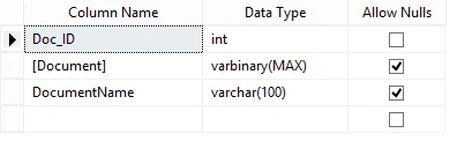
WebConfig
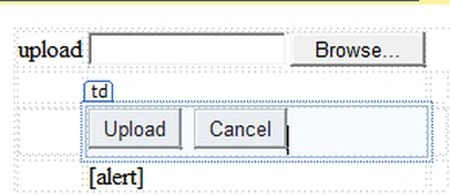
Upload.aspx Code
- <asp:FileUpload ID="”FileUpload”" runat=”server” /> <asp:Button ID="”btnsubmit”" runat=”server” Text=”Upload” />
- <asp:Button ID="”btncancel”" runat=”server” Text=”Cancel” /> <asp:Label ID="”alert”" runat=”server”></asp:Label>
- <asp:GridView ID="”GridView1″" runat=”server” /> <asp:Label ID="”Label1″" runat=”server”></asp:Label>
Upload.aspx.cs
Step 2: Storing PDF files into database.
Source Code
- protected void btnsubmit_Click(object sender, EventArgs e)
- {
- try
- {
- byte[] pdf = null;
- if(FileUpload.HasFile & FileUpload.PostedFile != null)
- {
- HttpPostedFile file = FileUpload.PostedFile;
- pdf = new byte[file.ContentLength];
- file.InputStream.Read(pdf, 0, file.ContentLength);
- }
- SqlConnection con = new SqlConnection(System.Configuration.ConfigurationManager.ConnectionStrings[“userconnstring”].ConnectionString);
- SqlCommand cmd = new SqlCommand(“insert into tbl_pdf ([Document],[DocumentName]) values (@Document,@DocumentName)”, con);
- con.Open();
- cmd.Parameters.AddWithValue(“@DocumentName”, FileUpload.PostedFile.FileName);
- cmd.Parameters.AddWithValue(“@Document”, pdf);
- cmd.ExecuteNonQuery();
- alert.Text = “Document Uploaded Successfully”;
- con.Close();
- }
- catch(Exception ex)
- {
- throw ex;
- }
- }
- <asp:GridView ID=”GridView1″ runat=”server” />
Screen
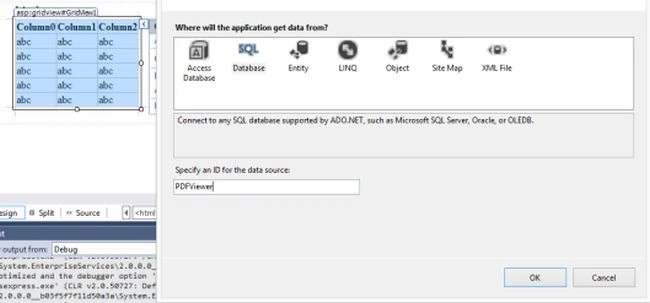
After binding a GridView looks like this.
- <asp:GridView ID="”GridView1″" runat=”server” AutoGenerateColumns=”False” DataSourceID=”PDFViewer” EnableModelValidation=”True”>
- <Columns>
- <asp:BoundField DataField=”Doc_ID” HeaderText=”ID” SortExpression=”Doc_ID” />
- <asp:BoundField DataField=”DocumentName” HeaderText=”DocumentName” SortExpression=”DocumentName” />
- <asp:TemplateField ItemStyle-HorizontalAlign=”Center” >
- <ItemTemplate>
- <asp:LinkButton ID="”lnkView”" runat=”server” Text=”View” OnClick=”View” CommandArgument='<%# Eval(“Doc_ID”) %>’></asp:LinkButton>
- </ItemTemplate>
- </asp:TemplateField>
- </Columns>
- </asp:GridView>
- <asp:SqlDataSource ID="”PDFViewer”" runat=”server” ConnectionString=”<%$ ConnectionStrings:WordpressConnectionString %>” SelectCommand=”SELECT [Doc_ID],[DocumentName] FROM [tbl_pdf]”></asp:SqlDataSource>

Pdfhandler.ashx.cs Code:[Full]
- using System;
- using System.Collections.Generic;
- using System.Data;
- using System.Data.SqlClient;
- using System.IO;
- using System.Linq;
- using System.Web;
- namespace MyApplication
- {
- /// <summary>
- /// Summary description for ImageViewer
- /// </summary>
- public class ImageViewer : IHttpHandler
- {
- public void ProcessRequest(HttpContext context)
- {
- Int32 theID;
- if (context.Request.QueryString[“id”] != null)
- theID = Convert.ToInt32(context.Request.QueryString[“id”]);
- else
- throw new ArgumentException(“No parameter specified”);
- context.Response.ContentType = “Application/pdf”;
- Stream strm = DisplayImage(theID);
- byte[] buffer = new byte[2048];
- int byteSeq = strm.Read(buffer, 0, 2048);
- while (byteSeq > 0)
- {
- context.Response.OutputStream.Write(buffer, 0, byteSeq);
- byteSeq = strm.Read(buffer, 0, 2048);
- }
- }
- public Stream DisplayImage(int theID)
- {
- string str = “Data Source=.;Initial Catalog=Wordpress;Integrated Security=True”;
- SqlConnection connection = new SqlConnection(str);
- string sql = “SELECT Document FROM tbl_pdf WHERE Doc_ID = @Doc_ID”;
- SqlCommand cmd = new SqlCommand(sql, connection);
- cmd.CommandType = CommandType.Text;
- cmd.Parameters.AddWithValue(“@Doc_ID”, theID);
- connection.Open();
- object theImg = cmd.ExecuteScalar();
- try
- {
- return new MemoryStream((byte[])theImg);
- }
- catch
- {
- return null;
- }
- finally
- {
- connection.Close();
- }
- }
- public bool IsReusable
- {
- get
- {
- return false;
- }
- }
- }
- }
- <asp:TemplateField ItemStyle-HorizontalAlign=”Center” > <ItemTemplate> <asp:LinkButton ID=”lnkView” runat=”server” Text=”View” OnClick=”View” CommandArgument='<%# Eval(“Doc_ID”) %>’></asp:LinkButton> </ItemTemplate> </asp:TemplateField> </Columns> </asp:GridView>
Code
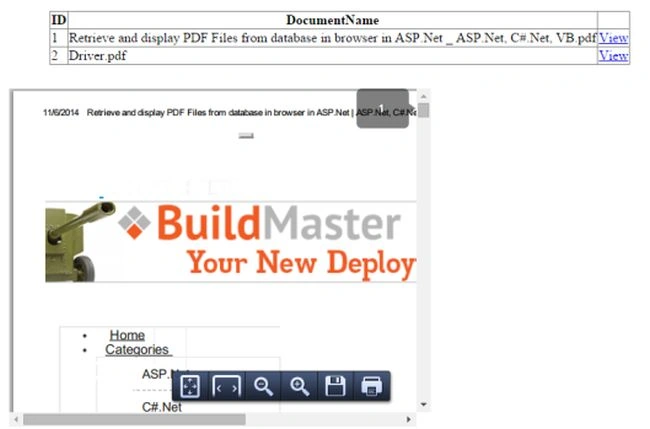
- protected void View(object sender, EventArgs e)
- {
- int id = int.Parse((sender as LinkButton).CommandArgument);
- string embed = “”;
- embed += “If you are unable to view file, you can download from here“;
- embed += ” or download Adobe PDF Reader to view the file.”;
- embed += “”;
- Label1.Text = string.Format(embed, ResolveUrl(“~/Pdfhandler.ashx?Id=”), id);
- }
Mer Yasio BasioPosted Mar 13, 2018, 2:29 AM
Application.rar doesnt have right code in it
Mer Yasio BasioPosted Mar 13, 2018, 2:28 AM
Where can i download this file.
chitra deviPosted Apr 28, 2016, 10:58 AM
CS1061: 'ASP.gridview_aspx' does not contain a definition for 'View' and no extension method 'View' accepting a first argument of type 'ASP.gridview_aspx' could be found (are you missing a using directive or an assembly reference?) This is the error i get when i execute gridview.aspx file.Can you help me out
Arnab MukherjeePosted Dec 5, 2015, 2:24 AM
How to open this pdf in another tab in browser?
Vinodh NarayananPosted Oct 28, 2015, 1:03 AM
veera muthu Thanks a lot
veera muthuPosted Oct 27, 2015, 6:06 PM
Very Good Vinodh ....
Vinu P TomyPosted Dec 12, 2014, 2:39 AM
This One good
Vinodh NarayananPosted Dec 5, 2014, 1:20 AM
Thanx bro
Manish Kumar ChoudharyPosted Dec 4, 2014, 10:56 PM
Good One..