
Introduction
This article demonstrate how to create a simple smooth scrolling ProgressBar control. A ProgressBar control is used to represent the progress of a task that takes time where a user has to wait for the task to be finished. The default Progress of the ProgressBar is start from the Left to Right. A ProgressBar is a Dynamic, Graphical bar that fills up in response of control events.
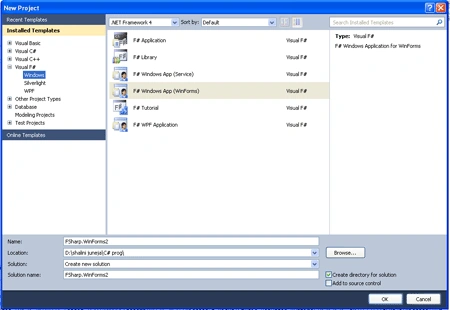
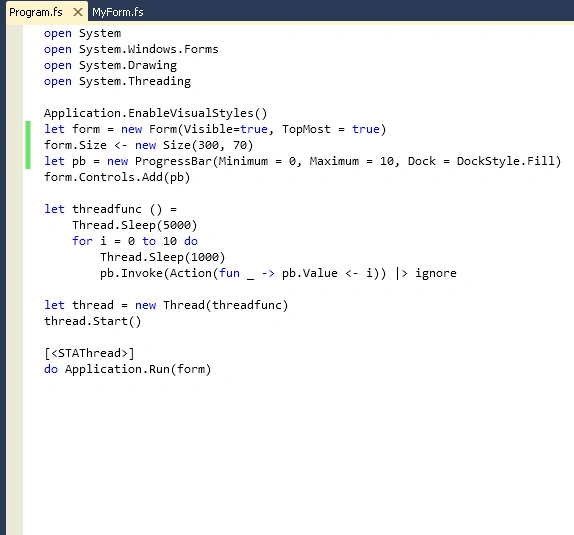
Here in this article I am creating a ProgressBar using a thread. First you will create a form, than you will create the progress bar control and also set the timing for the Thread and lastly you will add the ProgressBar to the form.
Properties of ProgressBar
|
Properties |
Description |
|
AccessibleRole |
Get/set the accessible role of the control |
|
BackColor |
Get/set the background color of the control |
|
BindingContext |
Get/set the BindingContext for the control |
|
DataBindings |
Gets the data bindings for the control |
|
DefaultCursor |
Get/set the DefaultCursor for the control |
|
Margin |
Get/set the space between controls |
|
Minimum |
Get/set the minimum value of the range of the control |
|
Maximum |
Get/set the maximum value of the range of the control |
Methods Of ProgressBar
|
Methods |
Description |
|
GetType |
Gets the Type of the current instance |
|
Hide |
Conceals the control from the user |
|
CreateGraphics |
Creates the Graphics for the control |
|
CreateAccessibilityInstance |
Creates a new accessibility object for the control |
|
CreateHandle |
Create a Handle for the control |
|
Focus |
Sets input Focus to the control |
|
WndProc |
Processes Windows Messages |
|
ResumeLayout |
Resumes usual layout logic |


Join the conversation! Your thoughts help the community grow.