

Let’s start with the Application User interface (UI). It is the interface of the Application, which is available for the users to interact with the app.
Here, we are going to discuss 38 different Xamarin.Forms UI controls. In Xamarin forms, we can use all the native controls of each targeted platform.
Four main controls groups of Xamarin.Foms UI are given below.
- Pages
Pages refers to the main page i.e. which type of page you are using. e.g. Content page, Navigation page.
- Layout
Layout is the layout, which you are using in your page. e.g. Stack Layout, Grid Layout.
- Views
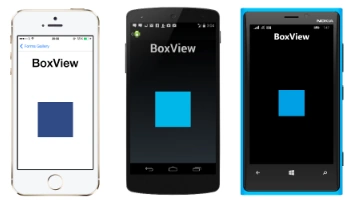
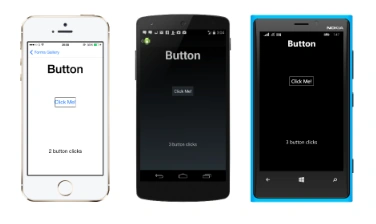
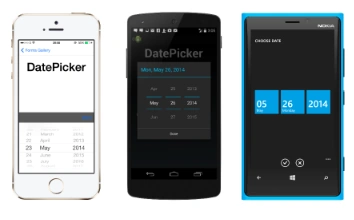
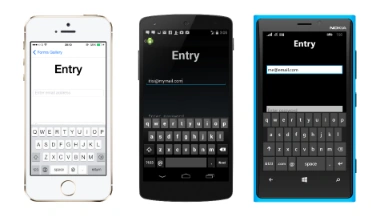
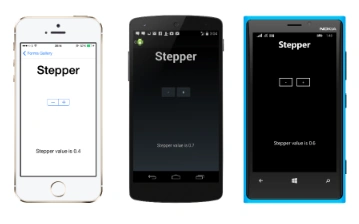
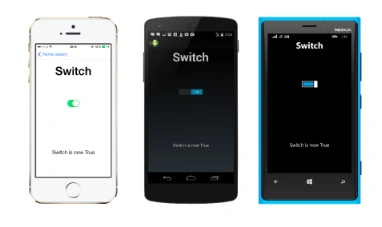
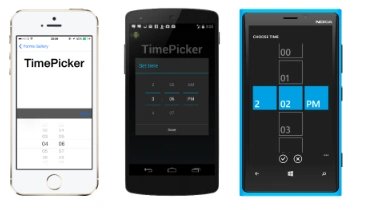
Views are the single UI elements, which you are using in your layout e.g. button, label.
- Cell
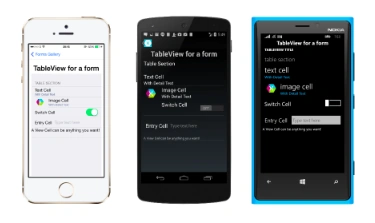
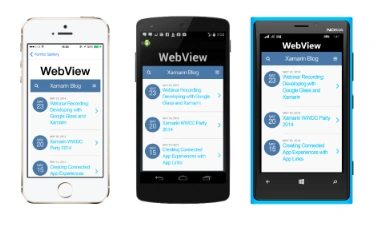
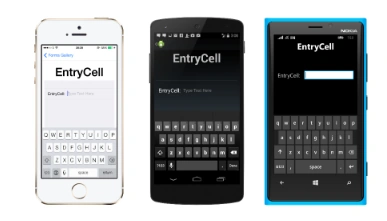
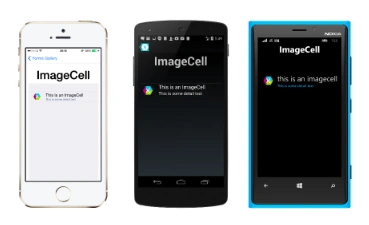
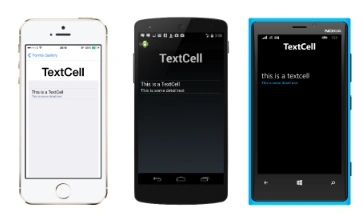
Cells are used to present the data in the table view and list view. e.g. ImageCell, TextCell.
- Content Page
It can display a single view. You can place any layout or view in it. You can use content page to show any view with a single element. This element can be anything like label, an entry or you can also use layout in the content page. It doesn’t matter that your layout contains more than one element; it can be placed in a content page. Layouts are also discussed below.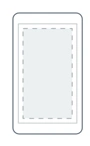
- Navigation Page
Use it to make navigation between the pages. i.e. move from one page to another. Most of the mobile Applications have more than one page. Thus, you must use navigation page in your Application to move from one page to another.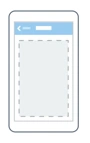
- Tabbed Page
Navigate from one page to another via tabs. Via tabbed, you can move from one tab to another. This is also a type of navigation page. In this page, you have multiple tabs and all the tabs are in front of you and you can move from one tab to another tab easily. E.g. Instagram is based on Tabbed page.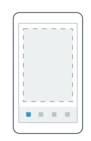
- Master Detail Page
A page that manages two panes of information. Master Detail page contains two panes. Let’s discuss an example of it that you have a list of contacts and you click on a specific contact to see its details and all the details of it are shown on the same page on second pane. This is the Master detail page, where you have two panes.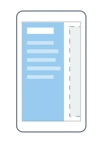
- Template Page
It can display full screen content with a control template and the base class for Content page.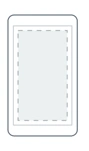
- Carousal Page
Navigate from one page to another via swipe gesture. This is another type of navigation page but in Carousel page, you can swipe to see Next page. Swipe left or swipe right to navigate between the pages, as shown below.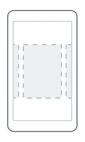
- Stack Layout
It can place elements in stack; either in vertical or in Horizontal orientation. In vertical orientation, you can place all the elements vertically or if you set orientation to horizontal, then all its elements are automatically placed in horizontal way. This is the most simple and easy to use layout. You can also see its example here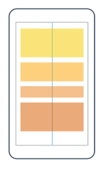
- Absolute Layout
Use to position its child elements at absolute requested positions. Absolute layouts are used when you want to move away from all the layouts restrictions and make layout totally different. We can use absolute and proportional values to set height, width, X-Axis and Y-Axis of an element.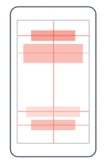
- Grid Layout
Divide layout in rows and columns. Your full screen is divided into rows and columns and you can utilize them to make your desired view. Mostly Grid layouts are seen in pictures gallery and other Grid layouts. If you want to learn more about grid layout, visit here.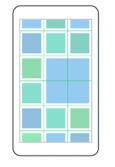
- Relative Layout
Use to position its elements relative to other element. For example, you have navigation bar at the top of your Application and you want this navigation bar to be always viewed 20 units down from main container. Now, you may set its y-axis to 20 units down relative to its container.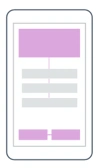
- Content View
An element with a single content. ContentView has very little use of its own.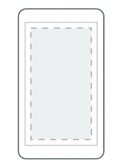
- Scroll View
It is used for scrolling a page. If you want to show more and more data on an Application page, then don’t take any tension; Scroll View is always there to help you. You can scroll screen up and down to view more data, as show in the image given below. E.g. Facebook and other big social media applications require scrolling.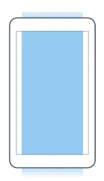
- Content Presenter
A layout manager for templated views. It is used within a ControlTemplate to mark, where the content to be presented appears.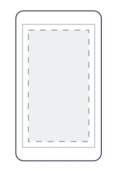
- Frame
It contains a single child with framing options. Frame has a default Layout and Padding is of 20.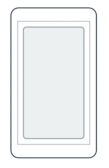

satya mPosted Jul 3, 2018, 6:18 AM
How to Change height in progress bar in xamarin forms
Ayappan AlagesanPosted Mar 15, 2018, 6:39 AM
I need picker as dropdown list in xamarin forms..can a yone help me