
Create the Activity Library
Step 1 Open Visual Studio 2010.
- Select File->New ->Project.
- Select Activity Library.
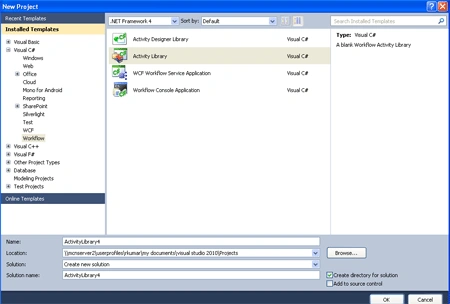
After clicking Ok, the Activity1.Xaml Window opens.

Create a new Activity :
Step 2 : Go to Solution Explorer and right-click.
- Go to Add-> New Item->CodeActivity.
- Write the below code.
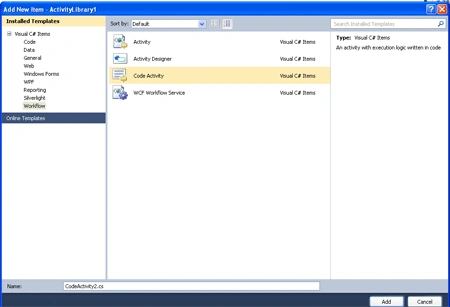
Code :
using
System;
using
System.Collections.Generic;
using
System.Linq;
using
System.Text;
using
System.Activities;
using
System.Activities.Runtime;
using
System.Activities.Presentation;
namespace
my_activity_library
{
public sealed
class
CodeActivity1 : CodeActivity
{
[RequiredArgument]
// Define an activity input argument of
type string
public
InArgument<string>
book { get; set;
}
protected
override bool CanInduceIdle
{
get {
return true; }
}
protected
override void Execute(CodeActivityContext
context)
{
// Obtain the runtime value of the
Text input argument
context.book(this.book.Get(context),
this.book);
string text = context.GetValue(this.book);
}
private
void OnReadComplete(NativeActivityContext
context, Bookmark bookmark,
object state)
{
// Store the value returned by the host
context.SetValue(this.book,
state as string)
}
}
}
Step 3 : After the code
we build the application and check the any error.
Step 4 : Add new Activity for the variables application.
- Go to Solution Explorer and right-click.
- Select Add-> New Item->Activity.

Step 5 : Now drag Activity from Toolbox.
- Select Sequence , WritelLine activity.
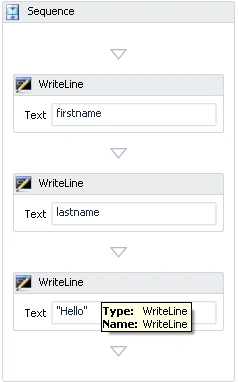
Step 6 : Now define variable for the application.
- Select Sequence Activity.
- Go to create option and define variable name and scope.
- Define Variable Type.
Step 7 : Now again go to Activity1.xaml option.
- Define WriteLine property.
- Give the Text Name.
Create the Test Project :
Step 8 : Go to Solution Explorer and right-click.
- Go to Add->New Project.
- Select ActivityLibrary.
- Open Activity.cs and add the following code.
Code :
using
System;
using
System.Collections.Generic;
using
System.Linq;
using
System.Text;
using
System.Activities;
using
System.Activities.Runtime;
using
System.Activities.Presentation;
namespace
my_activity_library
{
public sealed
class
CodeActivity1 : CodeActivity
{
public void
ReadUserShouldDisplayAGreeting()
{
// Arrange
const
string firstBookmark =
"FirsName";
// Intentional error - bookmark name misspelled
const
string lastBookmark =
"LastName";
const
string expectedFirst = "First";
const
string expectedLast = "Last";
const
string expectedGreeting = "Hello "
+ expectedFirst + " " + expectedLast;
var host =
WorkflowApplicationTest.Create(new ReadUser());
try
{
// Act
// This code uses Workflow
Episode support provided by extension methods from Microsoft.Activities
// Run the workflow to the first
idle point where a bookmark named "FirstName" exists
host.TestWorkflowApplication.RunEpisode(firstBookmark,
TestTimeout);
// Resume the workflow with the
first name
firstBookmark, //
The name of the bookmark to resume
expectedFirst, //
The value to resume the bookmark with
lastBookmark, //
The name of the next bookmark to wait for
TestTimeout);
// Resume the workflow with the
last name and run until complete, abort or timeout
host.TestWorkflowApplication.ResumeEpisodeBookmark(lastBookmark,
expectedLast, TestTimeout);
// Assert
// The text lines property
captures text written with the WriteLine activity into an array of strings
// There are three
WriteLines plus an extra empty element at the end
Assert.AreEqual(4, host.TextLines.Length);
Assert.AreEqual(expectedGreeting, host.TextLines[2],
"The greeting was not correct");
}
finally
{
host.Tracking.Trace();
}
}
}
}
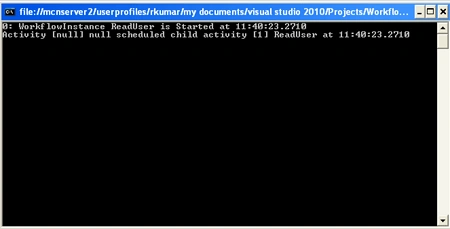
Step 9 : Now Press F5 and
run the application.
Suresh KumarPosted Dec 29, 2016, 3:59 AM
Hi, This code is executable in console. Can we execute this code in explorer?