

Introduction 
You can also view my previous articles related to AngularJs using MVC and the WCF Rest Serice.
- MVC, AngularJS and WCF Rest Service For Master Detail Grid
- MVC AngularJS and WCF Rest Service For Mind Reader Quiz
This article will explain in detail how to create an AngularJS Filter, Sort and Simple Animation using WCF Rest Service.
Here we can see some basics and reference links for Windows Communication Foundation (WCF). WCF is a framework for building service-oriented applications.
Service-oriented application
Using a protocol the service can be shared and used over a network.
For example, let's consider we are now working on a project and we need to create a common database function and those functions need to be used in multiple projects and the projects are in a different place and connected by the internet.
In this case we can create a WCF service and we can write all our common database functions in our WCF service class. We can deploy our WCF in IIS and use the URL in our application to do database functions. In the code part let's see how to create a WCF REST service and use it in our AngularJS application.
If you are interested in reading more about WCF then kindly go through this link.
https://msdn.microsoft.com/en-in/library/dd203052.aspx
AngularJS
We might be be familiar with what the Model, View, View Model (MVVM) and what Model, View and Controller (MVC) are. AngularJS is a JavaScript framework that is purely based on HTML, CSS and JavaScript.
The AngularJS Model View Whatever (MVW) pattern is similar to the MVC and MVVM patterns. In our example I have used Model, View and Service. In the code part let's see how to install and create AngularJS in our MVC application.
Since this article explains how to use Filter, Sort and Simple Animation in AngularJS let's see one by one here.
- How to create a WCF Rest service and retrieve data from a database.
- How to install the AngularJS Package into a MVC application.
- How to create our AngularJS application to create our own Master Detail Grid.
- How to use a WCS service in AngularJS to use Filter, Sort and Animation.
Here we can see some basics and reference links for Windows Communication Foundation (WCF). WCF is a framework for building service-oriented applications.
Service-oriented application
Using a protocol the service can be shared and used over a network.
For example, let's consider we are now working on a project and we need to create a common database function and those functions need to be used in multiple projects and the projects are in a different place and connected by the internet.
In this case we can create a WCF service and we can write all our common database functions in our WCF service class. We can deploy our WCF in IIS and use the URL in our application to do database functions. In the code part let's see how to create a WCF REST service and use it in our AngularJS application.
If you are interested in reading more about WCF then kindly go through this link.
https://msdn.microsoft.com/en-in/library/dd203052.aspx
AngularJS
We might be be familiar with what the Model, View, View Model (MVVM) and what Model, View and Controller (MVC) are. AngularJS is a JavaScript framework that is purely based on HTML, CSS and JavaScript.
The AngularJS Model View Whatever (MVW) pattern is similar to the MVC and MVVM patterns. In our example I have used Model, View and Service. In the code part let's see how to install and create AngularJS in our MVC application.
Since this article explains how to use Filter, Sort and Simple Animation in AngularJS let's see one by one here.
ng-repeat: First we start with ng-repeat. This can be used to display the array of data one by one within our Table td or within a List, for example let's consider we want to display the data from 1 to 10. Usualy we do a loop and display the value one by one or we add values from 1 to 10 to an array and display using a loop.To use looping and display the data one by one in AngularJs we use ng-repeat.
For example let's see the preceding case to display the data from 1 to 10 in a table so the code will be like this.
- <table>
- <tbody ng-repeat="Numbers in [1, 2, 3, 4,5,6,7,8,9,10] ">
- <tr>
- <td>
- {{Numbers}}
- </td>
- </tr>
- </tbody>
- </table>
- <table>
- <tbody ng-repeat="Names in ['Shanu','Afraz','Raja','Afreen','Mak','Albert'] ">
- <tr>
- <td>
- {{Names}}
- </td>
- </tr>
- </tbody>
- </table>
The complete code will be like this.
Here we can see that first we have added the angular.js reference.
- <html ng-app="MyAngularModule" xmlns="http://www.w3.org/1999/xhtml">
- <head runat="server">
- <title></title>
- <script src="http://code.angularjs.org/1.2.2/angular.js"></script>
- <script>
- angular.module('MyAngularModule', [])
- .controller('myAngularController', function (
- $scope
- ) {
- });
- </script>
- </head>
- <body ng-controller="myAngularController">
- <table>
- <tbody ng-repeat="Numbers in [1, 2, 3, 4,5,6,7,8,9,10] ">
- <tr>
- <td>
- {{Numbers}}
- </td>
- </tr>
- </tbody>
- </table>
- <table>
- <tbody ng-repeat="Names in ['Shanu','Afraz','Raja','Afreen','Mak','Albert'] ">
- <tr>
- <td>
- {{Names}}
- </td>
- </tr>
- </tbody>
- </table>
- </body>
- </html>
- Filter
For example we can consider the preceding example where we display the names of the array using the ng-repeat. Now we can add the filter for the preceding example.
Here we can see with ng-repeat we have added the filter and for the filter we have given the TextBox Model id. When the user presses the key on the TextBox the filter will be applied for the loop and display the appropriate value as in the following:
- ng-repeat="Names in ['Shanu','Afraz','Raja','Afreen','Mak','Albert'] | filter:myNameFilters
- <html ng-app="MyAngularModule" xmlns="http://www.w3.org/1999/xhtml">
- <head runat="server">
- <title></title>
- <script src="http://code.angularjs.org/1.2.2/angular.js"></script>
- <script>
- angular.module('MyAngularModule', [])
- .controller('myAngularController', function (
- $scope
- ) {
- });
- </script>
- </head>
- <body ng-controller="myAngularController">
- Filter By NAme : <input type="text" ng-model="myNameFilters">
- <table border=1>
- <tbody ng-repeat="Names in ['Shanu','Afraz','Raja','Afreen','Mak','Albert'] | filter:myNameFilters ">
- <tr>
- <td>
- {{Names}}
- </td>
- </tr>
- </tbody>
- </table>
- </body>
- </html>
- Sort
The same as for a filter we add the orderBy with field and reverse value in ng-repat using the pipe symbol.
The OrderBy can be added with the ng-repeat using the pipe symbol, for example let's consider the preceding example.
Where we have displayed the names of the array using the ng-repeat. Now we can add the filter for the preceding example.
Here in the first Tr and Td, I display the Table Heading and in the click event I display the order by names in ascending and descending order.
Complete Code
The OrderBy can be added with the ng-repeat using the pipe symbol, for example let's consider the preceding example.
Where we have displayed the names of the array using the ng-repeat. Now we can add the filter for the preceding example.
Here in the first Tr and Td, I display the Table Heading and in the click event I display the order by names in ascending and descending order.
- ng-repeat="nme in Names | filter:myNameFilters | orderBy:predicate:reverse
- <html ng-app="MyAngularModule" xmlns="http://www.w3.org/1999/xhtml">
- <head runat="server">
- <title></title>
- <script src="http://code.angularjs.org/1.2.2/angular.js"></script>
- <script>
- angular.module('MyAngularModule', [])
- .controller('myAngularController', function (
- $scope
- ) {
- });
- </script>
- </head>
- <body ng-controller="myAngularController" ng-init="Names = [{name:'Shanu'},
- {name:'Afraz'},
- {name:'Afreen'},
- {name:'Vijay'},
- {name:'Mak'},
- {name:'Raja'}]">
- Filter By NAme : <input type="text" ng-model="myNameFilters">
- <table border=1>
- <tr>
- <td ng-click="predicate = 'name'; reverse=!reverse">
- <b>Toy Code</b>
- </td>
- </tr>
- <tbody ng-repeat="nme in Names | filter:myNameFilters | orderBy:predicate:reverse">
- <tr>
- <td>
- {{nme.name}}
- </td>
- </tr>
- </tbody>
- </table>
- </body>
- </html>
- Animation
For using the Animation in AngularJs we must include “angular-animate.min.js” and in the module we my must pass the parameter “ngAnimate”
The code will look as in this:
The code will look as in this:
- Add the refreance:
- <script src="http://code.angularjs.org/1.2.2/angular-animate.min.js"></script>
- <script src="http://code.angularjs.org/1.2.2/angular-animate.min.js"></script>
- Pass the parameter in Module as "ngAnimate":
- angular.module('MyAngularModule', ['ngAnimate'])
- angular.module('MyAngularModule', ['ngAnimate'])
- Add your animation CSS to your HTML page. Here in my example I will be get a fade In and out of the display of the text that is binding using ng-repeat.
Complete Code
- <html ng-app="MyAngularModule" xmlns="http://www.w3.org/1999/xhtml">
- <head runat="server">
- <title></title>
- <script src="http://code.angularjs.org/1.2.2/angular.js"></script>
- <script src="http://code.angularjs.org/1.2.2/angular-animate.min.js"></script>
- <style>
- .ng-enter
- {
- -webkit-transition: 1s;
- transition: 3s;
- opacity: 0;
- }
- .ng-enter-active
- {
- opacity: 1;
- }
- .ng-leave
- {
- -webkit-transition: 1s;
- transition: 2s;
- }
- .ng-leave-active {
- opacity: 0;
- }
- </style>
- <script>
- angular.module('MyAngularModule', ['ngAnimate'])
- .controller('myAngularController', function (
- $scope
- ) {
- });
- </script>
- </head>
- <body ng-controller="myAngularController" ng-init="Names = [{name:'Shanu'},
- {name:'Afraz'},
- {name:'Afreen'},
- {name:'Vijay'},
- {name:'Mak'},
- {name:'Raja'}]">
- Filter By NAme : <input type="text" ng-model="myNameFilters">
- <table border=1>
- <tr>
- <td ng-click="predicate = 'name'; reverse=!reverse">
- <b>Toy Code</b>
- </td>
- </tr>
- <tbody ng-repeat="nme in Names | filter:myNameFilters | orderBy:predicate:reverse">
- <tr>
- <td>
- {{nme.name}}
- </td>
- </tr>
- </tbody>
- </table>
- </body>
- </html>
Reference links:
http://www.w3schools.com/angular/default.asp
https://docs.angularjs.org/api/ng/filter/filter
These are a few simple examples using HTML. Now let's see in detail how to implement this in our MVC application using a WCF rest service.
Code Part
http://www.w3schools.com/angular/default.asp
https://docs.angularjs.org/api/ng/filter/filter
These are a few simple examples using HTML. Now let's see in detail how to implement this in our MVC application using a WCF rest service.
Code Part
- Create Database and Table
We will create a ToysDetails table under the Database ToysDB. The following is the script to create a database, table and sample insert query. Run this script in your SQL Server. I have used SQL Server 2012.
The following is a script to create a database, table and a sample to insert data:
- USE MASTER
- GO
The following checks whether a database exists. If the database exists then drop it and create a new database.
- IF EXISTS (SELECT [name] FROM sys.databases WHERE [name] = 'ToysDB' )
- DROP DATABASE ToysDB
- GO
- CREATE DATABASE ToysDB
- GO
- USE ToysDB
- GO
- ToysDetails table
The following creates the Table ToysDetails. This table will be used to store the details like Toys Information.
- IF EXISTS ( SELECT [name] FROM sys.tables WHERE [name] = 'ToysDetails' )
- DROP TABLE Professional_Type
- GO
- CREATE TABLE ToysDetails
- (
- Toy_ID VARCHAR(20) NOT NULL,
- Toy_Name VARCHAR(100) NOT NULL,
- Toy_Price int NOT NULL,
- Image_Name VARCHAR(100) NOT NULL,
- Item_Date DateTime NOT NULL,
- AddedBy VARCHAR(100) NOT NULL,
- CONSTRAINT [PK_ToysDetails] PRIMARY KEY CLUSTERED
- (
- [Toy_ID] ASC
- )WITH (PAD_INDEX = OFF, STATISTICS_NORECOMPUTE = OFF, IGNORE_DUP_KEY = OFF, ALLOW_ROW_LOCKS = ON, ALLOW_PAGE_LOCKS = ON) ON [PRIMARY]
- ) ON [PRIMARY]
- GO
Use the following to insert the sample records into the ToysDetails table.
- Insert into ToysDetails(Toy_ID,Toy_Name,Toy_Price,Image_Name,Item_Date,AddedBy) values('Toy001','Abacus',250,'Abacus.png',getdate(),'Shanu')
- Insert into ToysDetails(Toy_ID,Toy_Name,Toy_Price,Image_Name,Item_Date,AddedBy) values('Toy002','Babel Fish',350,'Babelfish.png',getdate()-10,'Afraz')
- Insert into ToysDetails(Toy_ID,Toy_Name,Toy_Price,Image_Name,Item_Date,AddedBy) values('Toy003','Base Ball',1400,'Baseball.png',getdate()-24,'Shanu')
- Insert into ToysDetails(Toy_ID,Toy_Name,Toy_Price,Image_Name,Item_Date,AddedBy) values('Toy004','Basket Ball',1390,'BasketballBall.png',getdate()-36,'Raj')
- Insert into ToysDetails(Toy_ID,Toy_Name,Toy_Price,Image_Name,Item_Date,AddedBy) values('Toy005','Blue Fish',450,'BlueFish.png',getdate()-90,'Afraz')
- Insert into ToysDetails(Toy_ID,Toy_Name,Toy_Price,Image_Name,Item_Date,AddedBy) values('Toy006','Brown Bear',1250,'BrownBear.png',getdate()-34,'Mak')
- Insert into ToysDetails(Toy_ID,Toy_Name,Toy_Price,Image_Name,Item_Date,AddedBy) values('Toy007','CabrioletRed Car',950,'CabrioletRed.png',getdate()-20,'Albert')
- Insert into ToysDetails(Toy_ID,Toy_Name,Toy_Price,Image_Name,Item_Date,AddedBy) values('Toy008','Chevelot Car',1150,'Chevelot.png',getdate()-26,'Gowri')
- Insert into ToysDetails(Toy_ID,Toy_Name,Toy_Price,Image_Name,Item_Date,AddedBy) values('Toy009','Duck',399,'Duck.png',getdate()-44,'Afraz')
- Insert into ToysDetails(Toy_ID,Toy_Name,Toy_Price,Image_Name,Item_Date,AddedBy) values('Toy010','FireEscape Van',897,'FireEscape.png',getdate()-12,'Shanu')
- Insert into ToysDetails(Toy_ID,Toy_Name,Toy_Price,Image_Name,Item_Date,AddedBy) values('Toy011','Mini Car',750,'MiniCar.png',getdate(),'Shanu')
- Insert into ToysDetails(Toy_ID,Toy_Name,Toy_Price,Image_Name,Item_Date,AddedBy) values('Toy012','Nemo',675,'Nemo.png',getdate()-1,'Kim')
- Insert into ToysDetails(Toy_ID,Toy_Name,Toy_Price,Image_Name,Item_Date,AddedBy) values('Toy013','Old Car',1950,'OldCar.png',getdate()-3,'Jack')
- Insert into ToysDetails(Toy_ID,Toy_Name,Toy_Price,Image_Name,Item_Date,AddedBy) values('Toy014','Red Car',679,'RedCar.png',getdate(),'Lee')
- Insert into ToysDetails(Toy_ID,Toy_Name,Toy_Price,Image_Name,Item_Date,AddedBy) values('Toy015','Soccer Ball',950,'SoccerBall.png',getdate(),'Shanu')
- Insert into ToysDetails(Toy_ID,Toy_Name,Toy_Price,Image_Name,Item_Date,AddedBy) values('Toy016','Tennis Ball',350,'TennisBall.png',getdate()-29,'Afraz')
- select * from ToysDetails
- Create WCF REST Service
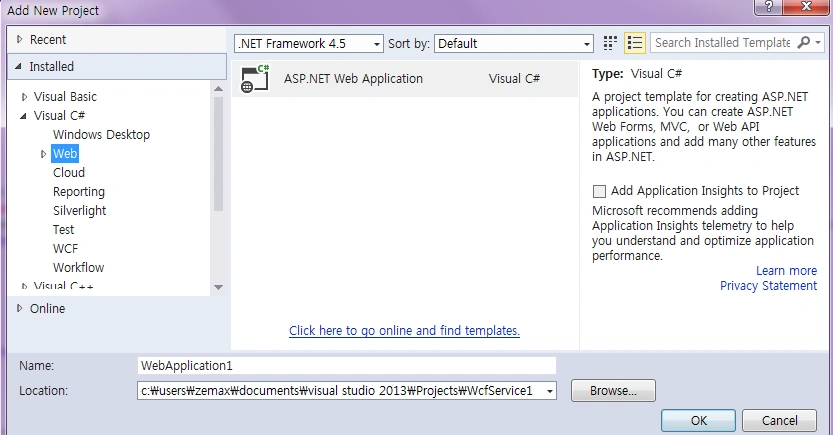
Open Visual Studio 2013 then select File - New - Project then select WCF Service Application then select your project path and provide a name for your WCF service and click OK.

Once we created our WCF Service we can see “IService.CS” and “Service1.svc” in the Solution Explorer as in the following.

IService.CS: In “IService.CS” we can see 3 Contracts by default.
[ServiceContract]: Describes the Methods or any operations available for the service. Service Contract is an interface and the methods can be declared inside the service interface using the Operation Contract attribute.
[OperationContract]: is similar to the web service [WEBMETHOD]
[DataContract]: describes the data exchange between the client and the service.
[ServiceContract]
The following code will be automatically created for all the IService.CS files. We can change and write our own code here.
Once we created our WCF Service we can see “IService.CS” and “Service1.svc” in the Solution Explorer as in the following.
IService.CS: In “IService.CS” we can see 3 Contracts by default.
[ServiceContract]: Describes the Methods or any operations available for the service. Service Contract is an interface and the methods can be declared inside the service interface using the Operation Contract attribute.
[OperationContract]: is similar to the web service [WEBMETHOD]
[DataContract]: describes the data exchange between the client and the service.
[ServiceContract]
The following code will be automatically created for all the IService.CS files. We can change and write our own code here.
- public interface IService1
- {
- [OperationContract]
- string GetData(int value);
- [OperationContract]
- CompositeType GetDataUsingDataContract(CompositeType composite);
- // TODO: Add your service operations here
- }
- // Use a data contract as illustrated in the sample below to add composite types to service operations.
- [DataContract]
- public class CompositeType
- {
- bool boolValue = true;
- string stringValue = "Hello ";
- [DataMember]
- public bool BoolValue
- {
- get { return boolValue; }
- set { boolValue = value; }
- }
- [DataMember]
- public string StringValue
- {
- get { return stringValue; }
- set { stringValue = value; }
- }
- }
Data Contract
In our example we need to get all the Toys details, so I have created a Data Contract “ToyItemDataContract”. Here we can see we have decelerated our entire Table column name as Data Member.






kalu singh raoPosted Jul 22, 2016, 2:00 AM
Good one
Syed ShanuPosted Apr 13, 2015, 7:17 AM
Thank You Upendra
Upendra Pratap ShahiPosted Apr 13, 2015, 7:16 AM
nice sir..
Syed ShanuPosted Mar 27, 2015, 2:15 AM
Thank You Gowtham.Authors always need support and encouragement like yours.Feels good.
Gowtham RajamanickamPosted Mar 27, 2015, 1:57 AM
keep up the good work..
Gowtham RajamanickamPosted Mar 27, 2015, 1:57 AM
outstanding...
Syed ShanuPosted Mar 26, 2015, 6:42 PM
Thank You Vithal Wadje
Vithal WadjePosted Mar 26, 2015, 2:20 PM
just outsatnding
Syed ShanuPosted Mar 25, 2015, 4:03 PM
Thank You Sridar Sharma
Shridhar SharmaPosted Mar 25, 2015, 2:06 PM
nice resource to go through.
Syed ShanuPosted Mar 25, 2015, 12:37 AM
Thank You Gowtham
Gowtham RajamanickamPosted Mar 24, 2015, 11:36 PM
Great work...
Syed ShanuPosted Mar 24, 2015, 8:52 AM
Thank You Khargesh
Khargesh RajputPosted Mar 24, 2015, 7:52 AM
nice sir
Syed ShanuPosted Mar 24, 2015, 7:09 AM
Thank You Hamid Khan
Hamid KhanPosted Mar 24, 2015, 6:12 AM
Good Explanation
Syed ShanuPosted Mar 23, 2015, 8:25 PM
Thank You Tom
Tom MohanPosted Mar 23, 2015, 8:21 PM
Good explanation .