

I am here to continue the discussion around AngularJS. Today, we will discuss about the $http service with AngularJS. Also in case you have not had a look at our previous articles of this series, go through the following links.
- Learn AngularJS From Beginning: Basic - Part One
- Learn AngularJS From Beginning: Filter - Part Two
- Learn AngularJS From Beginning: Service - Part Three
- Learn AngularJS From Beginning: Directive - Part Four
- Learn AngularJS From Beginning: Form Data Binding - Part Five
- Learn AngularJS From Beginning: Global Object Service - Part Six
In this article, we will discuss about the built-in AngularJS service for making ajax request and representing asynchronous activities.
Why to use Ajax Services?
Ajax is the foundation of the modern web application, and you will use the services that I describe in this article every time that you need to communicate with a server without causing the browser to load new content and, in doing so, dump your AngularJS application. That said, if you are consuming data from a RESTful API, then you should use the $resource service. I will describe REST and $resource in the next article, but the short version is that $resource provides a higher-level API that is built on the services I describe in this article and makes it easier to perform common data operations.
Making Ajax Requests
The $http service is used to make and process Ajax requests, which are standard HTTP requests that are performed asynchronously. Ajax is at the heart of modern web applications, and the ability to request content and data in the background while the user interacts with the rest of the application is an important way of creating a rich user experience. There are two ways to make a request using the $http service. The first—and most common—is to use one of the convenience methods that the service defines, which I have described in below table and which allows you to make requests using the most commonly needed HTTP methods. All of these methods accept an optional configuration object, which I describe in the “Configuring Ajax Requests” section later in this article.
|
Name |
Descriptions |
|
get(url, config) |
Performs a GET request for the specified URL. |
|
post(url, data, config) |
Performs a POST request to the specified URL to submit the specified data. |
|
delete(url, config) |
Performs a DELETE request to the specified URL. |
|
put(url, data, config) |
Performs a PUT request with the specified data and URL. |
|
patch(url, data, config) |
Performs a PATCH request with the specified data and URL. |
|
head(url, config) |
Performs a HEAD request to the specified URL. |
|
jsonp(url, config) |
Performs a GET request to obtain a fragment of JavaScript code that is then executed. JSONP, which stands for JSON with Padding, is a way of working around the limitations that browsers apply to where JavaScript code can be loaded from. |
The other way to make an Ajax request is to treat the $http service object as a function and pass in a configuration object. This is useful when you require one of the HTTP methods for which there is not a convenience method available. You pass in a configuration object that includes the HTTP method you want to use. I’ll discuss about how to make Ajax requests in this way in the next article where I discuss about RESTful services, but in this article I am going to focus on the convenience methods.
Receiving Ajax Responses
Making a request is only the first part of the Ajax process, and I also have to receive the response when it is ready. The A in Ajax stands for asynchronous, which means that the request is performed in the background, and you will be notified when a response from the server is received at some point in the future. AngularJS uses a JavaScript pattern called promises to represent the result from an asynchronous operation, such as an Ajax request. A promise is an object that defines methods that you can use to register functions that will be invoked when the operation is complete. The promise objects returned from the $http methods in above table define the methods shown in below.
|
Name |
Descriptions |
|
success(fn) |
Invokes the specified function when the HTTP request has successfully completed |
|
error(fn) |
Invokes the specified function when the request does not complete successfully |
|
then (fn,fn) |
Registers a success function and an error function |
The success and error methods pass their functions a simplified view of the response from the server. The success function is passed the data that the server sends, and the error function is passed a string that describes the problem that occurred. Further, if the response from the server is JSON data, then AngularJS will parse the JSON to create JavaScript objects and pass them to the success function automatically.
Getting More Response Details
Using the then method on the promise object allows you to register both a success and error function in a single method call. But also, more importantly, it provides access to more detailed information about the response from the server. The object that the then method passes to its success and error functions defines the properties I have described in below table.
|
Name |
Descriptions |
|
data |
Returns the data from the request |
|
status |
Returns the HTTP status code returned by the server |
|
headers |
Returns a function that can be used to obtain headers by name |
|
config |
The configuration object used to make the request (see the “Configuring Ajax Requests” section for details) |
For demonstrate the above concept, we first create a json data and then load those data using ajax request.
data.json
[
    {
        "Category": "ASP.NET",
        "Book": "Mastering ASP.Net 5",
        "Publishers": "Wrox Publication",
        "Price": 500.00
    },
    {
        "Category": "MVC",
        "Book": "Professional MVC 5",
        "Publishers": "Wrox Publication",
        "Price": 750.00
    },
    {
        "Category": "JQuery",
        "Book": "ABCD of JQuery",
        "Publishers": "BPB Publication",
        "Price": 500.00
    }
]
App.js
var testApp = angular.module('TestApp', []);
Ajax.html
<!DOCTYPE html>
<html ng-app="TestApp">
<head>
    <title>AngularJS Ajax</title>
    <script src="angular.js"></script>
    <link href="../../RefStyle/bootstrap.min.css" rel="stylesheet" />
    <script src="app.js"></script>
    <script src="ajax.js"></script>
</head>
<body ng-controller="ajaxController">
    <div class="panel panel-default">
        <div class="panel-body">
            <table class="table table-striped table-bordered">
                <thead>
                    <tr>
                        <th>Name</th>
                        <th>Category</th>
                        <th>Price</th>
                    </tr>
                </thead>
                <tbody>
                    <tr ng-hide="products.length">
                        <td colspan="4" class="text-center">No Data</td>
                    </tr>
                    <tr ng-repeat="item in products">
                        <td>{{item.Category}}</td>
                        <td>{{item.Book}}</td>
                        <td>{{item.Publishers}}</td>
                        <td>{{item.price | currency}}</td>
                    </tr>
                </tbody>
            </table>
            <p>
                <button class="btn btn-primary" ng-click="loadData()">
                    Load Data
                </button>
                <button class="btn btn-primary" ng-click="loadDataPromise()">
                    Load Data With Promise
                </button>
            </p>
        </div>
    </div>
</body>
</html>
Ajax.js
testApp.controller("ajaxController", function($scope, $http) {

    $scope.loadData = function() {
        $http.get("data.json").success(function(data) {
            $scope.products = data;
        });
    };

    $scope.loadDataPromise = function() {
        $http.get("data.json").then(function(response) {
            console.log("Status: " + response.status);
            console.log("Type: " + response.headers("content-type"));
            console.log("Length: " + response.headers("content-length"));
            $scope.products = response.data;
        });
    };
});
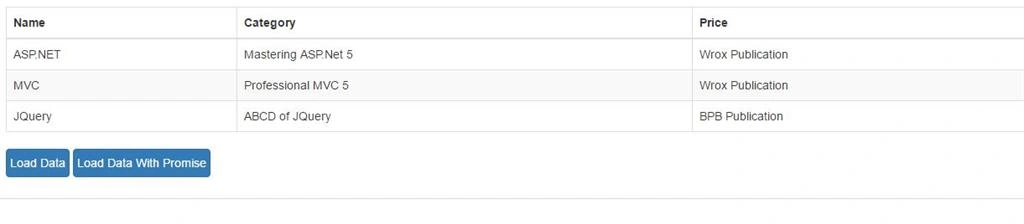
The output of the above code is.
Processing Other Data Types
Although obtaining JSON data is the most common use for the $http service, you may not always have the luxury of working with a data format that AngularJS will process automatically. If this is the case, then AngularJS will pass the success function an object containing the properties discussed above and you will be responsible for parsing the data. To give you a simple example of how this works, I created a simple XML file called productData.xml that contains the same product information as the previous example, but expressed as a fragment of XML.
Data.xml
<?xml version="1.0" encoding="UTF-8"?>
<products>
    <product Category="NodeJs" Book="Beginning of NodeJs" Publishers="BPB Publication" Price="500" />
    <product Category="ASP.Net" Book="Mastering ASP.Net 4" Publishers="Wrox Publication" Price="700" />
    <product Category="MVC" Book="Professional MVC 6" Publishers="Wrox Publication" Price="500" />
</products>
Now add another button in the ajax.html file for load the data from xml file and change the ajax.js file code as below.
testApp.controller("ajaxController", function($scope, $http) {

    $scope.loadData = function() {
        $http.get("data.json").success(function(data) {
            $scope.products = data;
        });
    };

    $scope.loadDataPromise = function() {
        $http.get("data.json").then(function(response) {
            console.log("Status: " + response.status);
            console.log("Type: " + response.headers("content-type"));
            console.log("Length: " + response.headers("content-length"));
            $scope.products = response.data;
        });
    };

    $scope.loadXMLData = function() {
        $http.get("data.xml").then(function(response) {
            $scope.products = [];
            var productElems = angular.element(response.data.trim()).find("product");
            for (var i = 0; i < productElems.length; i++) {
                var product = productElems.eq(i);
                $scope.products.push({
                    Category: product.attr("Category"),
                    Book: product.attr("Book"),
                    Publishers: product.attr("Publishers"),
                    price: product.attr("price")
                });
            }
        });
    };
});


farooq smdPosted May 25, 2016, 10:34 AM
good one
Vignesh ManiPosted May 13, 2016, 7:20 AM
nice one
Pritam ZopePosted May 13, 2016, 4:57 AM
Nice...........................................!
Sonu ChaudharyPosted May 12, 2016, 11:26 AM
good one
Thiruppathi RPosted May 12, 2016, 3:03 AM
Good One...