

Introduction
In this article, we are going to learn how to create an auto image slider in Android. First, we need to add a dependency in our gradle folder. Then, we have to design our layout files. We will use sliderview in the auto image slider example. The working of sliderview is the same as that of recyclerview.
Prerequisites:
- The latest version of the android studio
- Basic knowledge of recyclerview.
- Basic knowledge of Java
Let's start with the implementation.
Step 1
Create a new project in Android studio and select an empty activity.
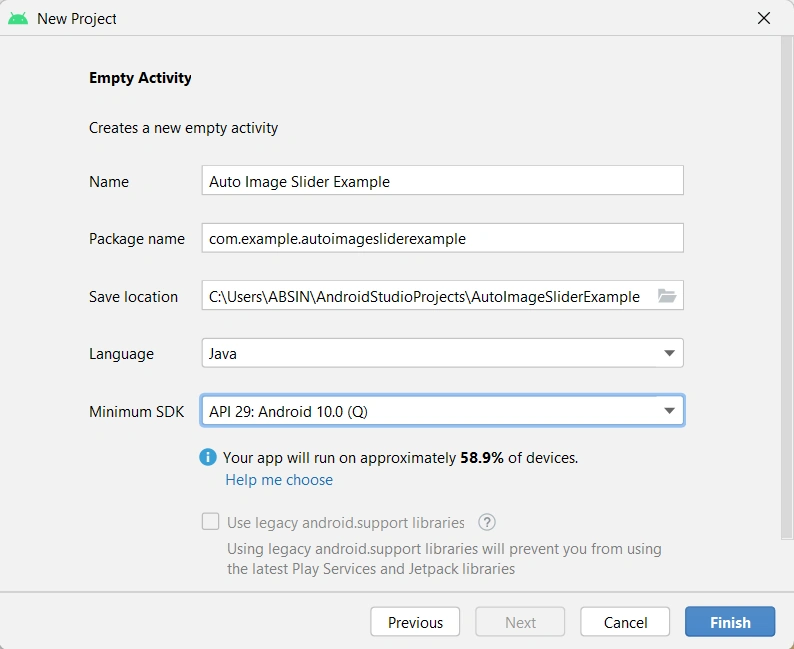
Click on the finish button.
Step 2
Go to build Gradle(Module) and add the following dependency:
implementation 'com.github.smarteist:autoimageslider:1.4.0'
Step 3
Go to activity_main.xml and add the following code:
activity_main.xml
<?xml version="1.0" encoding="utf-8"?>
<LinearLayout
    xmlns:android="http://schemas.android.com/apk/res/android"
    xmlns:app="http://schemas.android.com/apk/res-auto"
    xmlns:tools="http://schemas.android.com/tools"
    android:layout_width="match_parent"
    android:layout_height="match_parent"
    android:orientation="horizontal"
    tools:context=".MainActivity">

    <com.google.android.material.card.MaterialCardView
        app:cardCornerRadius="15dp"
        android:layout_margin="10dp"
        android:layout_width="match_parent"
        android:layout_height="wrap_content">

        <com.smarteist.autoimageslider.SliderView
            android:id="@+id/imageSlider"
            android:layout_width="match_parent"
            android:layout_height="240dp"
            app:sliderAnimationDuration="600"
            app:sliderAutoCycleDirection="right"
            app:sliderAutoCycleEnabled="true"
            app:sliderIndicatorAnimationDuration="600"
            app:sliderIndicatorGravity="center_horizontal|bottom"
            app:sliderIndicatorMargin="15dp"
            app:sliderIndicatorOrientation="horizontal"
            app:sliderIndicatorPadding="3dp"
            app:sliderIndicatorRadius="2dp"
            app:sliderIndicatorSelectedColor="#5A5A5A"
            app:sliderIndicatorUnselectedColor="#FFF"
            app:sliderScrollTimeInSec="1"
            app:sliderStartAutoCycle="true" />

    </com.google.android.material.card.MaterialCardView>


</LinearLayout>
Explanation
Here we took a linear layout with a horizontal orientation and a material cardview inside this linear layout. Then, we took a sliderview inside this material cardview. We defined sliderview attributes such as duration, direction, height, slider id, indicator color, indicator radius, etc.
Step 4
Create a new layout resource file.
slider_item_layout.xml
<?xml version="1.0" encoding="utf-8"?>
<RelativeLayout

    xmlns:android="http://schemas.android.com/apk/res/android"
    android:layout_width="match_parent"
    android:layout_height="match_parent">

    <ImageView
        android:id="@+id/image"
        android:layout_width="match_parent"
        android:layout_height="match_parent"
        android:scaleType="fitXY" />

    <RelativeLayout
        android:layout_width="match_parent"
        android:layout_height="50dp"
        android:background="@drawable/bg_overlay"
        android:layout_alignParentBottom="true">

        <TextView
            android:id="@+id/textdescription"
            android:layout_width="match_parent"
            android:layout_height="match_parent"
            android:text="Product Images"
            android:textColor="@color/white"
            android:gravity="center"
            android:paddingBottom="15dp"
            android:textStyle="bold"
            android:textSize="22sp"/>

    </RelativeLayout>

</RelativeLayout>
Explanation
When we use recyclerview then we need a custom_item_layout. The same build concept is applied here. Here we create slider_item_layout and define the component that is required. We take an imageview and textview in this layout.
Step 4
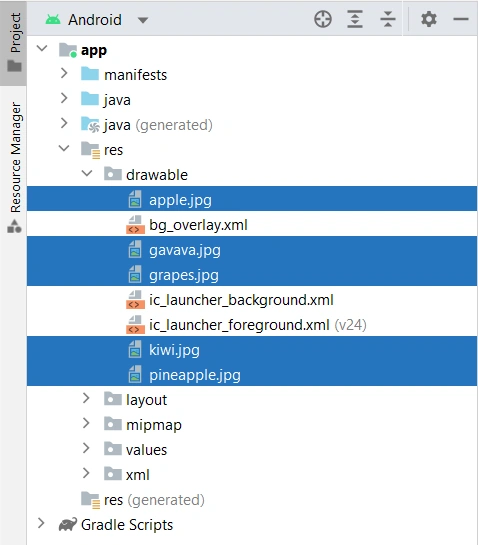

Rahin HusenPosted Oct 30, 2024, 5:10 PM
<com.smarteist.autoimageslider.SliderView it's not working in android studio java. But why? I"ve added the ordered Library