

Sometimes in Power Automate, we get invoices that have a lot of information like vendor name, invoice number, date, and amount—all mixed together. But most of the time, we only need a few key details to process them or save in Excel.
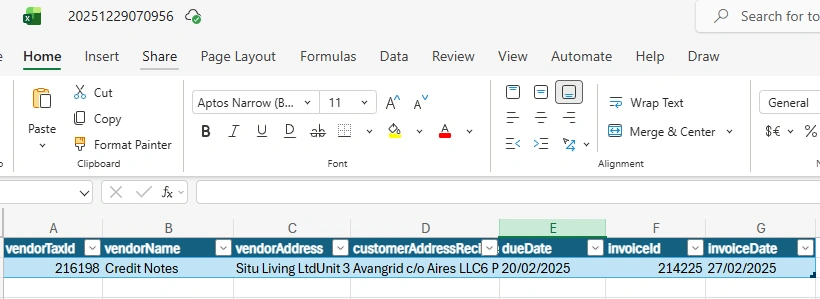
In this article, we will look at a real example: whenever a new email comes in with an invoice, we will use an AI model in Power Automate to automatically pick out the important information, such as invoice id, date, vendor name, and etc. After that, we will save this information directly in an Excel file, so we don’t have to do it manually. I will show a simple step-by-step way to do this, so even if you are new to Power Automate or AI models, you can follow along easily.
End Result:
Note (Very Important):
Before we start, you must have a trained AI Invoice model. If you haven’t trained your model yet, don’t worry. I have written a detailed article on how to train an AI Invoice model. You can follow that guide first to create and train your model.
Here’s the link to the article: Train AI Models for Invoice
Prerequisites:
Basic understanding of creating flows in Power Automate.
A trained Invoicing AI model for processing documents.
Below are the steps to automate invoice processing using AI models in Power Automate:
Step 1: Create an Automated Flow
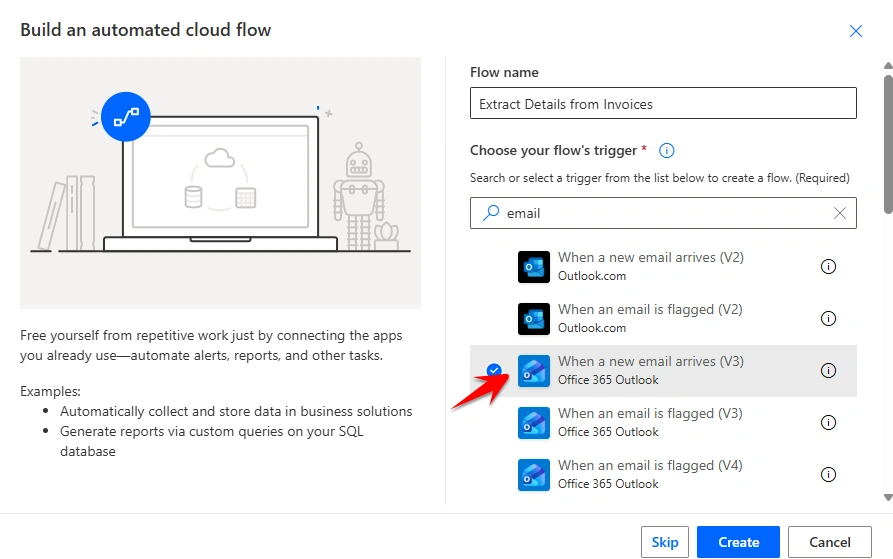
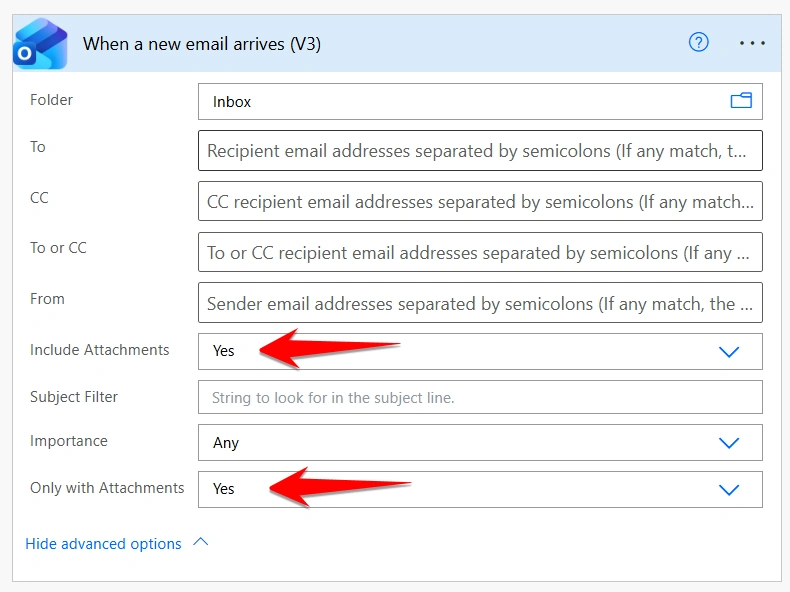
First, go to make.powerautomate.com and click on Create, then choose Automated Cloud Flow. In the trigger search, When a new email arrives (V3) and select it. Make sure to set Include Attachments to Yes, and also set Only with Attachments to Yes so that the flow only runs when an email contains attachments.
Step 2: Create an Excel File in OneDrive
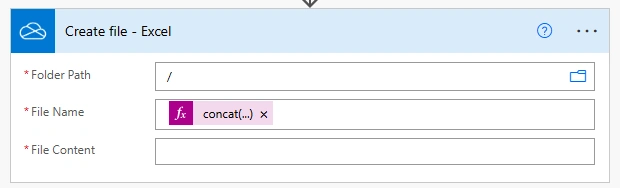
Next, add a Create File action from OneDrive in your flow. This is where we will create a new Excel file to store all the invoice information that we extract from the emails.
Choose the folder path where you want to save the Excel file. For the File Name, you can give any unique name, but make sure to add the .xlsx extension. In my case, I used expression concat(formatDateTime(utcNow(),'yyyyMMddHHmmss'),'.xlsx') so that every time a new email arrives, it creates a unique file automatically. For now, keep the File Content blank by adding just a single space.
Step 3: Add a Worksheet to the Excel File
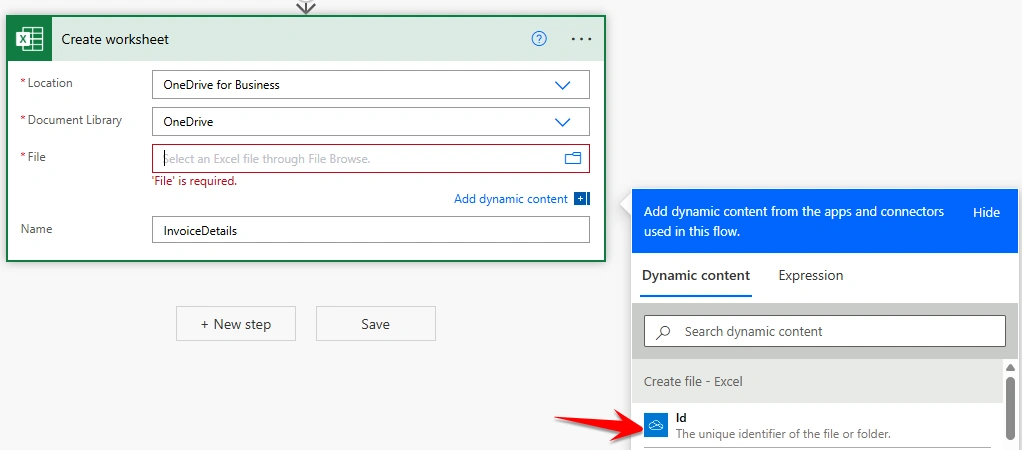
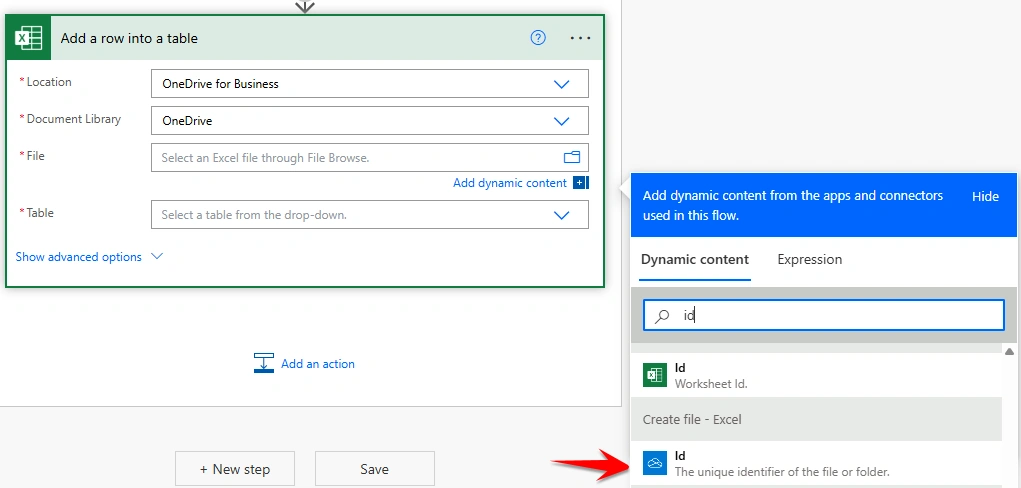
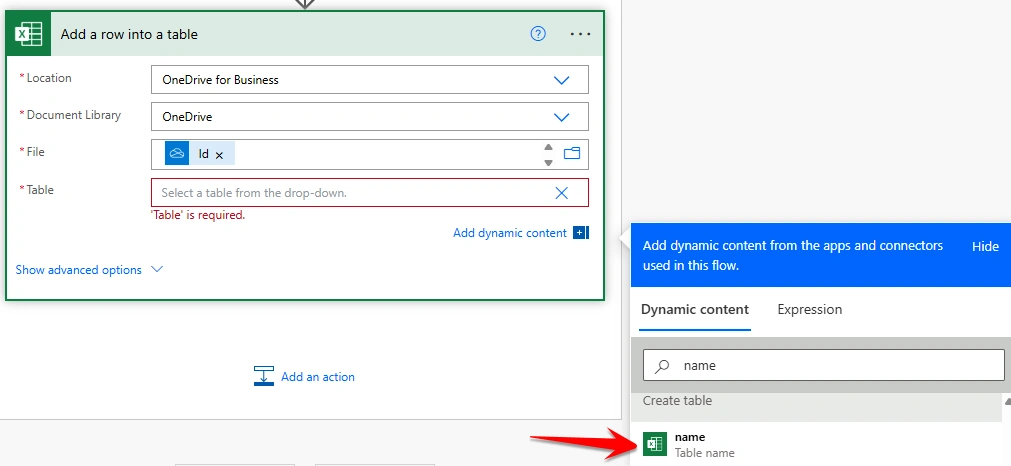
After creating the Excel file, add the Create Worksheet action. For the Location, select OneDrive for Business, and for the Document Library, select OneDrive. In the File field, choose Id from the dynamic content of the Excel file which we created in Step 2. Finally, give any name you like for the worksheet; in my example, I used InvoiceDetails.
Join the conversation! Your thoughts help the community grow.