

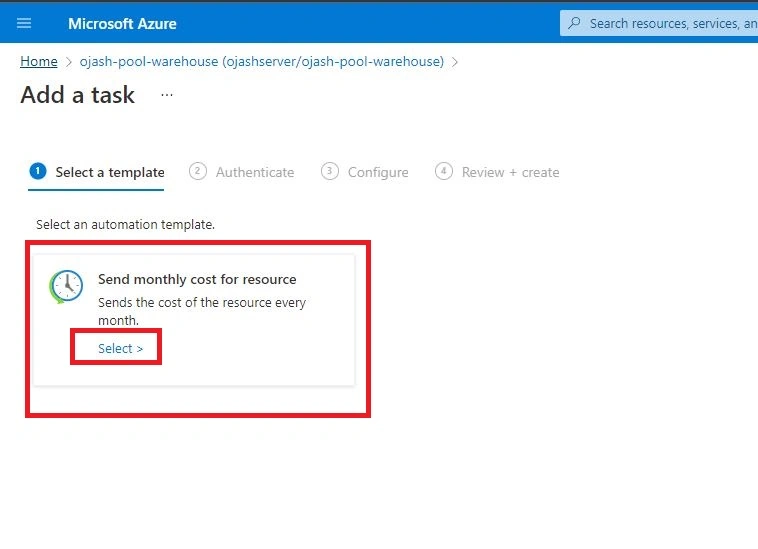
In this article, we’ll learn about automation task, specifically about emailing the billing details on a monthly basis or as per the user’s choice for the resources we use for Azure Synapse Analytics. This lesson can however be used to know about the billing amount for specified time duration for multitudes of resources and services used in Azure.
Azure Synapse Analytics
Azure Synapse is a limitless enterprise analytics service that enables us to get insight from data analytics and data warehousing. Using dedicated resources or serverless architecture, data can be queried and provides scalability as per the increase in the size of the data. You can learn more about it in the previous article, Azure Synapse Analytics.
Data Warehouse
Data Warehouse can be understood as a core part of business intelligence which enables data analysis and reporting and are basically the major repository that consists of data that are integrated from different disparate sources. The endless possibility of data mining starts with Data Warehousing.
This article is a part of the Azure Synapse Analytics Articles Series. You can check out other articles in the series from the following links.
- Azure Synapse Analytics
- Azure Synapse Analytics - Create Dedicated SQL Pool
- Azure Synapse Analytics - Creating Firewall at Server-level
- Azure Synapse Analytics - Connect, Query and Delete Data Warehouse SQL Pool
- Azure Synapse Analytics – Load Dataset to Warehouse from Azure Blob Storage
- Azure Synapse Analytics - Best Practices to Load Data into SQL Pool Data Warehouse
- Azure Synapse Analytics – Restore Point
- Azure Synapse Analytics – Exploring Query Editor
- Azure Synapse Analytics – Automation Task
Automation Task
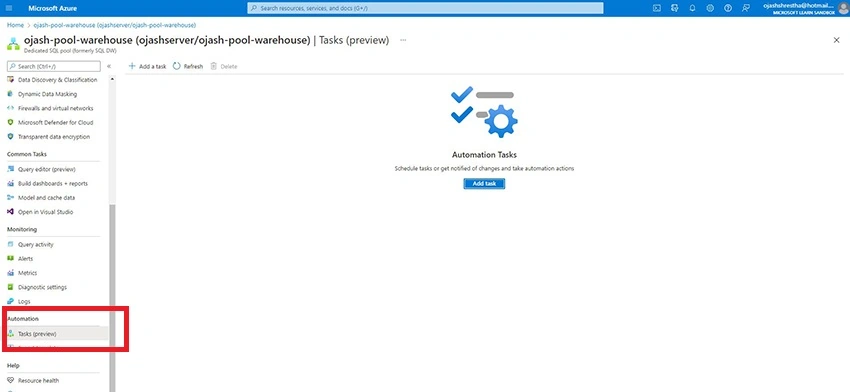
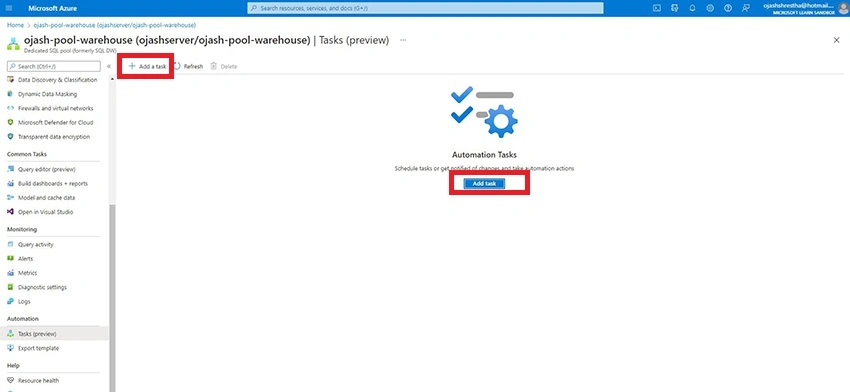
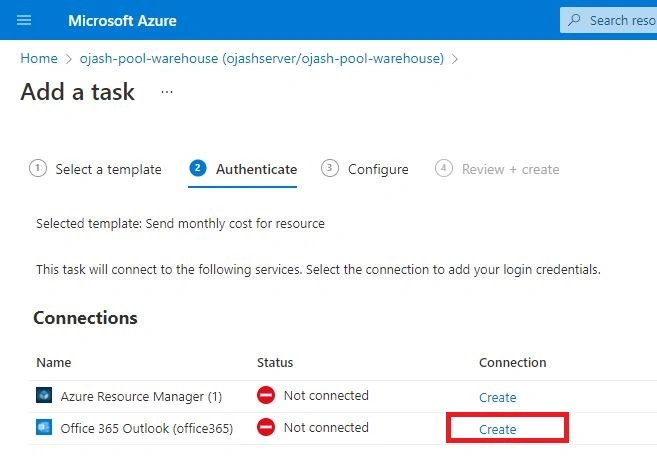
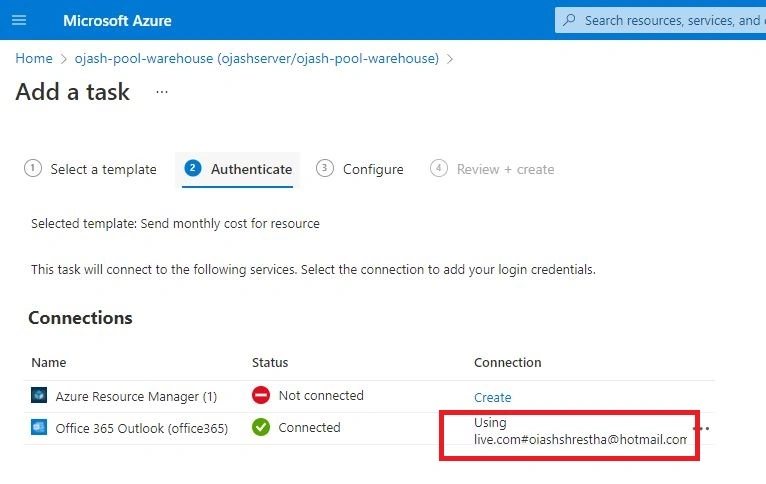
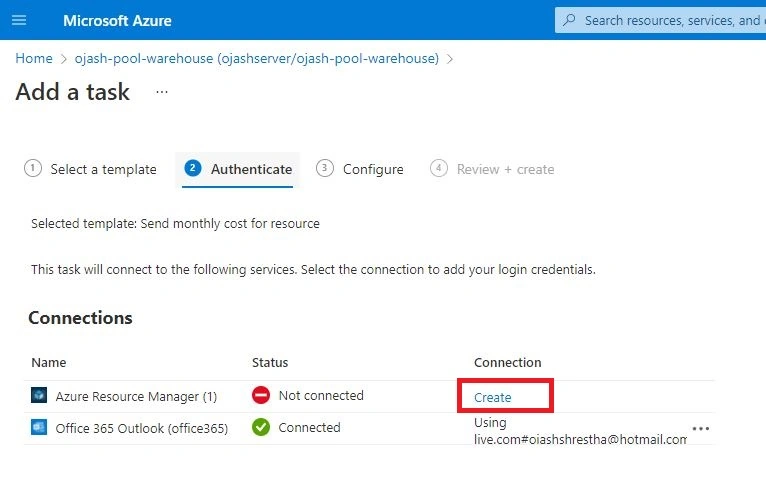
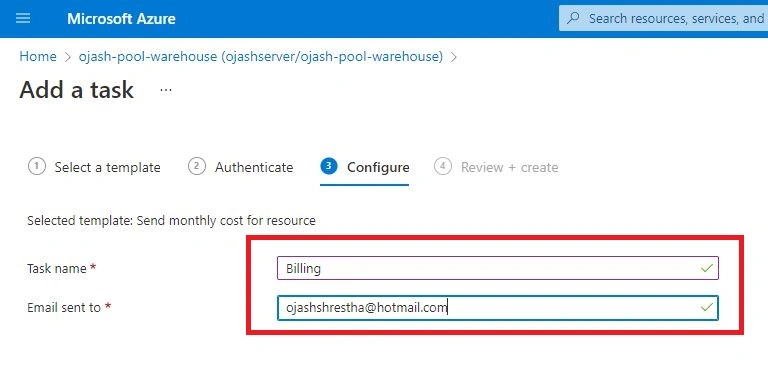
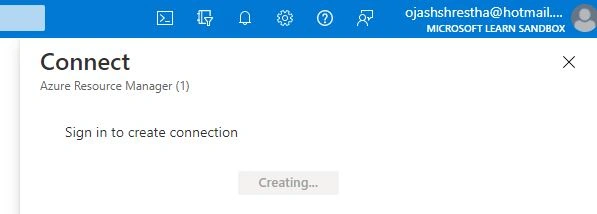
Automation Task in Azure refers to the logic app resource with a workflow which starts with trigger. We know that billing and metering are based on the trigger for different action executions in the logic app workflow. This can be used to provide ourselves with Billing details for the usage of different resources in Azure with the consumption pricing model.
Let us learn to create our automation task for the services we used. Here in our case, Azure Synapse Analytics.
Step 1
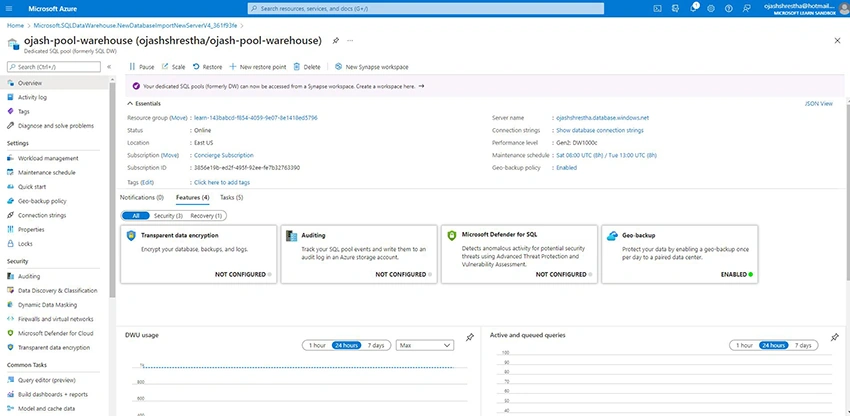
Visit the Azure Portal. Now, create a resource such as a SQL pool and explore with some queries.
Step 2
Explore the SQL Pool we created using following the Azure Synapse Analytics - Create Dedicated SQL Pool.
Join the conversation! Your thoughts help the community grow.