

Part III - Wrap up. Using what we learned to create a PDF invoice from an XML file
This is the third part of the article series describing PDF creation using iTextSharp. In the first and second part we looked at how to create a PDF, how to assign meta information and how we write some text into the documents. We also looked a bit at how to place text using exact positioning using the content byte and some simple image and graphics handling.
Let's end this series with a small example creating a simple invoice from an xml file using all of the knowledge gathered from these three parts. You'll be surprised at how easy it is! Just keep the focus on how you place stuff on the document, that's the tricky part!
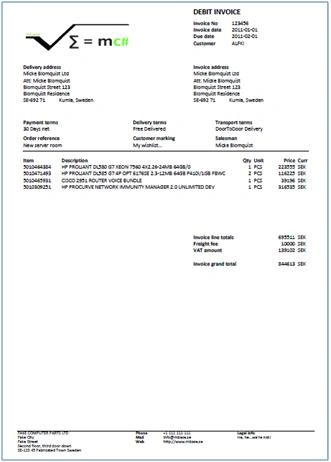
Okay, there are thousands of ways to present an invoice. I've chosen to do a head, row and total kind of layout. So, there will be a table holding the header information with the addresses and order references, a rows table with items, prices and quantity's and a grand total table holding the totals, the fees and the VAT information. There is also a table with the payee information, such as office details, contact information and such. I guess it is a kind of classic invoice layout.
We need some data for the example, so I've created a data class reading an xml file with four tables: invoice_header, invoice_rows, invoice_total and invoice_payeeinfo
I've wrapped it in a separate class to make it is easy to create overloaded methods supplying the data from other sources than the xml file, for example a database. The class has a file path parameter in its constructor pointing to the file you want to use. The class exposes four methods:
public DataTable GetInvoiceHeader()
public DataTable GetInvoiceRows()
public DataTable GetInvoiceTotal()
public DataTable GetInvoicePayeeInfo()
To create an instance of the class, just supply the file path to an XML file having the four tables.
// Read the sample XML file using the contructor, giving the file path
Invoice invoice = new Invoice(Server.MapPath("invoices") + "\\invoice_123456.xml");
// Create references for each of the on-row tables to make it easier to access the values in the table
// using syntax like this: drHead["invoiceId"].ToString()
DataRow drHead = invoice.GetInvoiceHeader().Rows[0];
DataRow drTotal = invoice.GetInvoiceTotal().Rows[0];
DataRow drPayee = invoice.GetInvoicePayeeInfo().Rows[0];
The complete procedure for creating the invoice is in the downloadable solution but I will point out some highlights that need an explanation.
Simplify writing to the content byte
When writing a lot of text, create a method for doing this; that will decrease the amount of code you have to write. I created a simple method taking some parameters, but you can extend it to use more.
// This is the method writing text to the content byte
private void writeText(PdfContentByte cb, string Text, int X, int Y, BaseFont font, int Size)
{
   cb.SetFontAndSize(font, Size);
   cb.ShowTextAligned(PdfContentByte.ALIGN_LEFT, Text, X, Y, 0);
}
I use this method in code simply by calling it like this:
writeText(cb, "Invoice line totals", left_margin, top_margin, f_cb, 10);Templates
You can create templates of text or images that you can reuse when creating PDFs. I created a simple footer in the example solution which makes it easy to add page footer to each and every page created. Use the method AddTemplate like this:
Nikolai KimPosted Jul 18, 2022, 9:14 AM
Hi Micke, do you have experience using itextHsharp creating multiple table in PDF?
Alisa PervenenokPosted Apr 24, 2019, 1:06 AM
Micke, do you have any experience in using iText to export Excel-document to PDF?
Sushant KPosted Sep 4, 2017, 1:10 AM
.EmpXBODY{ FONT-SIZE: 14px;FONT-FAMILY: Calibri; padding:0px; margin:0px; }
Sushant KPosted Sep 4, 2017, 1:09 AM
Protected void btnPdf_Click(object sender, EventArgs e) { DataTable dtHead; tblButtonsHome.Visible = false; tblHeader.Visible = false; tblExitStatus.Visible = false; GridView gvtemp = new GridView(); gvtemp = (GridView)Page.FindControl("gvCompleteExitStatus"); dtHead = clsemp.getEmployeeDetails(EmployeeCode, true); if (dtHead.Rows.Count > 0) { gvHeader.DataSource = dtHead; gvHeader.DataBind(); } dt = (DataTable)Session["CompleteExitStatus"]; if (dt.Columns.Contains("Emp. Status")) { //dt.Columns.Remove("Employee Remarks"); dt.Columns.Remove("Emp. Status"); dt.Columns.Remove("Asset Remarks"); dt.Columns.Remove("Asset Date"); dt.Columns.Remove("FLM Recovery"); dt.Columns.Remove("Dept Recovery"); } gvtemp.DataSource = dt; gvtemp.DataBind(); gvtemp.GridLines = GridLines.Both; gvtemp.HeaderStyle.BackColor = System.Drawing.ColorTranslator.FromHtml("#5D7B9D"); gvtemp.HeaderStyle.ForeColor = System.Drawing.Color.Black; gvtemp.PagerStyle.BackColor = System.Drawing.ColorTranslator.FromHtml("#284775"); gvtemp.RowStyle.BackColor = System.Drawing.ColorTranslator.FromHtml("#F7F6F3"); Response.ContentType = "application/pdf"; Response.AddHeader("content-disposition", "attachment;filename=" + EmployeeName + ".pdf"); Response.Cache.SetCacheability(HttpCacheability.NoCache); StringWriter stringWriter = new StringWriter(); HtmlTextWriter htmlTextWriter = new HtmlTextWriter(stringWriter); MainTable.RenderControl(htmlTextWriter); StringReader stringReader = new StringReader(stringWriter.ToString()); //Document Doc = new Document(PageSize.A4.Rotate(), 10f, 5f, 5f, 5f); Document Doc = new Document(PageSize.A4.Rotate(), 5, 5, 5,1); HTMLWorker htmlparser = new HTMLWorker(Doc); PdfWriter.GetInstance(Doc, Response.OutputStream); Doc.Open(); htmlparser.Parse(stringReader); Doc.Close(); Response.Write(Doc); Response.End(); //} //catch (Exception ex) //{ // Response.Redirect("~/RedirectPage.aspx?errorCode=" + 10001 + "&errorDesc=" + ex.Message.ToString().Replace("\n\r", "")); //} }
Sushant KPosted Sep 4, 2017, 1:02 AM
Hi Micke i have Used your Code to generate pdf but i am getting one blank page(page1) and then my data is load from page 2 to page 6.. actually i don't want that blank page at all i really don't know from where it is coming..... kindly guide me ...Please ASAP. i am pasting my html as well code behind. ............................................................................................................................................................. <%@ Page Language="C#" AutoEventWireup="true" Inherits="frmCompleteExitStatus" CodeBehind="frmCompleteExitStatus.aspx.cs" EnableEventValidation="false" %> <%@ Register TagName="wucheader" TagPrefix="uc1" Src="~/wucHeader.ascx" %> <html xmlns="http://www.w3.org/1999/xhtml"> <head runat="server"> <title>Employee Exit Form</title> <link rel="stylesheet" type="text/css" href="CommonStyleSheet.css" /> </head> <body class="EmpXBODY"> <form id="form1" runat="server"> <asp:ScriptManager ID="ScriptManager1" runat="server"> </asp:ScriptManager> <uc1:wucheader runat="server" ID="wucHeader" Visible="false" /> <table id="tblButtonsHome" runat="server" cellpadding="0" cellspacing="0" style="width: 100%;"> <tr> <td colspan="2" style="text-align: left"> <asp:Button ID="ExportToExcel" runat="server" Text="Export To Excel" class="button_example" OnClick="ExportToExcel_Click" /> <asp:Button ID="btnPdf" runat="server" Text="PDF" class="button_example" OnClick="btnPdf_Click" /> </td> <td colspan="2" style="text-align: right"> <asp:HyperLink ID="hplkHome" runat="server"> <asp:Image ID="Image3" runat="server" ImageUrl="~/images/home.png" /></asp:HyperLink> </td> </tr> </table> <table id="tblHeader" runat="server" style="width: 100%;"> <tr> <td> <asp:Label ID="lblEmpID" runat="server" Text="Employee Code :" CssClass="LABEL"></asp:Label> <asp:Label ID="txtEmpID" runat="server" CssClass="LABEL"></asp:Label> </td> <td> <asp:Label ID="lblEmpName" runat="server" Text="Name : " CssClass="LABEL"></asp:Label> <asp:Label ID="txtEmpName" runat="server" CssClass="LABEL"></asp:Label> </td> <td> <asp:Label ID="lblDept" runat="server" Text="Dept : " CssClass="LABEL"></asp:Label> <asp:Label ID="txtDept" runat="server" CssClass="LABEL"></asp:Label> </td> <td> <asp:Label ID="lblLocation" runat="server" Text="Location : " CssClass="LABEL"></asp:Label> <asp:Label ID="txtLocation" runat="server" CssClass="LABEL"></asp:Label> </td> </tr> <tr> <td> <asp:Label ID="lblRole" runat="server" Text="Cadre :" CssClass="LABEL"></asp:Label> <asp:Label ID="txtRole" runat="server" CssClass="LABEL"></asp:Label> </td> <td> <asp:Label ID="lblDesignation" runat="server" Text="Designation :" CssClass="LABEL"></asp:Label> <asp:Label ID="txtDesignation" runat="server" CssClass="LABEL"></asp:Label> </td> <td> <asp:Label ID="lblFunction" runat="server" Text="Function : " CssClass="LABEL"></asp:Label> <asp:Label ID="txtFunction" runat="server" CssClass="LABEL"></asp:Label> </td> <td> <asp:Label ID="lblFLM" runat="server" Text="FLM Name : " CssClass="LABEL"></asp:Label> <asp:Label ID="txtFLMName" runat="server" CssClass="LABEL"></asp:Label> </td> </tr> <tr> <td> <asp:Label ID="lblFunctionHead" runat="server" Text=" Function Head Name : " CssClass="LABEL"></asp:Label> <asp:Label ID="txtFunctionHead" runat="server" CssClass="LABEL"></asp:Label> </td> <td> <asp:Label ID="lblDOJ" runat="server" Text="Date of Joining: " CssClass="LABEL"></asp:Label> <asp:Label ID="txtDOJ" runat="server" CssClass="LABEL"></asp:Label> </td> <td> <asp:Label ID="lblLastWorkingDate" runat="server" Text="Date of Relieving : " CssClass="LABEL"></asp:Label> <asp:Label ID="txtLastWorkgDate" runat="server" CssClass="LABEL"></asp:Label> </td> <td> </td> </tr> <tr> <td> <asp:Label ID="lblEmpUpdatedOn" runat="server" Text="Employee Update Status : " CssClass="LABEL"></asp:Label> <asp:Label ID="txtEmpUpdatedOn" runat="server" CssClass="LABEL"></asp:Label> </td> <td> <asp:Label ID="lblFLMUpdatedOn" runat="server" Text="FLM Update Status : " CssClass="LABEL"></asp:Label> <asp:Label ID="txtFLMUpdatedOn" runat="server" CssClass="LABEL"></asp:Label> </td> <td> <asp:Label ID="lblDeptUpdatedOn" runat="server" Text="Department Update Status : " CssClass="LABEL"></asp:Label> <asp:Label ID="txtDeptUpdatedOn" runat="server" CssClass="LABEL"></asp:Label> </td> <td> <asp:Label ID="lblRecovery" runat="server" BackColor="#FFFF99" Font-Bold="True" Font-Size="24px" ForeColor="#006600"></asp:Label> </td> </tr> <tr> <td colspan="4"> <table cellpadding="0" cellspacing="1" border="1" width="99%" runat="server" id="tblExitStatus" style="background-color: #003f6b"> <tr> <td style="color: #ffffff; padding: 1px 0; background-color: #00497c; text-align: center"> <asp:Label ID="lblIsFLMApproved" runat="server" Text="FLM Approved" CssClass="StatusTEXTBOX"></asp:Label> </td> <td style="color: #ffffff; padding: 1px 0; background-color: #00497c; text-align: center"> <asp:Label ID="lblIsAdminDeptApproved" runat="server" Text="Admin Approved" CssClass="StatusTEXTBOX"></asp:Label> </td> <td style="color: #ffffff; padding: 1px 0; background-color: #00497c; text-align: center"> <asp:Label ID="lblIsITDeptApproved" runat="server" Text="IT Approved" CssClass="StatusTEXTBOX"></asp:Label> </td> <td style="color: #ffffff; padding: 1px 0; background-color: #00497c; text-align: center"> <asp:Label ID="lblIsComplianceDeptApproved" runat="server" Text="Compliance Approved" CssClass="StatusTEXTBOX"></asp:Label> </td> <td style="color: #ffffff; padding: 1px 0; background-color: #00497c; text-align: center"> <asp:Label ID="lblIsHRDeptApproved" runat="server" Text="HR Approved" CssClass="StatusTEXTBOX"></asp:Label> </td> <td style="color: #ffffff; padding: 1px 0; background-color: #00497c; text-align: center"> <asp:Label ID="lblIsFinanceDeptApproved" runat="server" Text=" Finance Approved" CssClass="StatusTEXTBOX"></asp:Label> </td> <td style="color: #ffffff; padding: 1px 0; background-color: #00497c; text-align: center"> <asp:Label ID="lblIsPayRollDeptApproved" runat="server" Text=" Payroll Approved" CssClass="StatusTEXTBOX"></asp:Label> </td> </tr> <tr> <td id="tdIsFLMApproved" runat="server" style="color: #003f6b; background-color: #ffffff; text-align: center;"> <asp:Label ID="txtIsFLMApproved" Width="130px" runat="server" Style="margin-left: 0px" CssClass="StatusTEXTBOX"></asp:Label> </td> <td id="tdIsAdminApproved" runat="server" style="color: #003f6b; background-color: #ffffff; text-align: center;"> <asp:Label ID="txtIsAdminDeptApproved" Width="130px" runat="server" Style="margin-left: 0px;" CssClass="StatusTEXTBOX"></asp:Label> </td> <td id="tdIsITApproved" runat="server" style="color: #003f6b; background-color: #ffffff; text-align: center;"> <asp:Label ID="txtIsITDeptApproved" Width="130px" runat="server" Style="margin-left: 0px" CssClass="StatusTEXTBOX"></asp:Label> </td> <td id="tdIsComplianceApproved" runat="server" style="color: #003f6b; background-color: #ffffff; text-align: center;"> <asp:Label ID="txtIsComplianceDeptApproved" Width="130px" runat="server" Style="margin-left: 0px" CssClass="StatusTEXTBOX"></asp:Label> </td> <td id="tdIsHRApproved" runat="server" style="color: #003f6b; background-color: #ffffff; text-align: center;"> <asp:Label ID="txtIsHRDeptApproved" Width="130px" runat="server" Style="margin-left: 0px" CssClass="StatusTEXTBOX"></asp:Label> </td> <td id="tdIsFinanceApproved" runat="server" style="color: #003f6b; background-color: #ffffff; text-align: center;"> <asp:Label ID="txtIsFinanceDeptApproved" Width="130px" runat="server" Style="margin-left: 0px" CssClass="StatusTEXTBOX"></asp:Label> </td> <td id="tdIsPayRollApproved" runat="server" style="color: #003f6b; background-color: #ffffff; text-align: center;"> <asp:Label ID="txtIsPayRollApproved" Width="130px" runat="server" Style="margin-left: 0px" CssClass="StatusTEXTBOX"></asp:Label> </td> </tr> </table> </td> </tr> </table> <table id="MainTable" runat="server" cellspacing="0" border="0" style="width: 100%;"> <tr> <td> <table cellpadding="0" cellspacing="0" style="width: 100%; text-align: left; text-indent: 10px;"> <tr> <td style="text-align: left; text-indent: 10px;"> <asp:GridView ID="gvHeader" runat="server" CellPadding="4" ForeColor="#333333" ShowHeader="false" AutoGenerateColumns="true" GridLines="None" RowStyle-Wrap="false"> <EditRowStyle BackColor="#999999" /> <FooterStyle BackColor="#5D7B9D" Font-Bold="True" ForeColor="White" /> <HeaderStyle BackColor="#5D7B9D" Font-Bold="True" ForeColor="White" /> <PagerStyle BackColor="#284775" ForeColor="White" HorizontalAlign="Center" /> <RowStyle BackColor="#F7F6F3" ForeColor="#333333" VerticalAlign="Top" /> <SelectedRowStyle BackColor="#E2DED6" Font-Bold="True" ForeColor="#333333" /> <SortedAscendingCellStyle BackColor="#E9E7E2" /> <SortedAscendingHeaderStyle BackColor="#506C8C" /> <SortedDescendingCellStyle BackColor="#FFFDF8" /> <SortedDescendingHeaderStyle BackColor="#6F8DAE" /> </asp:GridView> <asp:GridView ID="gvCompleteExitStatus" runat="server" CellPadding="4" ForeColor="#333333" AutoGenerateColumns="true" GridLines="None" OnRowDataBound="gvCompleteExitStatus_RowDataBound" RowStyle-Wrap="false"> <EditRowStyle BackColor="#999999" /> <FooterStyle BackColor="#5D7B9D" Font-Bold="True" ForeColor="White" /> <HeaderStyle BackColor="#5D7B9D" Font-Bold="True" ForeColor="White" /> <PagerStyle BackColor="#284775" ForeColor="White" HorizontalAlign="Center" /> <RowStyle BackColor="#F7F6F3" ForeColor="#333333" /> <SelectedRowStyle BackColor="#E2DED6" Font-Bold="True" ForeColor="#333333" /> <SortedAscendingCellStyle BackColor="#E9E7E2" /> <SortedAscendingHeaderStyle BackColor="#506C8C" /> <SortedDescendingCellStyle BackColor="#FFFDF8" /> <SortedDescendingHeaderStyle BackColor="#6F8DAE" /> </asp:GridView> </td> </tr> </table> </td> </tr> </table> </form> </body> </html>............................................................... ............ my css code for .EmpXBODY { FONT-SIZE: 14px;FONT-FAMILY: Calibri; padding:0px; margin:0px; } ........................................................................................... . ........ protected void btnPdf_Click(object sender, EventArgs e) { DataTable dtHead; tblButtonsHome.Visible = false; tblHeader.Visible = false; tblExitStatus.Visible = false; GridView gvtemp = new GridView(); gvtemp = (GridView)Page.FindControl("gvCompleteExitStatus"); dtHead = clsemp.getEmployeeDetails(EmployeeCode, true); if (dtHead.Rows.Count > 0) { gvHeader.DataSource = dtHead; gvHeader.DataBind(); } dt = (DataTable)Session["CompleteExitStatus"]; if (dt.Columns.Contains("Emp. Status")) { //dt.Columns.Remove("Employee Remarks"); dt.Columns.Remove("Emp. Status"); dt.Columns.Remove("Asset Remarks"); dt.Columns.Remove("Asset Date"); dt.Columns.Remove("FLM Recovery"); dt.Columns.Remove("Dept Recovery"); } gvtemp.DataSource = dt; gvtemp.DataBind(); gvtemp.GridLines = GridLines.Both; gvtemp.HeaderStyle.BackColor = System.Drawing.ColorTranslator.FromHtml("#5D7B9D"); gvtemp.HeaderStyle.ForeColor = System.Drawing.Color.Black; gvtemp.PagerStyle.BackColor = System.Drawing.ColorTranslator.FromHtml("#284775"); gvtemp.RowStyle.BackColor = System.Drawing.ColorTranslator.FromHtml("#F7F6F3"); Response.ContentType = "application/pdf"; Response.AddHeader("content-disposition", "attachment;filename=" + EmployeeName + ".pdf"); Response.Cache.SetCacheability(HttpCacheability.NoCache); StringWriter stringWriter = new StringWriter(); HtmlTextWriter htmlTextWriter = new HtmlTextWriter(stringWriter); MainTable.RenderControl(htmlTextWriter); StringReader stringReader = new StringReader(stringWriter.ToString()); //Document Doc = new Document(PageSize.A4.Rotate(), 10f, 5f, 5f, 5f); Document Doc = new Document(PageSize.A4.Rotate(), 5, 5, 5,1); HTMLWorker htmlparser = new HTMLWorker(Doc); PdfWriter.GetInstance(Doc, Response.OutputStream); Doc.Open(); htmlparser.Parse(stringReader); Doc.Close(); Response.Write(Doc); Response.End(); //} //catch (Exception ex) //{ // Response.Redirect("~/RedirectPage.aspx?errorCode=" + 10001 + "&errorDesc=" + ex.Message.ToString().Replace("\n\r", "")); //} }
Sonu ChaudharyPosted Jun 8, 2016, 2:56 PM
good one ..
abosnicPosted Jan 19, 2016, 9:59 AM
thanks
Pamela PaulosPosted Sep 26, 2014, 7:03 AM
hi can anyone help on how i can generate an invoice based on data from a database? I'm relatively new to this
andre toddPosted Nov 4, 2013, 10:37 AM
This is great. Just what I needed
sadun ssssssPosted Apr 12, 2013, 10:54 PM
Thank a lot for this tutorial part.....
Tati OkoPosted Dec 17, 2011, 6:11 PM
This article is very useful for me as I am newbie to iTextSharp for PDF creation. I have successfully accommodated the Footer DataTable (GetInvoicePayeeInfo) in my project. However, when there are many pages because of large data, How do you include the Footer on every Odd pages ? Thanks and best regards!
Dang TrangPosted Nov 16, 2011, 6:11 AM
Thank you very much for this nice article. It helps me alot.
isg bglPosted Mar 12, 2011, 7:24 AM
Thanks for your article. Can you help me, how to make PDF of .aspx page. Regards