

Introduction
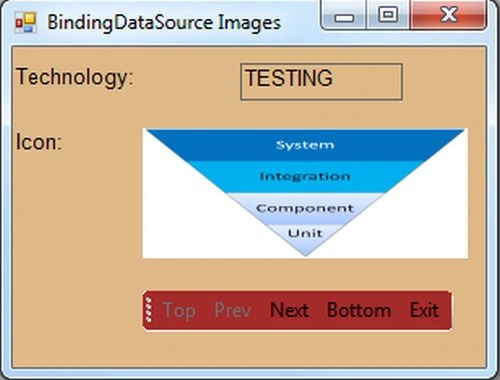
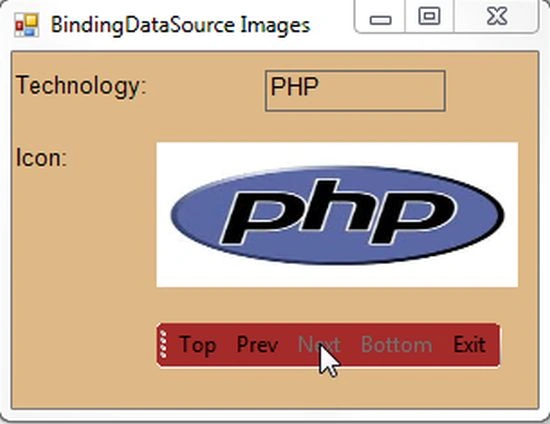
This arcticle explains the BindingSource Control and how to retrieve the images using navigation buttons from the database in a Windows Forms application. When a control of a Windows application uses values of a database then we need to specify the link between the control and the column of the database table, this process is referred to as binding. The object that the data comes from is called the binding source.
BindingSource Control
The .NET Framework provides the "BindingSource" class from the System.Windows.Forms namespace. The BindingSource class has the default property DataSource. A DataSource bound to a binding Source component can also be navigated and managed with the "BindingNavigator". You can use the navigation methods on the BindingSource such as MoveNext(), MovePrevious(), MoveTop() and MoveBottom().
Write the following procedure for creating a database and table in SQL Server:
Create Database ImageManipulation
use ImageManipulation
create table ImageData (Name varchar(max),ImageLogo varbinary(max))
Write the following procedure to insert the values and bitmap images in table columns:
INSERT INTO ImageData (Name, ImageLogo)
SELECT 'TESTING', BulkColumn
FROM Openrowset( Bulk 'C:\Pankaj\Testing.png', Single_Blob)
INSERT INTO ImageData (Name, ImageLogo)
SELECT 'PHP', BulkColumn
FROM Openrowset( Bulk 'C:\Pankaj\PHP.png', Single_Blob)
INSERT INTO ImageData (Name, ImageLogo)
SELECT 'JAVA', BulkColumn
FROM Openrowset( Bulk 'C:\Pankaj\JAVA.png', Single_Blob)
INSERT INTO ImageData (Name, ImageLogo)
SELECT 'DotNET', BulkColumn
FROM Openrowset( Bulk 'C:\Pankaj\DotNET.png', Single_Blob)
INSERT INTO ImageData (Name, ImageLogo)
SELECT 'CSharp', BulkColumn
FROM Openrowset( Bulk 'C:\Pankaj\C#.png', Single_Blob)
Write the following query to execute the table schema:
select * from ImageData

Now I will show you how to use the BindingSource control using a BindginNavigator control in a Windows Forms application. Use the following procedure to do that.
Step 1:
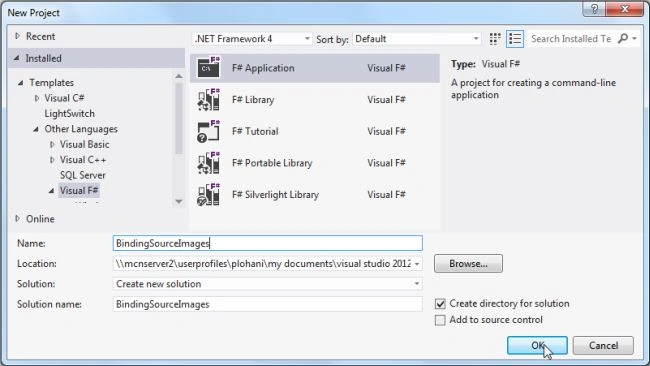
Open Visual Studio then select "Create New Project" --> "F# Console Application".
Step 2:
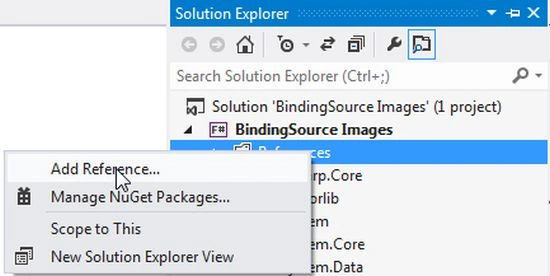
Now go the Solution Explorer on the right side of the application. Right-click on "References" and select "Add references".
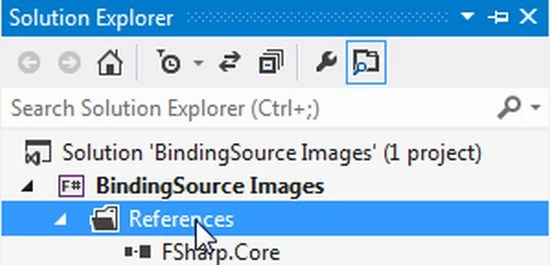
Right-click on References and select "Add references".
Step 3:
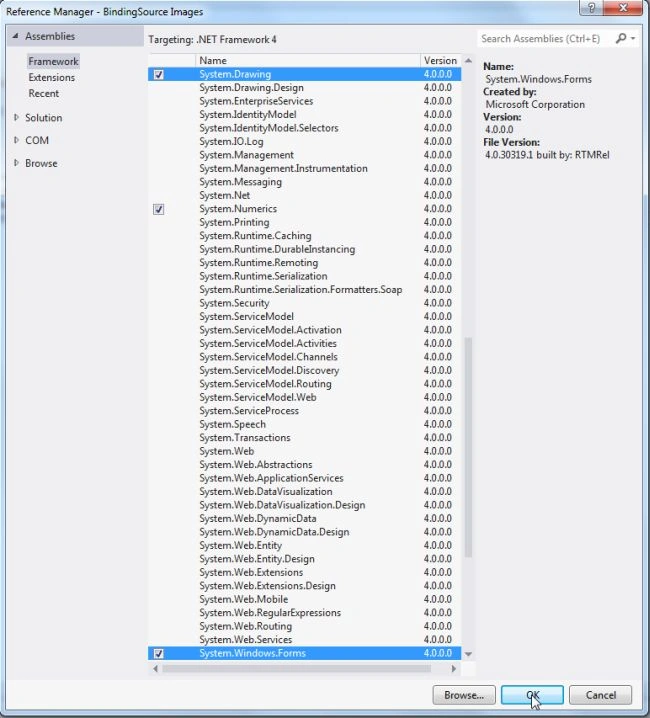
After selecting "Add References", in the framework template you need to select System.Windows.Forms and System.Drawing while holding down the Ctrl key and click on "Ok."
Step 4:
Use the following code showing how to use a BindingSource Control in a Windows Forms form.
Join the conversation! Your thoughts help the community grow.