

Introduction
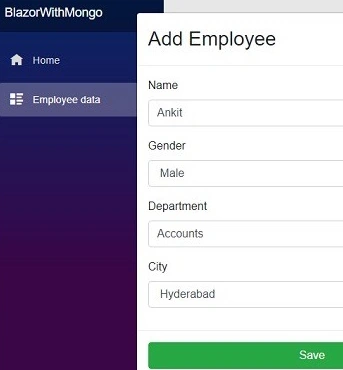
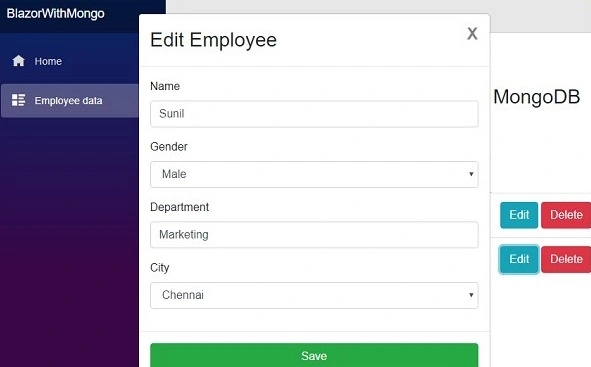
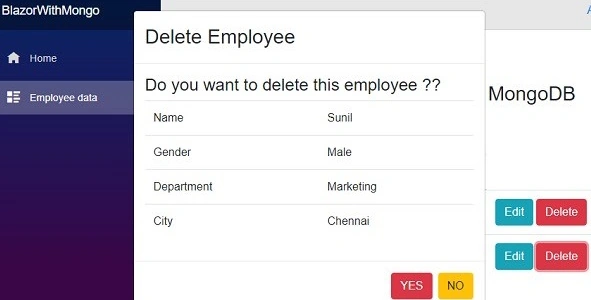
In this article, we will create a Blazor application using MongoDB as our database provider. We will create a Single Page Application (SPA) and perform CRUD operations on it. A modal popup will display the form to handle the user inputs and the form also has a dropdown list, which will bind to a DB collection.
We will use Visual Studio 2017 and MongoDB 4.0.

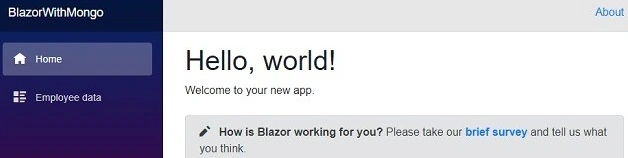
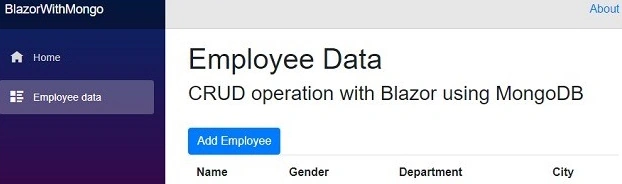
Take a look at the final application
Prerequisites
- Install the .NET Core 2.1 or above SDK from here
- Install Visual Studio 2017 v15.7 or above from here
- Install ASP.NET Core Blazor Language Services extension from here
- Download and install the MongoDB community edition. You can find the installation guide here.
Visual Studio 2017 versions below v15.7 do not support the Blazor framework.
Source Code: Get the source code from GitHub.
Configuring MongoDB
After installing MongoDB, we need to add the path of MongoDB binaries to the System PATH variable. The default installation path in a Windows machine is "C:\Program Files\MongoDB". Hence you need to include "C:\Program Files\MongoDB\Server\4.0\bin" in the System PATH variable. If you are not using a Windows machine then you can find the process of configuring the MongoDB binaries for your OS at the installation guide link provided in the prerequisites section above.
Working with MongoDB
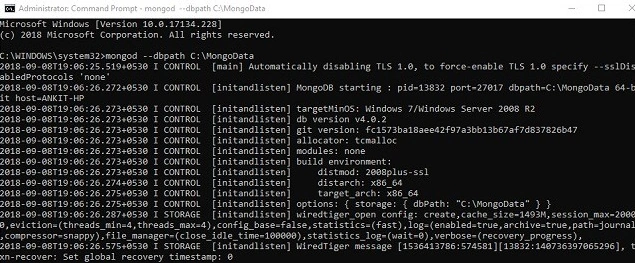
We need to set up the path where the data will be stored in our machine. Open a command prompt as administrator and run the following command to set the data storage path in your machine.
mongod --dbpath C:\MongoData
You can provide the path of any folder where you want to store the data. This command will connect to MongoDB on port 27017, which is the default port for MongoDB connection. Refer to the image below:
Note. It is advisable to use command prompt over PowerShell while executing MongoDB commands as all MongoDB commands do not work in PowerShell.
Open a new command prompt window and execute the command ‘mongo’ to start the mongo server. Refer to the image below
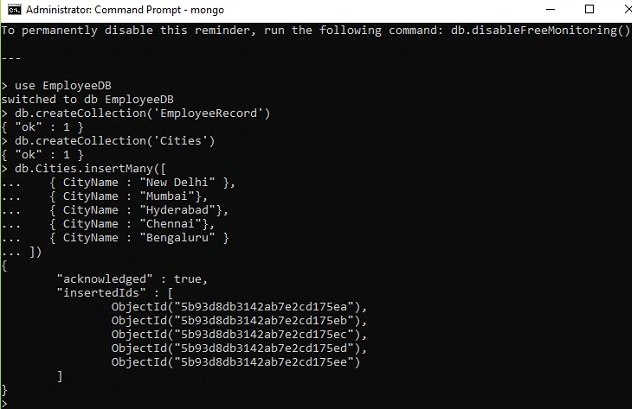
Run the following command to create the database
use EmployeeDB
This will create our database EmployeeDB. Execute the following command to create a new collection inside the database.
db.createCollection('EmployeeRecord')
This will create a collection 'EmployeeRecord' in our database. MongoDB stores data in JSON-like documents. Let us insert a sample document in our 'EmployeeRecord' collection. Run the following command.
db.EmployeeRecord.insert({
    'Name': 'Ankit',
    'Gender': 'Male',
    'Department': 'HR',
    'City': 'Mumbai'
});
You can observe that we have provided the data in a JSON format as a key-value pair. Run the following command to list all the documents from the EmployeeRecord collection.
db.EmployeeRecord.find({})
The database schema will add a _id property to each document in the collection. This property is of type ObjectId and it will be generated automatically. We will use this _id property to uniquely identify a document in the collection. Refer to the image below

If you want to remove all the documents from the EmployeeRecord collection then you need to run the following command.
db.EmployeeRecord.remove({})
We will create another collection to store a list of city names which is used to populate the City field of the 'EmployeeRecord' collection. We will also bind this collection to a dropdown list in our web application from which the user will select the desired city.
Run the following command to create the Cities collection.
db.createCollection('Cities')
We will insert five sample city names in this collection. To insert the documents in bulk in the 'Cities' collection, run the following command
db.Cities.insertMany([
    { CityName: "New Delhi" },
    { CityName: "Mumbai" },
    { CityName: "Hyderabad" },
    { CityName: "Chennai" },
    { CityName: "Bengaluru" }
]);
Refer to the image below
Create a blazor web application
Open Visual Studio and select File >> New >> Project.
After selecting the project, a "New Project" dialog will open. Select .NET Core inside the Visual C# menu from the left panel. Then, select “ASP.NET Core Web Application” from the available project types. Put the name of the project as BlazorWithMongo and press OK.

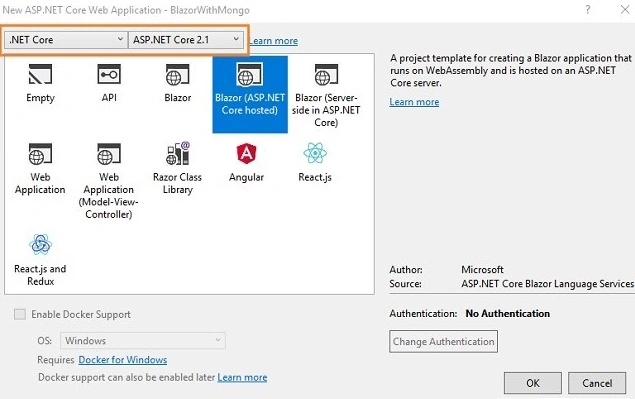
After clicking on OK, a new dialog will open asking you to select the project template. You can observe two drop-down menus at the top left of the template window. Select “.NET Core” and “ASP.NET Core 2.0” from these dropdowns. Then, select the “Blazor (ASP .NET Core hosted)” template and press OK.
Now, our Blazor solution will be created. You can observe that we have three project files created in this solution.
- Blazor With Mongo Client: It has the client-side code and contains the pages that will be rendered on the browser.
- Blazor With Mongo Server: It has server-side codes such as the data access layer and web API.
- Blazor With Mongo Shared: It contains the shared code that can be accessed by both client and server. It contains our Model class and DB context class.
Installing MongoDB driver
To access MongoDB from our application we need to install the MongoDB driver using the package manager console. We will install it in BlazorWithMongo.Shared project so that it can be accessible to Server project also.
Navigate to Tools >> NuGet Package Manager >> Package Manager Console. Select “BlazorWithMongo.Shared” from the Default project drop-down and run the following command.
Install-Package MongoDB.Driver
Refer to the image below,

Creating the model
We will create our model class in BlazorWithMongo.Shared project. Right-click on BlazorWithMongo.Shared and select Add >> New Folder. Name the folder as Models. Again, right-click on the Models folder and select Add >> Class to add a new class file. Put the name of your class as Employee. cs and click Add.
Open the Employee. cs class and put the following code into it.
using System;
using System.Collections.Generic;
using System.Text;
using MongoDB.Bson;
using MongoDB.Bson.Serialization.Attributes;

namespace BlazorWithMongo.Shared.Models
{
    public class Employee
    {
        [BsonId]
        [BsonRepresentation(BsonType.ObjectId)]
        public string Id { get; set; }
        public string Name { get; set; }
        public string City { get; set; }
        public string Department { get; set; }
        public string Gender { get; set; }
    }
}
We have included the Id property of the type ObjectId in our class definition and decorated it with the [BsonId] attribute. This property is required to map the model objects to the MongoDB collection.
Similarly, create another class file Cities. cs, and put the following code into it.
using System;
using System.Collections.Generic;
using System.Text;
using MongoDB.Bson;
using MongoDB.Bson.Serialization.Attributes;

namespace BlazorWithMongo.Shared.Models
{
    public class Cities
    {
        [BsonId]
        [BsonRepresentation(BsonType.ObjectId)]
        public string Id { get; set; }
        public string CityName { get; set; }
    }
}
Creating the DB context class
Add a new class file to the Models folder and name it EmployeeDBContext.cs. Put the following code into it.
using MongoDB.Driver;
using System;
using System.Collections.Generic;
using System.Text;

namespace BlazorWithMongo.Shared.Models
{
    public class EmployeeDBContext
    {
        private readonly IMongoDatabase _mongoDatabase;

        public EmployeeDBContext()
        {
            var client = new MongoClient("mongodb://localhost:27017");
            _mongoDatabase = client.GetDatabase("EmployeeDB");
        }

        public IMongoCollection<Employee> EmployeeRecord
        {
            get
            {
                return _mongoDatabase.GetCollection<Employee>("EmployeeRecord");
            }
        }

        public IMongoCollection<Cities> CityRecord
        {
            get
            {
                return _mongoDatabase.GetCollection<Cities>("Cities");
            }
        }
    }
}
Here we have defined a MongoClient which will connect to the MongoDB server instance using the default connection string for MongoDB. We are using a GetDatabase method to fetch the database instance. The method EmployeeRecord is used to fetch the EmployeeRecord collection from our database and map it to the Employee model class. Similarly, the method CityRecord will fetch the Cities collection from a database and map it to the Cities model class.
Creating a data access layer for the application
Right-click on BlazorWithMongo.Server project and then select Add >> New Folder and name the folder as DataAccess. We will be adding our class to handle database-related operations inside this folder only.
Right-click on the DataAccess folder and select Add >> Class. Name your class EmployeeDataAccessLayer.cs. Open EmployeeDataAccessLayer.cs and put the following code into it.
using BlazorWithMongo.Shared.Models;
using MongoDB.Driver;
using System;
using System.Collections.Generic;
using System.Linq;
using System.Threading.Tasks;

namespace BlazorWithMongo.Server.DataAccess
{
    public class EmployeeDataAccessLayer
    {
        EmployeeDBContext db = new EmployeeDBContext();

        // To Get all employees details
        public List<Employee> GetAllEmployees()
        {
            try
            {
                return db.EmployeeRecord.Find(_ => true).ToList();
            }
            catch
            {
                throw;
            }
        }

        // To Add new employee record
        public void AddEmployee(Employee employee)
        {
            try
            {
                db.EmployeeRecord.InsertOne(employee);
            }
            catch
            {
                throw;
            }
        }

        // Get the details of a particular employee
        public Employee GetEmployeeData(string id)
        {
            try
            {
                FilterDefinition<Employee> filterEmployeeData = Builders<Employee>.Filter.Eq("Id", id);

                return db.EmployeeRecord.Find(filterEmployeeData).FirstOrDefault();
            }
            catch
            {
                throw;
            }
        }

        // To Update the records of a particular employee
        public void UpdateEmployee(Employee employee)
        {
            try
            {
                db.EmployeeRecord.ReplaceOne(filter: g => g.Id == employee.Id, replacement: employee);
            }
            catch
            {
                throw;
            }
        }

        // To Delete the record of a particular employee
        public void DeleteEmployee(string id)
        {
            try
            {
                FilterDefinition<Employee> employeeData = Builders<Employee>.Filter.Eq("Id", id);
                db.EmployeeRecord.DeleteOne(employeeData);
            }
            catch
            {
                throw;
            }
        }

        // To get the list of Cities
        public List<Cities> GetCityData()
        {
            try
            {
                return db.CityRecord.Find(_ => true).ToList();
            }
            catch
            {
                throw;
            }
        }
    }
}
Here, we have defined the methods to perform CRUD operations on the EmployeeDB database.
Adding the web API controller to the application
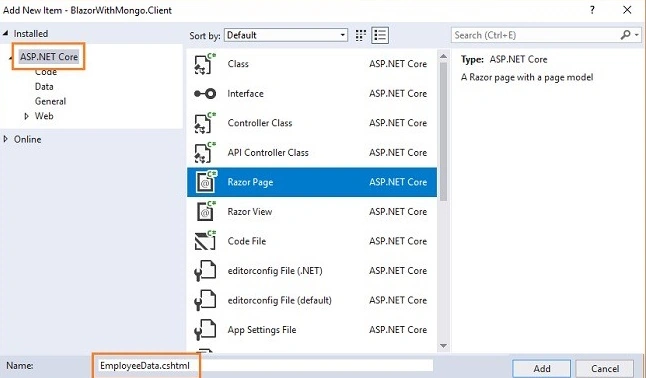
Right-click on BlazorWithMongo.Server/Controllers folder and select Add >> New Item. An “Add New Item” dialog box will open. Select Web from the left panel, then select “API Controller Class” from the templates panel and put the name EmployeeController.cs. Click Add.
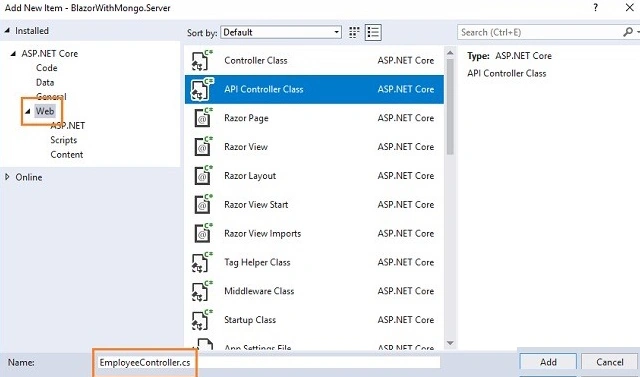
This will create our API EmployeeController class. We will call the methods of the EmployeeDataAccessLayer class to fetch data and pass on the data to the client side.
Open the EmployeeController.cs file and put the following code into it.
using System;
using System.Collections.Generic;
using System.Linq;
using System.Threading.Tasks;
using BlazorWithMongo.Server.DataAccess;
using BlazorWithMongo.Shared.Models;
using Microsoft.AspNetCore.Mvc;

namespace BlazorWithMongo.Server.Controllers
{
    public class EmployeeController : Controller
    {
        EmployeeDataAccessLayer objemployee = new EmployeeDataAccessLayer();

        [HttpGet]
        [Route("api/Employee/Index")]
        public IEnumerable<Employee> Index()
        {
            return objemployee.GetAllEmployees();
        }

        [HttpPost]
        [Route("api/Employee/Create")]
        public void Create([FromBody] Employee employee)
        {
            objemployee.AddEmployee(employee);
        }

        [HttpGet]
        [Route("api/Employee/Details/{id}")]
        public Employee Details(string id)
        {
            return objemployee.GetEmployeeData(id);
        }

        [HttpPut]
        [Route("api/Employee/Edit")]
        public void Edit([FromBody]Employee employee)
        {
            objemployee.UpdateEmployee(employee);
        }

        [HttpDelete]
        [Route("api/Employee/Delete/{id}")]
        public void Delete(string id)
        {
            objemployee.DeleteEmployee(id);
        }

        [HttpGet]
        [Route("api/Employee/GetCities")]
        public List<Cities> GetCities()
        {
            return objemployee.GetCityData();
        }
    }
}
Join the conversation! Your thoughts help the community grow.