

Introduction
Power Virtual Agents is an easy to create, powerful bot with a no-code graphical interface. This means there isn't necessarily a need for data scientists or developers. It eliminates the gap between the subject matter experts and the development teams building the bots and it minimizes the IT effort required to deploy and maintain a custom conversational solution.
Every business has their own website with a FAQ page, so you can use support questions from your existing web pages when you are creating a Power virtual agent bot, it will help you to create your support Bot within 5 minutes. You don’t want to copy and paste or manually re-create the same content. You can use AI agent-assisted authority to automatically extract and create a relevant suggested topic from your FAQ pages. Microsoft made this sequence of work as very simple easy steps, you can follow the steps below and create your own FAQ business chat Bot.
Setup Power Virtual Agents
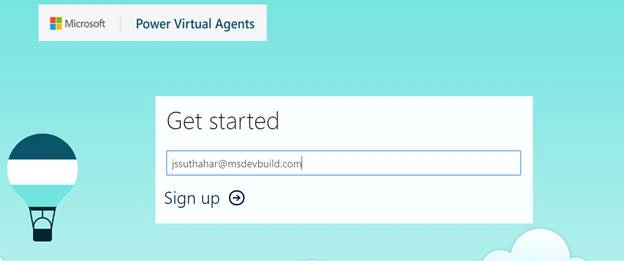
Power Virtual Agents is a software-as-a-service (SaaS). It allows you to easily sign up, create your bot, and embed it into your website and integrate it to the different channels with just a few clicks. There’s no infrastructure to maintain or complex systems to deploy. Provide your work school account email id and click on Sign up /Sign in.
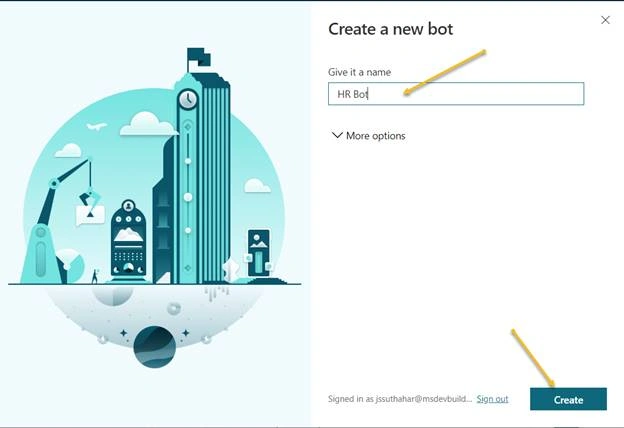
After clicking on Sign up/ sign in, you will get the following screen asking you to set your Bot name. Provide the relevant business bot name.
There are three main steps you need to do while importing FAQ and adding the topic to your bot application.
- Import Suggested Topics from FAQ webpage.
- Add a topic.
- Enable the topics
Import FAQ content
You can follow the below steps for importing topic messages from your FAQ web page
Step 1
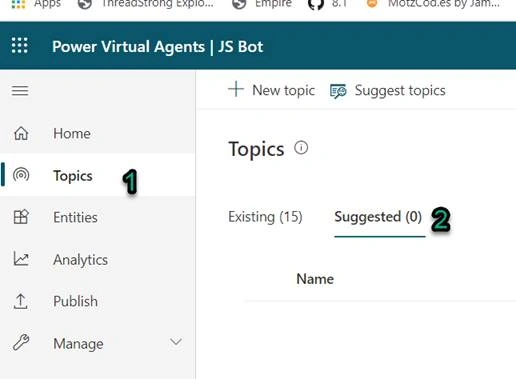
Go to the Topics tab on the side navigation pane to open the topics page.
Step 2
On the Topic page, Select the Suggested Topics option on the top navigation pane/ suggested tab button.
Extract FAQ Topics
If you have not imported any topics before, the list of suggested topics will be blank. A link to Get started or Learn more appears instead.
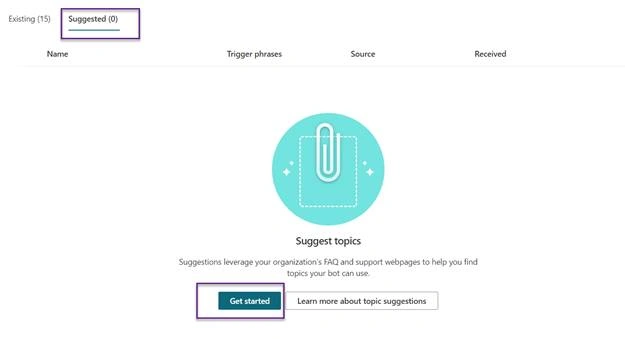
- The following screen will appear after clicking on “Get Started”.
- You can add multiple webpages at the same time, but Microsoft recommends that you include only a few at a time to keep the list of suggestions manageable.
- You can make sure your webpage should be secure with SSL (https://)
- If you added a page by mistake, you can select the Delete option before clicking on start.
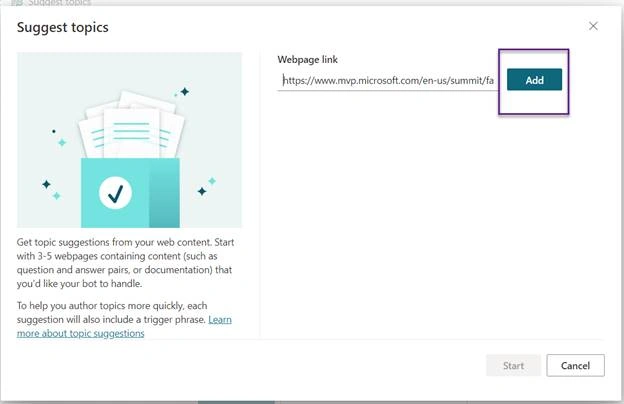
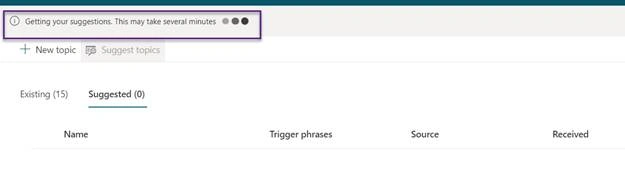
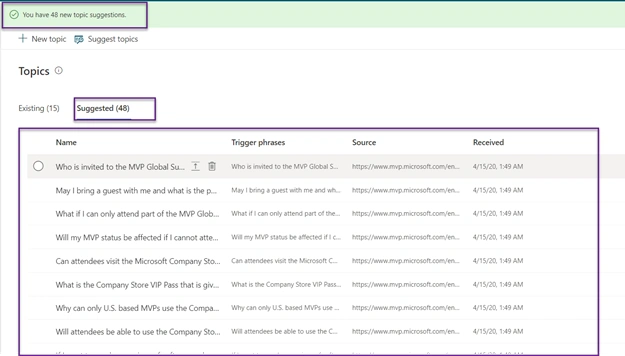
When you're finished adding pages, select Start. The process can take several minutes, depending on the complexity and number of webpages you added. The message "Getting your suggestions. This may take several minutes" appears at the top of the screen while the extraction is in progress.
Kenneth BallonPosted May 15, 2020, 3:50 AM
Is there a way for this bot to be available on pages?