

Introduction
In this article, I will explain the Google ARCore basics with Simulator Augmented Reality in Unity.
Google ARCore
ARCore integrates the Android device camera and motion features to produce augmented reality experiences in your app or game. Augmented reality (AR) describes user experiences that add 2D or 3D elements to the live view from a device's camera, in a way that makes those elements appear to inhabit the real world. ARCore combines device motion tracking, camera scene capture, advanced scene processing, and display conveniences to simplify the task of building an AR experience. You can use these technologies to create many kinds of AR experiences, using the back camera or front camera of an Android device.
Prerequisites
Unity environment version 2018.4.19f1
To test out your ARCore app, you will need one of SamSung's ARCore compatible devices, which are devices having Samsung Gallaxy A8 processors & (Api Level = 26 )or higher.
Let's dive right in.
Creating a new project:
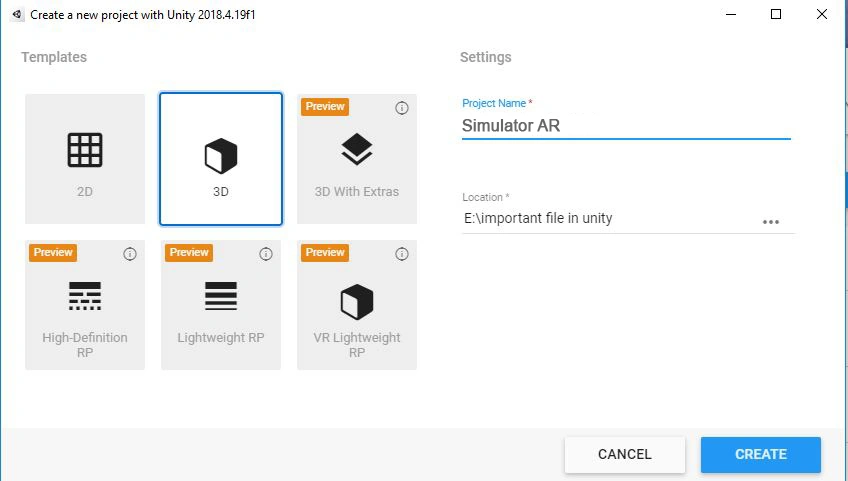
Setting Up Google ARCore Scene View
Now open up main.Assets. Import the Custom Package for the ARCore Unity sdk view. Drag the ARCore Scene view onto your view controller.
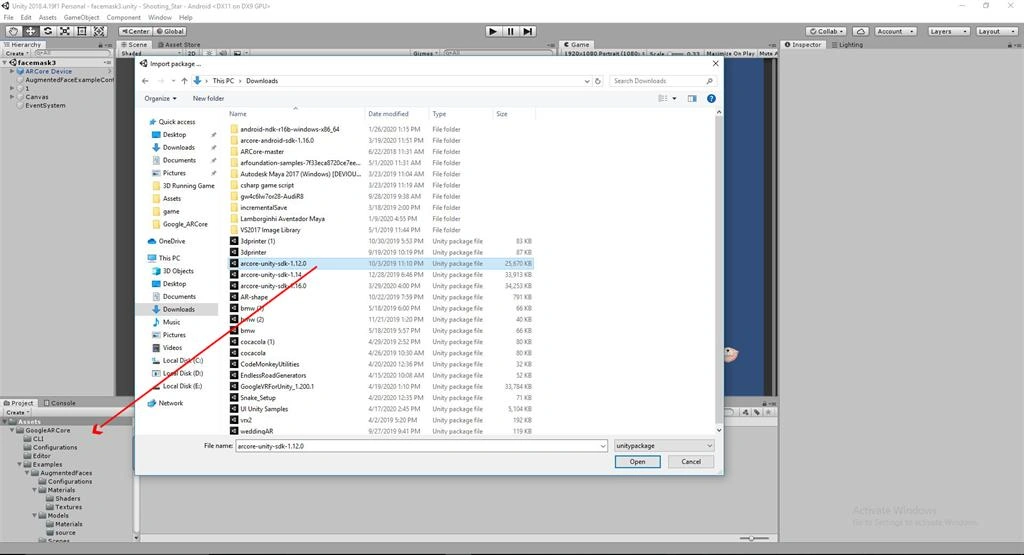
Connecting Google ARCore
On the Main.Google ARCore file, go up to the toolbar and open up the Assistant Editor. Add an import statement at the top of the HomeViewController.HelloAR files to import ARCore.Then, hold control and drag from the Google ARCore Scene View to the HomeViewContoller.HelloAR file. When prompted, name the Google ARCore sceneView.

Create objects in Unity
First, you have to open the Unity Assets Store. Import the Lowpoly Toon Cat Lite for your game.
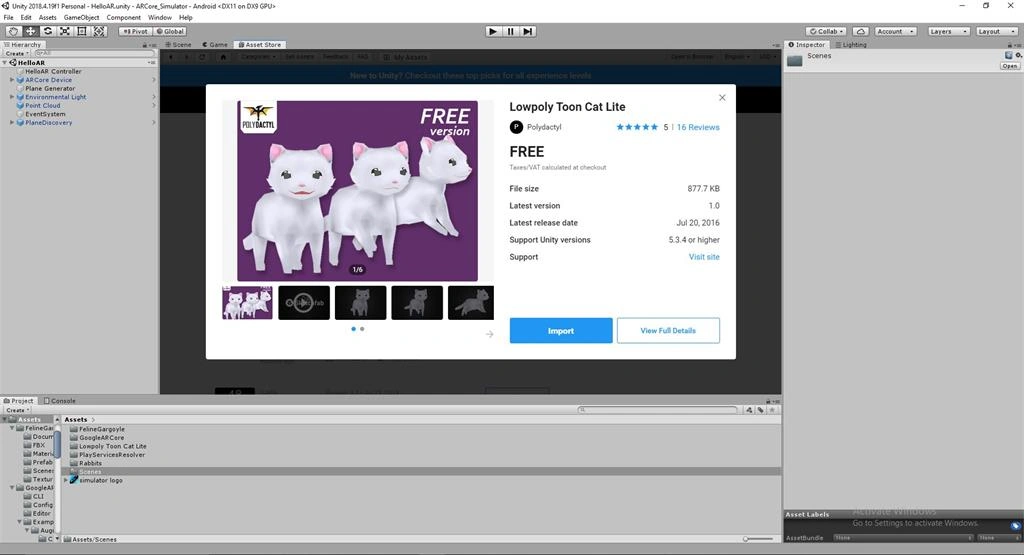
How to create prefab folder
You can create a prefab by selecting Asset > Create Prefab and then dragging an object from the scene onto the “empty” prefab asset that appears. If you then drag a different GameObject onto the prefab you will be asked if you want to replace your current gameobject with the new one.
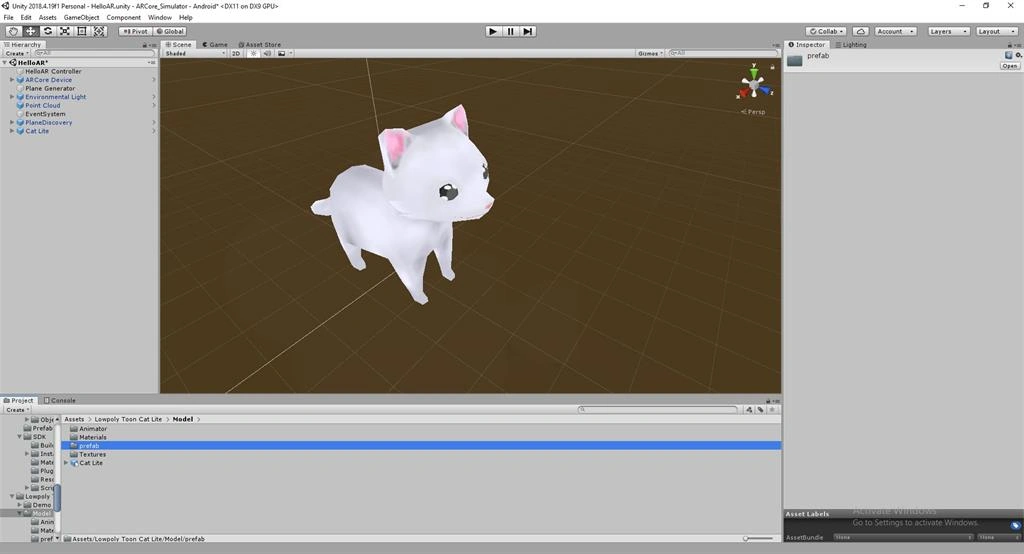
Go to the hierarchy view, drag the Cat Lite and drop the Prefab folder option.
Drag the Cat Lite option into the assets like this,
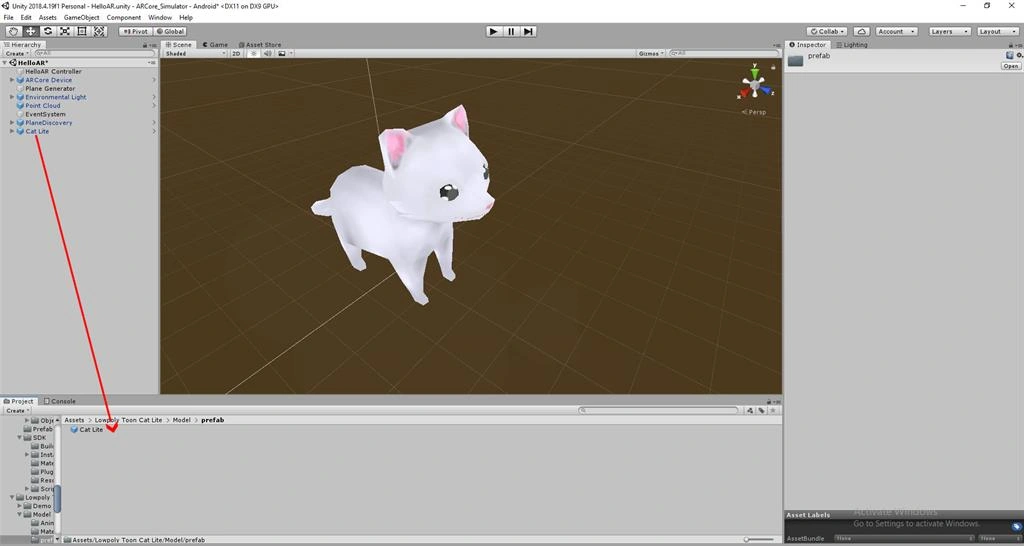
Adding Lowpoly Toon Cat Lite Simulator_AR Scene View
Select HelloAR Controller Go to the Drag n Drop " Cat lite Prefab " and select the "Hello AR Controller Scripts"
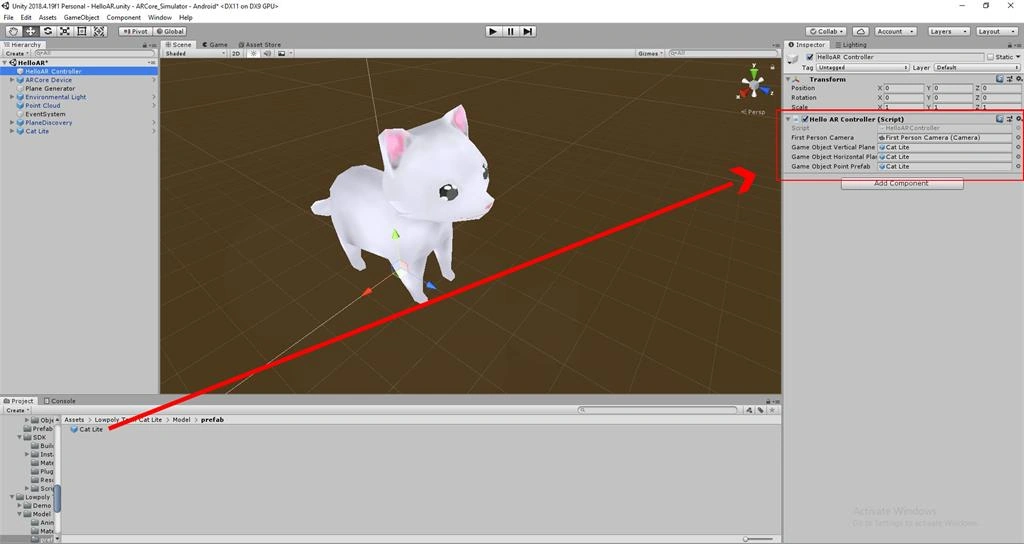
Player Setting Google ARCore Scene
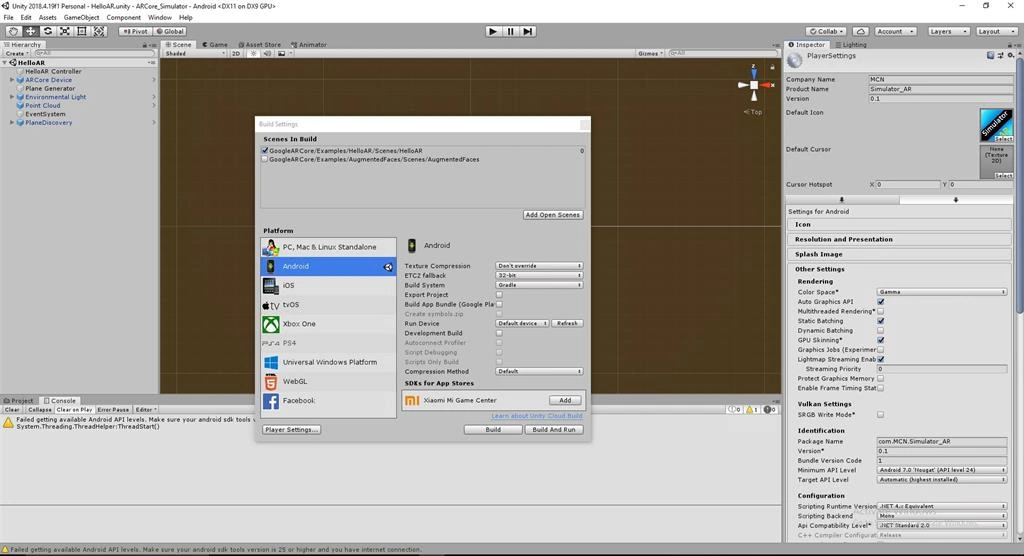
In the Xcode menu, select File > Build Settings > Player Setting ... Switch the plateform And Open XR Setting and select ARCore Supported.
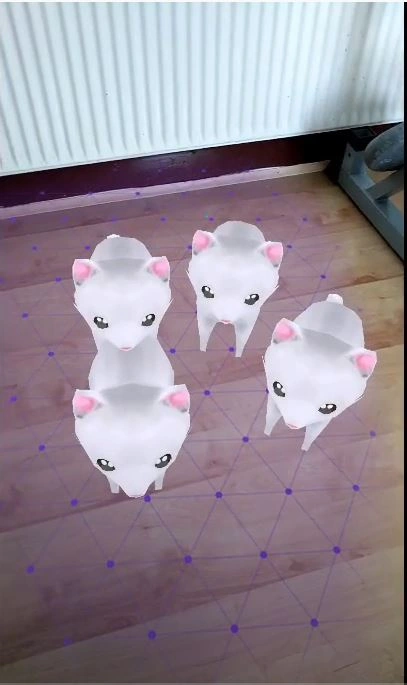
Build and Run the app, and you will see a floating Simulator_AR.
Summary
I hope you understood how to use Google ARCore Simulator Augmented Reality in Unity.
Join the conversation! Your thoughts help the community grow.