

In this article, we will learn how to build and run ASP.NET Core application in a docker container. The docker and containerization term is booming in the market and developer and IT professional curious to know and learn about the docker and containerization but due to lack of plain simple documentation people finds hard to understand about these terms and concepts, my intention to write this article is to clear the hype around these concepts and make understandable to everyone by explaining in the plain simple language.
The hype around the Docker Learning
Many documentation, articles and YouTube videos show lots of command-line tools during building the docker application. Often readers think that I need to learn these commands and due to this, they find it very difficult and complex to create the docker application, but believe me, you don't need all to recall and know the commands. Visual studio built in features for Azure containers, which makes it very simple for you. You can first learn the docker concepts using the way which I am showing in this article, then once you are familiar with these terms and concepts, you can use advanced tools such as docker commands etc.
What is Docker?
Docker is the platform for deploying and building the applications which delivers the application in the packages over the operating system level virtualization. Docker requires the following components to run the application.
- Image
- Container
What is the docker image?
Docker image is the set of configuration and instructions to create the docker container, an image is created during building the application based on steps defined in the docker file of your application. The docker image is the read-only file which cannot be modified once it's created, but we can delete the image from docker.
What is a Container?
The Container is an independent isolated process of an operating system that has its own networking and file system to run the image or application. The container is created on the docker engine based on the image configuration.
What is the difference between Virtual Machine and Docker Container?
The virtual machine (Linux, ubuntu) is installed on some other operating system (windows) which shares the same lifecycle such as running and shutting at the same time. Virtual machine acts as a real PC on an actual operating system which has full features such as RAM, Hard Disk, networking etc. In this case, often virtual machines are called guest PC and the actual PC which runs the VM is called host system machine.
The container is the minimal and smaller part of a virtual machine which does not use the entire operating system as a virtual machine. The container cuts the unnecessary components of the VM and creates the isolated virtualized environment called a container, which is faster than virtual machine. The container does not require the host system as a virtual machine instead, it works on the docker engine.

The preceding diagram gives more understanding about the virtual machine and docker container, now let's start building and running the ASP.NET Core application in docker step by step.
Step 1: Install Prerequisites
You need to install the docker desktop client based on your machine (PC) as per your operating system type. Use the following link to download the docker desktop client.
The installed docker desktop client looks like as follows.

Step 2 : Create the ASP.NET Core Application
- Open Visual Studio (I am using 2019)
- Once Visual studio open then click on continue without code(If you are using VS 2019)
- Then from Visual Studio Menu, click on File => New Project , as shown in the following image

After clicking on the New Project, following window will get appears, Choose the project template ASP.NET Core Web App as shown in the following image,

After Choosing the project template click on next button, provide the project name and storage location of the project on your PC


Step 3: Add Docker Support
Docker support can be enabled in two ways from visual studio, at the time of creating the application and after creating the application. To make it easier to make understand for beginners, in this tutorial we will enable the docker support after creating the ASP.NET core application.
Right click on the solution explorer of your existing project and follow the steps which are shown in the following image.
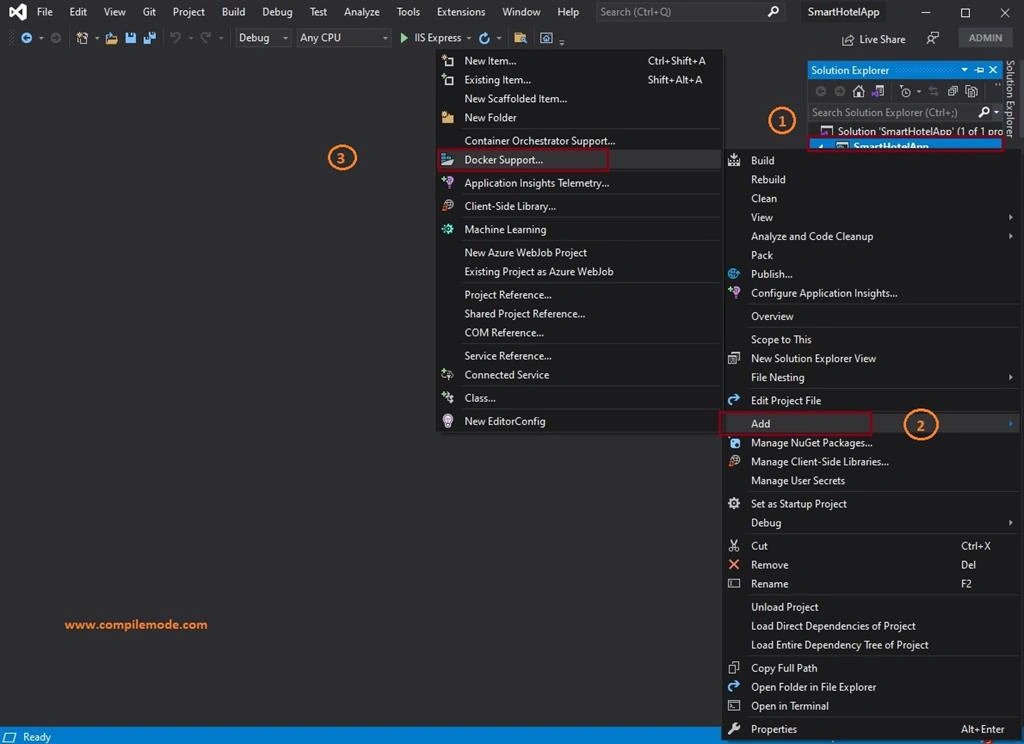
Once you click on the Docker Support option, it will prompt the screen which is shown in the step 4.
Step 4: Choose the Container (Docker File)
Choose the target operating system on which type of container you want to run the application, and it will create the docker image. Let's choose the Linux option which creates the image size smaller than compared to the windows container image.


Ahsan SiddiquePosted May 5, 2021, 10:56 AM
This is very old stuff.
Sagar PardeshiPosted May 4, 2021, 7:34 AM
Thank you Very Helpful article Vithal .