

Introduction
In the previous articles of this series, we discussed how to build the API Gateway in ASP.NET Core. Usually, when using Ocelot, we will store the configuration in the configuration file. It's very convenient for us to modify it during development.
However, after we publish it, we can not modify them it directly due to some reasons!
Ocelot also allows us to store the configuration in the consul so that we can modify the configuration via consul. And in this article, we will discuss how to do it.
If you want to look at the previous articles of this series, please visit the links given below.
- Building API Gateway Using Ocelot In ASP.NET Core - Basic
- Building API Gateway Using Ocelot In ASP.NET Core - Authentication
- Building API Gateway Using Ocelot In ASP.NET Core - Logging
- Building API Gateway Using Ocelot In ASP.NET Core - Rate Limiting
- Building API Gateway Using Ocelot In ASP.NET Core - QoS
- Building API Gateway Using Ocelot In ASP.NET Core - Load Balancing
- Building API Gateway Using Ocelot In ASP.NET Core - Service Discovery (Eureka)
- Building API Gateway Using Ocelot In ASP.NET Core - Service Discovery (Consul)
Step 1
Running up the Consul at first.
For the demonstration, I will use Docker to run up an instance of Consul.
- docker run -p 8500:8500 consul
Step 2
Create a downstream API service that will be used by the API gateway.
We just add some actions and both of them are returning a string.
- [Route("api/[controller]")]
- [ApiController]
- public class ValuesController : ControllerBase
- {
- // GET api/values
- [HttpGet]
- public ActionResult<string> Get()
- {
- return "value";
- }
- // GET api/values/demo1
- [HttpGet("demo1")]
- public ActionResult<string> GetDemo1()
- {
- return "demo1";
- }
- // GET api/values/demo2
- [HttpGet("demo2")]
- public ActionResult<string> GetDemo2()
- {
- return "demo2";
- }
- // GET api/values/demo3
- [HttpGet("demo3")]
- public ActionResult<string> GetDemo3()
- {
- return "demo3";
- }
- }
The next step is to build the API gateway.
Step 3
Creating an empty ASP.NET Core project and add the following two packages via .NET Core CLI.
- dotnet add package Ocelot --version 13.5.2
- dotnet add package Ocelot.Provider.Consul --version 13.5.2
Add a new JSON configuration file named ocelot.json. And here is the contents of it.
- {
- "ReRoutes": [
- {
- "DownstreamPathTemplate": "/api/values",
- "DownstreamScheme": "http",
- "DownstreamHostAndPorts": [
- {
- "Host": "localhost",
- "Port": 8989
- }
- ],
- "UpstreamPathTemplate": "/values",
- "UpstreamHttpMethod": [ "GET" ]
- },
- {
- "DownstreamPathTemplate": "/api/values/demo1",
- "DownstreamScheme": "http",
- "DownstreamHostAndPorts": [
- {
- "Host": "localhost",
- "Port": 8989
- }
- ],
- "UpstreamPathTemplate": "/values/demo1",
- "UpstreamHttpMethod": [ "GET" ]
- }
- ],
- "GlobalConfiguration": {
- "ServiceDiscoveryProvider": {
- "Host": "localhost",
- "Port": 8500,
- "PollingInterval" : 5000
- }
- }
- }
As you can see, the ReRoutes section only contains two nodes.
The configuration means that we can only access http://localhost:8989/api/values and http://localhost:8989/api/values/demo1 via API gateway.
But we also configure ServiceDiscoveryProvider node in GlobalConfiguration section.
This is the most important step for us to store the configuration in the consul that can tell Ocelot the address of consul and how often to read the configuration from consul KV.
And the default value of PollingInterval is 1000ms, here we modify it to 5000ms.
At last, we should configure Ocelot in the Program class.
- public class Program
- {
- public static void Main(string[] args)
- {
- CreateWebHostBuilder(args).Build().Run();
- }
- public static IWebHostBuilder CreateWebHostBuilder(string[] args) =>
- WebHost.CreateDefaultBuilder(args)
- .UseUrls("http://*:9000")
- .ConfigureAppConfiguration((hostingContext, config) =>
- {
- config
- .SetBasePath(hostingContext.HostingEnvironment.ContentRootPath)
- .AddJsonFile("ocelot.json")
- .AddEnvironmentVariables();
- })
- .ConfigureServices(services =>
- {
- services.AddOcelot()
- .AddConsul()
- // Store the configuration in consul
- .AddConfigStoredInConsul();
- })
- .Configure(app =>
- {
- app.UseOcelot().Wait();
- });
- }
After running up the API gateway, we can find out that there is a new KV item in the consul named InternalConfiguration. And the value is the full information of the configuration.
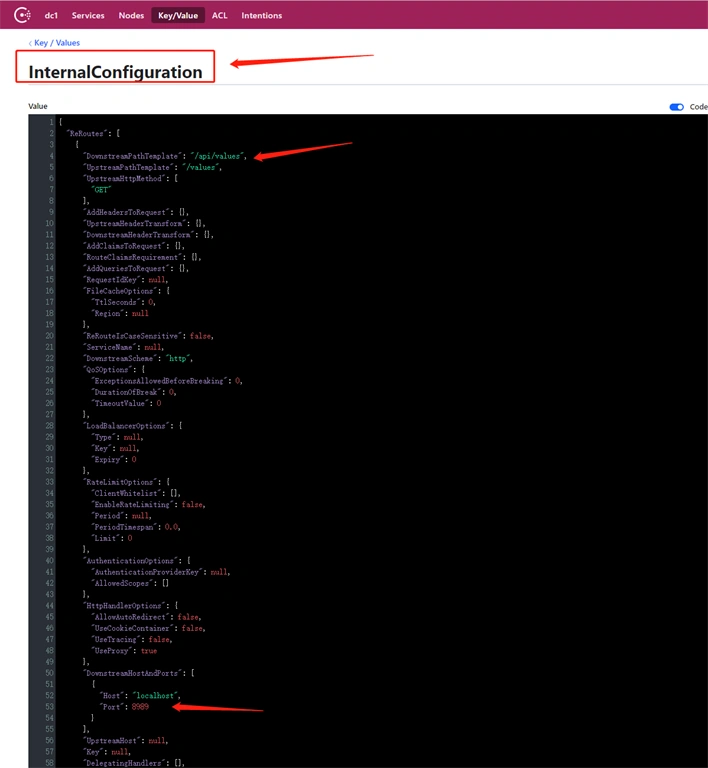
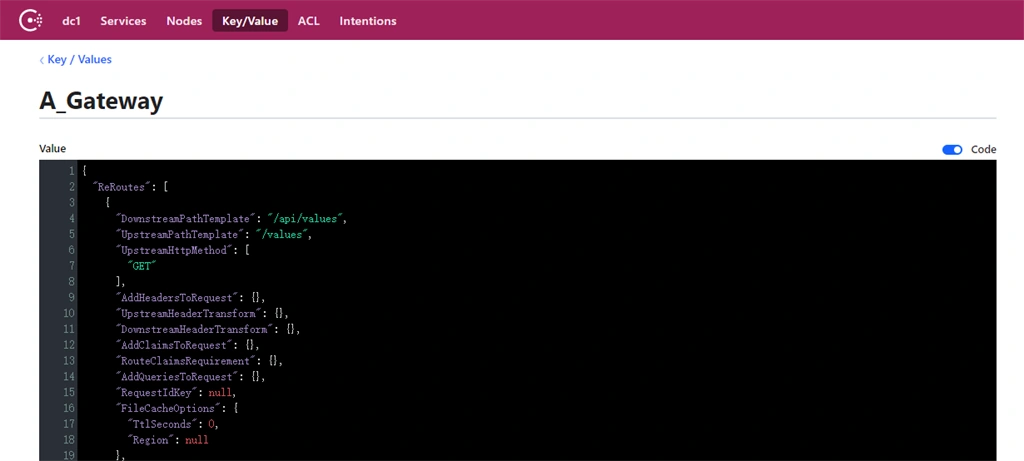
We can change the default name InternalConfiguration to whatever you want via ConfigurationKey.
- "GlobalConfiguration": {
- "ServiceDiscoveryProvider": {
- "Host": "localhost",
- "Port": 8500,
- "ConfigurationKey": "A_Gateway"
- }
- }
For the above sample, the name of consul KV should be A_Gateway.
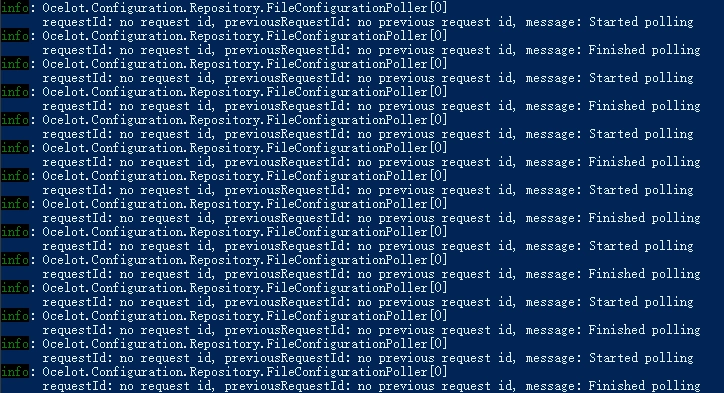
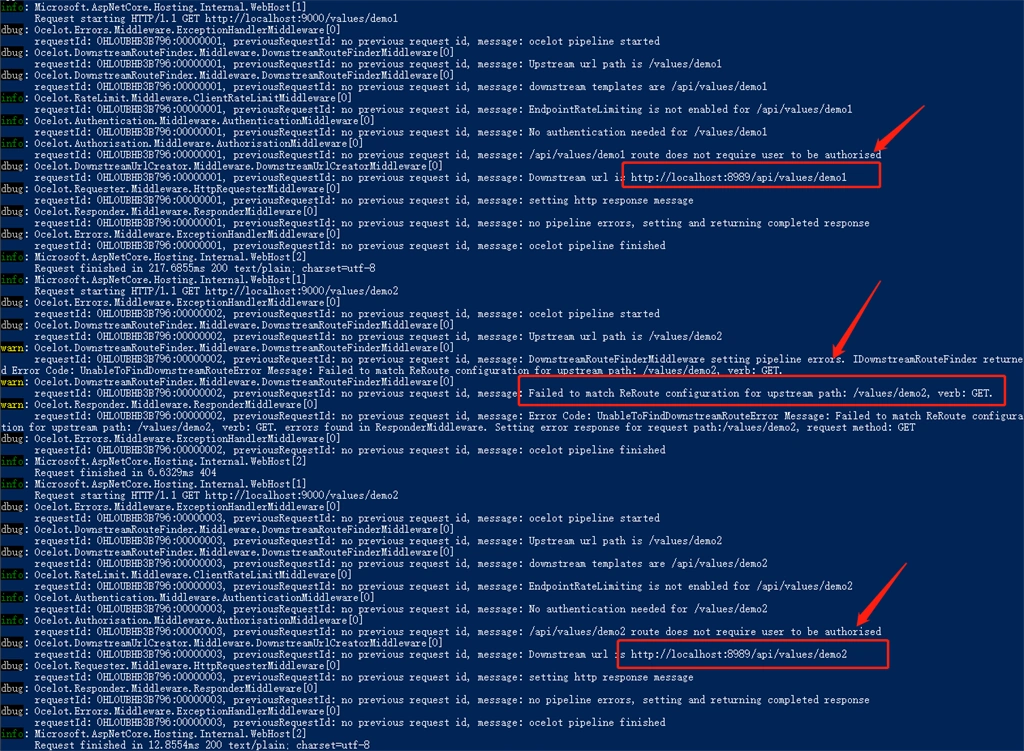
Go back to the terminal, there are many polling log per 5000ms.
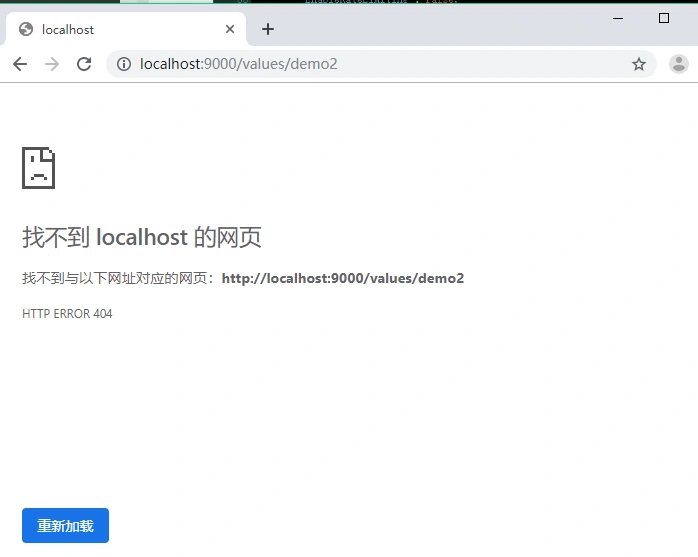
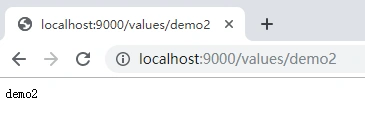
But at this time, we also can not access http://localhost:8989/api/values/demo2 via API gateway.
We can add a new ReRoute item to consul KV item, so that we can access it.
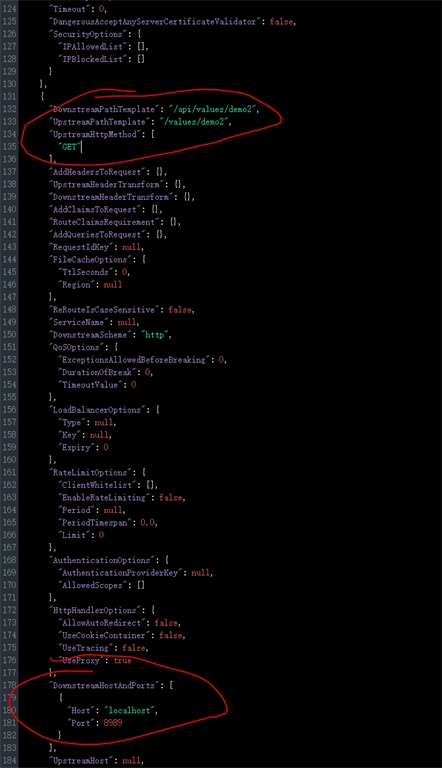
After saving the configuration in consul, we can visit it right now.
Here is the terminal log when we access the API Service via API gateway.
Here is the source code you can find in my GitHub page.
Summary
This article introduced how to store the configuration in consul when using Ocelot.
I hope this helps you.
MJ EbrahimiPosted Sep 10, 2020, 3:07 PM
Good article. For the record, this article was added to this awesome repository. https://github.com/mjebrahimi/Awesome-Microservices-NetCore
Rohit SharmaPosted Jul 5, 2020, 11:53 PM
Your basic code is not working.