

CAML:
- It represents Collaborative Application Markup Language (CAML).
- Which is an XML based language.
- Developers can use to create custom views, querying and updating for SharePoint objects.
Starting With CAML Builder
Go to Start, then All Programs, after that U2U Training nv and select U2U CAML Query Builder

Figure 1: U2U
The following screen will appear.
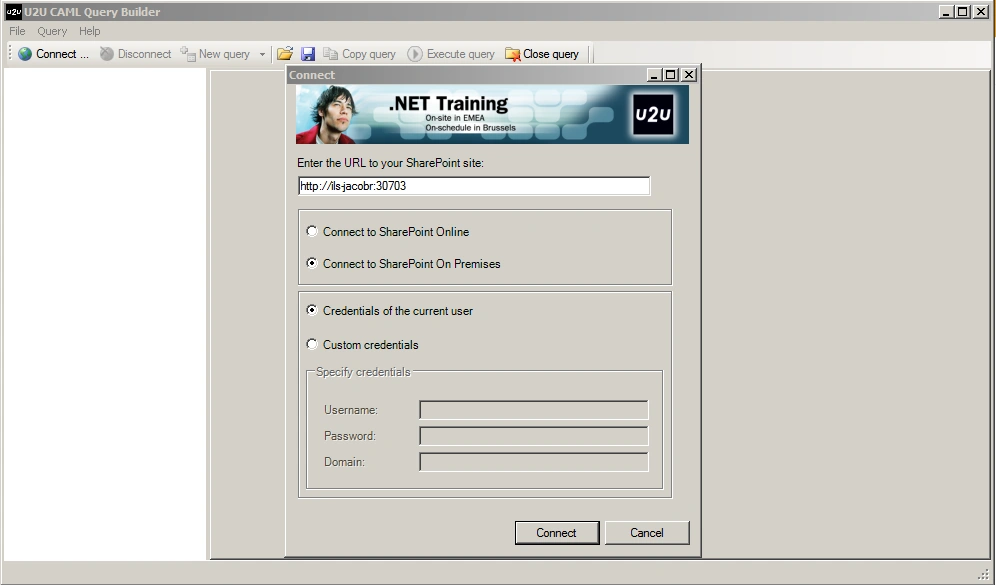
Figure 2: Connect
Enter your SharePoint site URL and click connect.
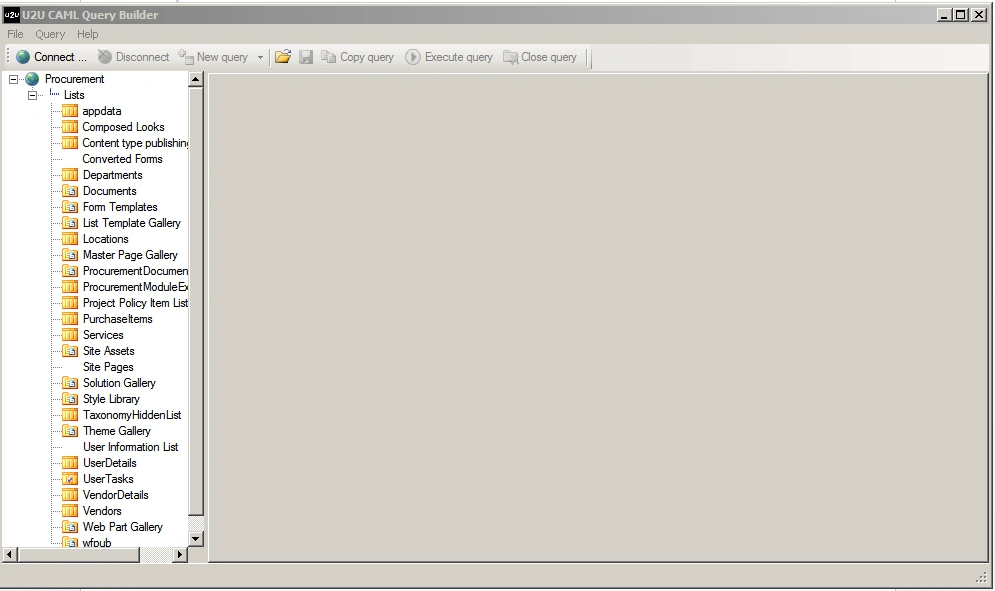
Figure 3: Click Connect
Now you can see your existing list and libraries for your SharePoint site.
Select your List from the left panel. Here I have selected UserDetails List.
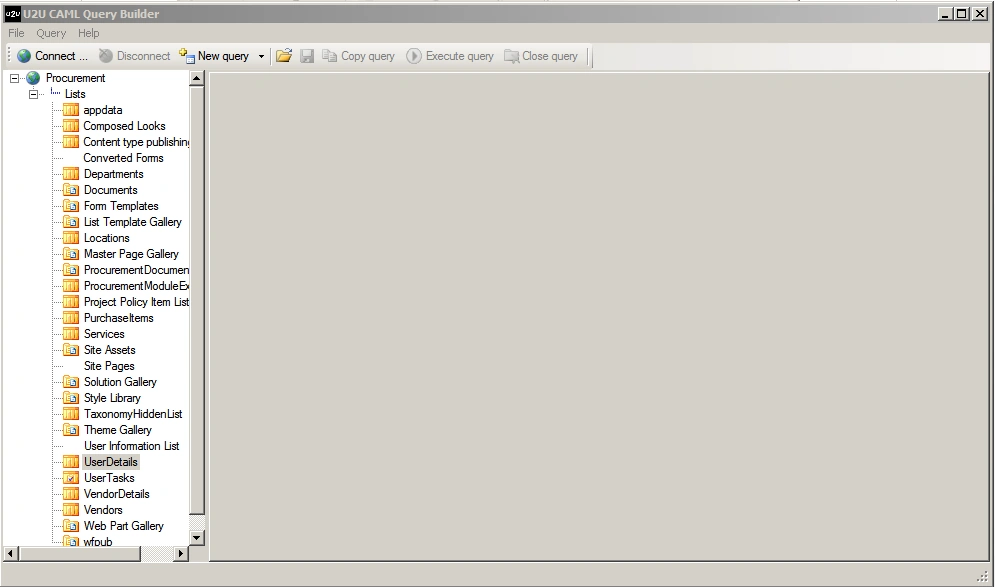
Figure 4: Detail List
Click New Query and select Simple Query.
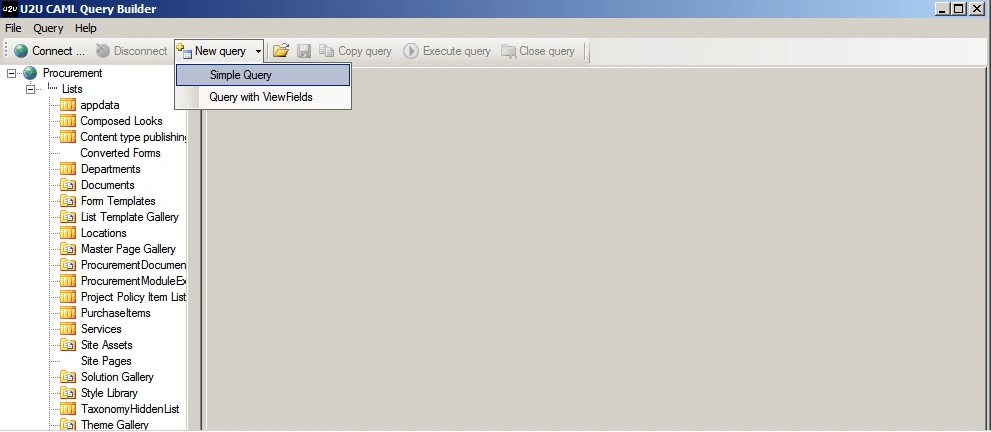
Figure 5: New Query
The following screen will appear.
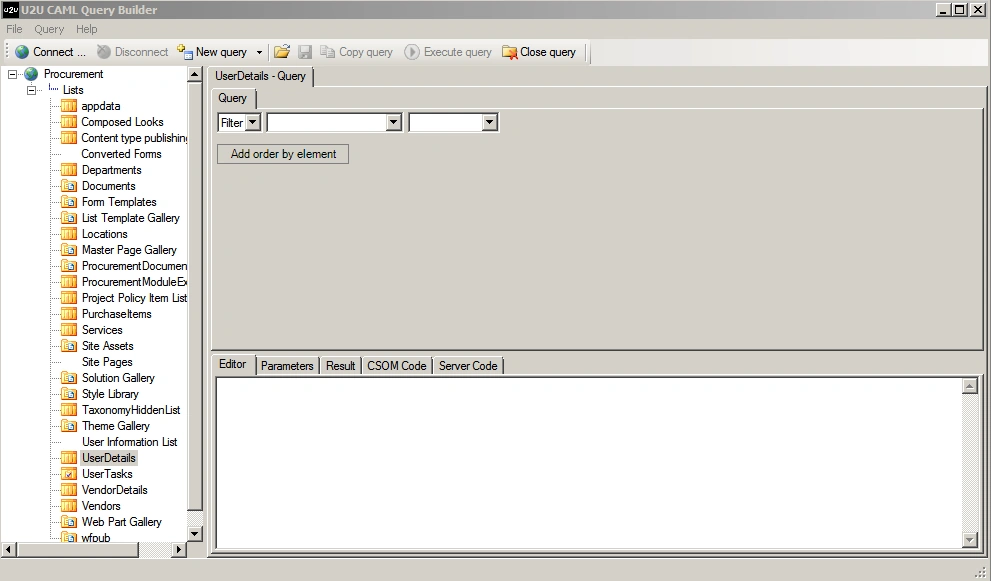
Figure 6: Appear
Select your filter column name in second dropdown.
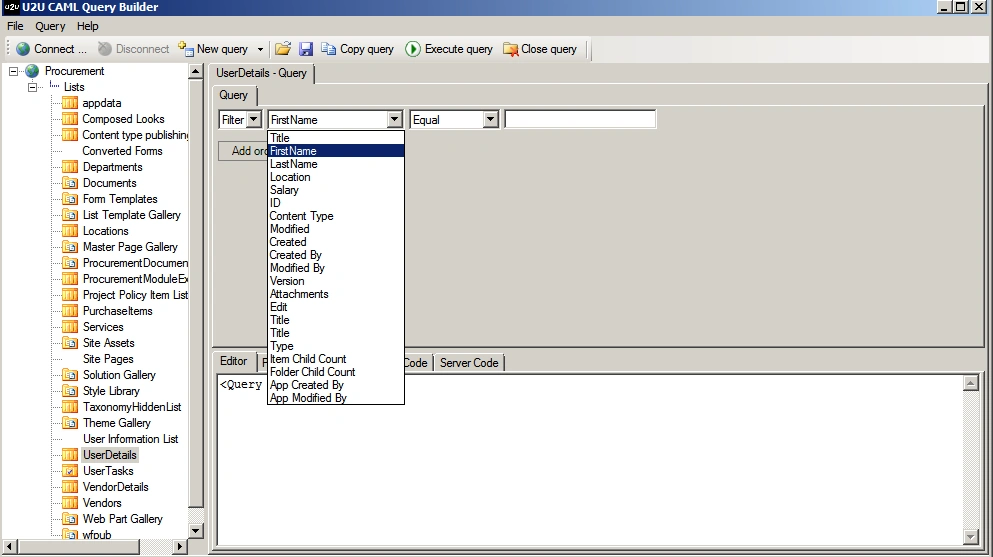
Figure 7: Dropdown
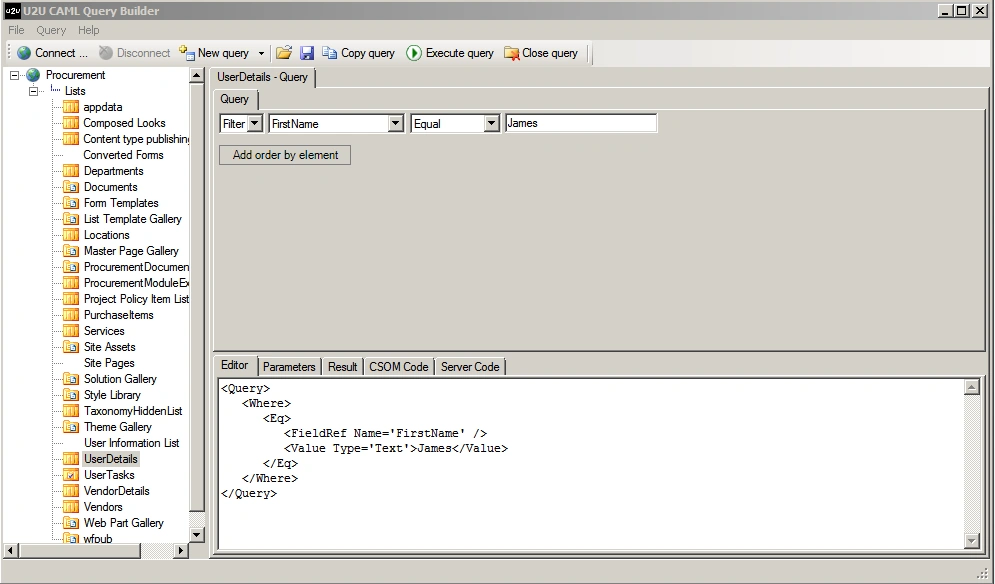
Figure 8: Second Dropdown
Click Execute query button.
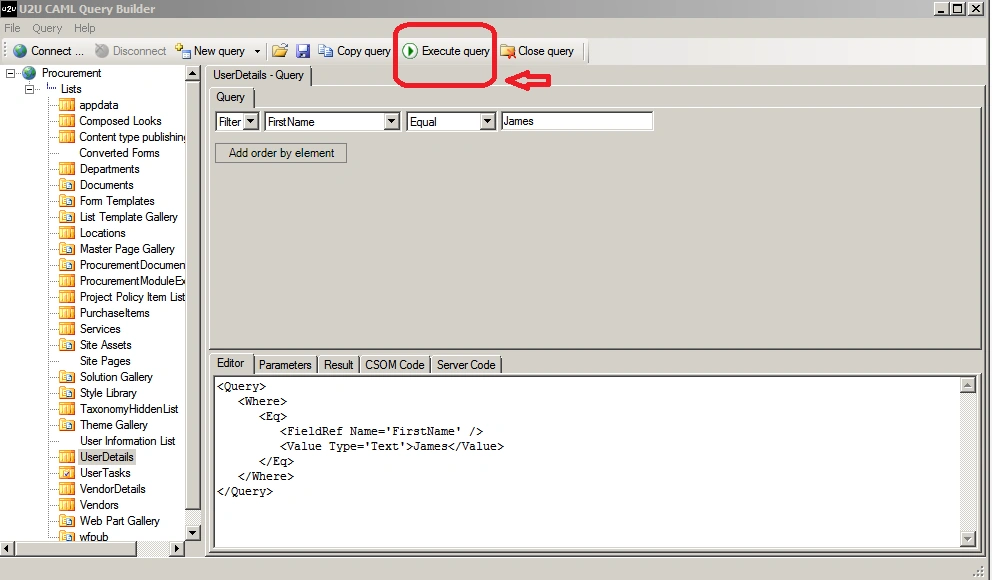
Figure 9: Query Button
Your result can be seen in the following.
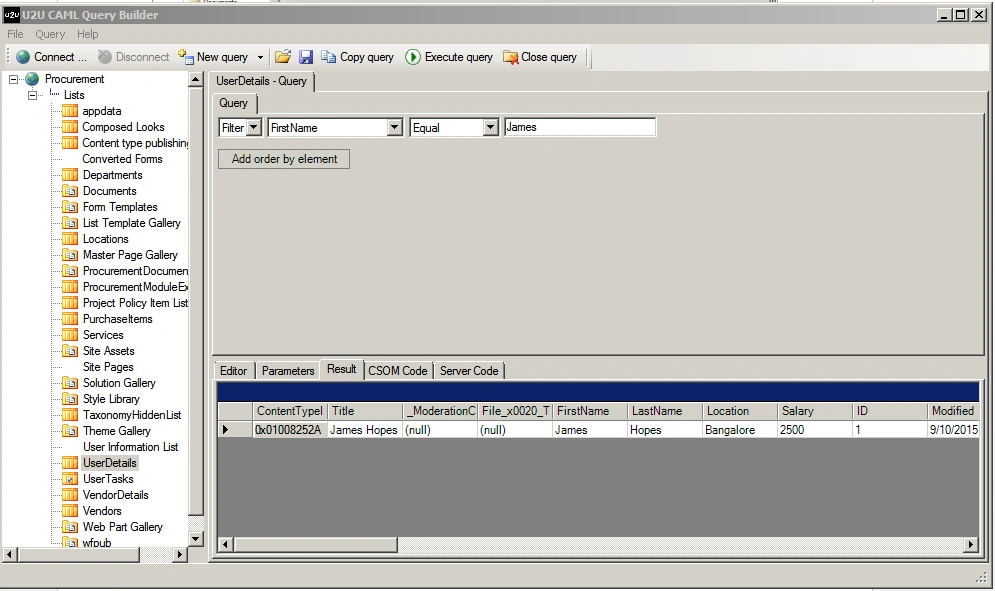
Figure 10: Result
Adding an OR condition.
Click Filter drop down and select your condition (And/Or).
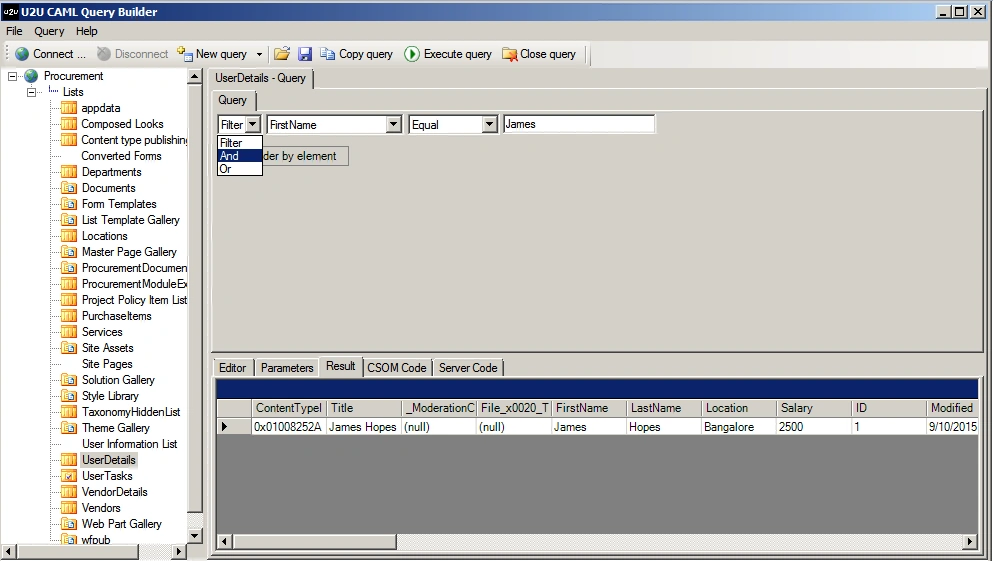
Figure 11: Filter
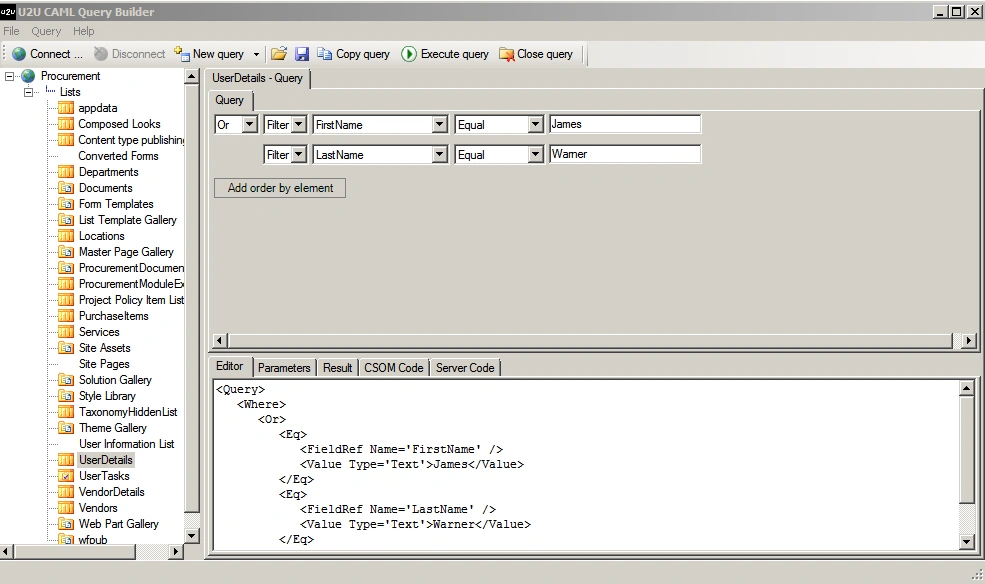
Figure 12: Condition
Click Execute query button. The results can be seen in the following screenshot:
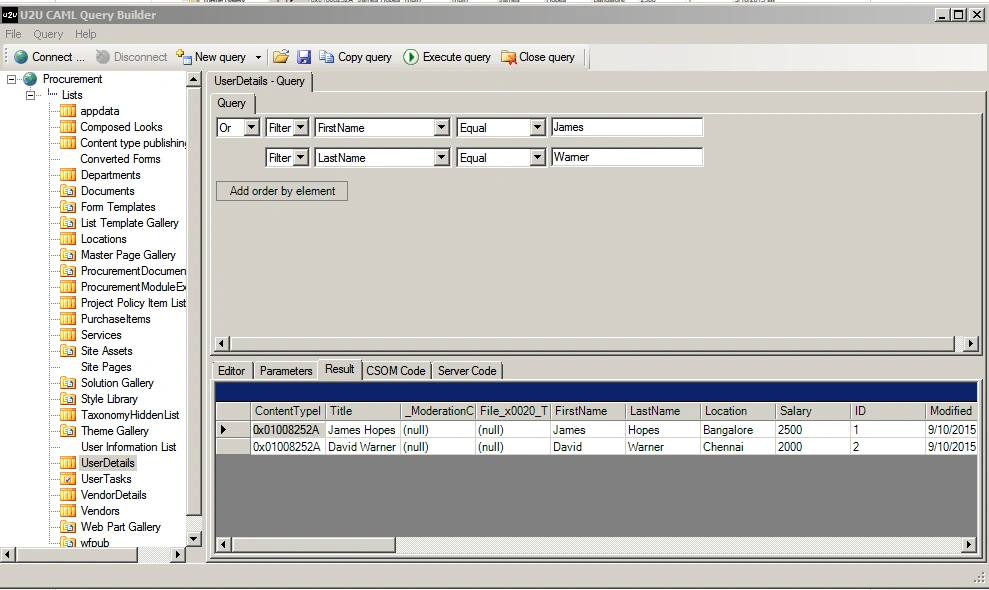
Figure 13: Execute query
Add Order By element
Click Add order by element.
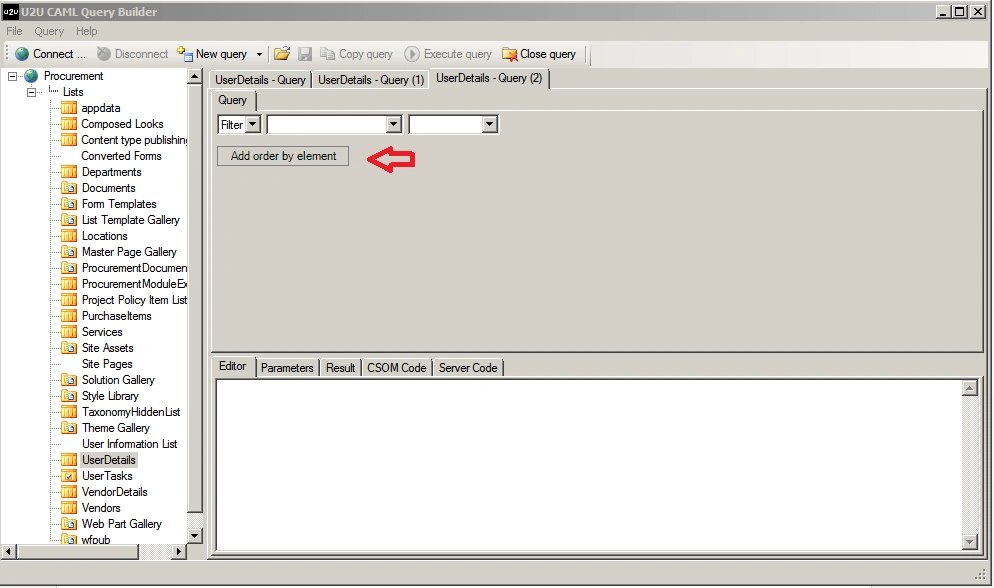
Figure 14: Add Order
Here I am going to order by element based on ID column.
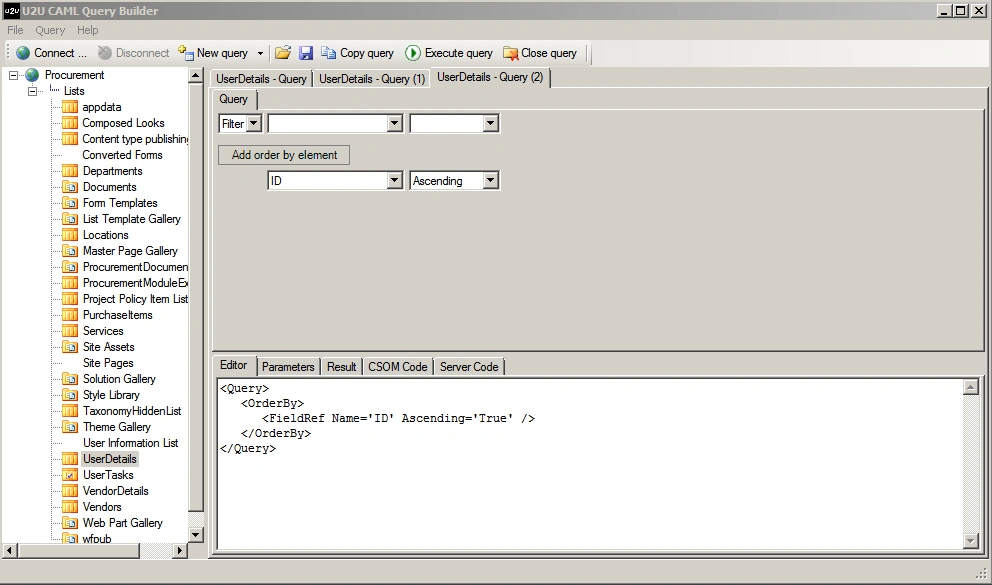
Figure 15: ID
Click Execute query button. Here are the results:
Ascending Order
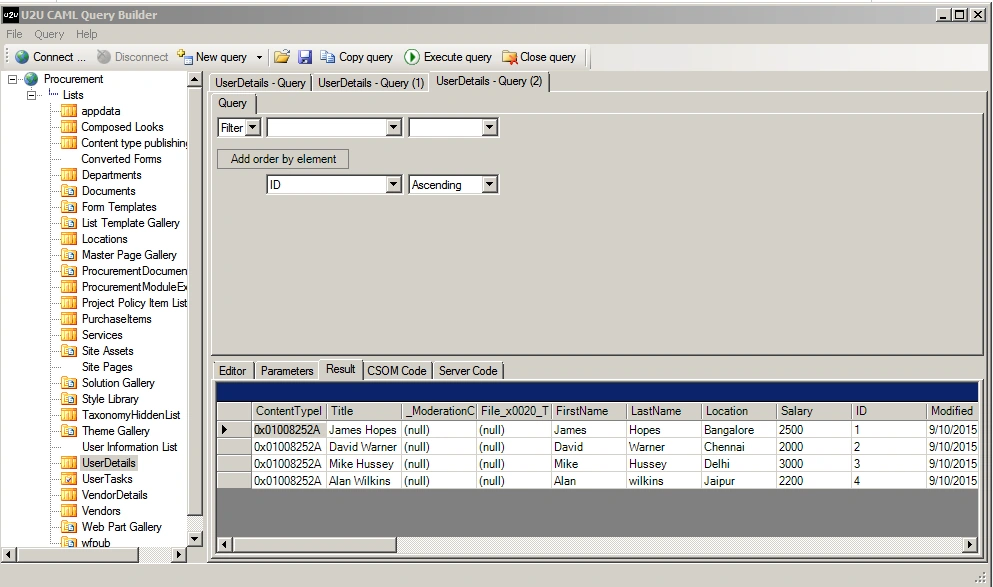
Figure 16: Ascending
Descending Order
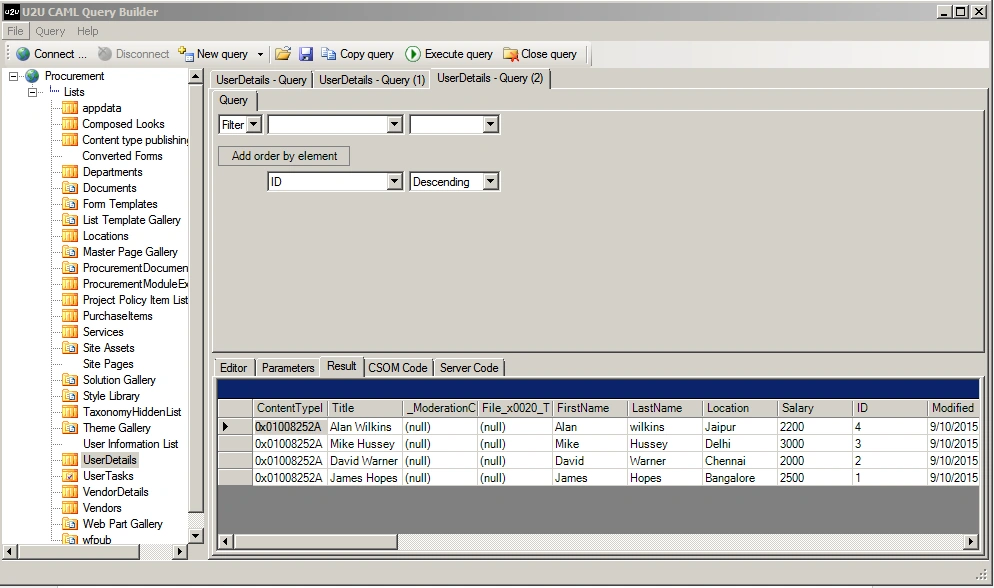
Figure 17: Descending
Summary
In this article we saw how to use CAML Query builder for SharePoint 2013 On Premises.
Santhakumar MunuswamyPosted Sep 12, 2015, 3:07 AM
Thanks for nice article:)
Abhay ShankerPosted Sep 11, 2015, 11:24 PM
Is U2U CAML builder is supported for SharePoint 2013? If yes, is there any option for building the query documents inside sharepoint document library 2013 folder.
Abhay ShankerPosted Sep 11, 2015, 11:21 PM
Nice one...
Pankaj Kumar ChoudharyPosted Sep 11, 2015, 1:28 PM
Nice Explain Sir..........
Karthikeyan KPosted Sep 11, 2015, 7:42 AM
Good one sir...Thanks for sharing
Ankit BansalPosted Sep 11, 2015, 5:28 AM
nice share...
Sumit DeshmukhPosted Sep 11, 2015, 4:44 AM
Good One ...Thanks 4 Sharing
Rajeesh MenothPosted Sep 11, 2015, 3:41 AM
Nice One...Thanks for sharing..
Harshad PansuriyaPosted Sep 11, 2015, 3:02 AM
NIce One