

Introduction
In this article we will create an application in which we convert the background color on the button click event using Backbone.js View. In this application we create a View event for binding the events with their children. For creating the event we need the following syntax:
"event css-selector": function
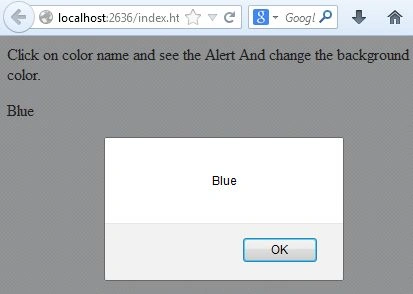
In this tutorial we use the View event for changing the background color. When we click on the button it displays an alert and after clicking on OK it will change the color of the background.
Now let's see how to create the application.
- Create the Web application:
- Start Visual Studio 2013.
- From the Start window select "New Project".
- Select "Installed" -> "Templates" -> "Visual Studio" -> "Web" -> "Visual Studio 2012" and select [as in the following].

- Click on the "OK" button.
- Now we need to add the HTML page to the project:
- In the Solution Explorer.
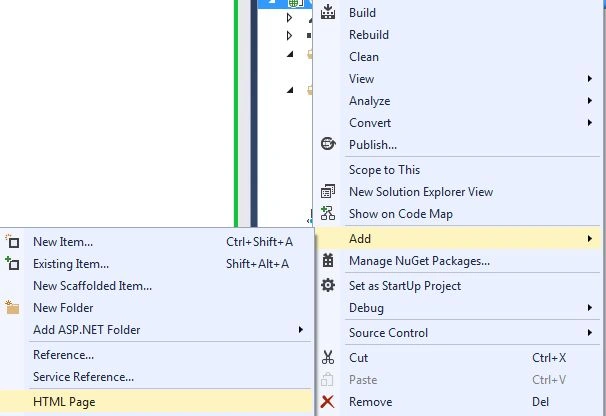
- Right-click on the project then select "Add" -> "HTML page".
- Change the name of the page.
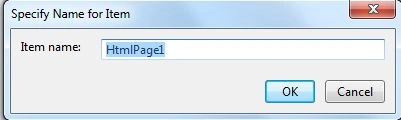
- Click on the "OK" button.
In this HTML Page add the following HTML code:
<html>
<head>
<title>Backbone.js View Event</title>
</head>
<body>
<p>Click on color name and see the Alert And change the background color.</p>
<p></p>
<div id="main">
</div>
<script src="http://ajax.googleapis.com/ajax/libs/jquery/1.7.1/jquery.min.js"></script>
<script src="http://cdnjs.cloudflare.com/ajax/libs/underscore.js/1.3.1/underscore-min.js"></script>
<script src="http://cdnjs.cloudflare.com/ajax/libs/backbone.js/0.9.1/backbone-min.js"></script>
</body>
</html>
Now we need to add some scripting code. First we create a view:
var ColorView = Backbone.View.extend({
tagName: "div",
className: "color-change",
template: null,
In the code above we add the following view with a default value.
events: {
"click .button": "buttonClickHandler" //create event
},
The code above is used for creating the event. Here we create the Click event of the button.
initialize: function () {
_.bindAll(this);
//here we simulate that we load an external template with the Html of our view
this.template = _.template('<a class="button">Blue</a>');
},
render: function () {
this.$el.html(this.template());
$('#main').append(this.$el);
return this;
},
buttonClickHandler: function (event) {
alert($(event.currentTarget).text());
return (document.bgColor = "blue");
},
});
The entire JavaScript code is:
<script>
$(function () {
//Backbone code - begin
var ColorView = Backbone.View.extend({
tagName: "div",
className: "color-change",
template: null,
//we listen for clicks on items with the css class "button"
events: {
"click .button": "buttonClickHandler" //create event
},
initialize: function () {
_.bindAll(this);
//here we simulate that we load an external template with the Html of our view
this.template = _.template('<a class="button">Blue</a>');
},
render: function () {
this.$el.html(this.template());
$('#main').append(this.$el);
return this;
},
buttonClickHandler: function (event) {
alert($(event.currentTarget).text());
return (document.bgColor = "blue");
},
});
var test = new ColorView();
test.render();
})
</script>
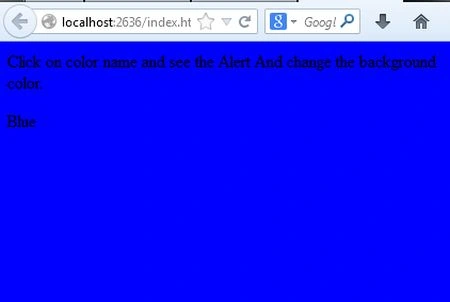
- Now execute the application:
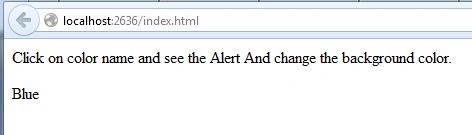
When we click on the "blue" text then it displays the alert and a click on the "OK" button will cause it to change the color of the background.
Join the conversation! Your thoughts help the community grow.