

In my previous article, we discussed queries in LightSwitch. As we know how to create queries in LightSwitch, today we shall discuss the two different types of queries called Composed and Scalar queries based on their functionality.
What is Composed Query?
A Composed query operates on the results obtained from the source query i.e. these type of queries will take another query as their source.
There are some benefits in using a query as a source of another query. The composed query reuses the logic built on the designer and the code written in the PreprocessQuery () method of the source query.
In addition, it helps in maintainability. It is easier to update a single query than make changes on multiple queries.
What is Scalar Query?
A Scalar query returns only one result i.e. if you need to get a single result from thousands of records you can use the Scalar queries.
Let us see the demo application which will use the Composed and Scalar queries to demonstrate how to create and use it.
Preparing the Solution:
Start VS 2010; create a LightSwitch desktop application named "ComposedScalarQueryInLSBeta2" as shown in the figure below.

Follow the No: # to create the Desktop LightSwitch application.
The Entity Designer:
Let us create a Table.

This new screen for Beta 2 is not available in Beta 1. Select the option shown rounded to create a new table.
After clicking on the "Create new table" option, the Entity Designer will be displayed to create the Entity required.

To change the Table name simply click on the Header of the Entity Designer and give the Name. In our sample application we have given the name Person.
Adding Composed Query:
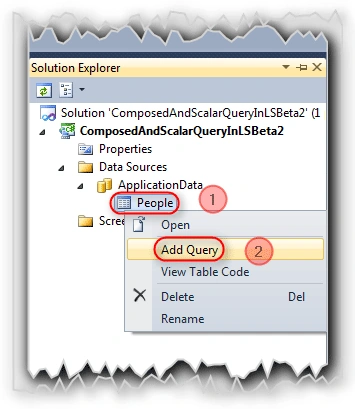
To add a query,
- Right-Click on the Entity People.
- We will be getting a menu with Add Query option. Choose it.
Forming Query:
After clicking on the Add Query, we will be having a Query Designer as shown in the figure.
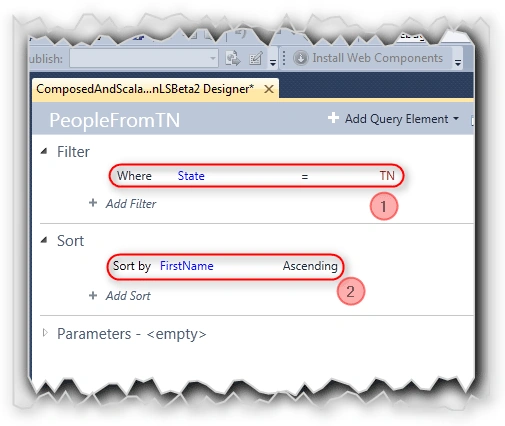
Here in the above figure:
- Create a query as shown in the above figure.
- For our convenience just create a Sort. For more details about creating the Query please read this Article.

The above figure shows how to create a Composed Query. As we have discussed just now, add a Create a query and change the Source from People to PeopleFromTN. The PeopleFromTN is a query and this new query uses the existing query as source.
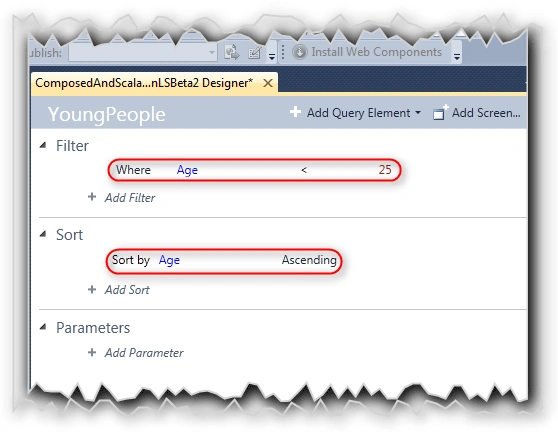
Name the Composed query YoungPeople as this query will return the people whose age is below 25.
Multi-Level Composition on Query:
Multi-Level Composition is nothing but creating a query from a composed query. For example we are going to create a Scalar query which takes the composed query as that source.
Adding Scalar Query:
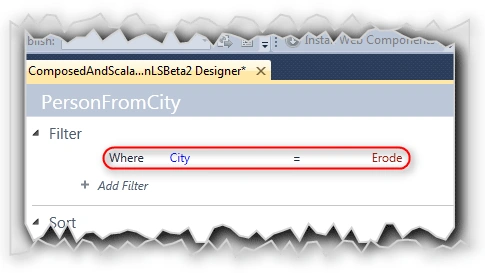
Add one more query with the name PersonFromCity and form the query as shown in the above figure.
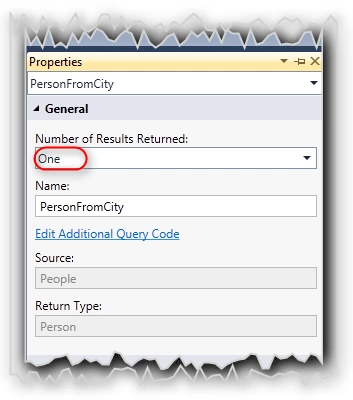
Go to the property page of PersonFromCity query. Change the "Number of Results Returned" option as One as shown in the figure.
That's It. We have done our job.
Let us create the UI.
Creating the Search Data Screen:
There are two ways to create a screen. One is by selecting the Screen... button on the Entity Designer screen top.

Another way is to right-click on the Screens section in the Solution Explorer.
Here:
- Select the Search Data Screen template from Template panel.
- Select the Screen Data as People.


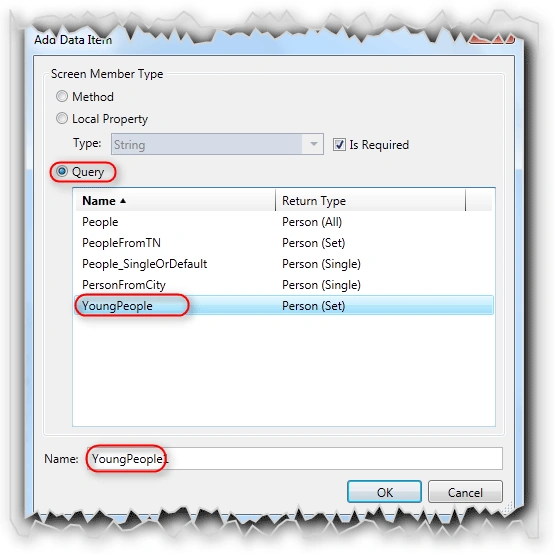


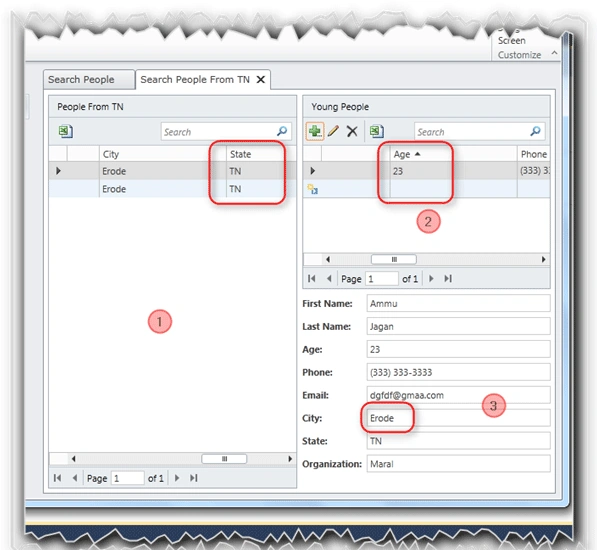
Join the conversation! Your thoughts help the community grow.