

Introduction
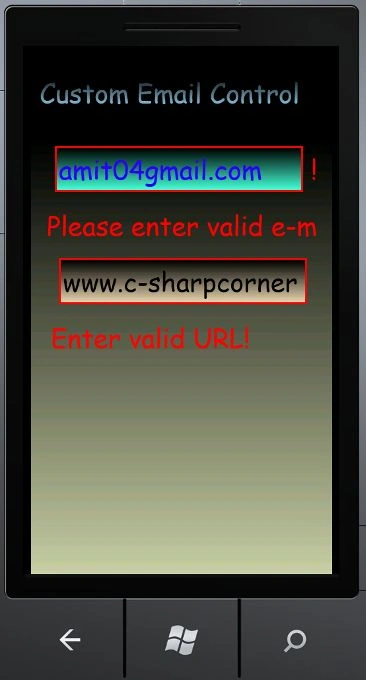
In this article we are going to explain how to create a custom email validator in Windows Phone 7. Further in details we will see how to make such a control which can do the validation. As we know an email address can contain numeric, alpha-numeric and special characters. Whatever the mail id of the person is, enter it in the TextBox; it will be determined to either be valid or not; we will see this by making it's own custom control. Further, as we know, a custom control are those controls which is it's own control and we can add the control to the toolbox and later we can use that control inside the Windows Phone 7 application. Now here we are going to create a custom control which can validate your email id and URL as well. Whenever we will enter an email inside the TextBox, if the entered email id is in a valid format then it will not give any error; if it is not valid then it will give an error that your email id is not valid. After that you will also check that the URL entered inside the TextBox is valid; if it is then it will not give an error but if it is not valid then it will show an error. So to do that you have to follow the steps given below.
Step 1 : In this step we have to create a Windows Phone library so let's see from where you have to add it which is given in the figure.
- Go to Visual Studio 2010.
- Open New->Project.
- Select the template Silverlight for Windows Phone.
- Select the Windows Phone library and give it a name as you want to give.
- Click oK.

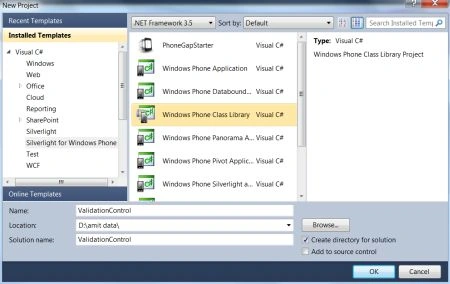
Step 2 : In this step we will see the code for the Windows Phone library whose name is ValidationControl.cs so let's have a look on the code given below.
Code:
using System;
using System.Net;
using System.Windows;
using System.Windows.Controls;
using System.Windows.Documents;
using System.Windows.Ink;
using System.Windows.Input;
using System.Windows.Media;
using System.Windows.Media.Animation;
using System.Windows.Shapes;
using System.Text.RegularExpressions;
namespace ValidationControl
{
public class ValidationControl : TextBox
{
public static readonly DependencyProperty Is_valid_prpt = DependencyProperty.Register("IsValid", typeof(bool), typeof(ValidationControl),
new PropertyMetadata(true, new PropertyChangedCallback(ValidationControl.OnIs_valid_prptChanged)));
public static readonly DependencyProperty Val_rule_prpt = DependencyProperty.Register("ValidationRule", typeof(I_Val_Rule), typeof(ValidationControl),
new PropertyMetadata(new PropertyChangedCallback(ValidationControl.OnVal_rule_prptChanged)));
public static readonly DependencyProperty Val_Content_prpt = DependencyProperty.Register("ValidationContent", typeof(object), typeof(ValidationControl),
new PropertyMetadata("Incorrect Value", new PropertyChangedCallback(ValidationControl.OnVal_Content_prptChanged)));
public static readonly DependencyProperty Val_Symbol_prpt = DependencyProperty.Register("ValidationSymbol", typeof(object), typeof(ValidationControl),
new PropertyMetadata("**", new PropertyChangedCallback(ValidationControl.OnVal_Symbol_prptChanged)));
public static readonly DependencyProperty Val_ContentStyle_prpt = DependencyProperty.Register("ValidationContentStyle", typeof(Style), typeof(ValidationControl), null);
public bool IsValid
{
get { return (bool)base.GetValue(Is_valid_prpt); }
set { base.SetValue(Is_valid_prpt, value); }
}
public Style ValidationContentStyle
{
get { return base.GetValue(Val_ContentStyle_prpt) as Style; }
set { base.SetValue(Val_ContentStyle_prpt, value); }
}
public object ValidationContent
{
get { return base.GetValue(Val_Content_prpt) as object; }
set { base.SetValue(Val_Content_prpt, value); }
}
public object ValidationSymbol
{
get { return base.GetValue(Val_Symbol_prpt) as object; }
set { base.SetValue(Val_Symbol_prpt, value); }
}
public I_Val_Rule ValidationRule
{
get { return base.GetValue(Val_rule_prpt) as I_Val_Rule; }
set { base.SetValue(Val_rule_prpt, value); }
}
public ValidationControl()
{
DefaultStyleKey = typeof(ValidationControl);
}
public override void OnApplyTemplate()
{
base.OnApplyTemplate();
}
protected override void OnLostFocus(RoutedEventArgs e)
{
bool isInputValid = this.ValidationRule.my_validate(this.Text);
this.IsValid = isInputValid;
base.OnLostFocus(e);
}
private void ChangeVisualState(bool useTransitions)
{
if (!this.IsValid)
{
VisualStateManager.GoToState(this, "InValid", useTransitions);
}
else
{
VisualStateManager.GoToState(this, "Valid", useTransitions);
}
}
private static void OnIs_valid_prptChanged(DependencyObject d, DependencyPropertyChangedEventArgs e)
{
ValidationControl control = d as ValidationControl;
bool newValue = (bool)e.NewValue;
control.ChangeVisualState(false);
//add some additional logic here.
}
private static void OnVal_Symbol_prptChanged(DependencyObject d, DependencyPropertyChangedEventArgs e)
{
//you can add some additional logic here.
}
private static void OnVal_Content_prptChanged(DependencyObject d, DependencyPropertyChangedEventArgs e)
{
}
private static void OnVal_rule_prptChanged(DependencyObject d, DependencyPropertyChangedEventArgs e)
{
}
}
public interface I_Val_Rule
{
bool my_validate(string input);
}
public class Regex_Val_Rule : I_Val_Rule
{
public Regex_Val_Rule(string pattern)
{
this.Pattern = pattern;
}
public string Pattern
{
get;
private set;
}
public bool my_validate(string input)
{
return Regex.IsMatch(input, this.Pattern);
}
}
}
Step 3 : In this step you have to build the class library for which you have to click on the build project it will be build succeeded as well.
Step 4 : Now you have to take another application which is Windows Phone application.
- Start another instance of Visual Studio 2010.
- Go to Menu->File->New->Project.
- Select the Silverlight template for Windows Phone.
- Select the Windows Phone application.
- Click oK.
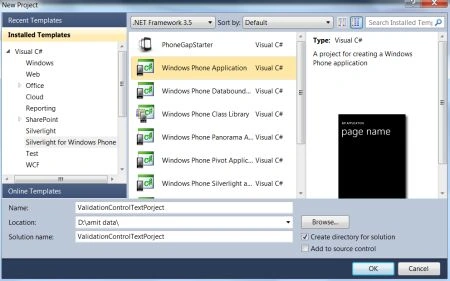
Step 5 : In this step you will have to add the reference of the phone class library which was created; let us see from where you have to add this which is shown in the figure.
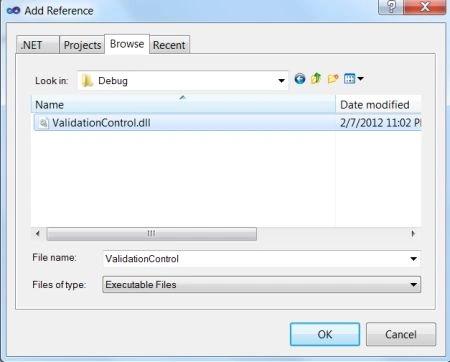
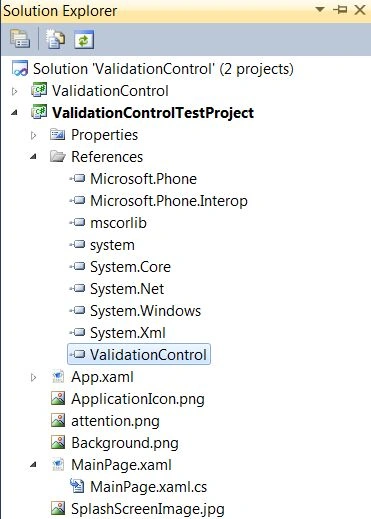
Step 6 : In this step we have to add the complete phone library project to the Windows Phone application project; let us see how you will add it.
- Go to Solution Explorer.
- Right-click and add select add select existing project.
- Select the Class library cs file and add it.
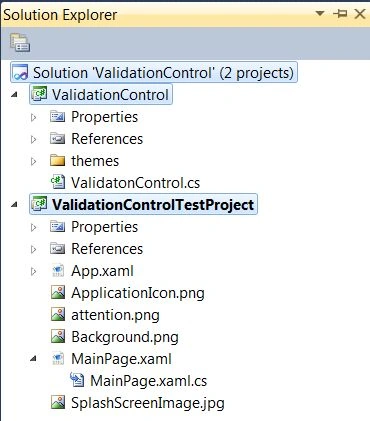
- You will just see that the whole library project will be added to the Windows Phone application project.
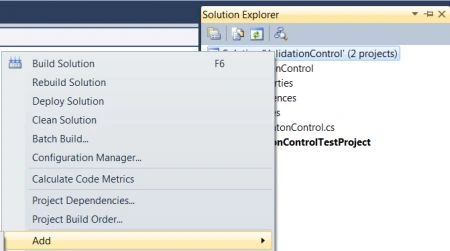
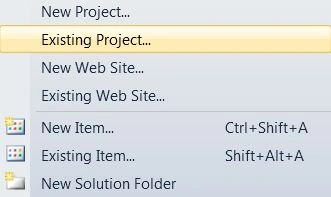
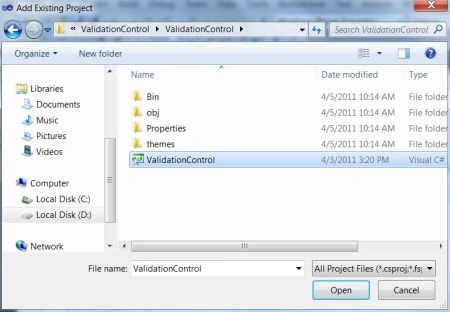
Step 7 : In this step you will see that the project has been added to your Windows Phone application project which you can see in the figure given below:
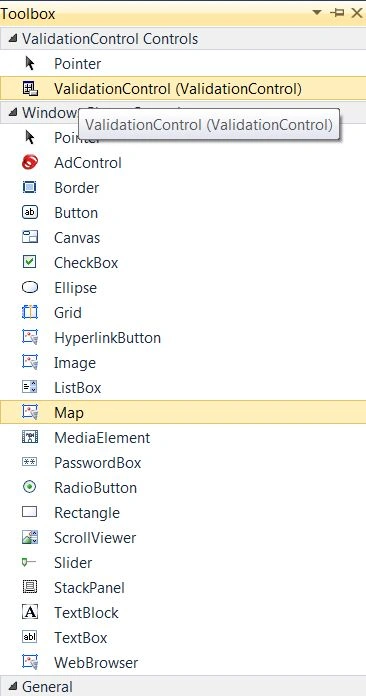
Step 8 : In this step you just see that the control named with Validation Control has been added to the toolbox which you can see in the figure given below you can drag and drop that control to use.
Step 9 : In this step you just see the code for the MainPage.xaml.cs file which is given below.
Code:
using System;
using System.Collections.Generic;

Manoj Singh PanwarPosted Feb 10, 2012, 6:30 AM
You seems to have explored it very deeply.. thank you for this one..