

Introduction
In this article I will explain about integrating the function app with Azure logic application. It means that the function app will be used with the third party services, so that we can do it by using the function app with both logic and cognitive services for the analyzing and monitoring of Twitter recent posts by triggering the function of HTTPS triggered functions.
Prerequisites
- An active Azure subscription
- An outlook email id or gmail id for sending the notifications, (I will recommend gmail for sending the email notifications since the outlook mail id will be logged in while using the azure services).
First we need to create the cognitive service account
Step 1
Login into Azure portal.
Step 2
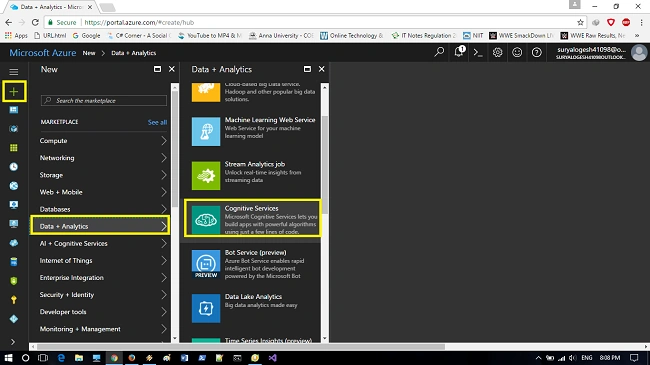
Click->new->Data+Analytics and select->Cognitive services.
Step 3
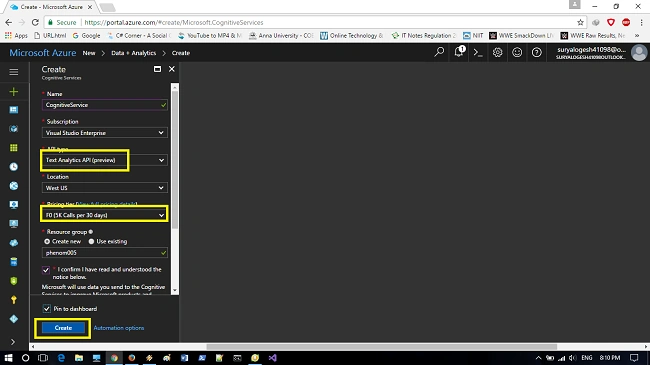
Now we need to configure some of the basic settings such as,
- Provide a unique name for the service.
- Now select the API type as-> Text analytics API(Preview).
- Select the location of the data center
- Select the pricing tier of the service as your wish.
- Create a resource group of the service and
- Click->Create, the service will be created and the successful notifications will be displayed after few minutes.
Step 4
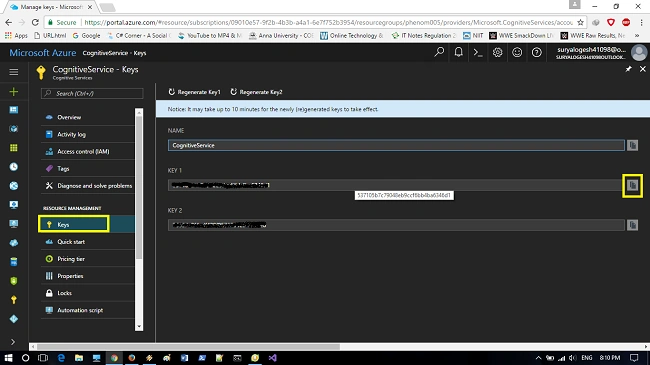
From the created service select->keys make a note down of the keys, since it will be used later in process.
Now begins the process of creating the function app
Step 5
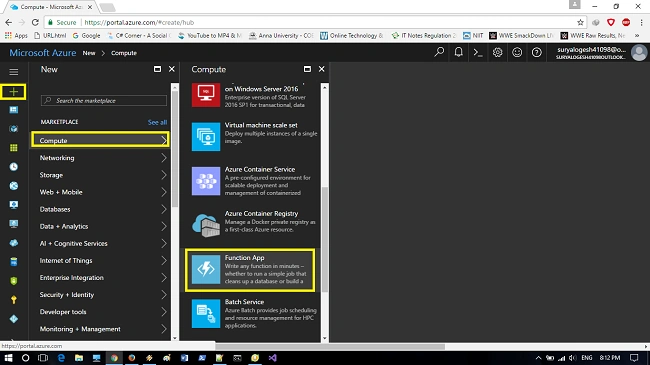
Click New->Compute->Function app.
Step 6
Now, we need to provide the requirements given below for Functions app.
We need to provide an app name for Function app with the unique name.
Create a resource group and provide a name for your resource group.
The hosting part consists of consumption plan & app Service plan.
The consumption plan is default plan, but when we choose the consumption plan; we need to choose the location.
In concept of app Service plan; we need to create an app plan +location. It defines the location and features with cost with the sources with the app.
The storage account has to be configured, so that we can either choose the existing storage or we can create a new storage account.
Step 7
Click->Create to deploy Function app.
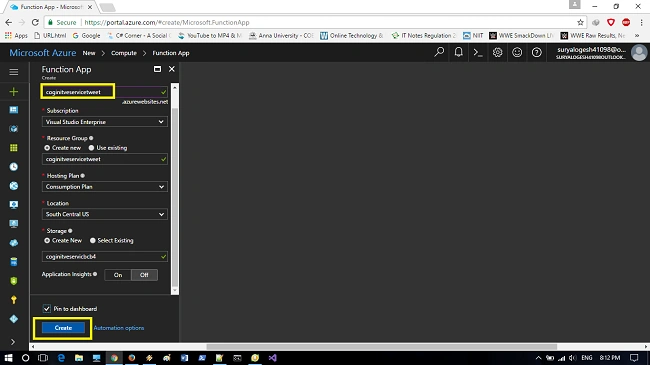
Step 8
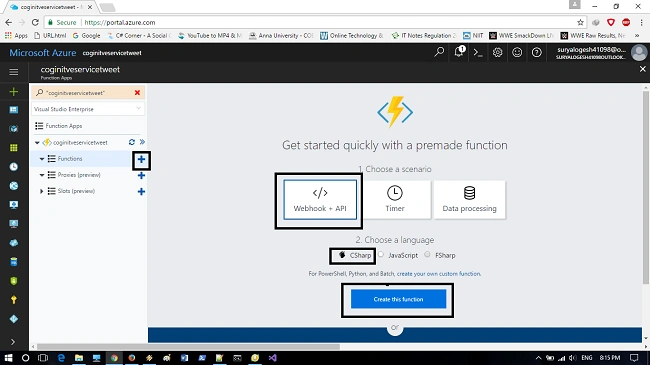
For creating a HTTP triggered function, we need to create a function in new function application. In the function app expand the function app and select + button in the functions, and select the scenario with the desired programming language. I have selected C# but you can select the programming template of your own desire and click-> create functions for view of complete set of function templates of it.
Step 9
Now select->HTTP triggered-c# template and provide a name for the function and click->create.
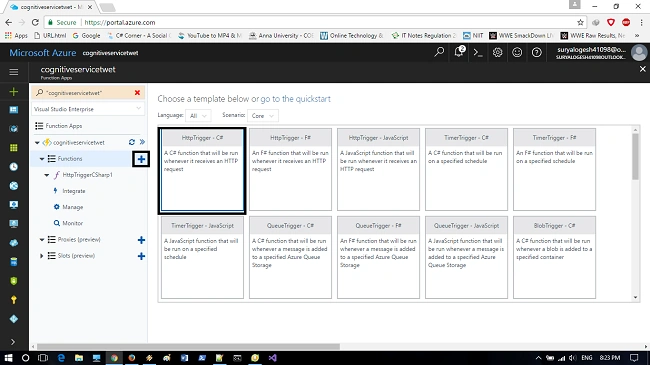
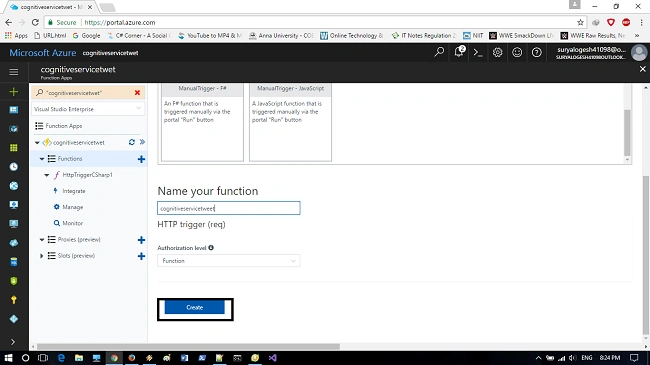
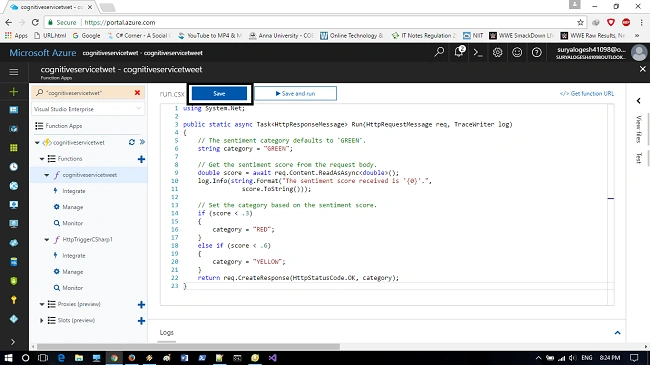
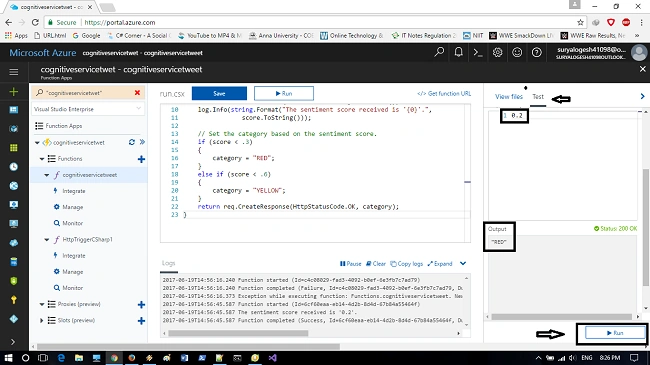
After selecting the template and with renaming the function, we need to replace the code in run.csx fle and click->save. I have provided the code for replacing in run.csx
- using System.Net;
- publicstatic async Task < HttpResponseMessage > Run(HttpRequestMessage req, TraceWriter log) {
- // The sentiment category defaults to 'GREEN'.
- string category = "GREEN";
- // Get the sentiment score from the request body.
- double score = await req.Content.ReadAsAsync < double > ();
- log.Info(string.Format("The sentiment score received is '{0}'.", score.ToString()));
- // Set the category based on the sentiment score.
- if (score < .3) {
- category = "RED";
- }
- elseif(score < .6) {
- category = "YELLOW";
- }
- return req.CreateResponse(HttpStatusCode.OK, category);
- }
Vidyadharran GPosted May 31, 2018, 9:12 AM
Thanks Munish :)
Munish APosted May 31, 2018, 9:10 AM
Nice article...............