

Introduction
Windows 8 is the latest operating system from
Microsoft, the full version of this operating system is not released in the market, but
we can experience Windows 8 by downloading and installing windows 8 developer
preview edition. On Feb 29th, 2012 Microsoft will launch a user preview version of
Windows 8. This operation is sure to become a hit because of its advanced and
user-friendly features. In this article, we will learn how to create a new hard drive
partition using windows 8. In this article, we will also learn how to format a
drive in windows 8.
First, we will know why we need to create an extra
hard drive partition. We need to create an extra partition to backup system files,
extend functionality and we can use multiple numbers of the operating systems.
Step 1
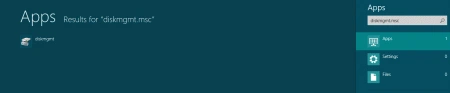
Open Metro metro application screen search in the application tab and type
diskmgmt.msc on the search box, left-hand upper corner diskmgmt icon will appear to click on it.
Step 2
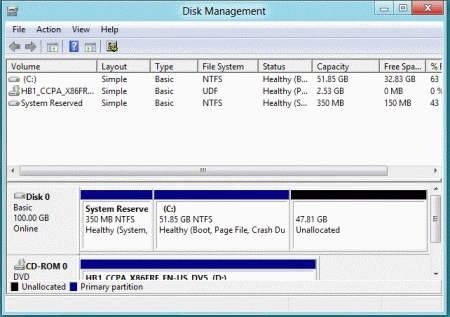
A new window of Disk Management will be open.
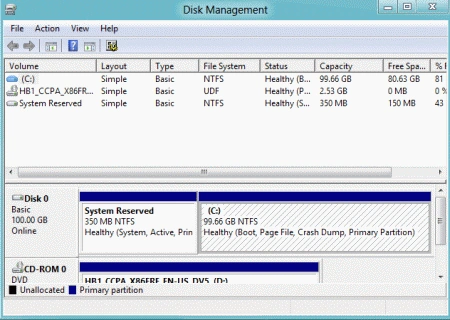
This window shows you all the partition
available on your hard drive with their allocated and free space available.
Step 3
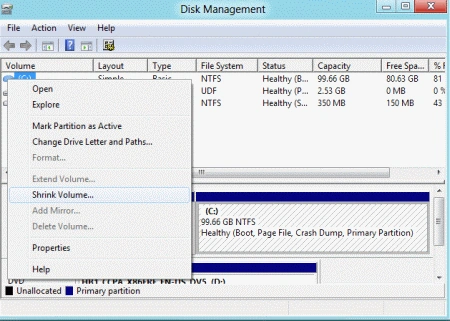
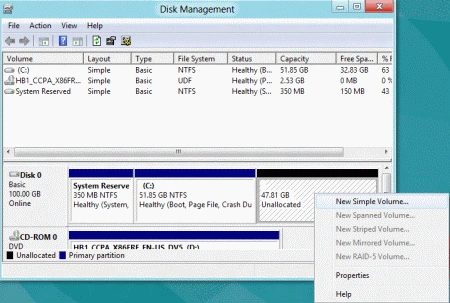
So just right click on the drive which has more free space to create new drive and select shrink volume.
Step 4
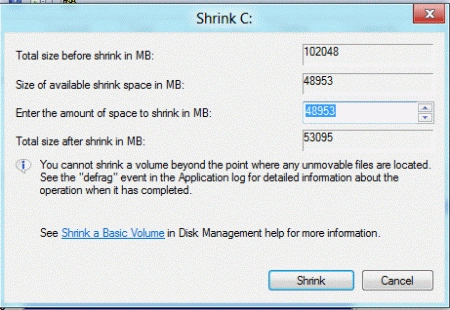
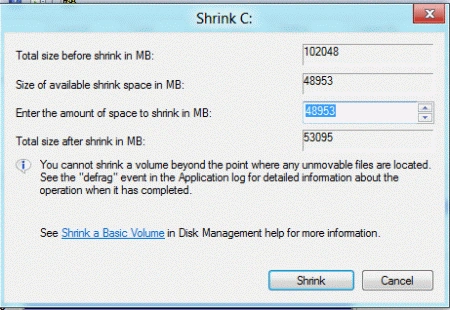
After clicking shrink volume new window will appear like this.
Step 5
This window show mainly three things Total size before shrink, size available to shrink and enter the amount as you want to shrink. So modify it according to your need and click on the shrink button.
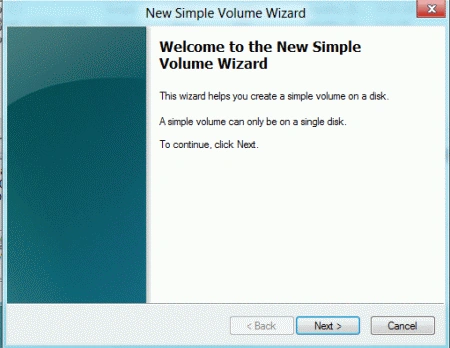
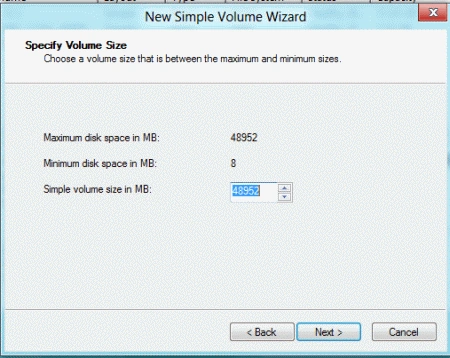
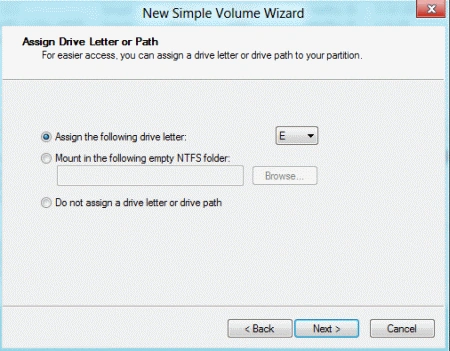
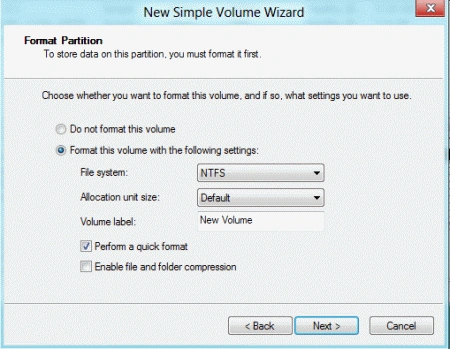
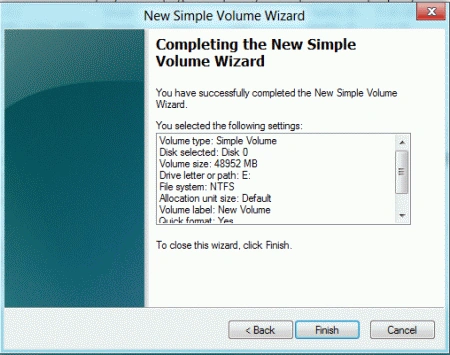
A new window will be open click on the Next button to go ahead in the setting process.
Join the conversation! Your thoughts help the community grow.