

Introduction
Blazor is a new framework built by Microsoft for creating interactive client-side web UI with a .NET codebase. We can write both client-side and server-side code in C#.NET itself. I have already written an article about Blazor on C# Corner. Please refer to the below article for more basics about the Blazor framework.
Create A Simple Blazor Server Application With .NET Core 3.0
We will create a simple Employee app using Blazor. In this app, we can add, edit, read, and delete employee information. We will use entity framework core 3.0 to store and retrieve data into an SQL database.
Create Blazor app in Visual Studio 2019
Visual Studio's latest version is shipped with .NET Core 3.0 SDK. We can choose a Blazor template and create a new Blazor project.

We are going to use entity framework core and data migration commands to create an SQL database and table. We must install “Microsoft.EntityFrameworkCore.SqlServer” and “Microsoft.EntityFrameworkCore.Tools” libraries to perform these actions.


Currently, Blazor doesn’t support Json methods like “GetJsonAsync”, “PostJsonAsync” and “PutJsonAsync” in HttpClient class. We will create a custom HttpClient class to add these methods. Hence, we must install the “Newtonsoft.Json” library also to the project.

We can create an Employee class and SqlDbContext classes.
Employee. cs
namespace BlazorEmployeeEFCore.Data
{
    public class Employee
    {
        public string Id { get; set; }
        public string Name { get; set; }
        public string Department { get; set; }
        public string Designation { get; set; }
        public string Company { get; set; }
    }
}
SqlDbContext.cs
using Microsoft.EntityFrameworkCore;
namespace BlazorEmployeeEFCore.Data
{
    public class SqlDbContext : DbContext
    {
        public SqlDbContext(DbContextOptions<SqlDbContext> options)
            : base(options)
        {
        }
        public DbSet<Employee> Employees { get; set; }
    }
}
SqlDbContext class inherits the DbContext class and contains an Employee property to perform all SQL-related operations.
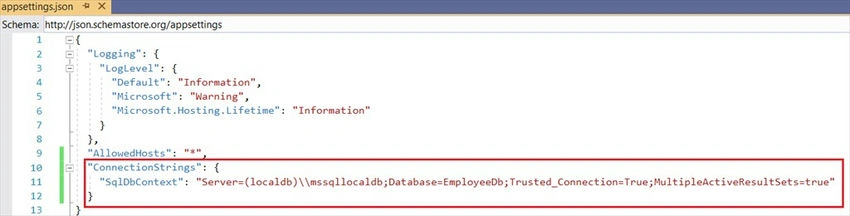
We can add an SQL connection string in the appsettings.json file.
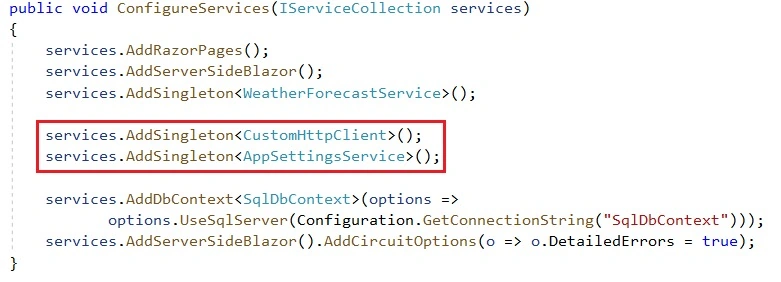
We must register the SqlDbContext class in the startup class as well.
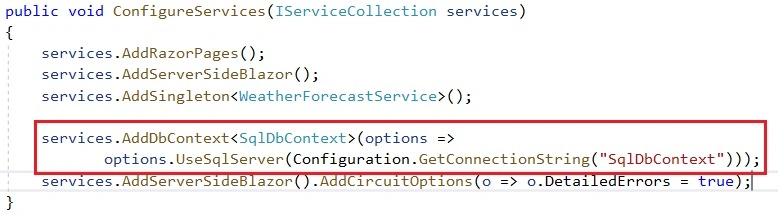
I have enabled the detailed error option also for the Blazor application. So that, we can see the detailed error messages in the developer console, if any occurs.
Create SQL database and table using DB migration
We are ready to create an SQL database and table using DB migration with the code-first approach. We have already added the “Microsoft.EntityFrameworkCore.Tools” library for this purpose.
Open “Package Manager Console” from the Tools menu and use the below command to create a migration script.
add-migration Initial
This command will create a new migration script class file under a new “Migrations” folder.
We can use the below command to execute the migration script class.
update-database
We have used the default local SQL server available with Visual Studio. If you check with SQL server object explorer, you can see a new database and a table created in the local server after DB migration.
We can create an Employee controller for Web API service. We will consume the web methods from this controller in our Blazor components for CRUD operations later.
EmployeesController.cs
using Microsoft.AspNetCore.Mvc;
using Microsoft.EntityFrameworkCore;
using System;
using System.Collections.Generic;
using System.Threading.Tasks;

namespace BlazorEmployeeEFCore.Data
{
    [Route("api/[controller]")]
    [ApiController]
    public class EmployeesController : ControllerBase
    {
        private readonly SqlDbContext _dbContext;

        public EmployeesController(SqlDbContext dbContext)
        {
            _dbContext = dbContext;
        }

        [HttpGet]
        [Route("Get")]
        public async Task<List<Employee>> Get()
        {
            return await _dbContext.Employees.ToListAsync();
        }

        [HttpPost]
        [Route("Create")]
        public async Task<bool> Create([FromBody]Employee employee)
        {
            if (ModelState.IsValid)
            {
                employee.Id = Guid.NewGuid().ToString();
                _dbContext.Add(employee);
                try
                {
                    await _dbContext.SaveChangesAsync();
                    return true;
                }
                catch (DbUpdateException)
                {
                    return false;
                }
            }
            else
            {
                return false;
            }
        }

        [HttpGet]
        [Route("Details/{id}")]
        public async Task<Employee> Details(string id)
        {
            return await _dbContext.Employees.FindAsync(id);
        }

        [HttpPut]
        [Route("Edit/{id}")]
        public async Task<bool> Edit(string id, [FromBody]Employee employee)
        {
            if (id != employee.Id)
            {
                return false;
            }

            _dbContext.Entry(employee).State = EntityState.Modified;
            await _dbContext.SaveChangesAsync();
            return true;
        }

        [HttpDelete]
        [Route("Delete/{id}")]
        public async Task<bool> DeleteConfirmed(string id)
        {
            var employee = await _dbContext.Employees.FindAsync(id);
            if (employee == null)
            {
                return false;
            }

            _dbContext.Employees.Remove(employee);
            await _dbContext.SaveChangesAsync();
            return true;
        }
    }
}
We have added all the logic for CRUD actions inside the controller. All the methods are self-explanatory.
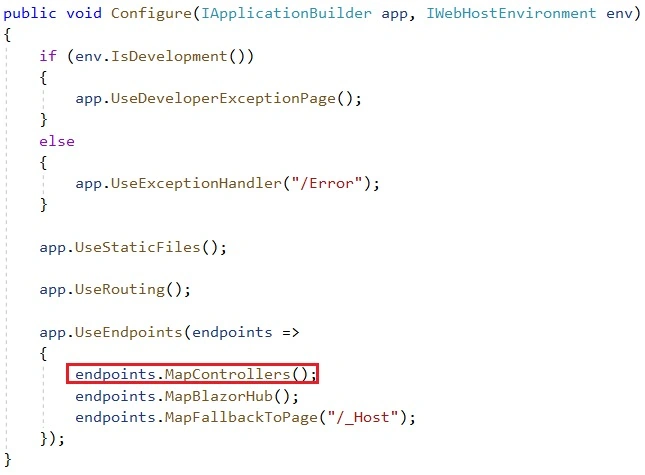
You must add the “MapControllers” endpoint in the “Configure” method inside the Startup class to get service calls from the Web API controller.
As I mentioned earlier, currently HttpClient class doesn’t contain the “GetJsonAsync”, “PostJsonAsync”, and “PutJsonAsyc” methods. I have already raised an issue in the Microsoft GitHub account for adding these methods. Please support, me if you can.
We can create a custom HttpClient class to add these missing methods to handle JSON data.
CustomHttpClient.cs
using Newtonsoft.Json;
using System.Net.Http;
using System.Text;
using System.Threading.Tasks;

namespace BlazorEmployeeEFCore.Data
{
    public class CustomHttpClient : HttpClient
    {
        public async Task<T> GetJsonAsync<T>(string requestUri)
        {
            HttpClient httpClient = new HttpClient();
            var httpContent = await httpClient.GetAsync(requestUri);
            string jsonContent = httpContent.Content.ReadAsStringAsync().Result;
            T obj = JsonConvert.DeserializeObject<T>(jsonContent);
            httpContent.Dispose();
            httpClient.Dispose();
            return obj;
        }

        public async Task<HttpResponseMessage> PostJsonAsync<T>(string requestUri, T content)
        {
            HttpClient httpClient = new HttpClient();
            string myContent = JsonConvert.SerializeObject(content);
            StringContent stringContent = new StringContent(myContent, Encoding.UTF8, "application/json");
            var response = await httpClient.PostAsync(requestUri, stringContent);
            httpClient.Dispose();
            return response;
        }

        public async Task<HttpResponseMessage> PutJsonAsync<T>(string requestUri, T content)
        {
            HttpClient httpClient = new HttpClient();
            string myContent = JsonConvert.SerializeObject(content);
            StringContent stringContent = new StringContent(myContent, Encoding.UTF8, "application/json");
            var response = await httpClient.PutAsync(requestUri, stringContent);
            httpClient.Dispose();
            return response;
        }
    }
}
In the GetJsonAsync method, we have fetched the data from the Web API service and converted string data to object. We can pass object type as a generic parameter. In our case, the Employee is the object type.
In PostJsonAsync and PutJsonAsync methods, we have serialized the object type data to string content and called PostAsync and PutAsync methods respectively. These methods are already available in the HttpClient class.
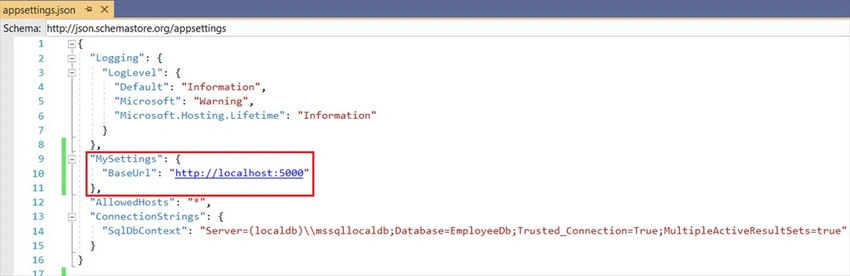
We must pass the base URL endpoint from each Blazor component to call the Web API methods. We can store the application base URL inside the appsettings.js file and create a service to get these values from the appsettings file. We can inject this service from each Blazor component.
AppSettingsService.cs
Rob HenrikssonPosted Apr 19, 2021, 8:33 AM
Unfortunately I can't add any employee to the db. In the CustomHttpClient.PostJsonAsync() method, the program runs into a timeout (100s) at the response = await httpClient.PostAsync(requestUri, stringContent) command. I am not really experienced with blazor and web applications in general, so I cannot figure out what's going wrong there.
Ravi MorePosted Sep 14, 2020, 9:01 AM
Thank you very much for better-understanding knowledge sharing.
yasin hallakPosted Jan 2, 2020, 8:44 AM
Thank you vary much ,but this project not Single Page Application
Tarik AlkathiriPosted Dec 15, 2019, 11:19 AM
Dear Mr. Saseendran, thank you very much for all your articles, Could you please do an article on Blazor server pagination that will be highly appreciated.
Tarik AlkathiriPosted Dec 14, 2019, 9:51 AM
Thank you very much for the awesome article.
Farhad BalashovPosted Dec 10, 2019, 8:27 PM
Thank you for sharing knowledge. This is great article.
Carlos ArroyoPosted Nov 30, 2019, 1:07 PM
Thank you very much for your article. It?s useful and clear. Regards!
Sundaram SubramanianPosted Nov 3, 2019, 10:22 PM
Really nice to learn new technologies from your articles.
Sourav Kumar DasPosted Nov 3, 2019, 10:19 PM
Nice Article Sir.
Azdev XxiPosted Nov 3, 2019, 8:49 PM
Thank the article your
Srinu vPosted Nov 3, 2019, 3:37 PM
Thanks Sarath for introducing us the latest framework with examples.