

Introduction
This article will help you learn how to create Azure Function – Queue Trigger in Azure Portal.
Before reading this article, please go through some important articles mentioned below,
- Exploring About Azure Function
- Create Http Trigger Azure Function In Azure Portal
- Create The Timer Trigger Azure Function In Azure Portal
Azure Function
Azure Functions is a serverless computing service and is hosted on the Microsoft Azure public cloud. It is designed to accelerate and simplify application development. The cloud provider takes care of all the headaches of running the server, dynamically managing the resources of the machine, etc. It also provides auto scalability.
Serverless applications, also known as Function-as-a-Service or FaaS, is an offering from most of the enterprise cloud providers in which they allow the users to only write code and the infrastructure behind the scenes is managed by them.
Azure Functions is the event-based serverless application framework which can automatically scale up and down based on the executions that are being triggered. This Microsoft Azure service allows you to run small pieces of code in Node.js, C#, Python, PHP and Java without any infrastructure configurations.
Here, we will see about Azure Function.
Purpose
Azure Functions lets you execute your code in a serverless environment without having to first create a VM or publish a web application.
Key Features
- Intuitive, browser-based user interface - You can write code in the easy-to-use web interface.
- write code in different programming languages
- pay per function execution
- parallel execution when multiple triggers occur
- Supports Continuous Deployment and Integration
Queue Storage
Queue Storage in Azure allows users to store multiple messages in it. Users can use a queue to create a list of items that are processed one by one. Messages to Queue Storage in Azure can be added by using HTTP or HTTPS endpoints. Usually, a queue can store data up to 64 KB in size.
Queue Storage Trigger
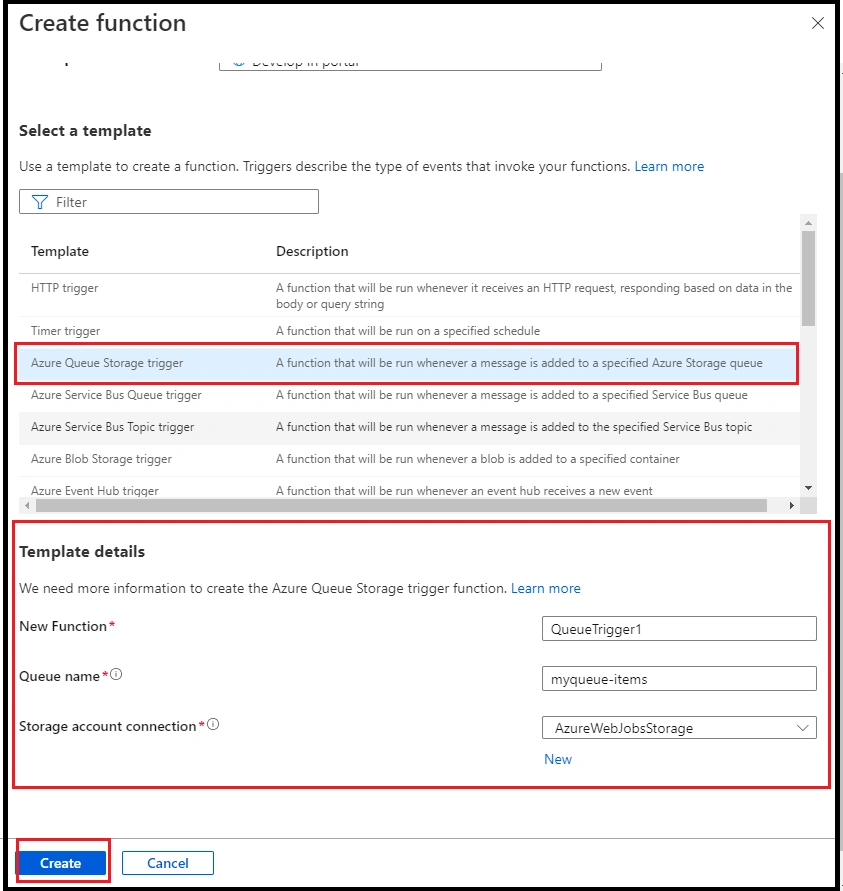
The queue storage trigger runs a function as messages are added to Azure Queue storage.
Create Azure Function – Queue Trigger in Azure Portal
Prerequisites
- Microsoft Azure Account.
Follow the below steps to create an Azure Storage Account.
Step 1
Log in here. Please go through the article mentioned below for creating Azure Function.
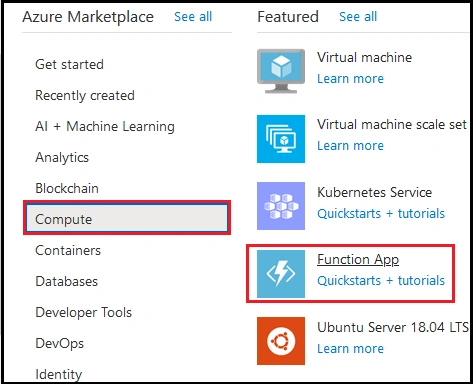
Step 2
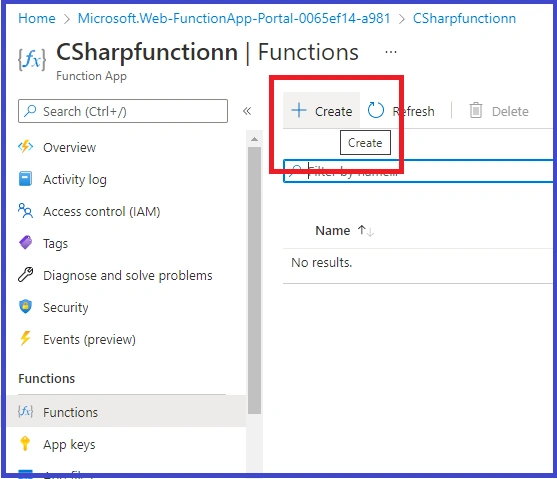
After successfully creating the Azure Function services, you land over to the overview page as shown below.
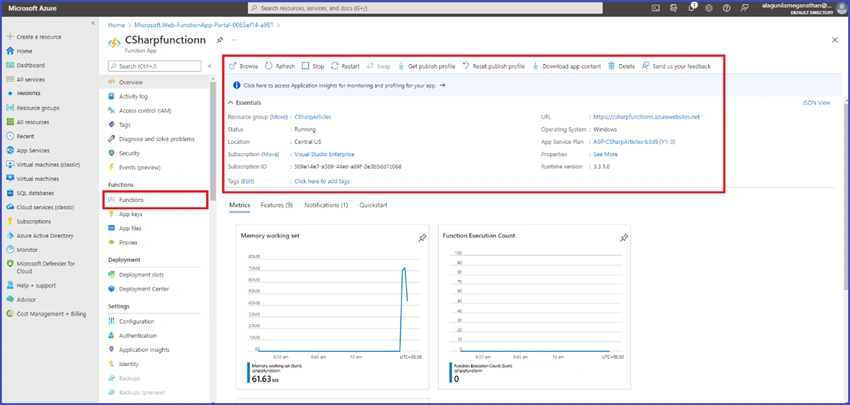
Step 3
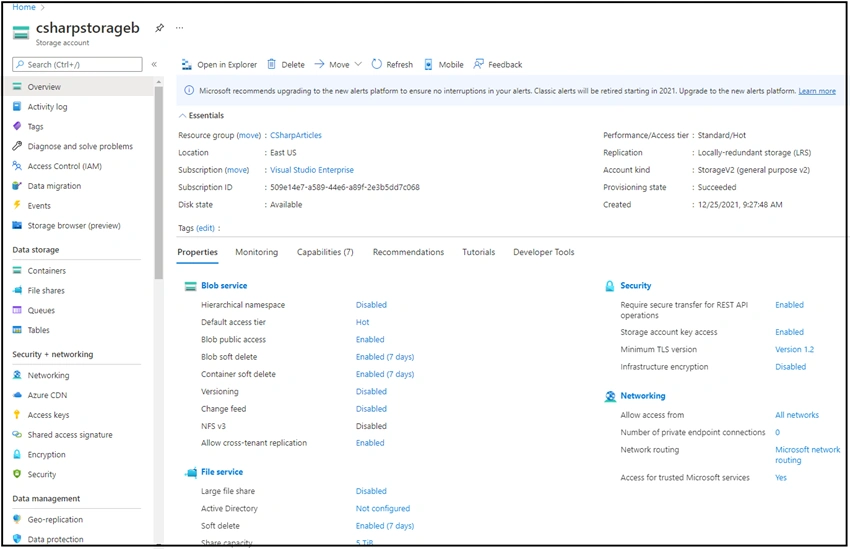
Next, we have to create a Storage account.
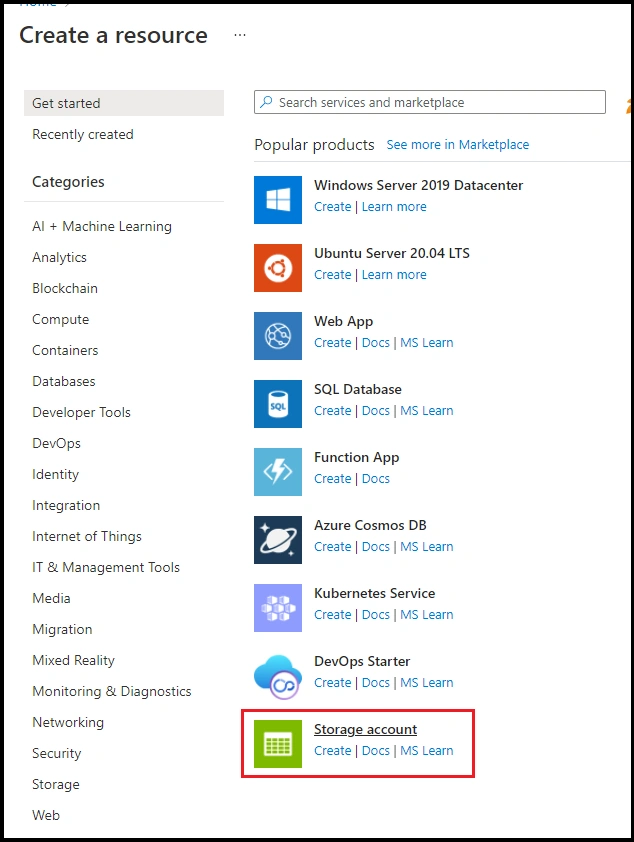
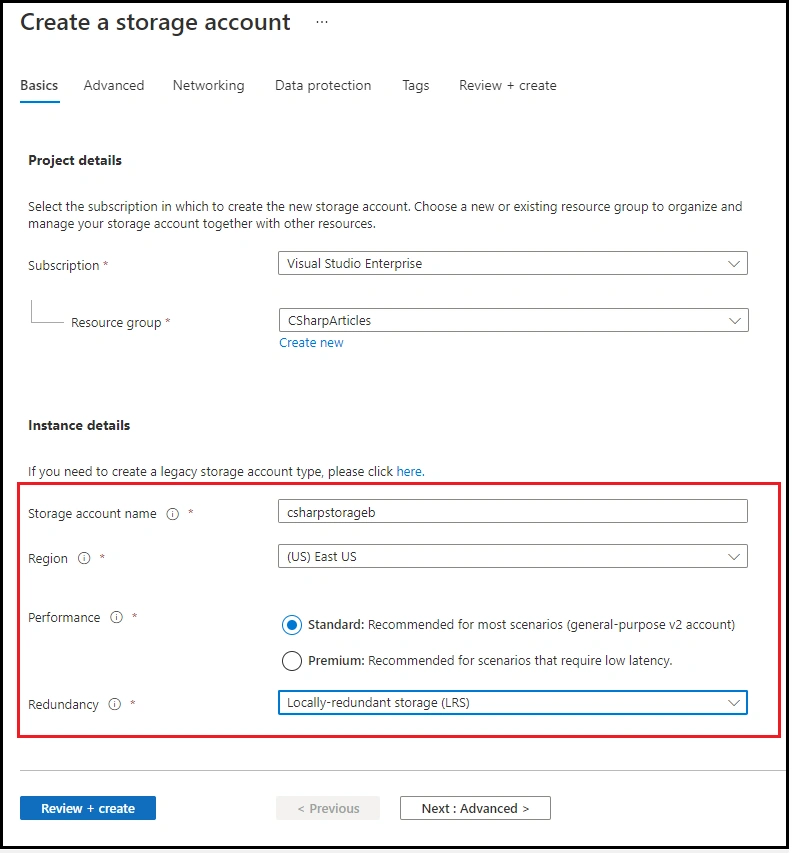
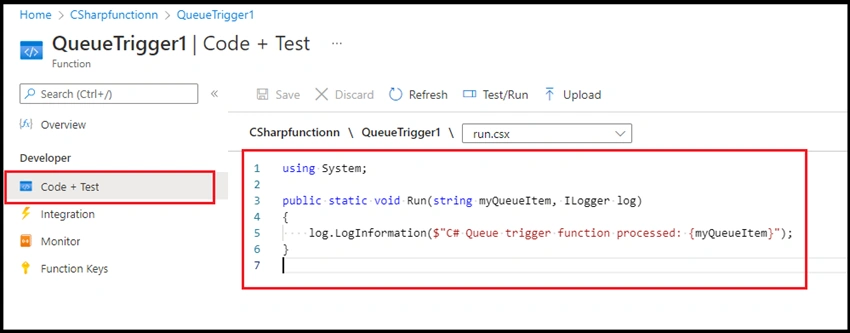
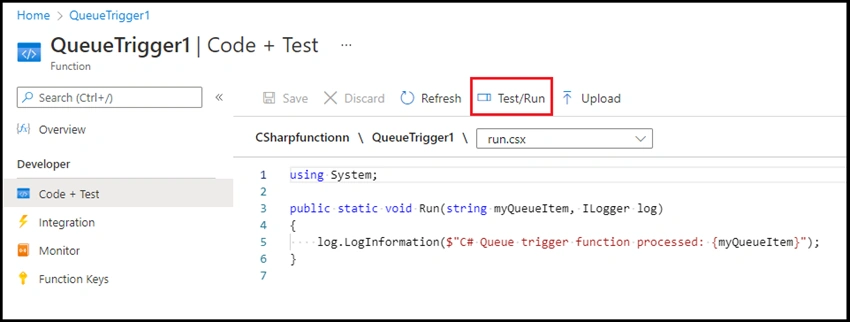
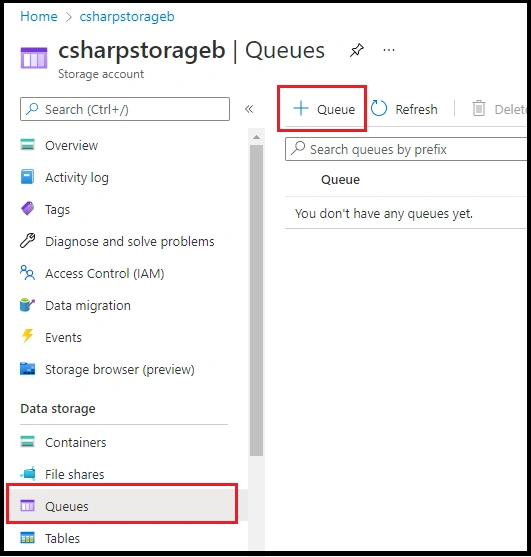
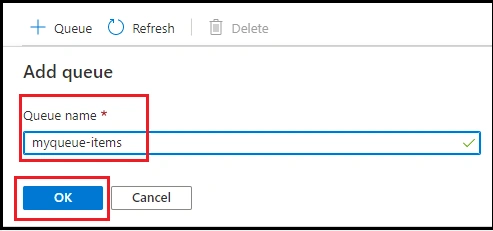
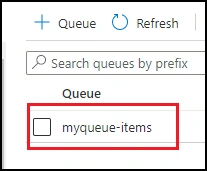
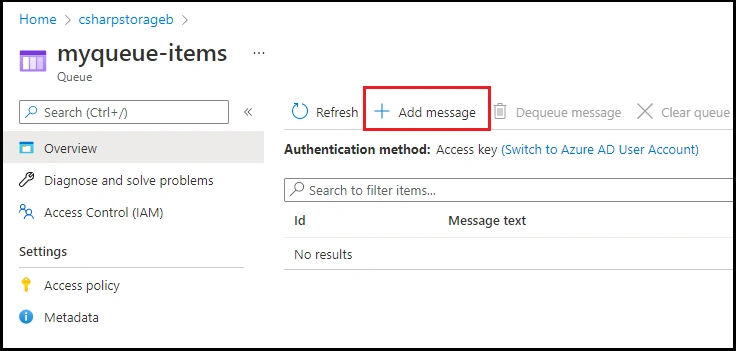
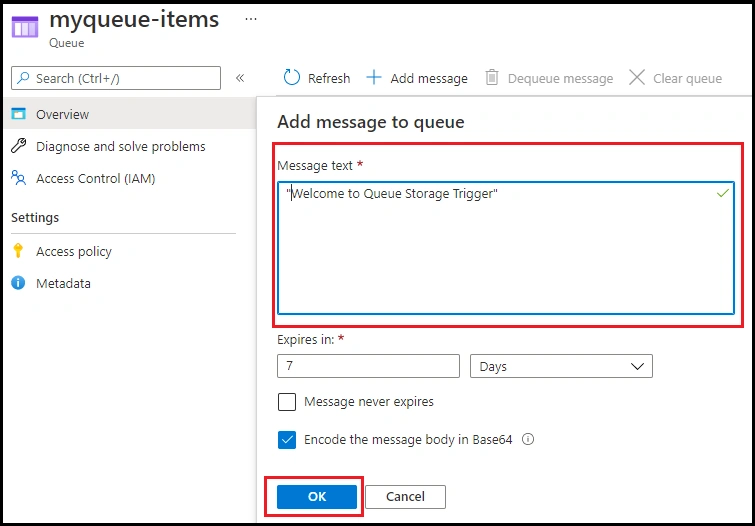

Join the conversation! Your thoughts help the community grow.