

Background
There is often a need in a project's reporting module to create an Excel file from a database, so by considering that requirement I decided to write this article especially focusing on beginners and those who want to learn how to create an Excel file from a database using ASP.NET C#.
Now before creating the application, let us create a table named employee in a database from where we show the records in a Grid View, the table has the following fields (shown in the following image):
Now before creating the application, let us create a table named employee in a database from where we show the records in a Grid View, the table has the following fields (shown in the following image):
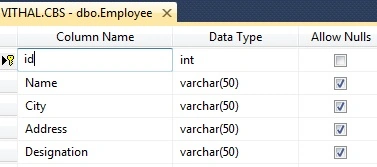
I hope you have created the same type of table.
Now create the project as:
- "Start" - "All Programs" - "Microsoft Visual Studio 2010".
- "File" - "New Project" - "C#" - "Empty Project" (to avoid adding a master page).
- Provide the Project name such as CreateExcelFile or another as you wish and specify the location.
- Then right-click on Solution Explorer and select "Add New Item" then select Default.aspx page.
- One Button and a grid view.
Now the Default.aspx source code will be as follows:
- <%@ Page Language="C#" AutoEventWireup="true" CodeFile="Default.aspx.cs" Inherits="_Default" %>
- <!DOCTYPE html PUBLIC "-//W3C//DTD XHTML 1.0 Transitional//EN" "http://www.w3.org/TR/xhtml1/DTD/xhtml1-transitional.dtd">
- <html xmlns="http://www.w3.org/1999/xhtml">
- <head runat="server">
- <title></title>
- </head>
- <body bgcolor="Silver">
- <form id="form1" runat="server">
- <br />
- <h2 style="color: #808000; font-size: x-large; font-weight: bolder;">
- Article by Vithal Wadje</h2>
- <br />
- <div>
- <asp:GridView ID="GridView1" AutoGenerateColumns="false" runat="server" CellPadding="6"
- ForeColor="#333333" GridLines="None">
- <AlternatingRowStyle BackColor="White" />
- <EditRowStyle BackColor="#7C6F57" />
- <FooterStyle BackColor="#1C5E55" Font-Bold="True" ForeColor="White" />
- <HeaderStyle BackColor="#1C5E55" Font-Bold="True" ForeColor="White" />
- <PagerStyle BackColor="#666666" ForeColor="White" HorizontalAlign="Center" />
- <RowStyle BackColor="#E3EAEB" />
- <SelectedRowStyle BackColor="#C5BBAF" Font-Bold="True" ForeColor="#333333" />
- <SortedAscendingCellStyle BackColor="#F8FAFA" />
- <SortedAscendingHeaderStyle BackColor="#246B61" />
- <SortedDescendingCellStyle BackColor="#D4DFE1" />
- <SortedDescendingHeaderStyle BackColor="#15524A" />
- <Columns>
- <asp:BoundField DataField="id" HeaderText="id" />
- <asp:BoundField DataField="Name" HeaderText="Name" />
- <asp:BoundField DataField="City" HeaderText="City" />
- <asp:BoundField DataField="Address" HeaderText="Address" />
- <asp:BoundField DataField="Designation" HeaderText="Designation" />
- </Columns>
- </asp:GridView>
- <br />
- <asp:Button ID="Button1" runat="server"
- Text="Create Excel File" onclick="Button1_Click"/>
- </div>
- </form>
- </body>
- </html>
If you are a beginner and don't understand in detail how to bind a Grid View from a database then refer to the following article of mine.
Now, for this article create the following function in the default.aspx.cs page to bind the Grid View:
- private void Bindgrid()
- {
- connection();
- query = "select *from Employee";//not recommended this i have written just for example,write stored procedure for security
- com = new SqlCommand(query, con);
- SqlDataAdapter da = new SqlDataAdapter(query, con);
- DataSet ds = new DataSet();
- da.Fill(ds);
- GridView1.DataSource = ds;
- GridView1.DataBind();
- con.Close();
- ViewState["DataTable"] = ds.Tables[0];
- }
- protected void Page_Load(object sender, EventArgs e)
- {
- if (!IsPostBack)
- {
- Bindgrid();
- }
- }
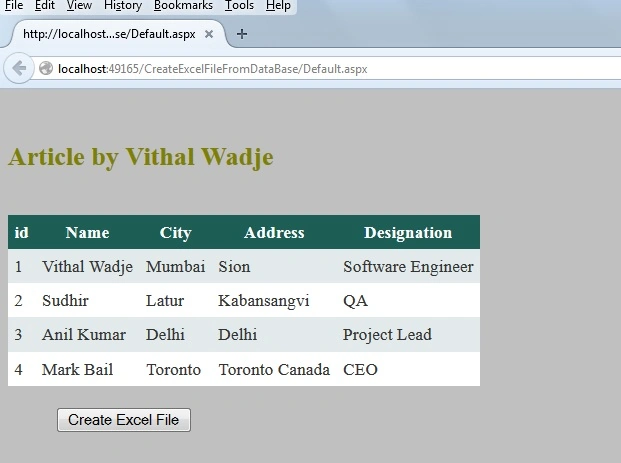
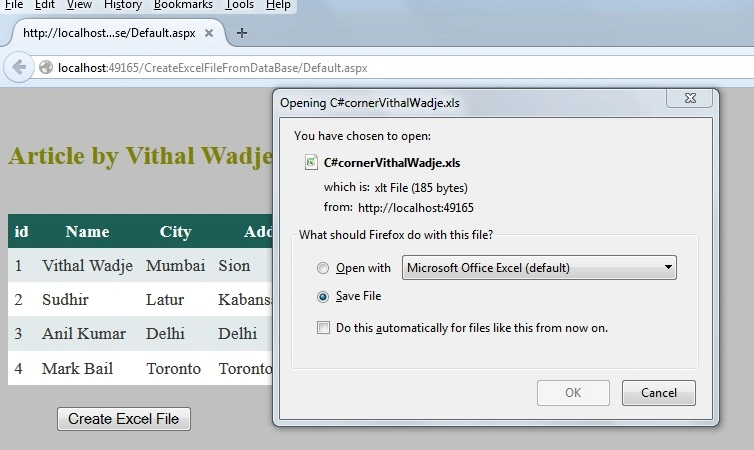
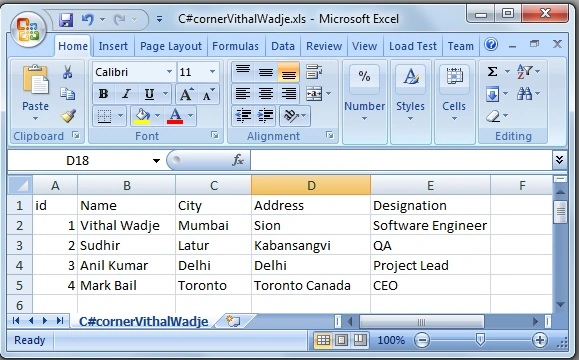
Now create the following function to create an Excel File from the database as in the following:
AMOL AHIREPosted May 30, 2024, 12:05 PM
better use follwing code to avoid excel corrupt conent issue Using (XLWorkbook wb = new XLWorkbook()) { wb.Worksheets.Add(dsAnalysis.Tables[1], "Partner_Details"); wb.Style.Alignment.Horizontal = XLAlignmentHorizontalValues.Center; wb.Style.Font.Bold = true; string Bank_Statement_Analysis_Server_Path = ConfigurationManager.AppSettings["Bank_Statement_Analysis_path"].ToString(); string FileName = Server.MapPath(Bank_Statement_Analysis_Server_Path) + "Bank_Statement_" + dsAnalysis.Tables[1].Rows[0]["ENTITY_NAME"] + "_" + RefrenceID + ".xlsx"; wb.SaveAs(FileName); Response.Clear(); Response.ContentType = @"application\octet-stream"; System.IO.FileInfo file = new System.IO.FileInfo(FileName); Response.AddHeader("Content-Disposition", "attachment; filename=" + file.Name); Response.AddHeader("Content-Length", file.Length.ToString()); Response.ContentType = "application/octet-stream"; Response.WriteFile(file.FullName); Response.Flush(); }
PpPosted Mar 4, 2024, 5:13 PM
Thank you Vital. One thing that was unexpected is that you are writing all the content of the table, not just the gridview
Jamsin KanthariyaPosted Dec 20, 2018, 2:00 AM
Very good code very usefull
Navneet SinghPosted Nov 29, 2018, 6:27 AM
How we protect Excel File level using Password. Want when user open excel, need to password prompt before open.
Vithal WadjePosted Dec 14, 2014, 1:14 PM
thanks Jitendra Kumar sir
Jitendra KumarPosted Dec 14, 2014, 11:38 AM
Nice..