

In this post, we will learn how to create first application in ASP.Net MVC 4.0. For demonstration, I am using Visual Studio 2012 which include MVC 3 as well as MVC 4. If you don’t have ASP.NET MVC 4 installed on your system, then go to the following MVC 4 link and click on install ASP.NET MVC for free.
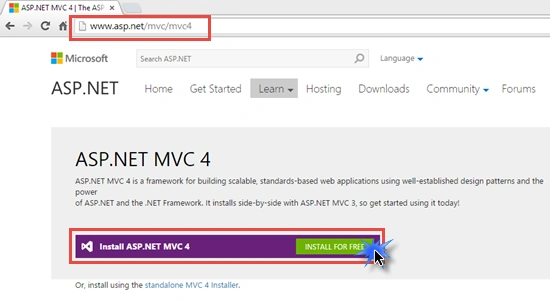
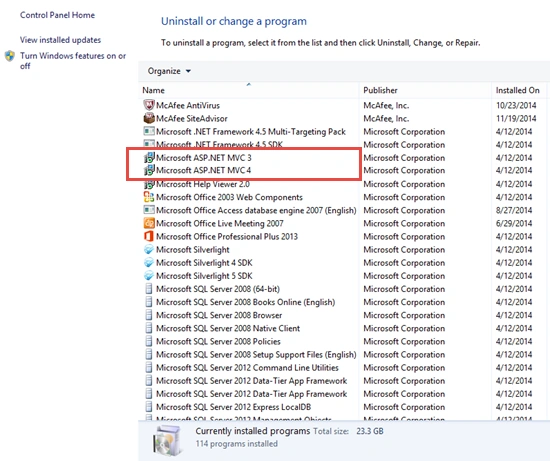
If you don’t know which version of ASP.NET MVC is already installed in your system, then you can find it by visiting the Control Panel, Programs and Features.
What is MVC?
MVC is a framework for building web application using the following three architectural component pattern i.e.
If you don’t know which version of ASP.NET MVC is already installed in your system, then you can find it by visiting the Control Panel, Programs and Features.
What is MVC?
MVC is a framework for building web application using the following three architectural component pattern i.e.
M: Model V: View C: Controller:
- Model is responsible for data access and known as Business Layer.
- View contains the User Interface (U.I.) of the Application.
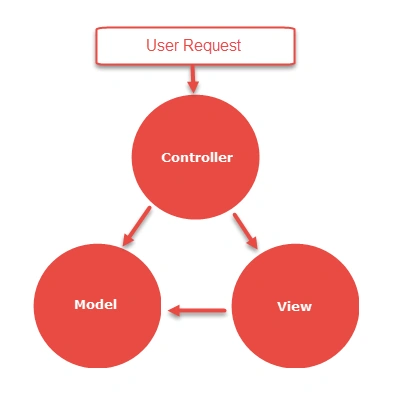
- Controller is the part of application which handles user request. As the name suggest, Controller controls the entire application.
Graphical Representation of MVC (User Request Flow):
Create a New ASP.Net MVC Project:
1. Go to File, New, then Project.
2. Under Web Template select ASP.Net MVC 4 Web Application and give it a meaningful name.
And then click OK. After that another dialog box opens.
3. Select Empty Template and View engine as Razor.
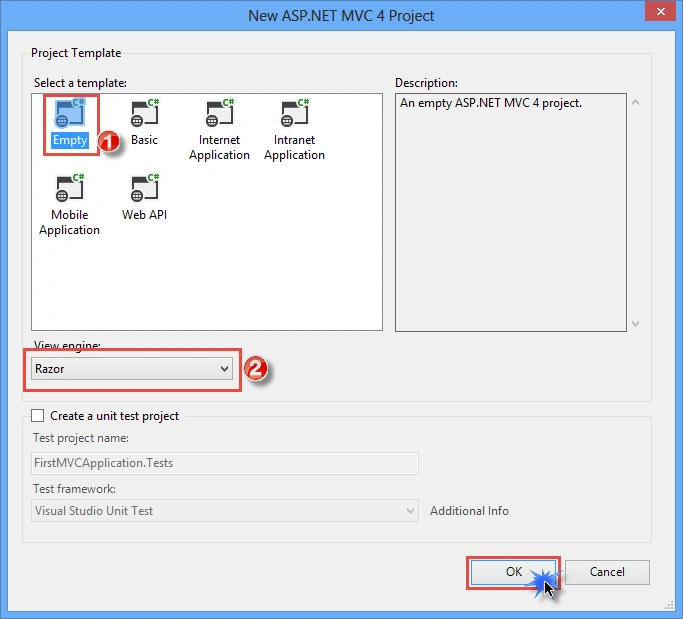
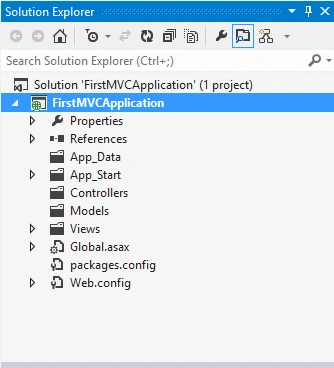
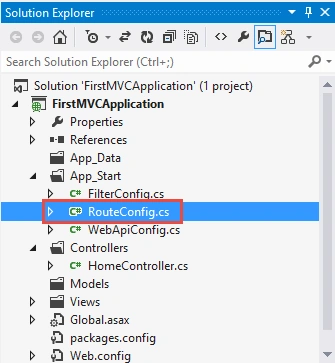
Selecting MVC Project as Empty creates basic folder structure for the project. You will also see two View Engine ASPX and Razor. Razor view engine is new and improved view engine introduced in ASP.NET MVC 3. In Solution Explorer, you will see the following three main architecture components of ASP.NET MVC project that is Model, View and Controller.
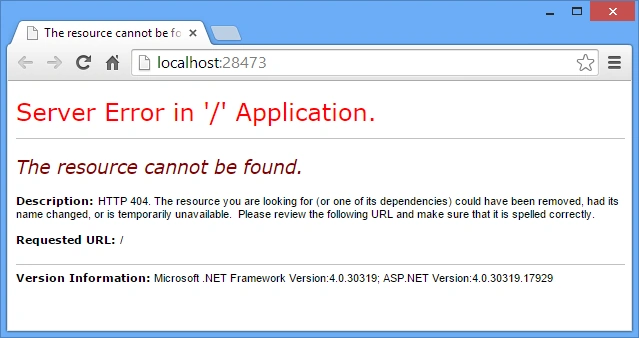
If you try to run your Application, you will get HTTP 404 Error because we have created ASP.NET Empty Web Application and our application contains nothing/no U.I. to display.
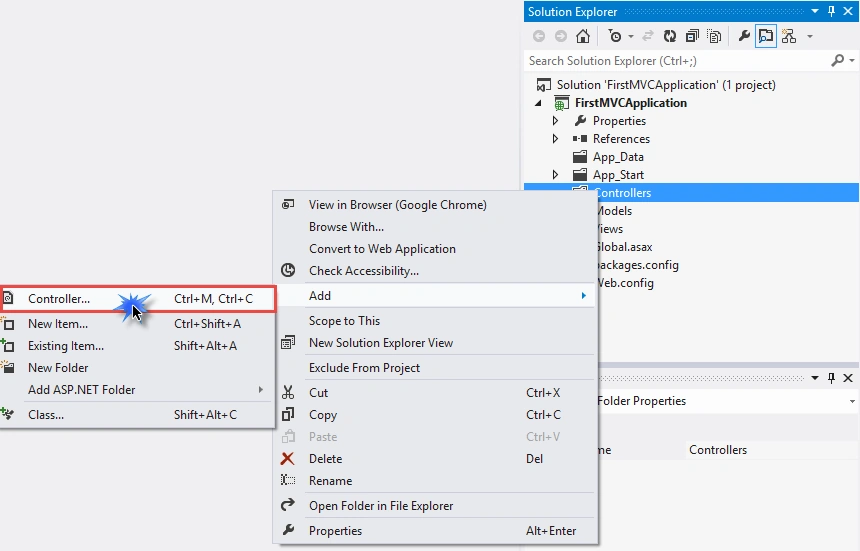
Let’s Add a Controller in our MVC project. All of the request (by user) is handled by Controller. Right Click on Controller Folder and then Go to Add, then Click on Controller.
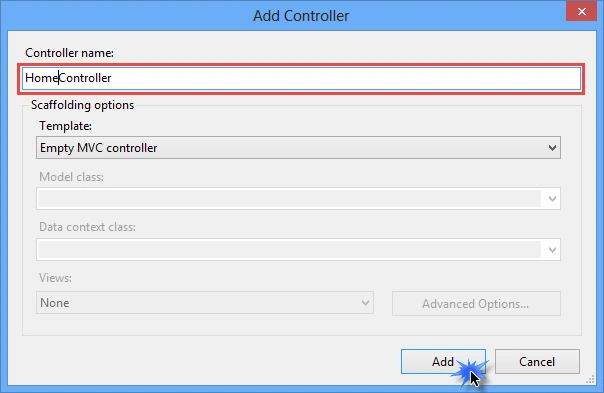
In Add Controller Dialog, Add Controller name as Home. By Convention, Every controller name ends with Controller Word so, our Controller name becomes HomeController. Never try to Remove Controller word from your Controller Name. In Scaffolding options, select Empty MVC controller template. This is our first application and we try to keep it as simple as possible.
After Adding the Home Controller you will see HomeController with an Index method.
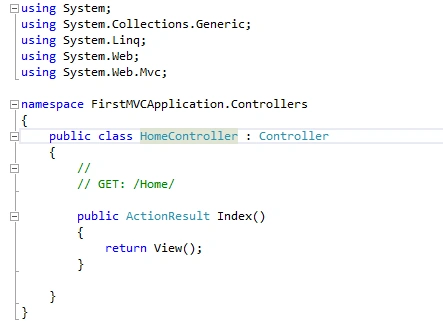
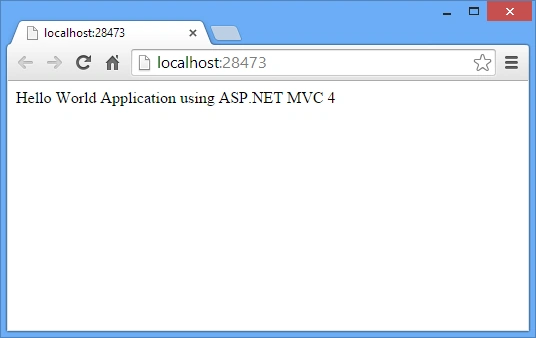
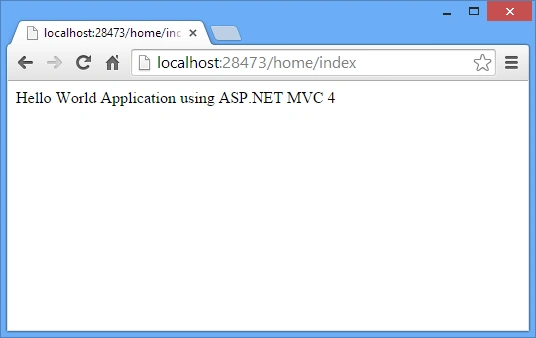
Make a small change in Index Action method. Change the return type of Index method to string and return a string i.e. "Hello World Application using ASP.NET MVC 4". We will learn about View and ActionResult in our next post.
2. Under Web Template select ASP.Net MVC 4 Web Application and give it a meaningful name.
And then click OK. After that another dialog box opens.
3. Select Empty Template and View engine as Razor.
Selecting MVC Project as Empty creates basic folder structure for the project. You will also see two View Engine ASPX and Razor. Razor view engine is new and improved view engine introduced in ASP.NET MVC 3. In Solution Explorer, you will see the following three main architecture components of ASP.NET MVC project that is Model, View and Controller.
If you try to run your Application, you will get HTTP 404 Error because we have created ASP.NET Empty Web Application and our application contains nothing/no U.I. to display.
Let’s Add a Controller in our MVC project. All of the request (by user) is handled by Controller. Right Click on Controller Folder and then Go to Add, then Click on Controller.
In Add Controller Dialog, Add Controller name as Home. By Convention, Every controller name ends with Controller Word so, our Controller name becomes HomeController. Never try to Remove Controller word from your Controller Name. In Scaffolding options, select Empty MVC controller template. This is our first application and we try to keep it as simple as possible.
After Adding the Home Controller you will see HomeController with an Index method.
Make a small change in Index Action method. Change the return type of Index method to string and return a string i.e. "Hello World Application using ASP.NET MVC 4". We will learn about View and ActionResult in our next post.
kalu singh raoPosted Jun 14, 2016, 1:33 AM
Nice Articles
Thiruppathi RPosted May 23, 2016, 3:15 PM
Good ...
Karthikeyan KPosted Apr 5, 2016, 4:48 AM
Good one
Anoop Kumar SharmaPosted Oct 6, 2015, 11:47 AM
Thanks Santhakumar Munuswamy..!!
Santhakumar MunuswamyPosted Oct 5, 2015, 11:58 PM
Good one
Anoop Kumar SharmaPosted Oct 4, 2015, 12:11 AM
Thanks@ Nilesh Jadav..!!
Anoop Kumar SharmaPosted Oct 4, 2015, 12:11 AM
Thanks for your valuable comment Sumit Joshi..!!
Nilesh JadavPosted Oct 3, 2015, 9:31 PM
Nicely Explain sir !!
Sumit JoshiPosted Oct 3, 2015, 4:30 PM
thanks for sharing.
Vikki KumarPosted Oct 3, 2015, 12:21 PM
Thanku so much