

Introduction
In the last article we read about Starting with Emgu CV, now here we will start our first Emgu CV project. Emgu CV is not so difficult; all we have to do is to add certain references and make use of Emgu Controls. Let's get started.
Let's start creating a blank Windows Forms application.
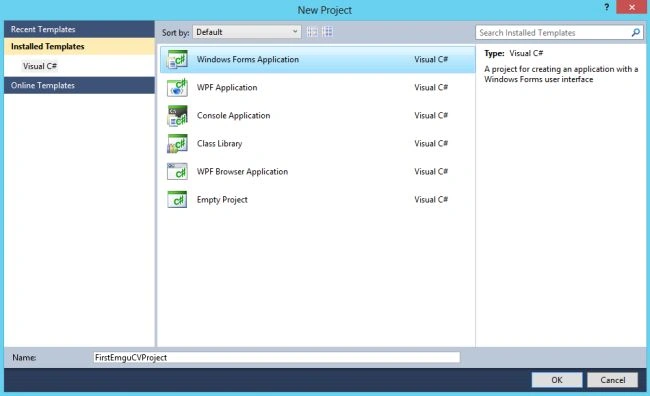
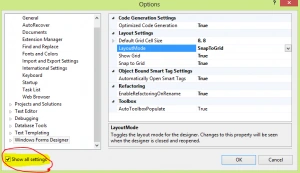
You will get a new project created for you, before starting further enable "show all settings" under tools, this enables many features like form designer layout, snap to grid and many others.
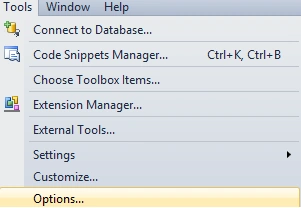
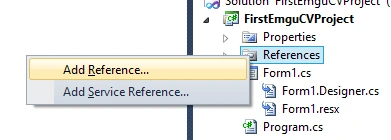
Now let's start. The first thing we will do is to Add References. Browse for the Emgu bin folder (by default it is located at C:\Emgu\emgucv-windows-x86 2.3.0.1416\bin ), in the bin folder there must be some dlls add all those starting with "Emgu.CV" (choose only one among Emgu.CV.DebuggerVisualizers.VS2008.dll and Emgu.CV.DebuggerVisualizers.VS2010.dll depending on the Visual Studio you are using, in my case it is Emgu.CV.DebuggerVisualizers.VS2010.dll)
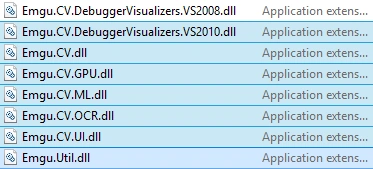
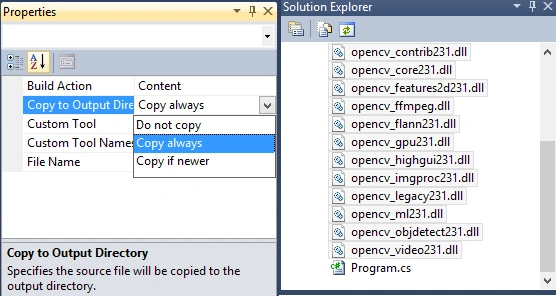
Now we need to add some existing items. Go to "Project" > "Add Existing Items" and now again browse for the bin directory of Emgu CV and this time choose all the dll files starting with "opencv_", these dll files are required each time the output is generated via Emgu; that is why we added them to our project directory, we will also change there the property so that they get copied always to the output folder. So, select all the DLLs added and select properties and change the "Copy to Output Directory" to "Copy Always".
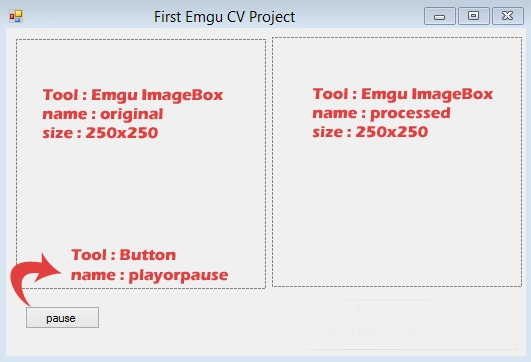
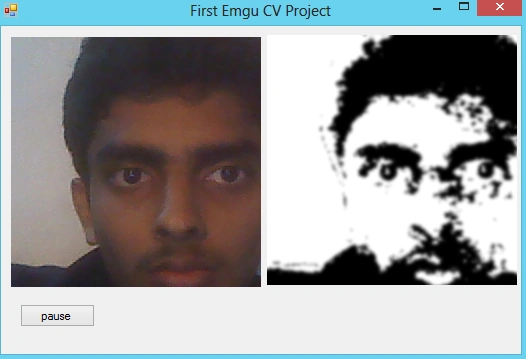
We already have added the Emgu custom controls to our toolbox, now let's design our form, we will be using two ImageBox (Emgu Control), one Button and a Textbox, design the form as below.
Diego DiasPosted May 23, 2013, 10:40 AM
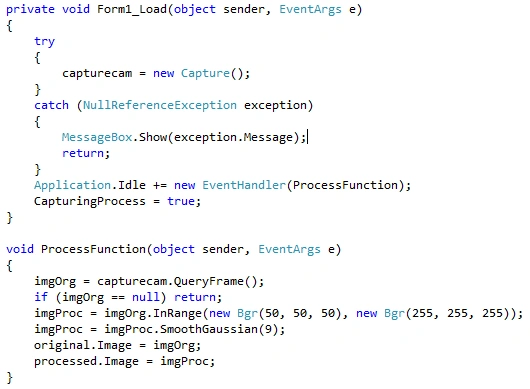
Hello Luis. I tried to test you code but in this part of code "imgOrg = captureCam.QueryFrame();" a have this exception "Object reference not set to an instance of an object." Could you help me? I am a new student of EmguCV