

INTRODUCTION
In this article, I will show you how to make a login form in Windows Application using C#. The log in page is connected with the database which contains the information about the usernames and their corresponding passwords.
STEP 1 Start the Project
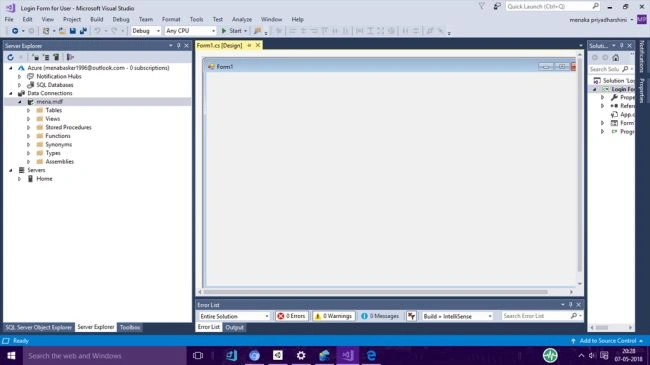
Open Visual Studio 2017, go to file, new projects and under Visual C#, select windows form. You can change the name of the project to Login Form and press ok.
STEP2 Control Functions
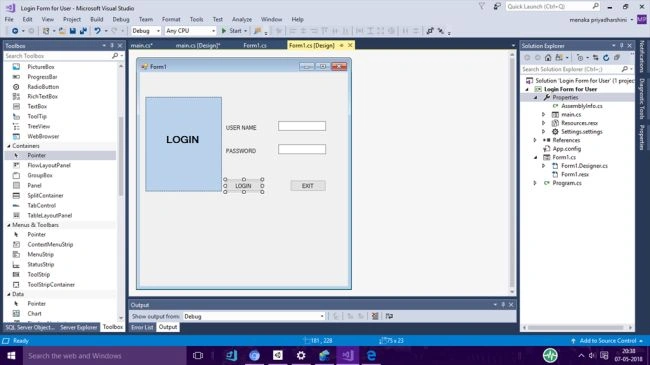
In the corresponding Designer Page drag and drop buttons, labels, textbox, and panel from toolbox to form1.cs. You will see your form look like the following screenshot.
In this article, I will show you how to make a login form in Windows Application using C#. The log in page is connected with the database which contains the information about the usernames and their corresponding passwords.
STEP 1 Start the Project
Open Visual Studio 2017, go to file, new projects and under Visual C#, select windows form. You can change the name of the project to Login Form and press ok.
STEP2 Control Functions
In the corresponding Designer Page drag and drop buttons, labels, textbox, and panel from toolbox to form1.cs. You will see your form look like the following screenshot.
STEP3 - EXIT Button Click
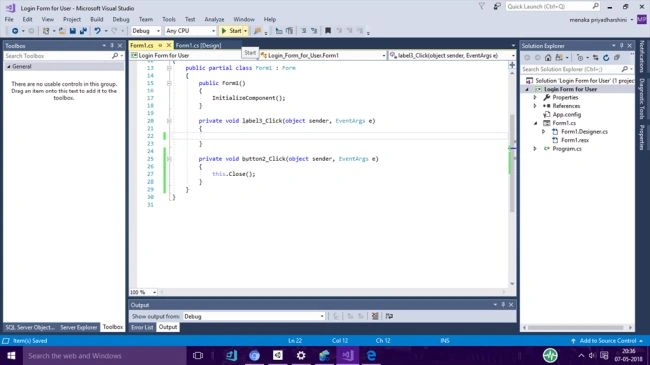
Now make the code for the EXIT button. The form needs to be closed when Exit button is pressed so add this.close() to the Button code.
Now make the code for the EXIT button. The form needs to be closed when Exit button is pressed so add this.close() to the Button code.
STEP4 - ADD NEW FORM
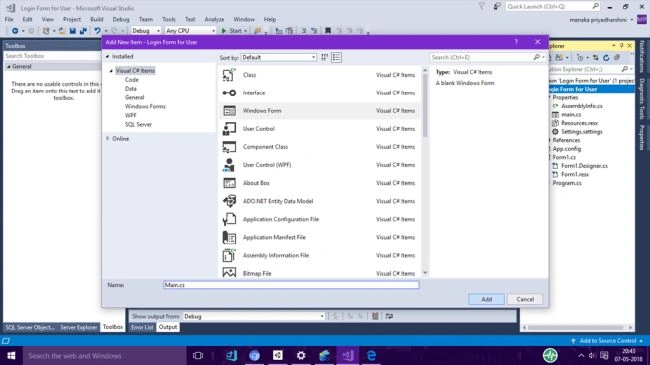
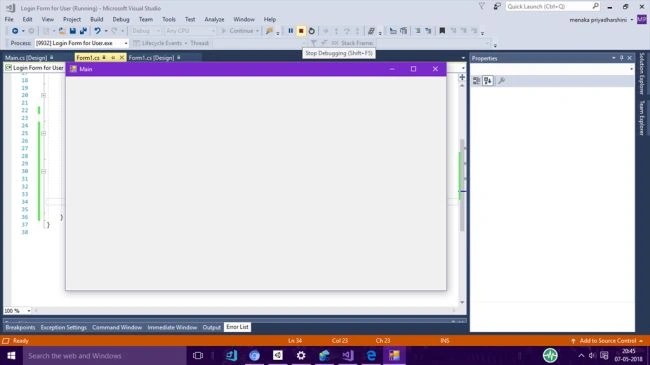
Add new form by right clicking the project title and save as Main.cs. Two forms are used, one form is for login page and the other form is for showing the message .
Add new form by right clicking the project title and save as Main.cs. Two forms are used, one form is for login page and the other form is for showing the message .
STEP5 - DATABASE CONNECTION
Follow this step:
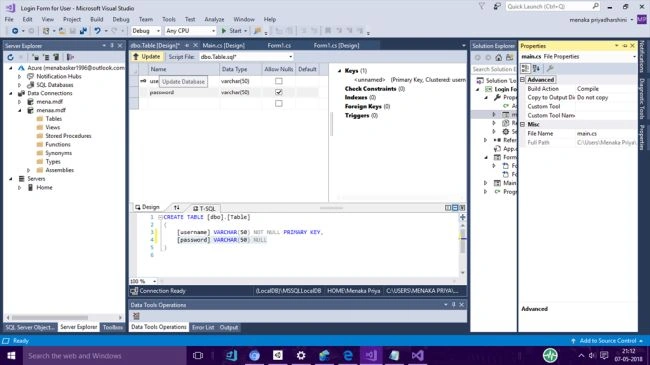
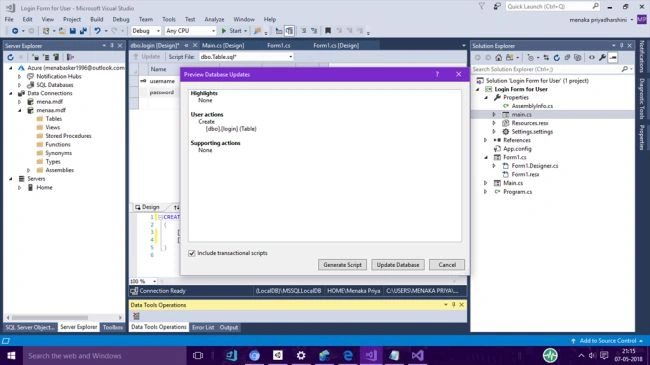
- Create Database
- Modify web.config file
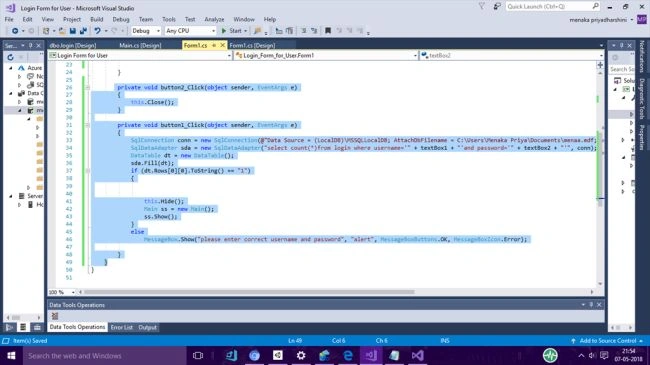
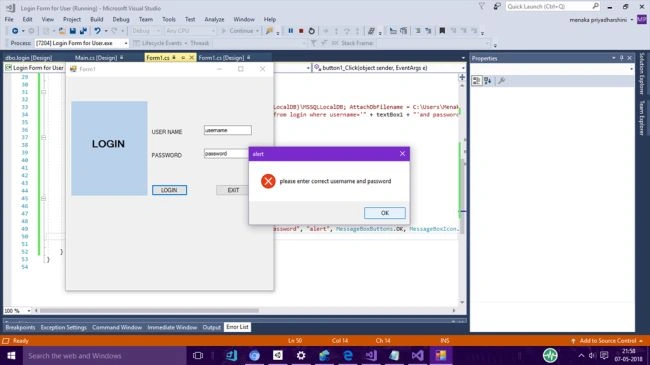
- The code to validate the user information
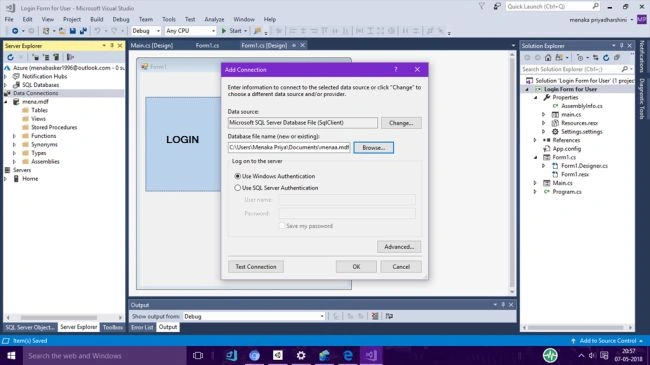
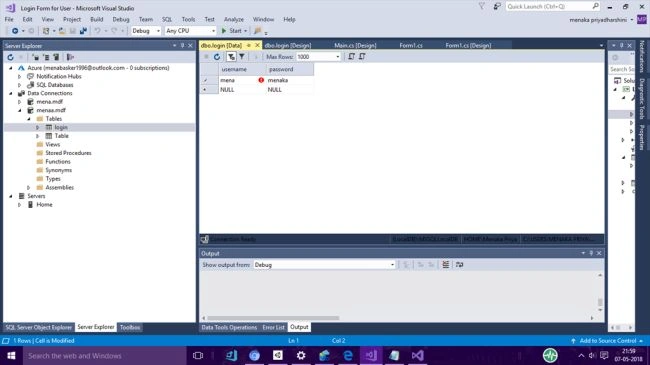
Write the name of your server the same as in your sql. When you provide the server name, go and select option, there will be the entire database name that you have made. You can create your new database too.
It will ask permission and click yes. Log on to server using Windows authentication or SQL authentication. You can see your Database in your Server Explorer.
Vignesh ManiPosted May 16, 2018, 2:07 PM
Nice article. Thank you for sharing sister
Sanjit Kumar SinghPosted May 15, 2018, 12:51 PM
awesome keep it up