

Introduction
These days creating buttons using CSS is one of the best web design techniques around. There are many examples and tutorials available on the internet. At present, designers are eliminating background images from buttons and using CSS to create beautiful buttons. In this article, you'll learn how to create five beautiful CSS-based buttons that you can use wherever you want. Now let's design our CSS-based buttons.
BoxCuttor Button
First, put this HTML code in your body tag.
<body>
    <form id="form1" runat="server">
        <div>
            <a href="#" class="csharp">C# Sharp</a><br />
        </div>
    </form>
</body>
Now put some CSS in a style sheet.
Csharp{
Step 1. Put some Shadow.
-moz-box-shadow: inset 0px 0px 0px 0px #f9eca0;
-webkit-box-shadow: inset 0px 0px 0px 0px #f9eca0;
box-shadow: inset 0px 0px 0px 0px #f9eca0;
Step 2. Now provide some background effects.
background: -webkit-gradient(linear, left top, left bottom, color-stop(0.05, #f0c911), color-stop(1, #f2ab1e));
background: -moz-linear-gradient(center top, #f0c911 5%, #f2ab1e 100%);
background-color: #f0c911;
Step 3. Provide some border radius on all sides.
-webkit-border-top-left-radius: 42px;
-moz-border-radius-topleft: 42px;
border-top-left-radius: 42px;

-webkit-border-top-right-radius: 0px;
-moz-border-radius-topright: 0px;
border-top-right-radius: 0px;

-webkit-border-bottom-right-radius: 42px;
-moz-border-radius-bottomright: 42px;
border-bottom-right-radius: 42px;

-webkit-border-bottom-left-radius: 0px;
-moz-border-radius-bottomleft: 0px;
border-bottom-left-radius: 0px;
Step 4. Some simple CSS code.
text-indent: 0px;
border: 3px solid #e65f44;
display: inline-block;
color: #c92200;
font-family: Arial;
font-size: 18px;
font-weight: bold;
font-style: normal;
height: 59px;
line-height: 59px;
width: 133px;
text-decoration: none;
text-align: center;
text-shadow: 0px 0px 0px #ded17c;
}
Step 5. Now give some hover effect for our buttons
.csharp:hover {
    background: -webkit-gradient(linear, left top, left bottom, color-stop(0.05, #f2ab1e), color-stop(1, #f0c911));
    background: -moz-linear-gradient(center top, #f2ab1e 5%, #f0c911 100%);
    background-color: #f2ab1e;
}
Step 6. Finally, give some effect for when the button is active.
.csharp:active {
    position: relative;
    top: 1px;
}
Output
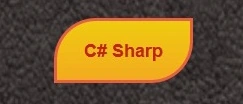
Button With Icon
HTML Code
<div>
    <a class="button2 iconImg call" href="#"><span>Call Now!</span></a><br /><br />
</div>
First, put this HTML code in your body tag.
CSS Code
In this portion of the code, we create our basic button design without any effect.
a.button2 {
    border: 1px solid #fff;
    -webkit-box-shadow: 1px 1px 5px rgba(0, 0, 0, 0.5);
    box-shadow: 0px 0px 4px rgba(0, 0, 0, 0.4);
    -moz-box-shadow: 1px 1px 5px rgba(1, 1, 1, 0.5);
    border-radius: 15px;
    -moz-border-radius: 15px;
    -webkit-border-radius: 15px;
    text-decoration: none;
    padding: 5px 15px;
    background-image: -webkit-gradient(linear, left top, left bottom, color-stop(0, #ffffff), color-stop(1, #dbdbdb));
    text-shadow: #fef 0 1px 0;
    float: left;
    margin-bottom: 15px;
    margin-right: 15px;
    color: #497390;
    display: block;
    line-height: 24px;
    font-weight: bold;
    font-size: 20px;
}
Now it's time to give some "hover" and "active" effects to our button.
a.button2:hover {
    color: #111;
    display: block;
    background-image: -webkit-gradient(linear, left top, left bottom, color-stop(0, #ffffff), color-stop(1, #eeeeee));
}

a.button2:active {
    text-shadow: 0px -1px 0 rgba(255, 255, 255, 0.5);
    margin-top: 1px;
    background-image: -webkit-gradient(linear, left top, left bottom, color-stop(0, #dbdbdb), color-stop(1, #ffffff));
}


Sourav Kumar DasPosted Dec 12, 2019, 12:24 AM
Nice article, but please use code editor tool while writing an article with code.
Pavan RamamurthyPosted Sep 19, 2013, 3:01 AM
nice one....
Gyanender SharmaPosted Sep 19, 2013, 2:36 AM
Thanks Sir
Destin JoyPosted Sep 19, 2013, 1:36 AM
Good Looking Gyanender,The article looks great!!