

Earlier we saw what are Power Pages and how it will be useful for businesses to showcase their content in a short time. If you haven’t read that please check out the link below.
In this article, we will see how to create the first Power Pages portal step by step.
Introduction
As we saw previously, this Power Pages Portal is a sequel to the Power Apps Portal but lots of features have been added to modernize the look and to fit in all screen sizes. Also, this portal will not display static content (well, you can use it for projecting the static content) but also dynamic content by connecting with Microsoft Dataverse. Since dynamic data is presented now security has to be tightened on the aspect of which data is accessible to the targeted audience.
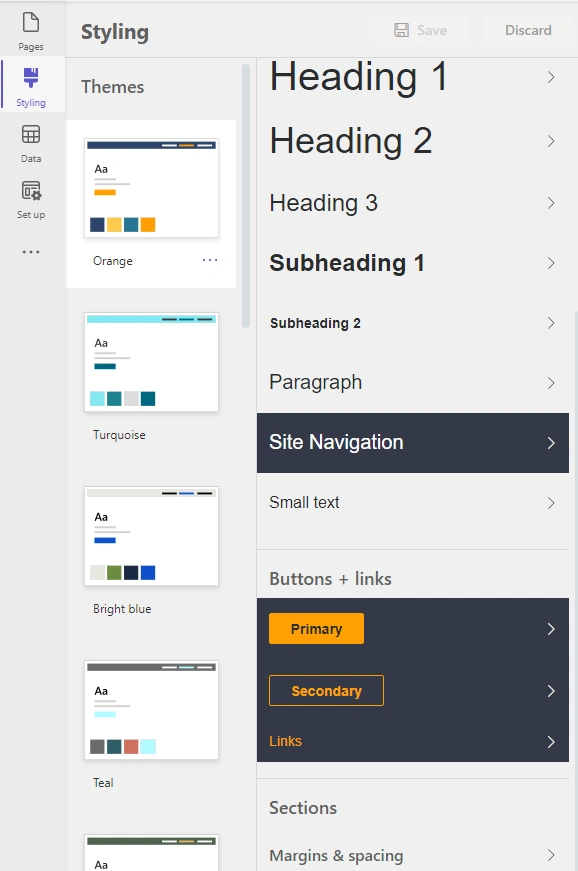
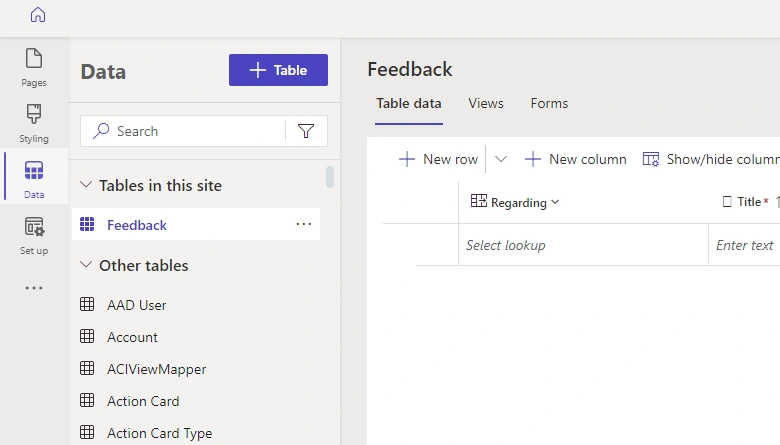
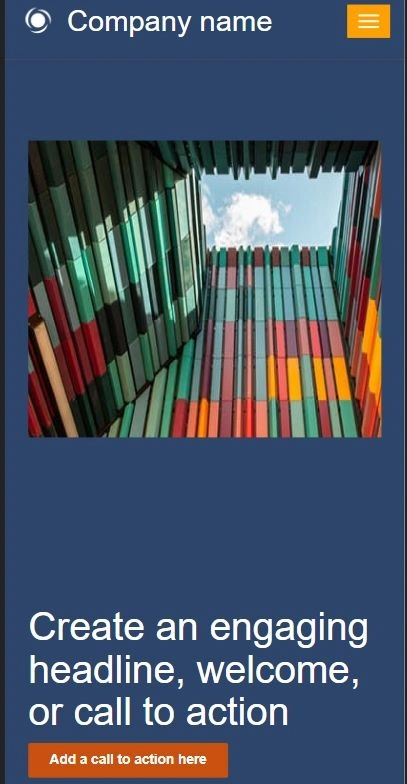
All set, now let us look into the screens which manage all the above-said features after the creation of the Power Pages.
1. Go to the Power Pages maker portal to create a new site
https://make.powerpages.microsoft.com/
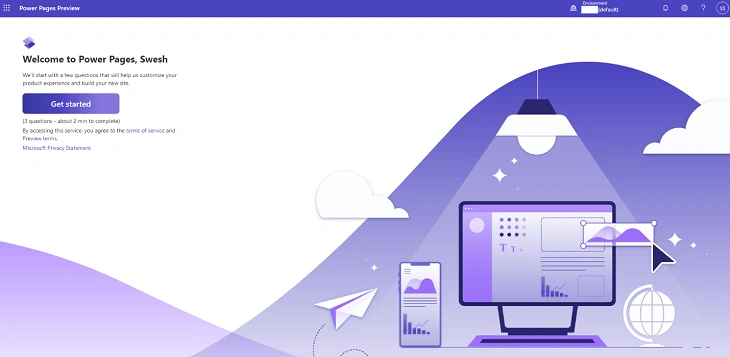
2. Click on the button “Get Started”
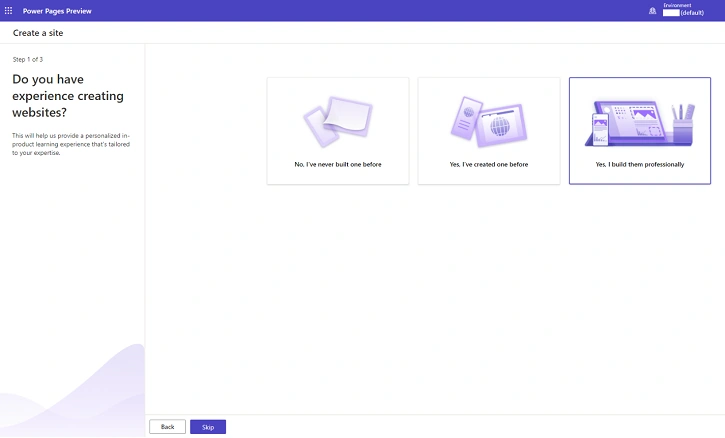
3. Now, we need to create a site. Microsoft will be asking some questions to understand if the person is from a technical background or experience. This will pre-set the templates and configuration to default.
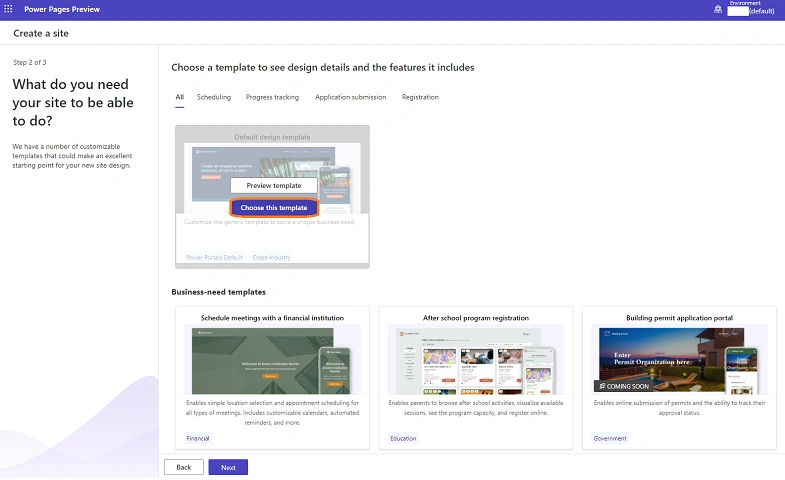
4. Next, we choose a template to render the design templates available by default. Currently, the templates available are as follows
- Default design template - Generic template
- Schedule meetings with financial institutions - Provisioned for customizing calendars, automated reminders, and scheduling any type of meeting.
- After school program registration - Online registration, Periodical activities and capacities of the institution.
- Building permit application portal - Advanced Workflow tracking and status follow ups.
- New employee onboarding checklist - Common customizable checklists and static content pages for routine activities.
5. Once the template is chosen, we need to enter certain details which is necessary for the creation of the site such as the Site Name and URL of the portal. After the availability check for the names.
6. Next step is to choose the Environment (which is very crucial)
- You can choose any environment: The best is to choose the non-production environment to avoid accidental exposure of the site while in development mode.
- If the site is created in a trial environment: Then the site will be available for 90 days only. To prevent getting deleted convert the site to a production environment from the portal admin center.

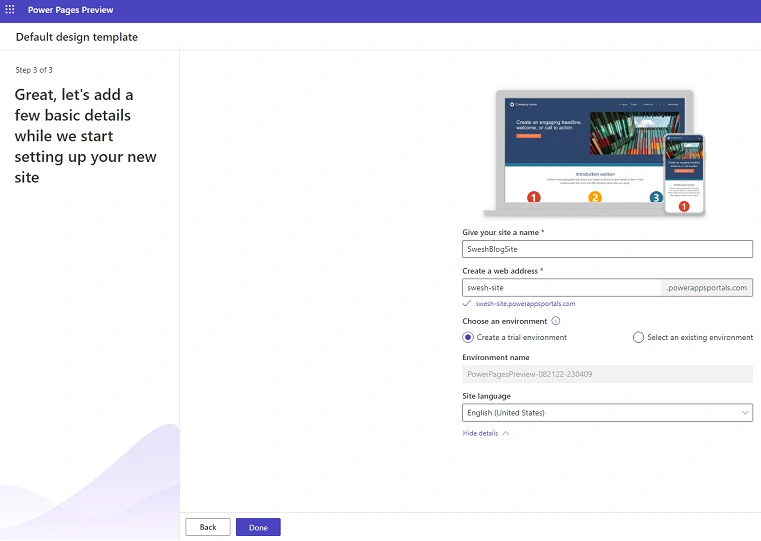
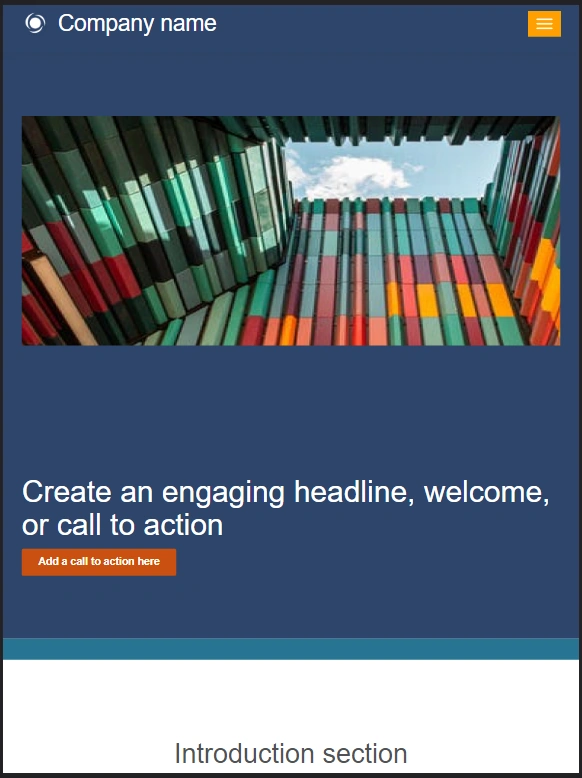
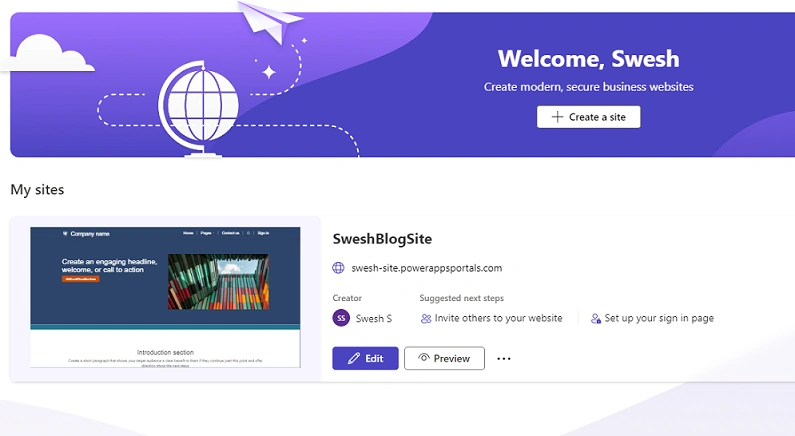
7. Once the basic configuration is completed, click the “Done” button to start the creation of the portal. (For the first site, it will take time to set the environment, on further creation the portal will be created quickly)







Join the conversation! Your thoughts help the community grow.