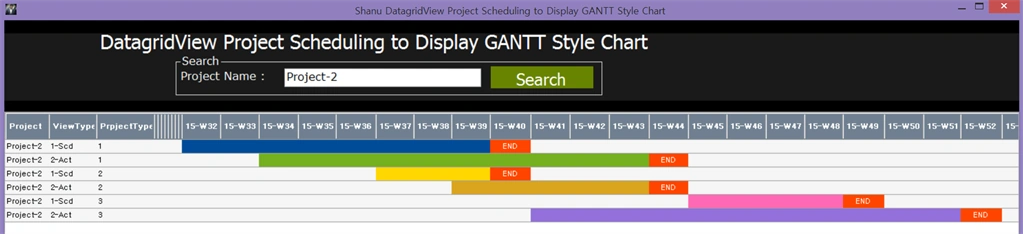
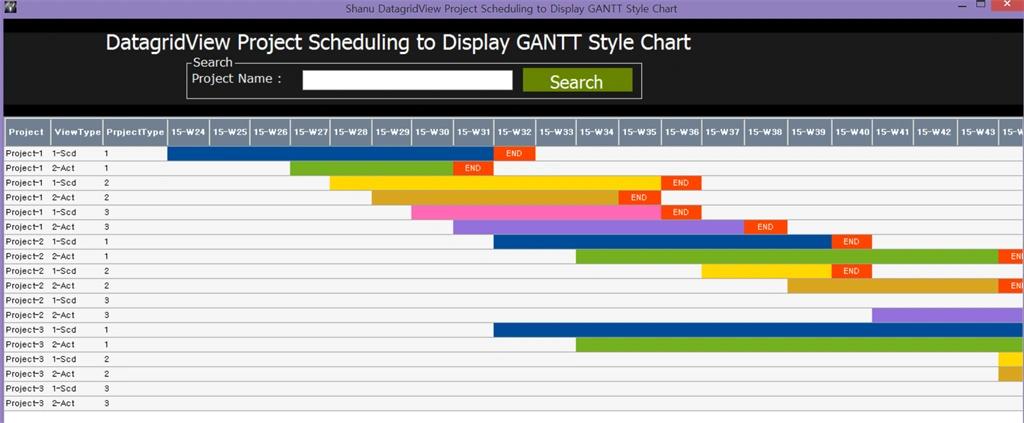
In this article we will see how to create a simple Gantt Style chart inside DataGridView to display the Project Schedule results. In my previous article I have explained the same for ASP.NET GridView and also for MVC using AngularJS.

Few members requested me to do the same for Winform using DataGridView. I have made a simple program with same functionality as my Webform example. Kindly refer both the articles to find more detail about project Scheduling.
All Business logic to Display result are in my SQL Server Stored Procedure
As I have explained in both the articles that all the business logic to display the project management result has been done in my Stored Procedure. I have used Pivot query in my Stored Procedure to display the final result. We can see the details about how I have written my procedure to display the result in code part.

Code Part

We will create a SCHED_Master table under the Database 'projectDB'. The following is the script to create a database, table and sample insert query. Run this script in your SQL Server. I have used SQL Server 2012.

SCHED_MASTER Table Field Name

Details

ProjectName To insert the Name of each project
ProjectType This is to define the category of the each project for example like if its urgent then its 1 and Important then its 2 and etc.
ProjectTypeName This is to give the name of the project type as Urgent, Important and etc.
SCHED_ST_DT The Schedule Start Date (This is important as we give each project Schedule Start Date. This is like a base start date for each project)
SCHED_ED_DT The Schedule END Date (This is important as we give each project Schedule END Date. This is like a base End date for each project)
ACT_ST_DT The Actual Start Date (This is important as we give each project Actual Start Date. This is a real time production start date)
ACT_ED_DT The Actual End Date (This is important as we give each project Actual End Date. This is a real time production End date)

Create Database and Table

  1. USE MASTER GO Check for the Database Exists.If the database is exist then
  2. drop
  3. and create new DB IF EXISTS
  4. (
  5. SELECT
  6. [name]
  7. FROM
  8. sys.databases
  9. WHERE
  10. [name] = 'projectDB'
  11. )
  12. DROP
  13. DATABASE projectDB GO CREATE DATABASE projectDB GO USE projectDB GO CREATE TABLE [dbo].[SCHED_Master]
  14. (
  15. [ID] [int] NOT NULL,
  16. [ProjectName] [varchar](100) NULL,
  17. [ProjectType] int NULL,
  18. [ProjectTypeName] [varchar](100) NULL,
  19. [SCHED_ST_DT] [datetime] NULL,
  20. [SCHED_ED_DT] [datetime] NULL,
  21. [ACT_ST_DT] [datetime] NULL,
  22. [ACT_ED_DT] [datetime] NULL,
  23. [status] int null PRIMARY KEY CLUSTERED ([ID] ASC) WITH (
  24. PAD_INDEX = OFF, STATISTICS_NORECOMPUTE = OFF,
  25. IGNORE_DUP_KEY = OFF, ALLOW_ROW_LOCKS = ON,
  26. ALLOW_PAGE_LOCKS = ON
  27. ) ON [PRIMARY]
  28. ) ON [PRIMARY]
Insert Query

delete from SCHED_Master
  1. INSERT INTO [dbo].SCHED_Master
  2. (
  3. [ID], [ProjectName], [ProjectType],
  4. [ProjectTypeName], [SCHED_ST_DT],
  5. [SCHED_ED_DT], [ACT_ST_DT], [ACT_ED_DT],
  6. [status]
  7. )
  8. VALUES
  9. (
  10. 1001, 'Project-1', 1, 'Urgent', '2015-06-01 00:00:00.000',
  11. '2015-09-02 00:00:00.000', '2015-06-22 00:00:00.000',
  12. '2015-08-26 00:00:00.000', 1
  13. )
  14. INSERT INTO [dbo].SCHED_Master
  15. (
  16. [ID], [ProjectName], [ProjectType],
  17. [ProjectTypeName], [SCHED_ST_DT],
  18. [SCHED_ED_DT], [ACT_ST_DT], [ACT_ED_DT],
  19. [status]
  20. )
  21. VALUES
  22. (
  23. 1002, 'Project-1', 2, 'Important',
  24. '2015-06-12 00:00:00.000', '2015-8-02 00:00:00.000',
  25. '2015-06-19 00:00:00.000', '2015-8-29 00:00:00.000',
  26. 1
  27. )
  28. INSERT INTO [dbo].SCHED_Master
  29. (
  30. [ID], [ProjectName], [ProjectType],
  31. [ProjectTypeName], [SCHED_ST_DT],
  32. [SCHED_ED_DT], [ACT_ST_DT], [ACT_ED_DT],
  33. [status]
  34. )
  35. VALUES
  36. (
  37. 1003, 'Project-1', 3, 'Normal', '2015-06-28 00:00:00.000',
  38. '2015-09-03 00:00:00.000', '2015-07-02 00:00:00.000',
  39. '2015-08-24 00:00:00.000', 1
  40. )
  41. INSERT INTO [dbo].SCHED_Master
  42. (
  43. [ID], [ProjectName], [ProjectType],
  44. [ProjectTypeName], [SCHED_ST_DT],
  45. [SCHED_ED_DT], [ACT_ST_DT], [ACT_ED_DT],
  46. [status]
  47. )
  48. VALUES
  49. (
  50. 1004, 'Project-2', 1, 'Urgent', '2015-06-28 00:00:00.000',
  51. '2015-08-02 00:00:00.000', '2015-07-02 00:00:00.000',
  52. '2015-08-26 00:00:00.000', 1
  53. )
  54. INSERT INTO [dbo].SCHED_Master
  55. (
  56. [ID], [ProjectName], [ProjectType],
  57. [ProjectTypeName], [SCHED_ST_DT],
  58. [SCHED_ED_DT], [ACT_ST_DT], [ACT_ED_DT],
  59. [status]
  60. )
  61. VALUES
  62. (
  63. 1005, 'Project-2', 2, 'Important',
  64. '2015-07-09 00:00:00.000', '2015-12-22 00:00:00.000',
  65. '2015-06-28 00:00:00.000', '2015-12-14 00:00:00.000',
  66. 1
  67. )
  68. INSERT INTO [dbo].SCHED_Master
  69. (
  70. [ID], [ProjectName], [ProjectType],
  71. [ProjectTypeName], [SCHED_ST_DT],
  72. [SCHED_ED_DT], [ACT_ST_DT], [ACT_ED_DT],
  73. [status]
  74. )
  75. VALUES
  76. (
  77. 1006, 'Project-2', 3, 'Normal', '2015-06-01 00:00:00.000',
  78. '2015-08-04 00:00:00.000', '2015-06-22 00:00:00.000',
  79. '2015-08-24 00:00:00.000', 1
  80. )
Select Query

select ID,ProjectName,ProjectType,ProjectTypeName,SCHED_ST_DT,SCHED_ED_DT,ACT_ST_DT,ACT_ED_DT,status from SCHED_Master

After creating our table we will create a stored procedure to display the project schedule result using Pivot query.

I will explain each step of my procedure so that you can understand it clearly to make your own with your table formats.

Step 1: Create the procedure with parameter and declare the variable inside procedure to be used in the SP.

Note here I have set the FromDate and ToDate static. You can change this as a parameter from SP to get dynamic results as per your date range.
  1. Alter PROCEDURE [dbo].[usp_ProjectSchedule_Select] @projectId VARCHAR(10) = '' AS BEGIN -- 1. Declared for setting the Schedule Start and End date
  2. --1.Start /////////////
  3. Declare @FromDate VARCHAR(20) = '2015-06-08' --DATEADD(mm,-12,getdate())
  4. Declare @ToDate VARCHAR(20) = '2016-05-06' --DATEADD(mm, 1, getdate())
  5. -- used for the pivot table result
  6. DECLARE @MyColumns AS NVARCHAR(MAX),
  7. @SQLquery AS NVARCHAR(MAX)
Step 2: We have defined our Project FromDate and EndDate.Now we need to search the project schedule result from the given date. The main aim of the Project Schedule chart is to display the data range as Weeks, Month, Year or Day of any one format with continuos result within the range.To get the continues result I will get the Days if Sundays from the Start and End date. I will display the result as Week display, so here I have used every week Sunday date and stored all the dates to temptable for displaying the result.

This Temp table is created for geting all the days between the start date and end date to display as the Column Header
  1. Start IF OBJECT_ID('tempdb..#TEMP_EveryWk_Sndays') IS NOT NULL
  2. DROP
  3. TABLE #TEMP_EveryWk_Sndays
  4. DECLARE @TOTALCount INT
  5. Select
  6. @TOTALCount = DATEDIFF(dd, @FromDate, @ToDate);
  7. WITH d AS
  8. (
  9. SELECT
  10. top (@TOTALCount) AllDays = DATEADD(
  11. DAY,
  12. ROW_NUMBER() OVER
  13. (
  14. ORDER BY
  15. object_id
  16. ),
  17. REPLACE(@FromDate, '-', '')
  18. )
  19. FROM
  20. sys.all_objects
  21. )
  22. SELECT
  23. distinct DATEADD
  24. (
  25. DAY,
  26. 1 - DATEPART(WEEKDAY, AllDays),
  27. CAST(AllDays AS DATE)
  28. ) WkStartSundays,
  29. 1 as status into #TEMP_EveryWk_Sndays
  30. FROM
  31. d
  32. where
  33. AllDays <= @ToDate
  34. AND AllDays >= @FromDate -- test the sample temptable with select query
  35. -- select * from #TEMP_EveryWk_Sndays
  36. --///////////// End of 2.
Step 3: I will join above temp table to actual Schedule table to compare the dates and produce the result. Firstly, I will check for the Schedule result and using the union I will combine the result to the Actual result and insert the final result to another temp table to generate our pivot result.


Figure 2: DataGridView

Note: For actual data in pivot list I will display the result as:

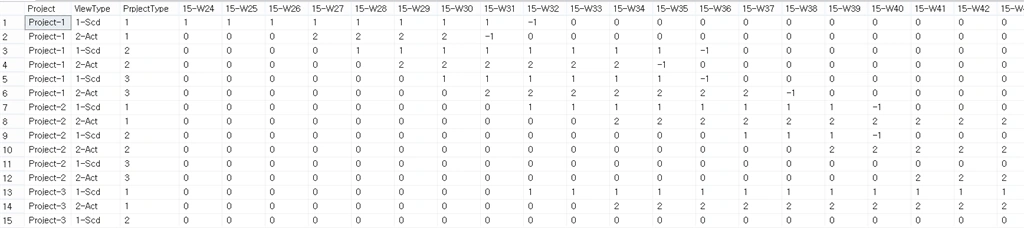
“-1” – For End Date of both Schedule and Actual result. In my program I will check for the resultant value, if its “-1” then I will display the text as “END” with red back color which is to notify the user for End date of each project.

“0” – If the result value is “0”, then it means the days are not in any Schedule or Actual days so it should be leaved as blank.

“1” – If the result is “1” is to intimate as the Schedule Start and End days. I will be using Blue color to display the Schedule Days.

“2” - If the result is “1” is to intimate as the Actual Start and End days. I will be using Green color to display the Schedule Days.

This is only a sample procedure that explains a sample program for Project schedule, you can customize this table, procedure and program as per your requirement and set your own rule and status to display the result.

This temp table is created to schedule details with the result, here I have used the Union.

The first query return the Schedule Project result and the 2nd query returns the Actual Project result. Both these queries will be inserted to a Temp Table.
  1. --3.Start /////////////
  2. IF OBJECT_ID('tempdb..#TEMP_results') IS NOT NULL
  3. DROP
  4. TABLE #TEMP_results
  5. SELECT
  6. ProjectName,
  7. viewtype,
  8. ProjectType,
  9. resultnew,
  10. YMWK INTO #TEMP_results
  11. FROM
  12. (
  13. SELECT
  14. A.ProjectName ProjectName -- Our Project Name
  15. ,
  16. '1-Scd' viewtype -- Our View type first we display Schedule Data and then Actual
  17. ,
  18. A.ProjectType ProjectType -- Our Project type here you can use your own status as Urgent,normal and etc
  19. ,
  20. Case when cast(
  21. DATEPART(
  22. wk,
  23. max(A.SCHED_ED_DT)
  24. ) as varchar(2)
  25. ) = cast(
  26. DATEPART(wk, WkStartSundays) as varchar(2)
  27. ) then -1 else case when min(A.SCHED_ST_DT)<= F.WkStartSundays
  28. AND max(A.SCHED_ED_DT) >= F.WkStartSundays then 1 else 0 end end resultnew -- perfectResult as i expect
  29. ,
  30. RIGHT(
  31. YEAR(WkStartSundays),
  32. 2
  33. )+ '-' + 'W' + convert(
  34. varchar(2),
  35. Case when len(
  36. DATEPART(wk, WkStartSundays)
  37. )= '1' then '0' + cast(
  38. DATEPART(wk, WkStartSundays) as varchar(2)
  39. ) else cast(
  40. DATEPART(wk, WkStartSundays) as varchar(2)
  41. ) END
  42. ) as 'YMWK' -- Here we display Year/month and Week of our Schedule which will be displayed as the Column
  43. FROM
  44. -- here you can youe your own table
  45. SCHED_Master A (NOLOCK)
  46. LEFT OUTER JOIN #TEMP_EveryWk_Sndays F (NOLOCK) ON A.status= F.status
  47. WHERE
  48. -- Here you can check your own where conditions
  49. A.ProjectName like '%' + @projectId
  50. AND A.status = 1
  51. AND A.ProjectType in (1, 2, 3)
  52. AND A.SCHED_ST_DT <= @ToDate
  53. AND A.SCHED_ED_DT >= @FromDate
  54. GROUP BY
  55. A.ProjectName,
  56. A.ProjectType,
  57. A.SCHED_ED_DT,
  58. F.WkStartSundays
  59. UNION
  60. -- This query is to result the Actual result
  61. SELECT
  62. A.ProjectName ProjectName -- Our Project Name
  63. ,
  64. '2-Act' viewtype -- Our View type first we display Schedule Data and then Actual
  65. ,
  66. A.ProjectType ProjectType -- Our Project type here you can use your own status as Urgent,normal and etc
  67. ,
  68. Case when cast(
  69. DATEPART(
  70. wk,
  71. max(A.ACT_ED_DT)
  72. ) as varchar(2)
  73. ) = cast(
  74. DATEPART(wk, WkStartSundays) as varchar(2)
  75. ) then -1 else case when min(A.ACT_ST_DT)<= F.WkStartSundays
  76. AND max(A.ACT_ED_DT) >= F.WkStartSundays then 2 else 0 end end resultnew -- perfectResult as i expect
  77. ,
  78. RIGHT(
  79. YEAR(WkStartSundays),
  80. 2
  81. )+ '-' + 'W' + convert(
  82. varchar(2),
  83. Case when len(
  84. DATEPART(wk, WkStartSundays)
  85. )= '1' then '0' + cast(
  86. DATEPART(wk, WkStartSundays) as varchar(2)
  87. ) else cast(
  88. DATEPART(wk, WkStartSundays) as varchar(2)
  89. ) END
  90. ) as 'YMWK' -- Here we display Year/month and Week of our Schedule which will be displayed as the Column
  91. FROM
  92. -- here you can youe your own table
  93. SCHED_Master A (NOLOCK)
  94. LEFT OUTER JOIN #TEMP_EveryWk_Sndays F (NOLOCK) ON A.status= F.status
  95. WHERE
  96. -- Here you can check your own where conditions
  97. A.ProjectName like '%' + @projectId
  98. AND A.status = 1
  99. AND A.ProjectType in (1, 2, 3)
  100. AND A.ACT_ST_DT <= @ToDate
  101. AND A.ACT_ED_DT >= @FromDate
  102. GROUP BY
  103. A.ProjectName,
  104. A.ProjectType,
  105. A.SCHED_ED_DT,
  106. F.WkStartSundays
  107. ) q --3.End /////////////
Step 4: Here I will display the final result using the pivot query from the final result of temp table result.
  1. --4.Start /////////////
  2. --here first we get all the YMWK which should be display in Columns we use this in our next pivot query
  3. select
  4. @MyColumns = STUFF(
  5. (
  6. SELECT
  7. ',' + QUOTENAME(YMWK)
  8. FROM
  9. #TEMP_results
  10. GROUP BY
  11. YMWK
  12. ORDER BY
  13. YMWK FOR XML PATH(''),
  14. TYPE
  15. ).value('.', 'NVARCHAR(MAX)'),
  16. 1,
  17. 1,
  18. ''
  19. ) --here we use the above all YMWK to disoplay its result as column and row display
  20. set
  21. @SQLquery = N 'SELECT ProjectName,viewtype,ProjectType,' + @MyColumns + N ' from
  22. (
  23. SELECT
  24. ProjectName,
  25. viewtype,
  26. ProjectType,
  27. YMWK,
  28. resultnew as resultnew
  29. FROM #TEMP_results
  30. ) x
  31. pivot
  32. (
  33. sum(resultnew)
  34. for YMWK in (' + @MyColumns + N ')
  35. ) p order by ProjectName, ProjectType,viewtype' exec sp_executesql @SQLquery;

Here is the complete code for the Stored Procedure.

  1. CREATE PROCEDURE [dbo].[usp_ProjectSchedule_Select]
  2. @projectId VARCHAR(10) = ''
  3. AS
  4. BEGIN
  5. -- 1. Declared for setting the Schedule Start and End date
  6. --1.Start /////////////
  7. Declare @FromDate VARCHAR(20) = '2015-06-08'--DATEADD(mm,-12,getdate())
  8. Declare @ToDate VARCHAR(20) = '2016-05-06'--DATEADD(mm, 1, getdate())
  9. -- used for the pivot table result
  10. DECLARE @MyColumns AS NVARCHAR(MAX),
  11. @SQLquery AS NVARCHAR(MAX)
  12. --// End of 1.
  13. -- 2.This Temp table is to created for get all the days between the start date and end date to display as the Column Header
  14. --2.Start /////////////
  15. IF OBJECT_ID('tempdb..#TEMP_EveryWk_Sndays') IS NOT NULL
  16. DROP TABLE #TEMP_EveryWk_Sndays
  17. DECLARE @TOTALCount INT
  18. Select @TOTALCount= DATEDIFF(dd,@FromDate,@ToDate);
  19. WITH d AS
  20. (
  21. SELECT top (@TOTALCount) AllDays = DATEADD(DAY, ROW_NUMBER()
  22. OVER (ORDER BY object_id), REPLACE(@FromDate,'-',''))
  23. FROM sys.all_objects
  24. )
  25. SELECT distinct DATEADD(DAY, 1 - DATEPART(WEEKDAY, AllDays), CAST(AllDays AS DATE))WkStartSundays ,1 as status
  26. into #TEMP_EveryWk_Sndays
  27. FROM d
  28. where
  29. AllDays <= @ToDate
  30. AND AllDays >= @FromDate
  31. -- test the sample temptable with select query
  32. -- select * from #TEMP_EveryWk_Sndays
  33. --///////////// End of 2.
  34. -- 3. This temp table is created toScedule details with result here i have used the Union ,
  35. --the 1st query return the Schedule Project result and the 2nd query returns the Actual Project result both this query will be inserted to a Temp Table
  36. --3.Start /////////////
  37. IF OBJECT_ID('tempdb..#TEMP_results') IS NOT NULL
  38. DROP TABLE #TEMP_results
  39. SELECT ProjectName,viewtype,ProjectType,resultnew,YMWK
  40. INTO #TEMP_results
  41. FROM(
  42. SELECT
  43. A.ProjectName ProjectName -- Our Project Name
  44. ,'1-Scd' viewtype -- Our View type first we display Schedule Data and then Actual
  45. , A. ProjectType ProjectType -- Our Project type here you can use your own status as Urgent,normal and etc
  46. , Case when cast(DATEPART( wk, max(A.SCHED_ED_DT)) as varchar(2)) = cast(DATEPART( wk, WkStartSundays) as varchar(2)) then -1 else
  47. case when min(A.SCHED_ST_DT)<= F.WkStartSundays AND max(A.SCHED_ED_DT) >= F.WkStartSundays
  48. then 1 else 0 end end resultnew -- perfectResult as i expect
  49. , RIGHT(YEAR(WkStartSundays), 2)+'-'+'W'+convert(varchar(2),Case when len(DATEPART( wk, WkStartSundays))='1' then '0'+
  50. cast(DATEPART( wk, WkStartSundays) as varchar(2)) else cast(DATEPART( wk, WkStartSundays) as varchar(2)) END
  51. ) as 'YMWK' -- Here we display Year/month and Week of our Schedule which will be displayed as the Column
  52. FROM -- here you can youe your own table
  53. SCHED_Master A (NOLOCK)
  54. LEFT OUTER JOIN
  55. #TEMP_EveryWk_Sndays F (NOLOCK) ON A.status= F.status
  56. WHERE -- Here you can check your own where conditions
  57. A.ProjectName like '%' + @projectId
  58. AND A.status=1
  59. AND A.ProjectType in (1,2,3)
  60. AND A.SCHED_ST_DT <= @ToDate
  61. AND A.SCHED_ED_DT >= @FromDate
  62. GROUP BY
  63. A.ProjectName
  64. , A. ProjectType
  65. ,A.SCHED_ED_DT
  66. ,F.WkStartSundays
  67. UNION -- This query is to result the Actual result
  68. SELECT
  69. A.ProjectName ProjectName -- Our Project Name
  70. ,'2-Act' viewtype -- Our View type first we display Schedule Data and then Actual
  71. , A. ProjectType ProjectType -- Our Project type here you can use your own status as Urgent,normal and etc
  72. , Case when cast(DATEPART( wk, max(A.ACT_ED_DT)) as varchar(2)) = cast(DATEPART( wk, WkStartSundays) as varchar(2)) then -1 else
  73. case when min(A.ACT_ST_DT)<= F.WkStartSundays AND max(A.ACT_ED_DT) >= F.WkStartSundays
  74. then 2 else 0 end end resultnew -- perfectResult as i expect
  75. , RIGHT(YEAR(WkStartSundays), 2)+'-'+'W'+convert(varchar(2),Case when len(DATEPART( wk, WkStartSundays))='1' then '0'+
  76. cast(DATEPART( wk, WkStartSundays) as varchar(2)) else cast(DATEPART( wk, WkStartSundays) as varchar(2)) END
  77. ) as 'YMWK' -- Here we display Year/month and Week of our Schedule which will be displayed as the Column
  78. FROM -- here you can youe your own table
  79. SCHED_Master A (NOLOCK)
  80. LEFT OUTER JOIN
  81. #TEMP_EveryWk_Sndays F (NOLOCK) ON A.status= F.status
  82. WHERE -- Here you can check your own where conditions
  83. A.ProjectName like '%' + @projectId
  84. AND A.status=1
  85. AND A.ProjectType in (1,2,3)
  86. AND A.ACT_ST_DT <= @ToDate
  87. AND A.ACT_ED_DT >= @FromDate
  88. GROUP BY
  89. A.ProjectName
  90. , A. ProjectType
  91. ,A.SCHED_ED_DT
  92. ,F.WkStartSundays
  93. ) q
  94. --3.End /////////////
  95. --4.Start /////////////
  96. --here first we get all the YMWK which should be display in Columns we use this in our next pivot query
  97. select @MyColumns = STUFF((SELECT ',' + QUOTENAME(YMWK)
  98. FROM #TEMP_results
  99. GROUP BY YMWK
  100. ORDER BY YMWK
  101. FOR XML PATH(''), TYPE
  102. ).value('.', 'NVARCHAR(MAX)')
  103. ,1,1,'')
  104. --here we use the above all YMWK to disoplay its result as column and row display
  105. set @SQLquery = N'SELECT ProjectName as Project,viewtype as ViewType,ProjectType as PrpjectType,' + @MyColumns + N' from
  106. (
  107. SELECT
  108. ProjectName,
  109. viewtype,
  110. ProjectType,
  111. YMWK,
  112. resultnew as resultnew
  113. FROM #TEMP_results
  114. ) x
  115. pivot
  116. (
  117. sum(resultnew)
  118. for YMWK in (' + @MyColumns + N')
  119. ) p order by ProjectName, ProjectType,viewtype'
  120. exec sp_executesql @SQLquery;
  121. END
If we run the procedure the final output will be like the following. Here we can see I will display the result of every week using the pivot query.


Create our Windows Form Application in Visual Studio 2015

Prerequisites


Visual Studio 2015. You can download it from here.

After installing Visual Studio 2015, click Start, Programs and select Visual Studio 2015

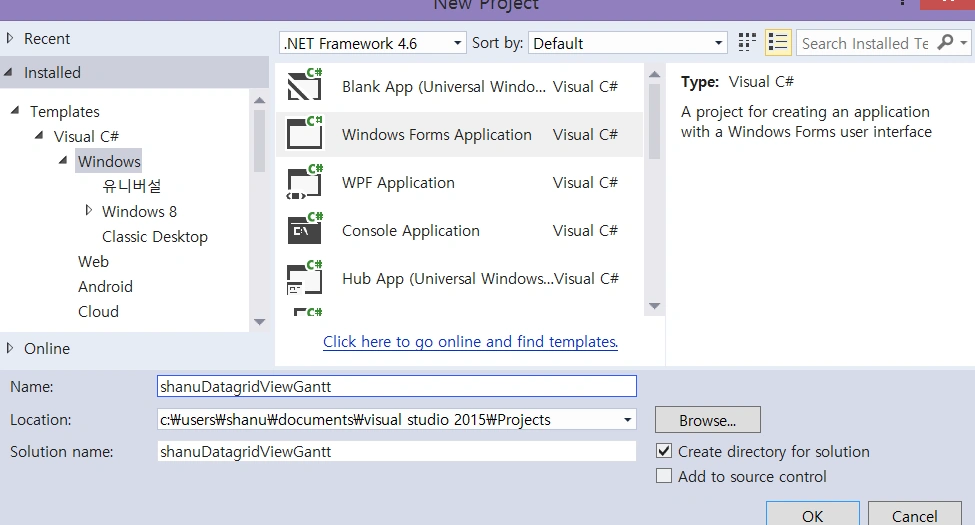
Click New, Project, then select Visual C# and go to Windows, then Windows Forms Application. Select your project location and enter your application name.


Figure 4: Windows Form

Design your form. In my form I have added a Textbox for searching the details by Project Name and a button to bind the result.

Note: I have used my DataGridView helper class to create the DataGridView at runtime instead of design time. Kindly refer my article related to create a DatagridView helper class. Here's the link.

Form Load

In Form Load initialize the DataGridView and add the DataGridView to Panel Control using the Helper Class. After DateGridview Initialized, bind the data to Grid.
  1. private void shanuDatagridViewPaint_Load(object sender, EventArgs e)
  2. {
  3. MasterGrid_Initialize();
  4. bindData();
  5. }
Initialize Grid

Using my helper class I will create the DataGridView at runtime. Pass all the parameters such as Grid Back Color, Height, Width and all properties to create at runtime like the following:
  1. public void MasterGrid_Initialize()
  2. {
  3. //First generate the grid Layout Design
  4. Helper.ShanuDGVHelper.Layouts(Master_shanuDGV, Color.White, Color.WhiteSmoke, Color.WhiteSmoke, false, Color.WhiteSmoke, true, Color.FromArgb(112, 128, 144), false, false, false, Color.White, 40, 20, "small");
  5. //Set Height,width and add panel to your selected control
  6. Helper.ShanuDGVHelper.Generategrid(Master_shanuDGV, pnlGrid, 1000, 600, 10, 10);
  7. Master_shanuDGV.CellFormatting += new DataGridViewCellFormattingEventHandler(MasterDGVs_CellFormatting);
  8. }
As we can see after Initializing the DataGridView I have used the CellFormatting DatagridView Event.

CellFormatting DataGridView Event

In Cellformatting DataGridView I will check for each cell result and set the back color of each cell to display our Gantt style chart inside DataGridView. I will check for the project type and give each project actual and schedule result with unique color to see the result in more graphical output.
  1. void MasterDGVs_CellFormatting(object sender, DataGridViewCellFormattingEventArgs e)
  2. {
  3. try {
  4. ProjectType = ds.Tables[0].Rows[e.RowIndex]["PrpjectType"].ToString();
  5. if (e.ColumnIndex > 2)
  6. {
  7. Color color1 = Color.FromArgb(116, 176, 30); //Green
  8. Color color2 = Color.FromArgb(0, 76, 153); //Blue
  9. if (e.Value.ToString() == "0")
  10. {
  11. e.Value = "";
  12. }
  13. if (ProjectType == "1")
  14. {
  15. color1 = Color.FromArgb(116, 176, 30); //Green
  16. color2 = Color.FromArgb(0, 76, 153); //Blue
  17. } else if (ProjectType == "2")
  18. {
  19. color1 = Color.FromArgb(218, 165, 32); //golden rod
  20. color2 = Color.FromArgb(255, 215, 0); //GOLD
  21. } else if (ProjectType == "3")
  22. {
  23. color1 = Color.FromArgb(147, 112, 219); //medium purple
  24. color2 = Color.FromArgb(255, 105, 180); //hot pink
  25. }
  26. switch (e.Value.ToString())
  27. {
  28. case "-1":
  29. e.CellStyle.BackColor = Color.FromArgb(255, 69, 0); // Orange
  30. e.CellStyle.SelectionBackColor = Color.FromArgb(255, 69, 0); // Orange
  31. e.CellStyle.ForeColor = Color.White;
  32. e.CellStyle.Alignment = DataGridViewContentAlignment.MiddleCenter;
  33. e.Value = "END";
  34. break;
  35. case "2":
  36. e.CellStyle.BackColor = color1;
  37. e.CellStyle.SelectionBackColor = color1;
  38. e.Value = "";
  39. break;
  40. case "1":
  41. e.CellStyle.BackColor = color2;
  42. e.CellStyle.SelectionBackColor = color2;
  43. e.Value = "";
  44. break;
  45. }
  46. }
  47. } catch (Exception ex) {}
  48. }
Search Button Click
In button click and on Form Load I will call the bindData() to bind the data to the DataGridView.


  1. private void btnSearch_Click(object sender, EventArgs e)
  2. {
  3. bindData();
  4. }
bindData() Method

In this method I will pass the stored procedure name and parameters to the Business Logic class. From Business logic Class I will pass the parameter and SP name to DAL Class where it will connect to the database, gets the result and return as DataSet. The final DataSet result from BL will get in Form and bind the result in DatagridView.
  1. private void bindData()
  2. {
  3. try {
  4. // Bind data to DGV.
  5. SortedDictionary < string, string > sd = new SortedDictionary < string, string > () {};
  6. sd.Add("@projectId", txtProjectID.Text.Trim());
  7. ds = new ShanuProjectScheduleBizClass().SelectList(sd);
  8. Master_shanuDGV.DataSource = null;
  9. if (ds.Tables[0].Rows.Count > 0)
  10. {
  11. Master_shanuDGV.DataSource = ds.Tables[0];
  12. }
  13. } catch (Exception ex) {}
  14. }

Note: You can also extend this program to display the output in a more graphical way by using the DatagridviewCell painting event. You can draw your own custom format chart types inside the DatagridviewCell Painting event.

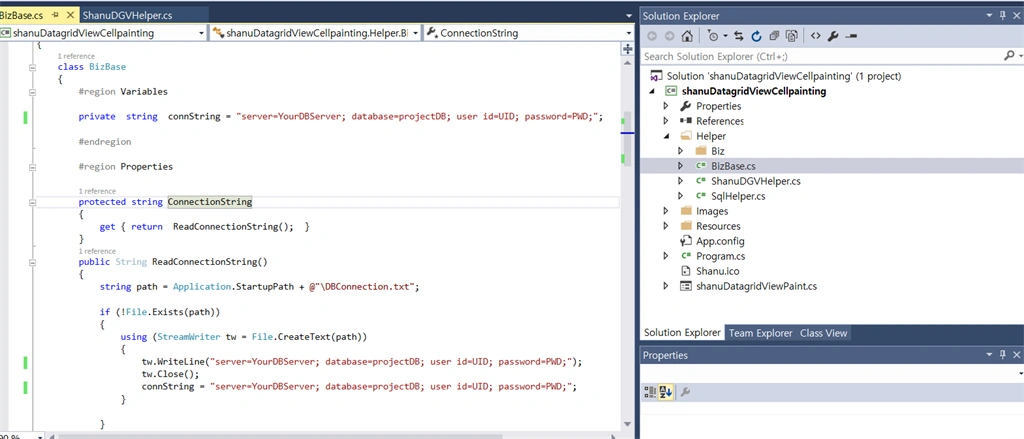
Note: Connection String
You can find "DBConnection.txt" inside bin folder, change the connection string to your SQL Server DB Setting.
Change Connection String in code:

You can find a "BizBase.cs" inside Helper/Biz folder. Change the connection string to your local SQL Server Connection String.