
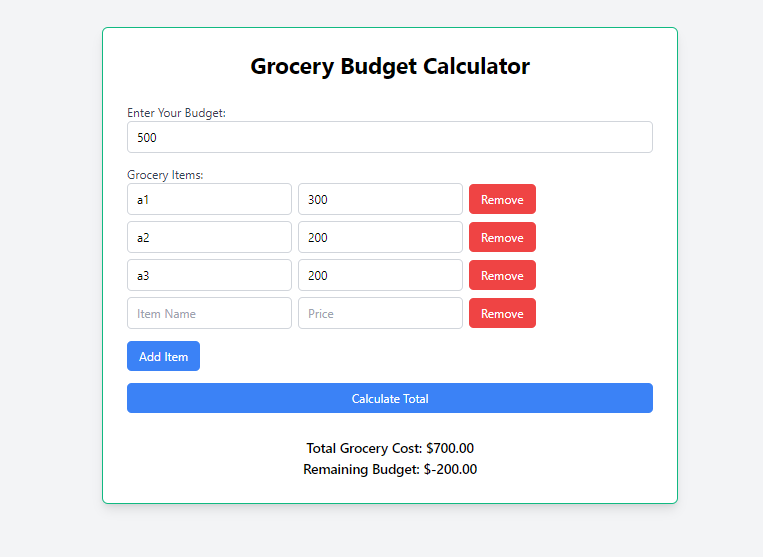
A Grocery Budget Calculator is an online tool that assists users in calculating their grocery expenses. It typically includes input fields for the cost of each grocery item, a button to add the item to the list, and a running total of the expenses. The calculator also includes input fields for the user's grocery budget, and a button to calculate the total amount spent. The calculator is styled using Tailwind CSS, a utility-first CSS framework, which ensures a responsive and visually appealing design.
Approach
Begin with the basic HTML structure, including the
<!DOCTYPE html>declaration,<html>,<head>, and<body>tags. Import Tailwind CSS for styling by adding a<script>tag in the<head>section.Create a container
<div>with Tailwind CSS classes for styling. Inside this container, include elements for the app title, input field for the budget, a button for adding grocery items, a button for calculating the total, and a result element to display the total grocery cost and remaining budget.Use JavaScript to handle the logic of adding and removing grocery items, as well as calculating the total grocery cost and remaining budget. Add an event listener to the add item button. When the button is clicked, the script should create a new input field for the item name and price, and a remove button. Add an event listener to the remove button to remove the corresponding item. Add an event listener to the calculate button. When the button is clicked, the script should retrieve the budget value, calculate the total grocery cost, and display the result in the result element. If any field is empty, display an error message.
Utilize Tailwind CSS classes to style the app container, input fields, buttons, result element, and error message. Customize the colors, fonts, and layout to create an appealing visual design for the Grocery Budget Calculator.
Ensure that the Grocery Budget Calculator is responsive and works well on different screen sizes. Use Tailwind CSS classes for responsive design, such as
sm:,md:, andlg:, to adjust the layout and styling based on the screen size.
Example: Implementation to design a grocery budget calculator.
HTML
<!DOCTYPE html>
<html lang="en">
<head>
    <meta charset="UTF-8">
    <meta name="viewport" content="width=device-width, initial-scale=1.0">
    <title>Grocery Budget Calculator</title>
    <script src="https://cdn.tailwindcss.com"></script>
</head>
<body class="bg-gray-100">
    <div class="flex justify-center items-center h-screen">
        <div class="max-w-3xl w-full bg-white p-8 rounded-lg
                    shadow-lg border-2 border-green-500">
            <h1 class="text-3xl font-bold text-center mb-8">
              	Grocery Budget Calculator
          	</h1>
            <div class="mb-4">
                <label for="budget" class="block text-gray-700">
                  	Enter Your Budget:
              	</label>
                <input type="number" id="budget" name="budget"
                       class="w-full border border-gray-300 rounded-md
                              px-3 py-2 focus:outline-none focus:border-blue-500"
                       placeholder="Enter your budget in dollars">
            </div>
            <div id="itemsContainer" class="mb-4">
                <label class="block text-gray-700">
                  	Grocery Items:
              	</label>
                <div id="itemsList"></div>
                <button id="addItemButton"
                        class="mt-2 bg-blue-500 text-white rounded-md py-2
                               px-4 hover:bg-blue-600 focus:outline-none">
                  	Add Item
              	</button>
            </div>
            <div class="mb-8">
                <button id="calculateButton"
                    	class="w-full bg-blue-500 text-white rounded-md
                               py-2 px-4 hover:bg-blue-600 focus:outline-none">
                  	Calculate Total
              	</button>
            </div>
            <div id="totalResult" class="text-lg font-semibold text-center"></div>
            <div id="errorMessage" class="text-red-500 text-sm mt-4 hidden">
              	Please fill in all fields.
          	</div>
        </div>
    </div>
    <script>
        const addItemButton = document.getElementById('addItemButton');
        const itemsList = document.getElementById('itemsList');
        let itemCount = 0;
        addItemButton.addEventListener('click', () => {
            itemCount++;
            const itemDiv = document.createElement('div');
            itemDiv.classList.add('flex', 'items-center', 'mb-2');
            itemDiv.id = `itemDiv${itemCount}`;
            itemDiv.innerHTML = `
                <input type="text" id="itemName${itemCount}"
                	   class="border border-gray-300 rounded-md px-3 py-2 mr-2
                       		  focus:outline-none focus:border-blue-500"
                              placeholder="Item Name">
                <input type="number" id="itemPrice${itemCount}"
                	   class="border border-gray-300 rounded-md px-3 py-2 mr-2
                       		  focus:outline-none focus:border-blue-500"
                              placeholder="Price">
                <div class="flex justify-end items-center">
                    <button class="bg-red-500 text-white rounded-md py-2 px-4
                    			  hover:bg-red-600 focus:outline-none"
                                  onclick="removeItem(${itemCount})">
                                  	Remove
      				</button>
                </div> `;
            itemsList.appendChild(itemDiv);
        });
        function removeItem(index) {
            const itemDiv = document.getElementById(`itemDiv${index}`);
            itemDiv.remove();
        }
        const calculateButton = document.getElementById('calculateButton');
        calculateButton.addEventListener('click', () => {
            const budget = parseFloat(document.getElementById('budget').value);
            if (!budget) {
                document.getElementById('errorMessage').classList.remove('hidden');
                return;
            }
            let total = 0;
            const items = document.querySelectorAll('[id^=itemName]');
            const prices = document.querySelectorAll('[id^=itemPrice]');
            for (let i = 0; i < items.length; i++) {
                const itemName = items[i].value.trim();
                const itemPrice = parseFloat(prices[i].value);
                if (itemName && itemPrice) {
                    total += itemPrice;
                }
            }
            const remainingBudget = budget - total;
            document.getElementById('totalResult').innerHTML = `
                Total Grocery Cost: $${total.toFixed(2)} <br>
                Remaining Budget: $${remainingBudget.toFixed(2)}
            `;
            document.getElementById('errorMessage').classList.add('hidden');
        });
    </script>
</body>
</html>
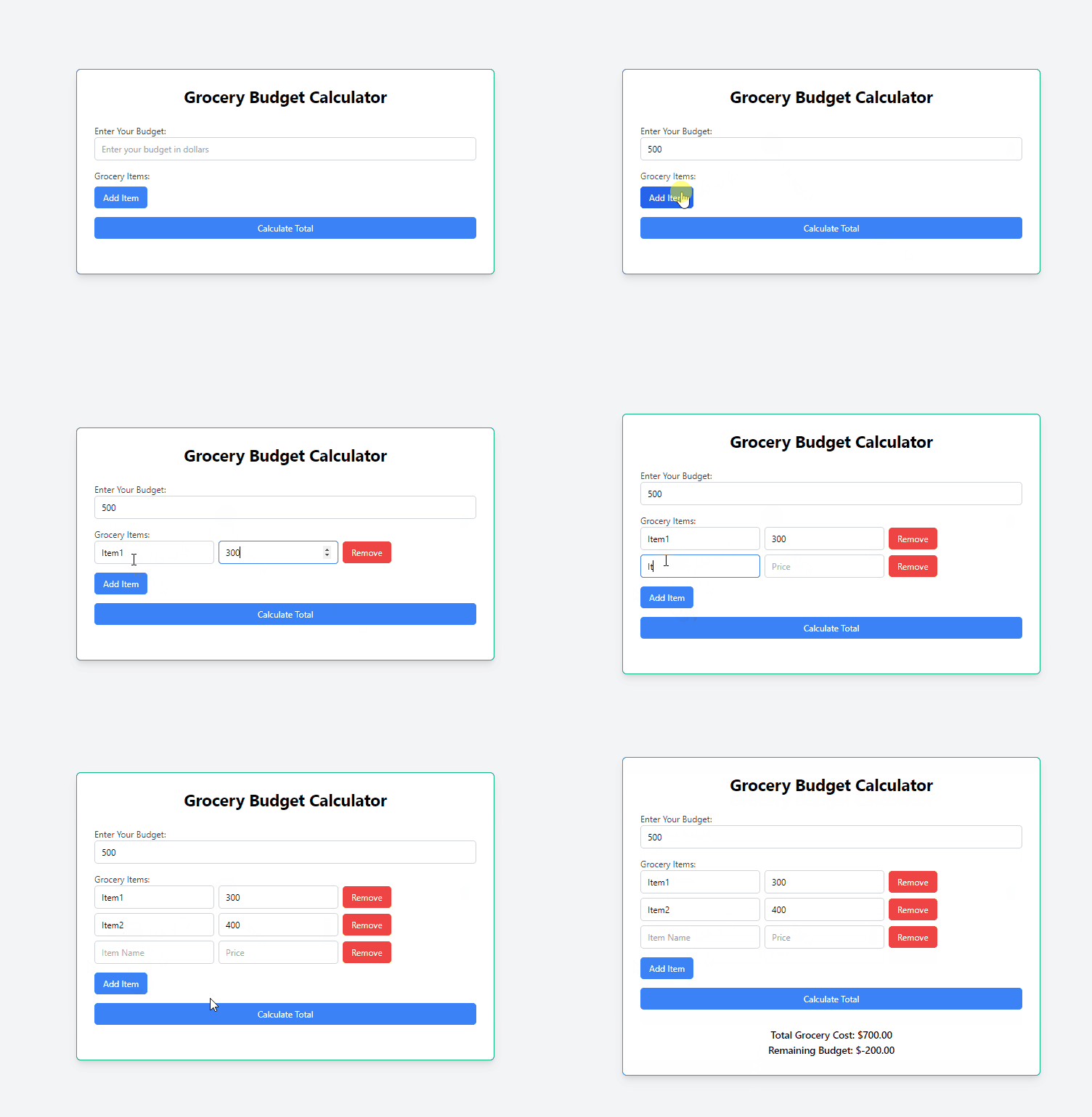
Output
Join the conversation! Your thoughts help the community grow.