

Massage Box
A message box, also known as a dialog or alert box, serves various functions within software applications, each with specific requirements aimed at improving user interaction. Here's an overview of these functions and their associated requirements:
Various types of message boxes
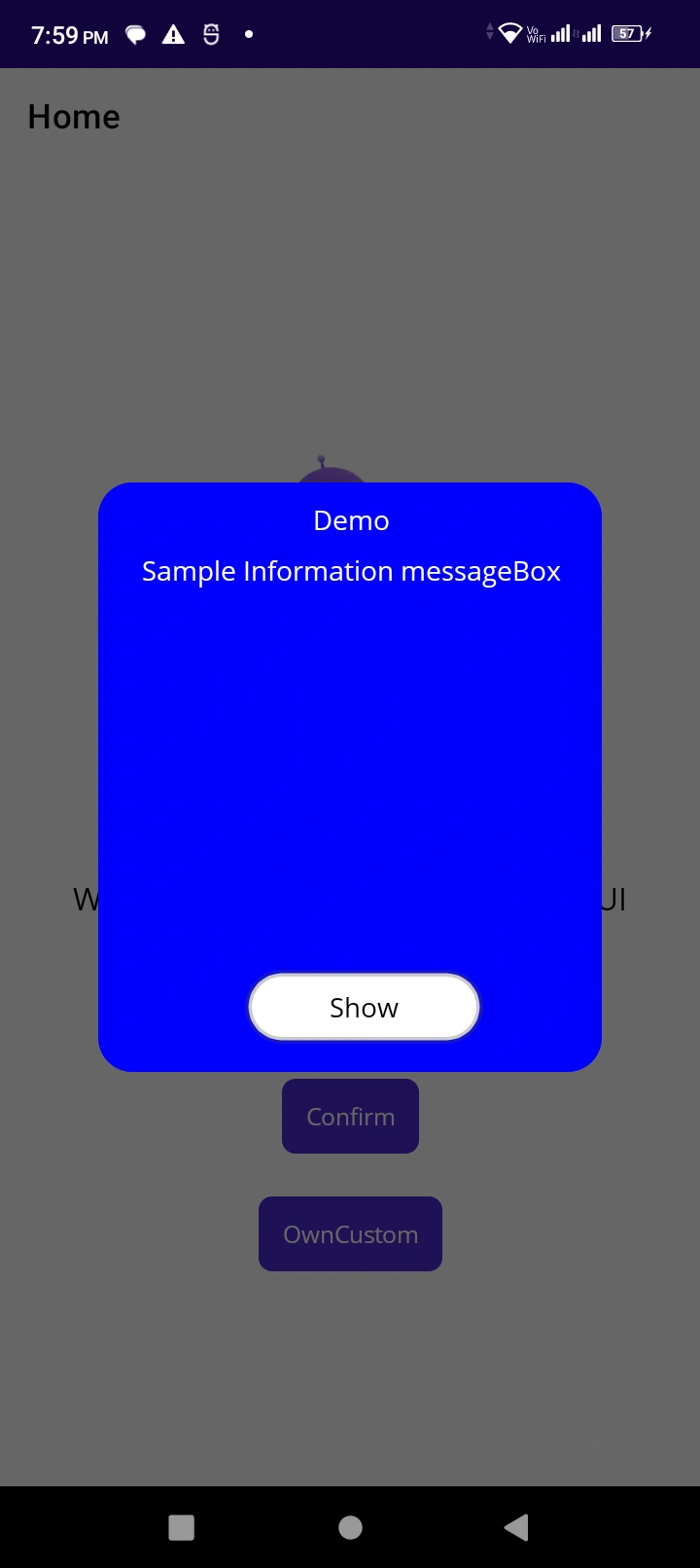
1. Informational Messages
Purpose: To present essential information or notifications to the user.
Importance: Users must be informed about critical events, updates, or changes occurring within the application.
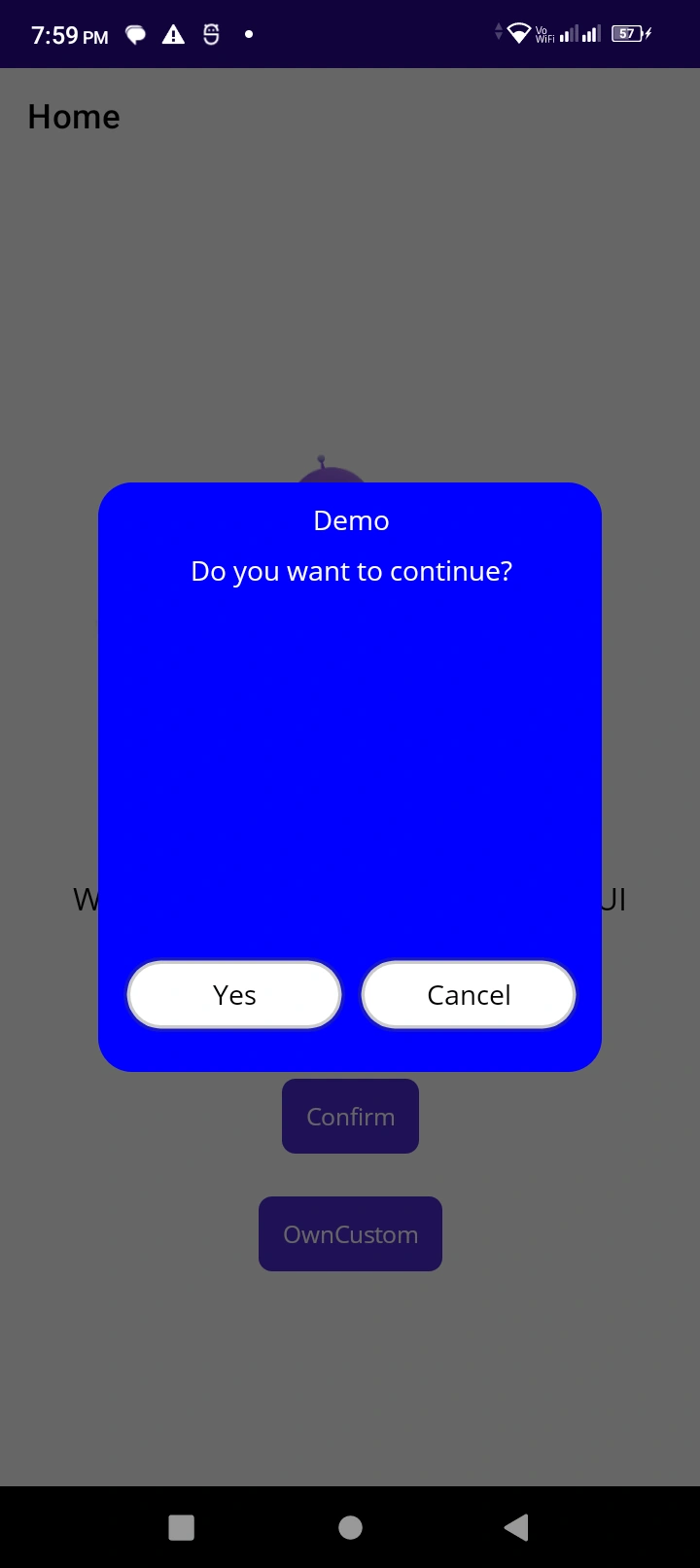
2. Confirmation Dialogs
- Purpose: To confirm user intent before executing critical actions (e.g., deleting a file).
- Importance: Confirming user intent reduces the likelihood of accidental or irreversible actions, ensuring users are aware of the consequences.
In MAUI making a custom message box can be a challenging task. This can effortlessly be accomplished with the assistance of the Nuget bundle of “CustomControls.MAUI.MessageBox”.I am the proprietor of this package which makes a difference for users to make a completely customized message box of over said types. With this bundle, I am giving users distinctive properties that make a difference in setting diverse properties for messageBox.
These properties define the customization options for a message box in an MAUI application.
- CustomMessageBoxTextColor: Specifies the text color inside the message box. In this case, it's set to white.
- CustomMessageBoxHeightRequest: Determines the height of the message box. Here, it's set to 250 units.
- CustomMessageBoxWidthRequest: Specifies the width of the message box. It's set to 330 units in this example.
- CustomMessageBoxBackgroundColor: Defines the background color of the message box. It's set to black (#000000).
- CustomMessageBoxTitlePosition: Determines the position of the title within the message box. Here, it's set to center and expand. However, the user has the option to position the title on the left, center, or right.
- CustomMessageBoxButtonBackgroundColor: Sets the background color of the buttons in the message box. It's set to white (#FFFFFF).
- CustomMessageBoxButtonTextColor: Specifies the text color of the buttons in the message box. In this case, it's set to black (#000000).
These properties allow developers to customize the appearance of message boxes according to their application's design and branding requirements.
Implementation of the customized messageBox
Step 1. The user is required to create an MAUI project using Visual Studio.
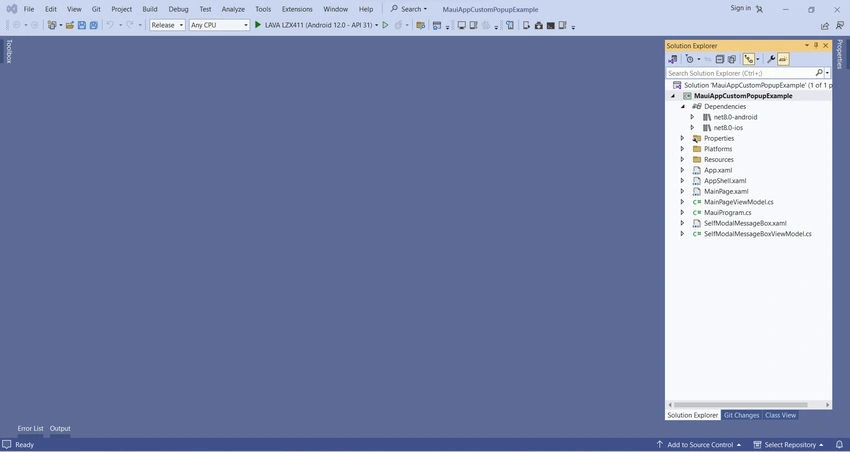
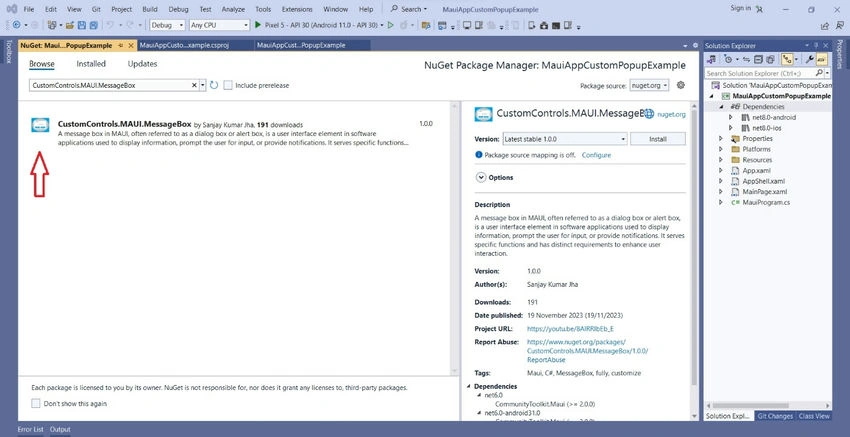
Step 2. Add the NuGet package " CustomControls.MAUI.MessageBox " to your project by following these steps.
Step 3. In MauiProgram, you should include the following line.
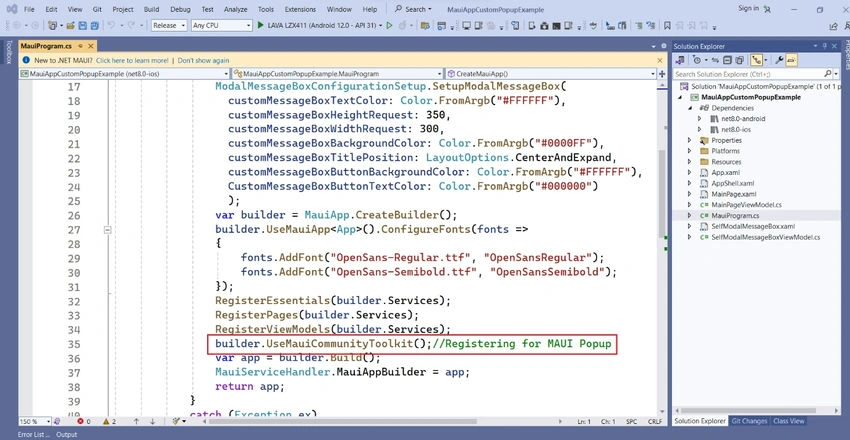
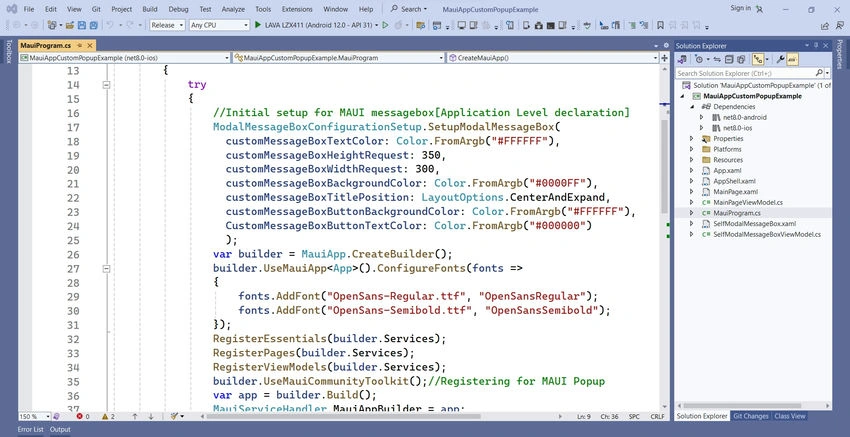
Step 4. To enable Modal Popup functionality, the user needs to register the setup in MauiProgram.cs as shown below
using CommunityToolkit.Maui;
using CustomControls.MAUI.MessageBox.AppPresentations.CommonSource;
using CustomControls.MAUI.MessageBox.AppPresentations.Utilities;
using CustomControls.MAUI.MessageBox;
using Microsoft.Extensions.Logging;

namespace MauiAppCustomPopupExample
{
    public static class MauiProgram
    {
        [Obsolete]
        public static MauiApp CreateMauiApp()
        {
            try
            {
                // Initial setup for MAUI messagebox[Application Level declaration]
                ModalMessageBoxConfigurationSetup.SetupModalMessageBox(
                  customMessageBoxTextColor: Color.FromArgb("#FFFFFF"),
                  customMessageBoxHeightRequest: 350,
                  customMessageBoxWidthRequest: 300,
                  customMessageBoxBackgroundColor: Color.FromArgb("#0000FF"),
                  customMessageBoxTitlePosition: LayoutOptions.CenterAndExpand,
                  customMessageBoxButtonBackgroundColor: Color.FromArgb("#FFFFFF"),
                  CustomMessageBoxButtonTextColor: Color.FromArgb("#000000")
                  );

                var builder = MauiApp.CreateBuilder();
                builder.UseMauiApp<App>().ConfigureFonts(fonts =>
                {
                    fonts.AddFont("OpenSans-Regular.ttf", "OpenSansRegular");
                    fonts.AddFont("OpenSans-Semibold.ttf", "OpenSansSemibold");
                });

                RegisterEssentials(builder.Services);
                RegisterPages(builder.Services);
                RegisterViewModels(builder.Services);

                builder.UseMauiCommunityToolkit(); // Registering for MAUI Popup

                var app = builder.Build();
                MauiServiceHandler.MauiAppBuilder = app;

                return app;
            }
            catch (Exception ex)
            {
                return null;
            }
        }

        static void RegisterPages(in IServiceCollection services)
        {
            services.AddTransient<MainPage>();
        }

        static void RegisterViewModels(in IServiceCollection services)
        {
            services.AddTransient<MainPageViewModel>();
            services.AddTransient<SelfModalMessageBoxViewModel>();
        }

        static void RegisterEssentials(in IServiceCollection services)
        {
            services.AddSingleton<IModalMessageBoxServiceHandler, ModalMessageBoxServiceHandler>();
        }
    }
}
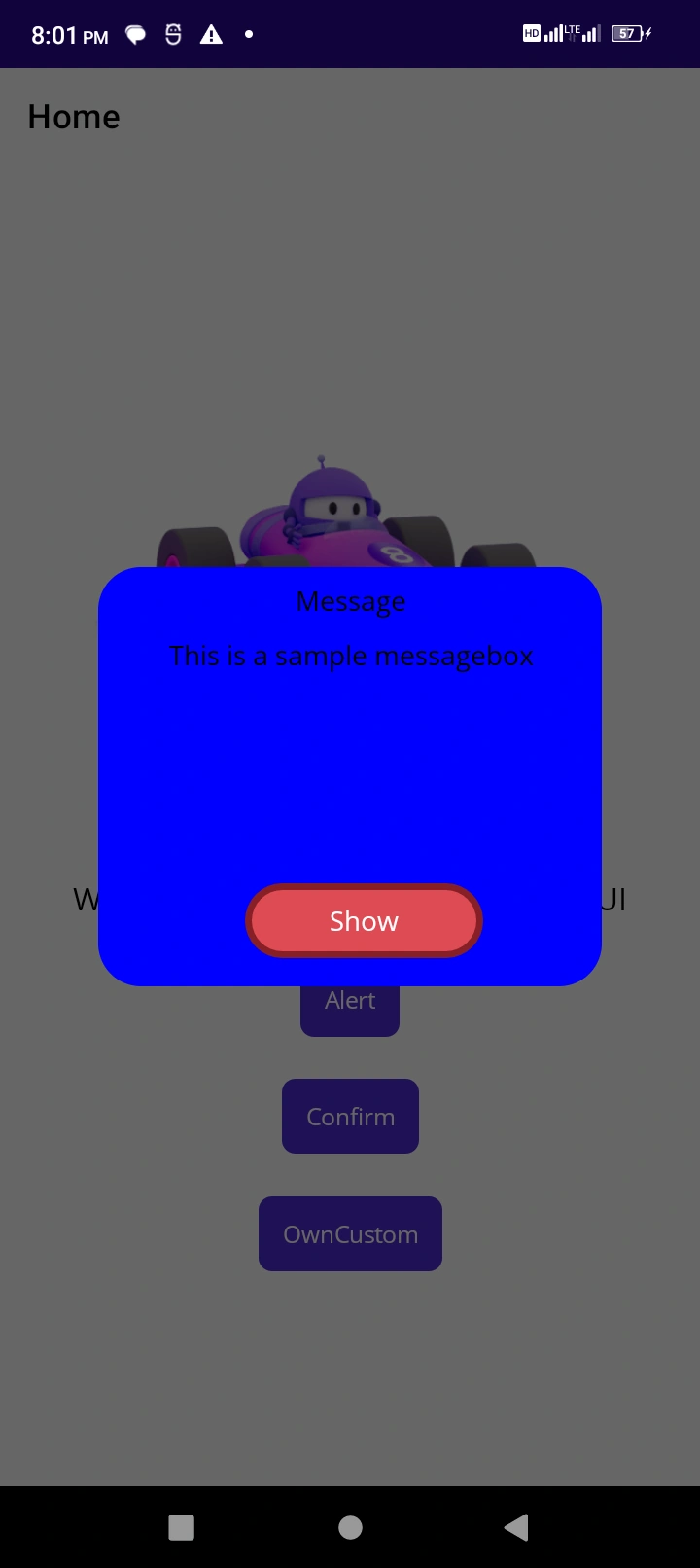
Step 5. Users also have the option to create their own custom message box page, which I've named "SelfModalMessageBox." Through this approach, users can develop their own "Information" and "Confirmation" message boxes. For such custom message boxes, users need to implement their own functionalities for the self-created page.
Join the conversation! Your thoughts help the community grow.