Introduction
In my previous article you learned about Selection Tools, Crop and Slice Tools, Measuring Tools, Retouching Tools, and the Painting Tool. See:
- Selection Tools in Photoshop
- Crop and Slice Tools Photoshop
- Measuring Tools in Photoshop
- Retouching Tools in Photoshop
- Painting Tools in Photoshop
In this article you will learn about Drawing and type tools in Photoshop.
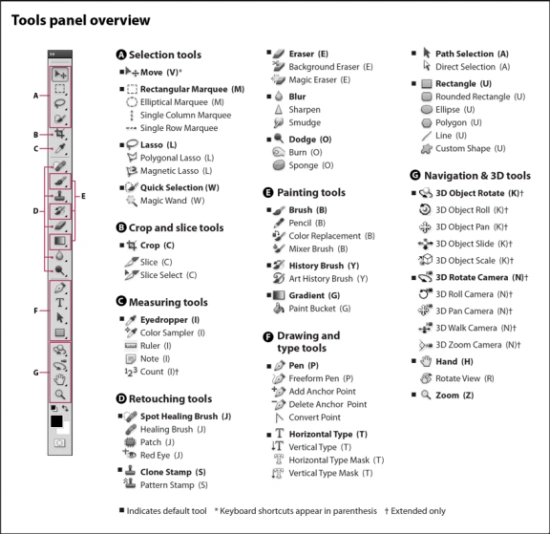
Drawing and Type Tools
1. Pen Tool (P)
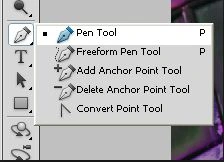
- Pen Tool (P)
- Freeform Pen Tool (P)
- Anchor Point Tool (P)
- Delete Anchor Point Tool (P)
- Convert Point Tool (P)
2. Horizontal Type Tool (T)
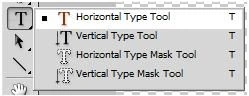
- Horizontal Type Tool (T)
- Vertical Type Tool( T)
- Horizontal Type Mask Tool (T)
- Vertical Type Mask Tool (T)
3. Path selection Tool (A)
- Path selection Tool (A)
- Direct Selection Tool (A)
4. Rectangle Tool (U)
- Rectangle Tool (U)
- rounded Rectangle Tool (U)
- Ellipse Tool (U)
- Polygon Tool (U)
- Line Tool (U)
- Custom Shape Tool (U)
Pen Tool (P)
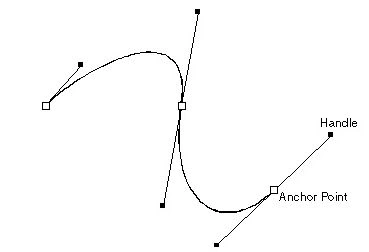
I mentioned this tool above for creating paths, in this we use the Path Selection Tool to select the path and we can use Paths in a few ways, mostly to create clipping paths or to create selections. We use the tool by clicking to add a point. If we will click and drag, it will change the shape of your path, allowing bend and shape the path for accurate selections and such.
Freeform Pen Tool (P)
We can easily draw vector shapes and paths by using a Freeform pen tool since it automatically adds anchor points. The Freeform Pen Tool creates matrix shapes as well as paths (shape outlines) in just the same manner as if we are making a sketch with the pencil upon paper. The tool automatically adds anchor points while drawing.
Anchor Point Tool (P)
The Add Anchor Tool adds a point in the path. You can simply click anywhere along the path to attach a new point.
Delete Anchor Point Tool (P)
You can use the Delete Anchor Point Tool to delete anchors and it can also be used to reshape the existing vector shapes / paths (shape outlines).
Convert Point Tool (P)
Convert Point tool is a part of the Pen Tool. The Convert Tool allows us to see the jumble of lines and points of the path that we have created by the other pen tools, and we can adjust a point of the path also.
Horizontal Type Tool (T)
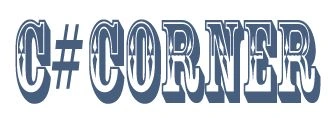
Through this tool we can write text in Photoshop when you click a single point, it is put in a separate layer and a bounding box. You can drag the bounding box to increase the text size and click on the move tool to move the text around.
Vertical Type Tool (T)
This tool is denoted by this type " "
"
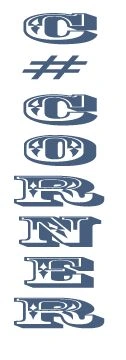
- In the Toolbox, select the Vertical Type Tool.
- On the Options bar, set the font size font family and color.
- Click on your image and type.
- Your typing style will be vertical.
Horizontal Type Mask Tool (T)
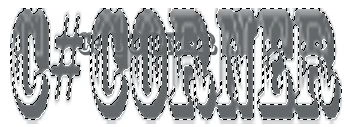
The Horizontal Type Mask Tool creates type-shaped selections.
- Select the Horizontal Type Mask Tool which is denoted by this type

- On the Options bar, set the font size font family and color
- Click on your image and type.
- Your typing style will be horizontal with shape
- Select any other tool to return to standard editing mode.
Vertical Type Mask Tool (T)
This tool is denoted by this type: 
- Select the Vertical Type Mask that is under the pen tool.
- On the Options bar, set the font size font family and color.
- Click on your image and type.
- Your typing style will be vertical with shape.
Path Selection Tool (A)
The path selection tools make shape or segment selections showing anchor points, direction lines, and direction points.
Direct Selection Tool (A)
Select the Direct Selection tool and click on the Fill of the object to select the entire object., press the "v" key on your keyboard to switch to the Selection tool and click to select the entire object.
Rectangle Tool (U)
When you click the Rectangle Tool and drag in a new document then by default a new layer is created and the color is whatever foreground color you have selected.
Custom Shape (U)
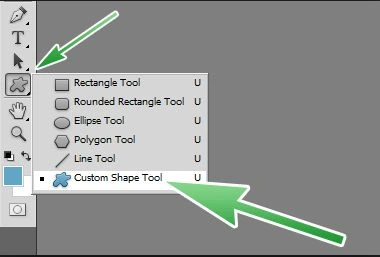
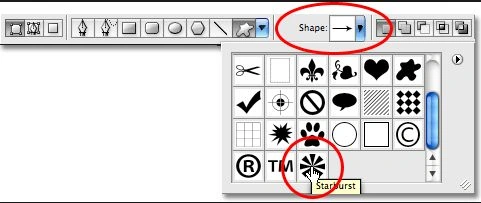
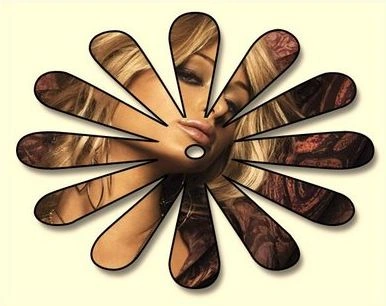
First, select the Custom Shape tool, then select the shape in the Option Bar. Many types of shape icons are available in shape. Select the Shape Icon and drag in the new document, you can write text according to the shape icon. When you click a shape, a new layer is automatically created and the text also can be removed/adjusted in your new document.


Santhakumar MunuswamyPosted Jul 8, 2015, 3:42 PM
Thanks for sharing