

What can you do?
- Change folder colors automatically
- Create new folders with color already applied
- Rename and recolor folders in one go
How does it work?
Power Automate uses API requests to control SharePoint behind the scenes. You’ll create a flow that,
- Sends a request to SharePoint with the color you want (like blue or green).
- Let you create or rename folders too, all in one click.
What You’ll Need,
- SharePoint site URL
- Folder name and desired color (use a HEX code like #006400 for dark green)
- API permissions (ask your IT if unsure)
How to Do It?
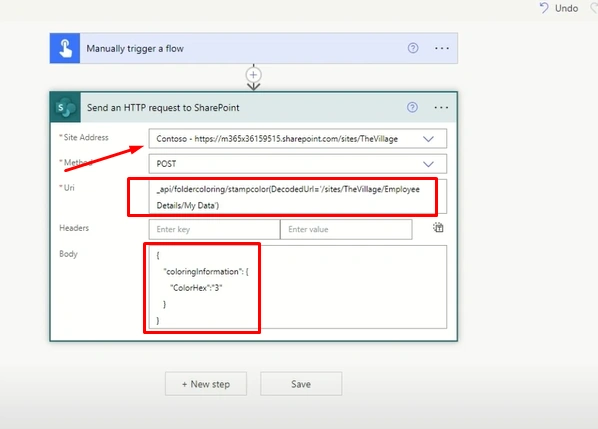
- Open Power Automate and create an Instant Cloud Flow.
- Add "Send an HTTP request to SharePoint" action.
- Fill in your site, method (POST), and the API URL for color or folder creation.
- Add the folder name and color code in the body.
- Save and run the flow to see changes live in SharePoint.
Pro Tips
- Test your flows before using them widely.
- Stick to color codes that match your company’s style.
- Use automation to save time on repetitive folder tasks.
Different Examples
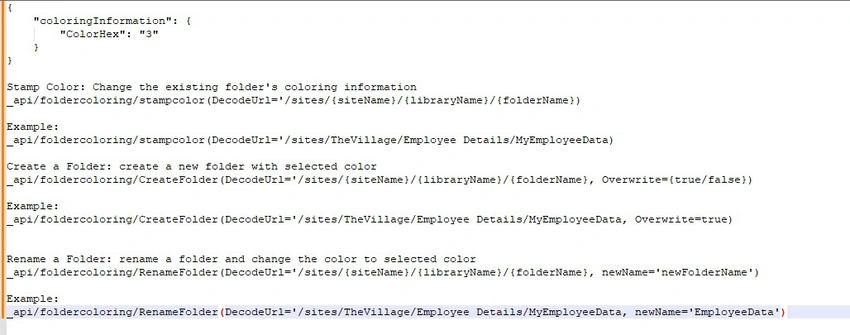
{
    "coloringInformation": {
        "ColorHex": "3"
    }
}

Stamp Color: Change the existing folder's coloring information
_api/foldercoloring/stampcolor(DecodeUrl='/sites/{siteName}/{libraryName}/{folderName})

Example:
_api/foldercoloring/stampcolor(DecodeUrl='/sites/TheVillage/Employee Details/MyEmployeeData)

Create a Folder: create a new folder with selected color
_api/foldercoloring/CreateFolder(DecodeUrl='/sites/{siteName}/{libraryName}/{folderName}, Overwrite={true/false})

Example:
_api/foldercoloring/CreateFolder(DecodeUrl='/sites/TheVillage/Employee Details/MyEmployeeData, Overwrite=true)

Rename a Folder: rename a folder and change the color to selected color
_api/foldercoloring/RenameFolder(DecodeUrl='/sites/{siteName}/{libraryName}/{folderName}, newName='newFolderName')

Example:
_api/foldercoloring/RenameFolder(DecodeUrl='/sites/TheVillage/Employee Details/MyEmployeeData, newName='EmployeeData')
In Short. Power Automate lets you color-code and create folders in SharePoint easily—something you can’t do quickly through Teams or SharePoint alone. Set it up once, and enjoy a cleaner, more colorful workspace.
Join the conversation! Your thoughts help the community grow.