

In software applications, sometimes a user needs to export or import the data in Excel format in order to perform several operations. In this article, we will learn how to export and import an Excel file with the ClosedXML package in ASP.NET MVC. ClosedXML is a .NET Library for writing and manipulating the Excel 2007+ files. It’s available free on GitHub to use for the commercial project. For more details, click here to view the license on GitHub.

Import or Read Excel File
Let’s begin!
Create a new empty ASP.NET MVC web project in Visual Studio and install the ClosedXML library from NuGet Package Manager.
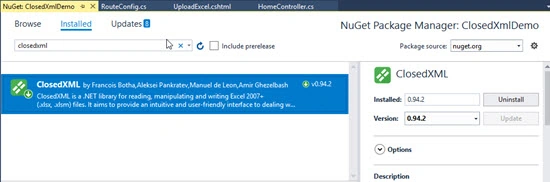
After that, add an Empty Controller, i.e., HomeController in the project. Add the below code in the Controller.
public ActionResult UploadExcel()
{
    return View();
}
[HttpPost]
public ActionResult UploadExcel(HttpPostedFileBase file)
{
    DataTable dt = new DataTable();
    // Checking file content length and Extension must be .xlsx
    if (file != null && file.ContentLength > 0 && System.IO.Path.GetExtension(file.FileName).ToLower() == ".xlsx")
    {
        string path = Path.Combine(Server.MapPath("~/UploadFile"), Path.GetFileName(file.FileName));
        // Saving the file
        file.SaveAs(path);
        // Started reading the Excel file.
        using (XLWorkbook workbook = new XLWorkbook(path))
        {
            IXLWorksheet worksheet = workbook.Worksheet(1);
            bool FirstRow = true;
            // Range for reading the cells based on the last cell used.
            string readRange = "1:1";
            foreach (IXLRow row in worksheet.RowsUsed())
            {
                // If Reading the First Row (used) then add them as column name
                if (FirstRow)
                {
                    // Checking the Last cell used for column generation in datatable
                    readRange = string.Format("{0}:{1}", 1, row.LastCellUsed().Address.ColumnNumber);
                    foreach (IXLCell cell in row.Cells(readRange))
                    {
                        dt.Columns.Add(cell.Value.ToString());
                    }
                    FirstRow = false;
                }
                else
                {
                    // Adding a Row in datatable
                    dt.Rows.Add();
                    int cellIndex = 0;
                    // Updating the values of datatable
                    foreach (IXLCell cell in row.Cells(readRange))
                    {
                        dt.Rows[dt.Rows.Count - 1][cellIndex] = cell.Value.ToString();
                        cellIndex++;
                    }
                }
            }
            // If no data in Excel file
            if (FirstRow)
            {
                ViewBag.Message = "Empty Excel File!";
            }
        }
    }
    else
    {
        // If file extension of the uploaded file is different then .xlsx
        ViewBag.Message = "Please select file with .xlsx extension!";
    }
    return View(dt);
}
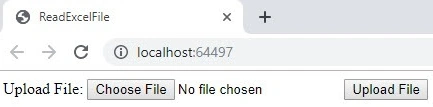

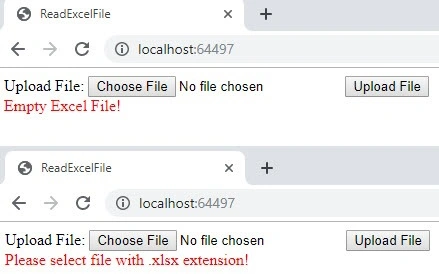
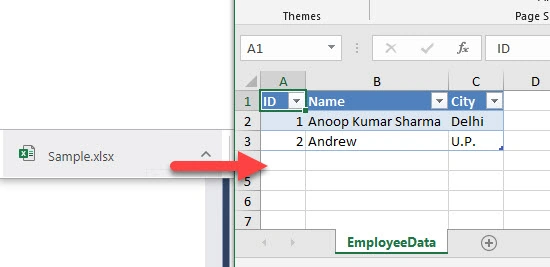
The GET action of "Upload Excel Action" will return a View as shown in the below image. And, in the POST action method, we are checking the file, its content length, and its extension. We will show a message to the user if an incorrect file is uploaded with the help of ViewBag. In UploadExcel.cshtml View, we have added a file control with a Submit button so that we can post that file. For demonstration, we are reading the Excel file and writing its data in the DataTable (You can bind that with a list or model whatever fits with your project or as per your project requirement) and returning the DataTable to the View directly in order to show the content of the Excel document.
Kory TurnerPosted Aug 11, 2021, 7:51 PM
I found that if the last field in the xlsx doesn't have a field name in the header record, it drops the entire field/column. To fix this, I replaced "row.LastCellUsed().Address.ColumnNumber" with "worksheet.ColumnsUsed().Last().ColumnNumber()"
Clyde ScissorPosted Apr 23, 2021, 12:02 AM
Excel file has formula and closedxml doesn't recognize the file anymore.
sankeerth mPosted Feb 28, 2020, 12:24 PM
Return File(stream.ToArray(), getting error return File
sankeerth mPosted Feb 28, 2020, 12:22 PM
What is the namespace have used for return file namespace