

There is often a need in a project's reporting module to export a GridView to Access. So by considering that requirement I decided to write this article especially focusing on beginners and those who want to learn how to export a GridView to Access Using ASP.NET C# and using the itextsharp DLL.
Prerequisites
- To export the Grid view, we need to use a reference of itextsharp.dll.
- Download the itextsharp.dll from the internet.
The itextsharp.dll is the free DLL available for download that provides some methods to export a Grid view into an Access file. After adding the reference, use the following reference of itextsharp.dll:
- using iTextSharp.text;
- using iTextSharp.text.pdf;
- using iTextSharp.text.html.simpleparser;
Now before creating the application, let us create a table named employee in a database from where we show the records in a Grid view, the table has the following fields (shown in the following image):
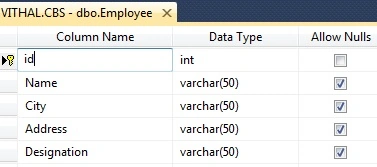
I hope you have created the same type of table.
Now create the project as:
- "Start" - "All Programs" - "Microsoft Visual Studio 2010".
- "File" - "New Project" - "C#" - "Empty Project" (to avoid adding a master page).
- Provide the Project name such as ExportGridToAccess or another as you wish and specify the location.
- Then right-click on Solution Explorer - "Add New Item" - Default.aspx page.
- One Button, one label, and a gridview.
Now let us create a function to bind the records to the Grid view from the database. If you are a beginner and don't know in detail how to bind a Grid view from a database then refer to my following article.
Now, for this article create the following function in the default.aspx.cs page to bind the Grid view:
- private void Bindgrid()
- {
- connection();
- query = "select *from Employee";//not recommended this i have written just for example,write stored procedure for security
- com = new SqlCommand(query, con);
- SqlDataReader dr = com.ExecuteReader();
- GridView1.DataSource = dr;
- GridView1.DataBind();
- con.Close();
- }
Now, call the above function on page load as:
- protected void Page_Load(object sender, EventArgs e)
- {
- if (!IsPostBack)
- {
- Bindgrid();
- }
- }

We now have records to export into Access. Let us start coding for our actual requirements. Add the VerifyRenderingInServerForm event after the page load that is required when exporting a Grid view to Excel, Word and PDF to avoid the run time error "GridView' must be placed inside a form tag with runat=server."
- public override void VerifyRenderingInServerForm(Control control)
- {
- //required to avoid the runtime error "
- //Control 'GridView1' of type 'GridView' must be placed inside a form tag with runat=server."
- }
Now before creating the function to Export the grid view to Access add the reference of itextsharp.dll by right-clicking the Solution Explorer. After adding the reference the Solution Explorer will look as in the following:
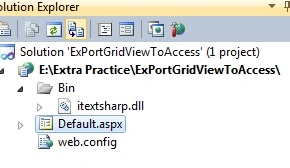
Now create the following function to export the Grid view to Access:
- private void ExportGridToAccess()
- {
- Response.ContentType = "application/ms-access";
- Response.AddHeader("content-disposition", "attachment; filename=Vithal_Wadje.mdb");
- Response.Cache.SetCacheability(HttpCacheability.NoCache);
- StringWriter sw = new StringWriter();
- HtmlTextWriter hw = new HtmlTextWriter(sw);
- GridView1.RenderControl(hw);
- StringReader sr = new StringReader(sw.ToString());
- Document AccessDoc = new Document(PageSize.A4, 10f, 10f, 10f, 0f);
- HTMLWorker htmlparser = new HTMLWorker(AccessDoc);
- PdfWriter.GetInstance(AccessDoc, Response.OutputStream);
- AccessDoc.Open();
- htmlparser.Parse(sr);
- AccessDoc.Close();
- Response.Write(AccessDoc);
- Response.End();
- GridView1.AllowPaging = true;
- GridView1.DataBind();
- }
Puneet KankarPosted Feb 22, 2017, 5:01 AM
When open mdb file its shown an error Unrecognised database formate.
Vithal WadjePosted Feb 5, 2016, 3:19 PM
Shubham sir , I have not tried but try to use same code in WPF
Shubham KumarPosted Feb 5, 2016, 4:44 AM
nice sir plzz share code for export datagridview in msasccess in wpf
viv vermaPosted Feb 5, 2016, 4:08 AM
when open file its shown an error msg like this... Unrecognised database formate.
viv vermaPosted Feb 5, 2016, 4:07 AM
actually Data are not shown, and also generated .mdb file are not open.
Vithal WadjePosted Feb 4, 2016, 9:42 AM
Viv verma Bhai. this code is fine . fix your code things . and take this only as guidance not your final solution
viv vermaPosted Feb 4, 2016, 7:18 AM
Pls share the .. resolve code
viv vermaPosted Feb 4, 2016, 7:17 AM
Unrecognised database formate..( problem to open .mdb file )
viv vermaPosted Feb 4, 2016, 7:16 AM
rt
Vithal WadjePosted Aug 24, 2015, 1:13 PM
yes sure,Thanks for your input
Saqib SultanPosted Aug 24, 2015, 10:02 AM
Sir can you please also share the code for datagridview to access in window form application
Vithal WadjePosted Apr 2, 2015, 2:13 PM
Thanks
Krishna Rajput SinghPosted Nov 11, 2014, 2:58 PM
u wlcme
Vithal WadjePosted Nov 10, 2014, 9:54 PM
sure Jaganathan Bantheswaran sir,i will change
Vithal WadjePosted Nov 10, 2014, 9:53 PM
thanks Krishna Rajput sir
Jaganathan BantheswaranPosted Nov 10, 2014, 9:38 PM
Nice one. The 'Access' word in the title is confusing if read the title first. Access could be 'MIcrosoft Access'.
Krishna Rajput SinghPosted Nov 10, 2014, 5:53 PM
nice article sir