
Introduction: A FaultHandlerActivity is same as Catch statement in C#. The FaultHandlerActivity has a FaultType property. This property represents the type of exception we want to catch. If we set the FaultType property to the System.Exception type, we will handle all CLS-compliant exceptions. When an exception is raised within a workflow and if the exceptions is not handled, workflow terminates. When an exception is occurred workflow check for any FaultHandlers form level to level of the workflow. Levels can be defined as several sequential workflows etc. If any level has handled the exception with the FaultHander workflow use that exception handler. otherwise goes for the termination of the workflow. The FaultHandlerActivity can be used globally or it can be used for particular sequential workflow. We can use many FaultHandlerActivities in the workflow and we should specify the exception that is going to handle.
Step 1 : Open Visual Studio 2010.
- Go to File->New->Project.
- Select Sequential Workflow Console Application.

When we click the OK option the following
design window opens.
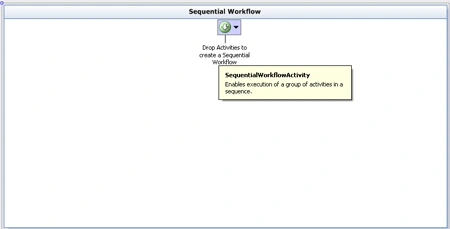
Step 2 : Now we go to Toolbox and drag activity.
- Drag CodeActivity.

Step 3 : Now double-click in CodeActivity and write the below code.
Code :
private
void codeActivity1_ExecuteCode(object
sender, EventArgs e)
{
int i = 25;
int ee = 5;
int result = (i / ee);
}
Step 4 : To handle the
exception we have to set the fault handlers. We can view the fault handlers by
click in on the context menu in the sequential workflow.

Step 5 : We can select View Fault Handler and drag FaultHandlerActivity from
Toolbox.

Step 6 : We can set the type of the exception that the FaultHandlingActivity should handle. We can set it by the properties of the FaultHandlingActivity.
- Right-click in FaulHandlerActivity.
- Select Properties option.
- Define FaultType.
FaultType :

Step 7 : Now again drag CodeActivity below the FaultHandlerActivity from Toolbox. Here in the codeActivity2 I have handled the exception by writing the exception message to the console.

Step 8 : Double-click in CodeActivity and write the below code.

Join the conversation! Your thoughts help the community grow.