

FilePicker represents a control that allows a user to pick a file.
Step 1: Create a Blank Windows 10 Universal App (C#) and enter App Name.
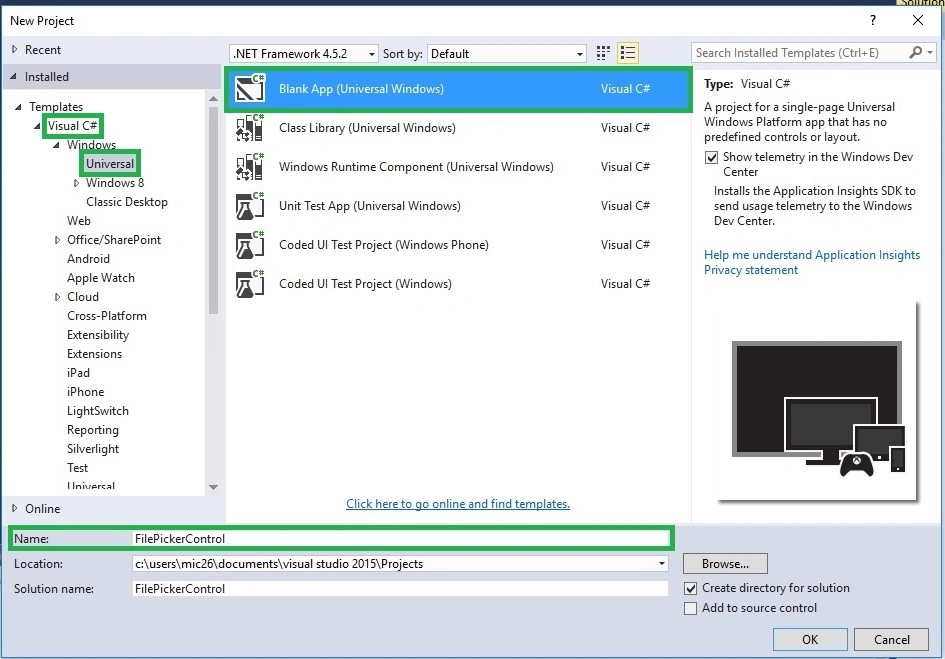
Step 2:
Next add one Button and two Textblock controls for displaying information from the toolbox then change the button name to SelectAPicture and TextBlock2 Name: OutputTextBlock.
Next add one Button and two Textblock controls for displaying information from the toolbox then change the button name to SelectAPicture and TextBlock2 Name: OutputTextBlock.

Step 3: Add the following namespace.
- using System.Threading.Tasks;
- using Windows.Storage.Pickers;
- using Windows.Storage;
Copy and paste the following code to the SelectAPicture Button event in the cs page.
- private async void SelectAPicture _Click(object sender, RoutedEventArgs e)
- {
- FileOpenPicker openPicker = new FileOpenPicker();
- openPicker.ViewMode = PickerViewMode.Thumbnail;
- openPicker.SuggestedStartLocation = PickerLocationId.PicturesLibrary;
- openPicker.FileTypeFilter.Add(".jpg");
- openPicker.FileTypeFilter.Add(".jpeg");
- openPicker.FileTypeFilter.Add(".png");
- StorageFile file = await openPicker.PickSingleFileAsync();
- if (file != null)
- {
- OutputTextBlock.Text = "Selected Photo:" + file.Name;
- }
- else
- {
- OutputTextBlock.Text = "Operation cancelled.";
- }
- }

Read more articles on Window 10:
Manimekalai GanesanPosted May 17, 2016, 4:54 AM
Nice one sir
Bhuvanesh MohankumarPosted May 4, 2016, 1:53 AM
Good one
Gowtham RajamanickamPosted Apr 20, 2016, 8:38 AM
great
Asfend YarPosted Feb 21, 2016, 12:47 PM
and great effort
Asfend YarPosted Feb 21, 2016, 12:47 PM
good
Asfend YarPosted Feb 21, 2016, 12:47 PM
nice
Keval LangaliaPosted Feb 17, 2016, 7:38 AM
What about the PickSingleFileAndContinue() method..? which one is better to use.. thanks and nice share by the way.
Asfend YarPosted Feb 13, 2016, 12:09 PM
great
Ankit BansalPosted Feb 13, 2016, 4:32 AM
Good example but it can be extended with more features..but still nice..
Santhakumar MunuswamyPosted Feb 13, 2016, 2:43 AM
Thanks for nice share
Nigel FernandesPosted Feb 13, 2016, 2:24 AM
Interesting
Dr.Venkatesan BalakrishnanPosted Feb 12, 2016, 10:44 PM
good one
Gowtham KPosted Feb 12, 2016, 10:53 AM
Good One, Thanks for sharing:)
Shubham KumarPosted Feb 12, 2016, 12:40 AM
nice keep share
Sibeesh VenuPosted Feb 12, 2016, 12:35 AM
Nice Share
Amit Kumar SinghPosted Feb 12, 2016, 12:14 AM
Nice one Sir
Ammar ShaukatPosted Feb 11, 2016, 9:39 PM
Good
Vignesh ManiPosted Feb 11, 2016, 4:43 PM
Nice One Sir
Kuppurasu NagarajPosted Feb 11, 2016, 1:15 PM
thank you
Mohammed IbrahimPosted Feb 11, 2016, 1:12 PM
nice