

I am writing this article because I got a request from one of my users and friends. He stuck in this business requirement and asked me to write something about this. So I will show this functionality in 2 ways. Here in this part I will show this using ASP.NET C# and SQL Server and in the next part I will show it using jQuery.
Figure 1 shows my Data Table in design mode from which I will show this requirement.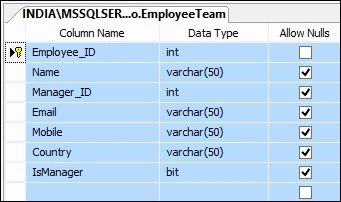
Figure 1
Script of My Table
- CREATE TABLE [dbo].[EmployeeTeam](
- [Employee_ID] [int] IDENTITY(1,1) NOT NULL,
- [Name] [varchar](50) NULL,
- [Manager_ID] [int] NULL,
- [Email] [varchar](50) NULL,
- [Mobile] [varchar](50) NULL,
- [Country] [varchar](50) NULL,
- [IsManager] [bit] NULL,
- CONSTRAINT [PK_EmployeeTeam] PRIMARY KEY CLUSTERED
- (
- [Employee_ID] ASC
- )WITH (PAD_INDEX = OFF, STATISTICS_NORECOMPUTE = OFF, IGNORE_DUP_KEY = OFF, ALLOW_ROW_LOCKS = ON, ALLOW_PAGE_LOCKS = ON) ON [PRIMARY]
- ) ON [PRIMARY]
- GO
- SET ANSI_PADDING OFF
- GO
Figure 2 shows the data in the table.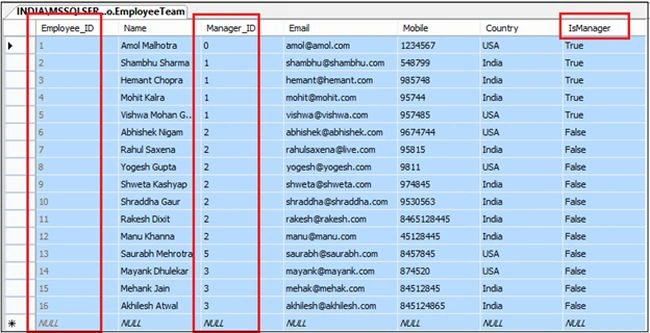
Figure 2.
Here In this you can see I have employee records with Manager Id. So in DropDown I will see only Manager and on selecting a Manager from the DropDown I will show the team information in the GridView:
The following is my aspx:
- <%@ Page Language="C#" AutoEventWireup="true" CodeBehind="Default.aspx.cs" Inherits="DropDownGridView.Default" %>
- <!DOCTYPE html>
- <html xmlns="http://www.w3.org/1999/xhtml">
- <head runat="server">
- <title>Fill Grid View On Selecting Record From Drop Down</title>
- </head>
- <body>
- <form id="form1" runat="server">
- <table style="width: 100%; text-align: center; border: solid 5px red; background-color: yellow; vertical-align: top;">
- <tr>
- <td>
- <div>
- <fieldset style="width: 99%;">
- <legend style="font-size: 20pt; color: red; font-family: Verdana">Fill Grid View On Selecting Record From Drop Down</legend>
- <table style="padding: 20px; background-color: skyblue; width: 100%; text-align: center;">
- <tr style="background-color: orange; height: 40px;">
- <td style="width: 25%; text-align: left; padding-left: 20px; font-family: Verdana">Select Manager: </td>
- <td style="text-align: left;">
- <asp:DropDownList ID="ddlManager" runat="server" AutoPostBack="True"
- OnSelectedIndexChanged="ddlManager_SelectedIndexChanged" Height="18px"
- Width="200px" CausesValidation="True">
- </asp:DropDownList><br />
- </td>
- </tr>
- <tr>
- <td></td>
- </tr>
- <tr>
- <td colspan="2">
- <asp:GridView ID="GridViewEmployee" runat="server" AutoGenerateColumns="False" Width="100%"
- BackColor="White" BorderColor="#336666" BorderStyle="Double" BorderWidth="3px" Font-Names="verdana"
- CellPadding="4" GridLines="Horizontal" EmptyDataText="There is no Employee.">
- <Columns>
- <asp:BoundField HeaderText="Emp Id" DataField="Employee_Id" ItemStyle-HorizontalAlign="Left" HeaderStyle-HorizontalAlign="Left" />
- <asp:BoundField HeaderText="Emp Name" DataField="Name" ItemStyle-HorizontalAlign="Left" HeaderStyle-HorizontalAlign="Left" />
- <asp:BoundField HeaderText="Email" DataField="Email" ItemStyle-HorizontalAlign="Left" HeaderStyle-HorizontalAlign="Left" />
- <asp:BoundField HeaderText="Mobile" DataField="Mobile" ItemStyle-HorizontalAlign="Left" HeaderStyle-HorizontalAlign="Left" />
- <asp:BoundField HeaderText="Country" DataField="Country" ItemStyle-HorizontalAlign="Left" HeaderStyle-HorizontalAlign="Left" />
- </Columns>
- <FooterStyle BackColor="White" ForeColor="#333333" />
- <HeaderStyle BackColor="#336666" Font-Bold="True" ForeColor="White" />
- <PagerStyle BackColor="#336666" ForeColor="White" HorizontalAlign="Center" />
- <RowStyle BackColor="White" ForeColor="#333333" />
- <SelectedRowStyle BackColor="#339966" Font-Bold="True" ForeColor="White" />
- <SortedAscendingCellStyle BackColor="#F7F7F7" />
- <SortedAscendingHeaderStyle BackColor="#487575" />
- <SortedDescendingCellStyle BackColor="#E5E5E5" />
- <SortedDescendingHeaderStyle BackColor="#275353" />
- </asp:GridView>
- </td>
- </tr>
- <tr>
- <td colspan="2"></td>
- </tr>
- </table>
- </fieldset>
- </div>
- </td>
- </tr>
- </table>
- </form>
- </body>
- </html>
Now my aspx.cs code is:
- using System;
- using System.Collections.Generic;
- using System.Configuration;
- using System.Data;
- using System.Data.SqlClient;
- using System.Linq;
- using System.Web;
- using System.Web.UI;
- using System.Web.UI.WebControls;
- namespace DropDownGridView
- {
- public partial class Default : System.Web.UI.Page
- {
- SqlConnection con = new SqlConnection(ConfigurationManager.ConnectionStrings["EMPCON"].ConnectionString);
- protected void Page_Load(object sender, EventArgs e)
- {
- if (!Page.IsPostBack)
- {
- BindAllManagerDropDown();
- }
- }
- protected void BindAllManagerDropDown()
- {
- SqlCommand cmd = new SqlCommand();
- SqlDataAdapter da = new SqlDataAdapter();
- DataTable dt = new DataTable();
- try
- {
- cmd = new SqlCommand("Select * from EmployeeTeam WHERE IsManager=1", con);
- da.SelectCommand = cmd;
- da.Fill(dt);
- ddlManager.DataSource = dt;
- ddlManager.DataTextField = "Name";
- ddlManager.DataValueField = "Employee_Id";
- ddlManager.DataBind();
- ddlManager.Items.Insert(0, "-- Select Manager --");
- }
- catch (Exception ex)
- {
- }
- finally
- {
- cmd.Dispose();
- da.Dispose();
- dt.Clear();
- dt.Dispose();
- }
- }
- protected void ddlManager_SelectedIndexChanged(object sender, EventArgs e)
- {
- try
- {
- int managerID = Convert.ToInt32(ddlManager.SelectedValue);
- BindManagerEMPLOYEE(managerID);
- }
- catch (Exception ex)
- {
- }
- }
- private void BindManagerEMPLOYEE(int managerID)
- {
- DataTable dt = new DataTable();
- SqlDataAdapter adp = new SqlDataAdapter();
- try
- {
- SqlCommand cmd = new SqlCommand("select * from EmployeeTeam where Manager_ID=" + managerID + " ", con);
- adp.SelectCommand = cmd;
- adp.Fill(dt);
- if (dt.Rows.Count > 0)
- {
- GridViewEmployee.DataSource = dt;
- GridViewEmployee.DataBind();
- }
- else
- {
- GridViewEmployee.DataSource = null;
- GridViewEmployee.DataBind();
- }
- }
- catch (Exception ex)
- {
- }
- finally
- {
- dt.Clear();
- dt.Dispose();
- adp.Dispose();
- }
- }
- }
- }
The following is the the connection string in the Web.config file:
- <connectionStrings>
- <add name="EMPCON" connectionString="Data Source=INDIA\MSSQLServer2k8;Initial Catalog=TestDB;Integrated Security=True"/>
- </connectionStrings>

Figure 3
Figures 4 - 9 show the resutls from executing the application.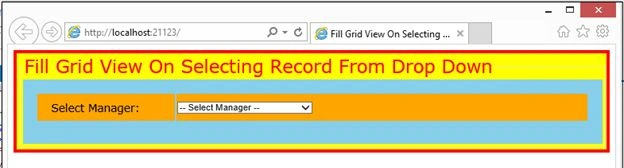
Figure 4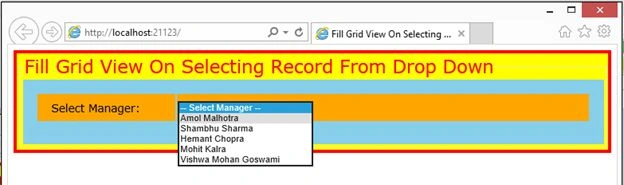
Figure 5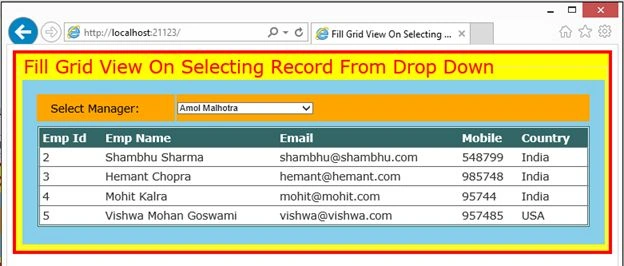
Figure 6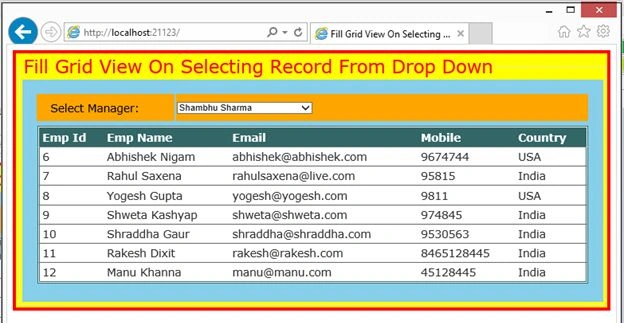
Figure 7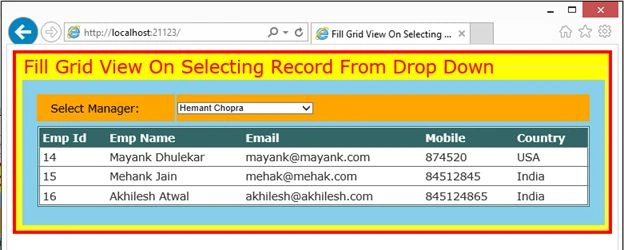
Figure 8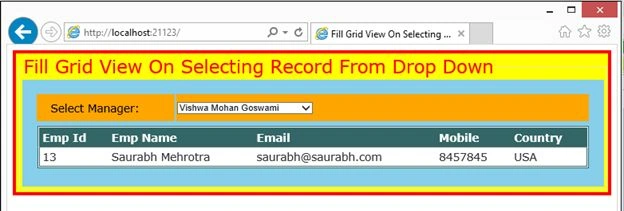
Figure 9
In the next article I will show this functionality using jQuery.
Rahul Kumar SaxenaPosted Oct 26, 2015, 6:51 AM
Thanks Rahul Bisaria
Rahul Kumar SaxenaPosted Oct 26, 2015, 6:51 AM
Thanks Shridhar Sharma
Shridhar SharmaPosted Oct 24, 2015, 12:32 AM
Congratulations for article of the day.
Rahul BisariaPosted Aug 6, 2015, 6:53 AM
Useful Articles... Thanks for writing... Happy writing... :)
Rahul Kumar SaxenaPosted Jun 10, 2015, 2:32 AM
Thanks Ankit Bansal
Rahul Kumar SaxenaPosted Jun 10, 2015, 2:32 AM
thanks Santhakumar Munuswamy
Rahul Kumar SaxenaPosted Jun 10, 2015, 2:31 AM
Thanks Kailash Chandra Behera
Rahul Kumar SaxenaPosted Jun 10, 2015, 2:31 AM
Thanks Pankaj Kumar Choudhary
Ankit BansalPosted Jun 9, 2015, 9:52 PM
nice
Santhakumar MunuswamyPosted Jun 9, 2015, 2:42 PM
Thanks for nice article
Former memberPosted Jun 9, 2015, 10:36 AM
good one
Pankaj Kumar ChoudharyPosted Jun 9, 2015, 10:01 AM
Nice Article Sir...........